Table of Contents
Multi-factor authentication (MFA) for local users
Important! MFA can only be set up in SmartProcess for local users. For user logins via SAML, Entra-ID, or other identity providers, the MFA configured there will continue to be used for login.. Setti…

Table of Contents
Setting up MFA
There are several ways to make multi-factor authentication (MFA) required for login:
- Either the user decides to set up MFA on their own.
- Or a user with administrator rights can specify that either all users or selected users must set up MFA.
Setup by the user itself
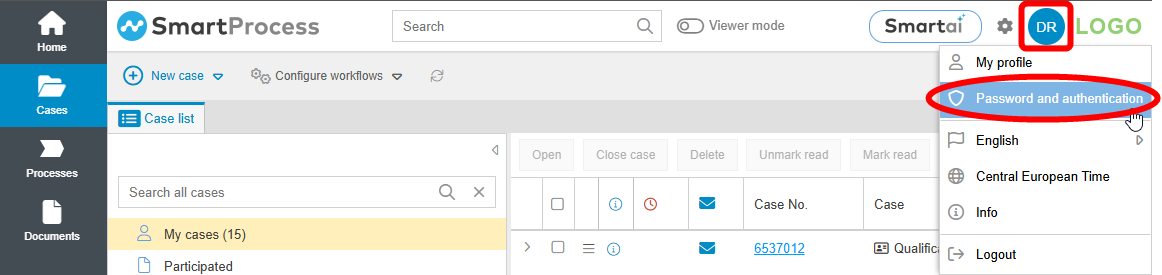
Once a user is logged in, they can open a window by clicking their initials or user image in the application header and then selecting Password and authentication.
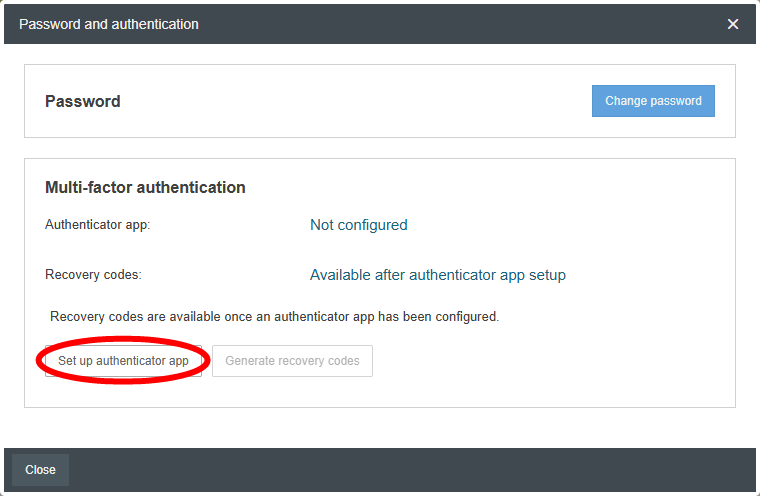
In this window, they can start setting up MFA by clicking Set up authenticator app.
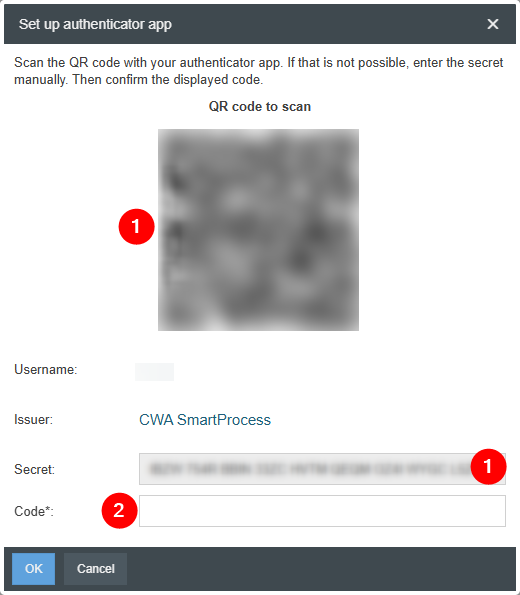
The setup window opens, where two steps must be completed:
- Add SmartProcess login to the authenticator app
- Option A: Scan the QR code using the authenticator app or camera app on your smartphone. The code will be detected and can be added to the authenticator app.
- Option B: Enter the displayed Secret key directly into your authenticator app.
- After setup, the authenticator app will display a code that refreshes regularly. Enter the code currently displayed in the required field and click OK.
If the entered code is correct, a window with 10 recovery codes will appear. If you ever find yourself unable to access your authenticator app when logging in, you can use one of these codes to log in to SmartProcess instead.
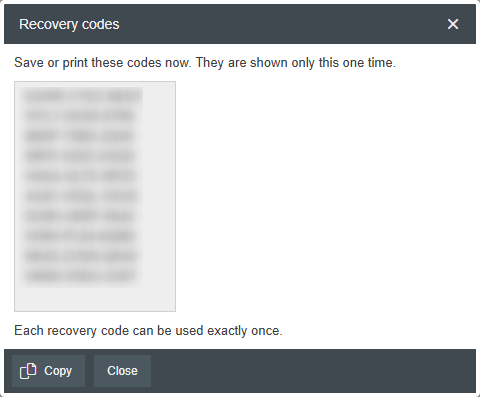
Each recovery code can be used only once to log in and expires afterwards. Always keep track of which recovery codes are still valid.
Once you have stored the recovery codes and confirmed the window via Close, the MFA setup is complete. From now on, every time you log in, you’ll be prompted to authenticate not only with your username and password but also with the code from the authenticator app or, in an emergency, with a recovery code.
Mandatory via admin setting
A user with administrative rights can use various methods to enforce MFA for other users when they log in.
Mandatory for individual users
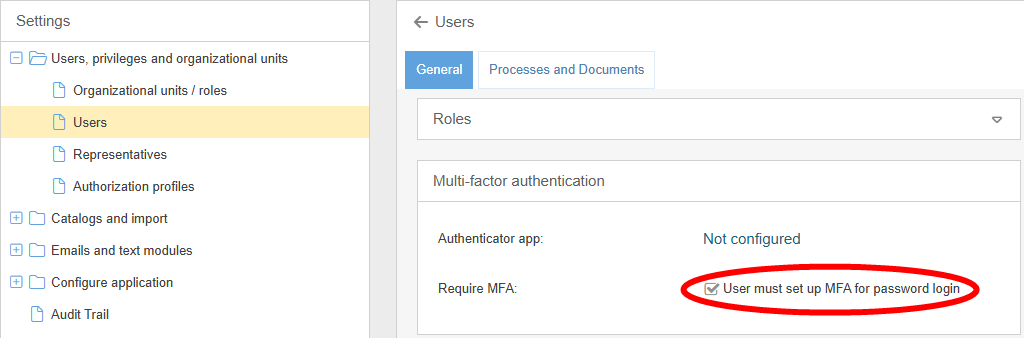
In the user profile, you can enable MFA authentication for each user individually.
Mandatory for all users
In the Password security settings, you can enable a general requirement for MFA authentication for all users. In this case, the checkbox in the user profile can no longer be deactivated for individual users.
Logging in with MFA
Once setup is complete, the user will be asked to enter the code from the authenticator app each time they log in after submitting their username and password.
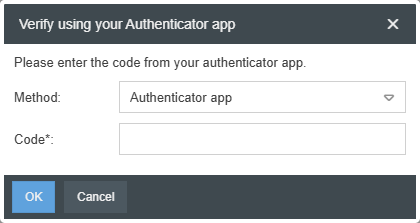
After entering the code and clicking OK, the user is guided to the SmartProcess start page.
Managing the configured MFA
By the user
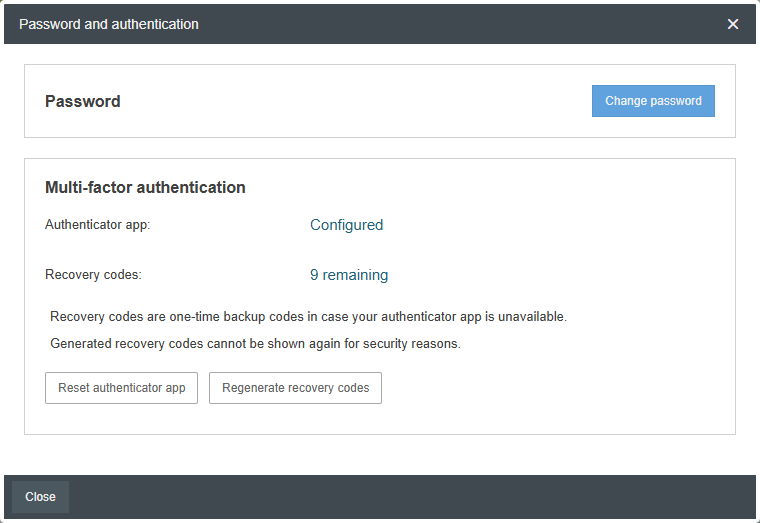
The user can only manage the configured MFA if they are logged in. If this requirement is met, the user can open the Password and authentication section via their initials or user image in the application header.
If the authenticator app is already set up, the status of the authenticator app (Configured / Not configured) and the remaining number of the original 10 recovery codes are displayed. In addition, two options are available:
- Reset authenticator app --> In this case, the currently configured MFA will become invalid. Upon the next login, MFA authentication will no longer be required, or the user will be prompted to set up an authenticator app again if the admin has enabled mandatory MFA. Alternatively, the user can voluntarily set up an authenticator app again at this point.
- Regenerate recovery codes --> If you have lost your current recovery codes or only have a few remaining, you can use this option to generate 10 new recovery codes. From this point on, all previous recovery codes will become invalid.
By the admin
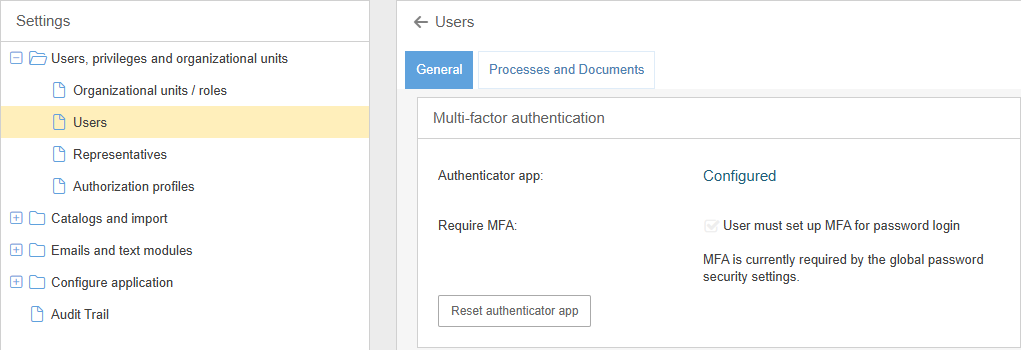
If a user has set up MFA for themselves, this can be viewed in their user profile.
If necessary, the current MFA method can be deleted here by clicking the Reset authenticator app button. If MFA is generally mandatory for this user or all users, the user will be prompted to set up an authenticator app for MFA again the next time they attempt to log in.
How did we do?
