Unavailability for cases for dates
In the Unavailability menu, you can enter Unavailability times for the entire application that are taken into account when calculating due dates during transaction processing. Example: Due date: +2 d…

In the Unavailability menu, you can enter Unavailability times for the entire application that are taken into account when calculating due dates during transaction processing.

Example:
Due date: +2 days
If the operation is created on Friday, then the deadline will already be exceeded on Sunday. The date would be on Tuesday if you enter Saturday and Sunday as unavailability.
1. If a time has been set in the timer object of the workflow process model.
2. If a date and time have been entered manually in the task window.
Create new entry
To create a new entry just click on <New Item>
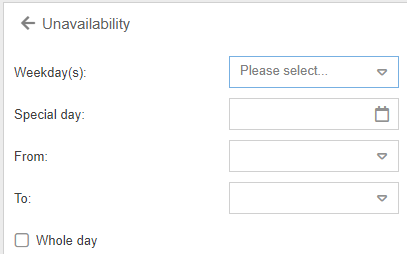
You have the option of entering weekdays as unavailability or special Dates (e.g. New Year, Easter Monday etc.). To determine the unavailability more precisely you can specify whether the unavailability is all-day or only one part of the day.
How did we do?
Display of the logos
Directory services (AD, Entra ID / Azure AD) and single sign-on
