Table of Contents
Directory services (AD, Entra ID / Azure AD) and single sign-on
General. In this area, different profiles can be set up for different purposes: Purpose Availability Azure Connection of MS Entra ID (Azure AD) and SSO For SaaS (cloud solution), this function is inc…

Table of Contents
General
In this area, different profiles can be set up for different purposes:
Purpose | Availability | |
Azure | Connection of MS Entra ID (Azure AD) and SSO For SaaS (cloud solution), this function is included in the basic license after licensing from 01.02.2023. For On Premises, the Azure / AD add-on module is required. | SaaS & OnPremises |
Azure | Authentication of Exchange profiles in the e-mail settings | SaaS & OnPremises |
LDAP | Connection of a MS Active Directory The LDAP / AD add-on module is required for this. | OnPremises |
SAML | Connection of an external identity provider for authentication of SmartProcess users (SSO) | SaaS & OnPremises |
Create Azure profile
Prepare Azure for connection to SmartProcess
In order to connect a Microsoft Azure profile, SmartProcess must be registered as an app in Entra ID.
- Log in to your Azure portal as an administrator
- Navigate to your Active Directory
- Under App Registration, click the <New Registration> button
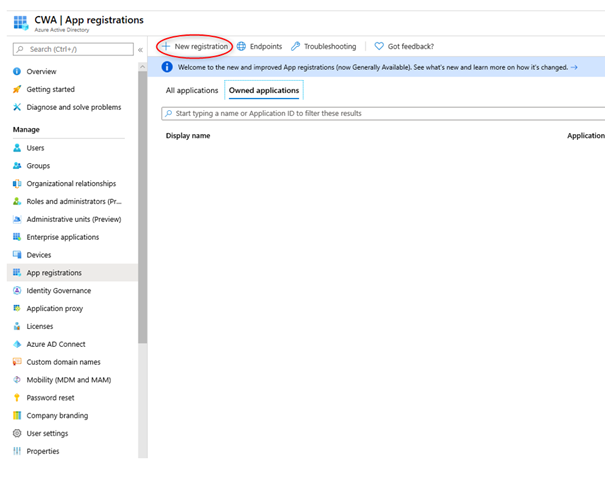
- Define a name and redirect URL to your SmartProcess instance (e. g. "https://companyname.smartprocess.com/smartprocess". and click on <Register>

- Create a password for the App by navigating to menu Certificates & secrets and click <New client secret>.
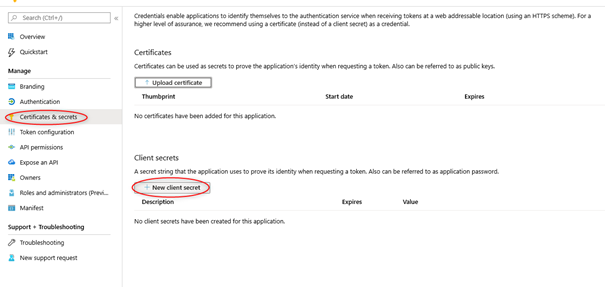
- Insert app_secret into the description field. Under 'Expires', select an expiration date that works for you. Before the expiration date, please create a new key and be sure to enter it in your Azure profile in SmartProcess so that the service is not disabled.
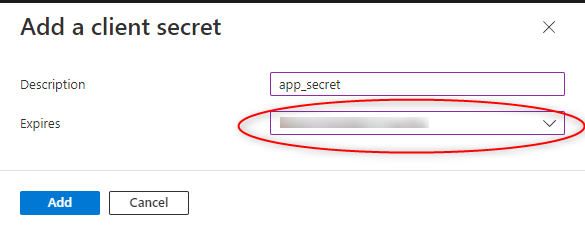
- Now copy the generated password and save it to a text file.
 You will need this password later to set up the profile in SmartProcess.
Azure profile for AD connection
For successful connection, API permissions must be granted for the registered SmartProcess app in Azure Portal.
- Change into the menu API permissions and click <Add a permission>.
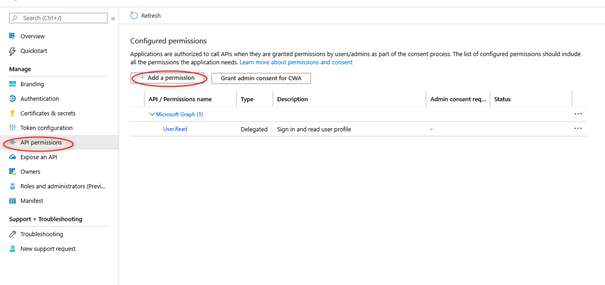
- Choose Microsoft Graph.
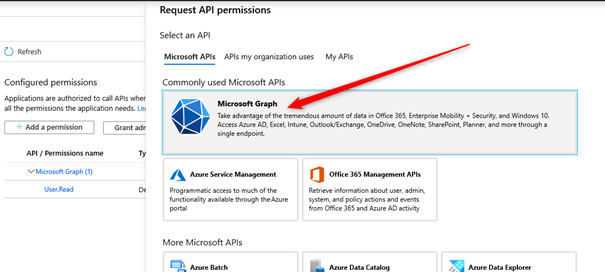
- Choose Application Permission.

- Select the permissions Group.Read.All and Users.Read.All.
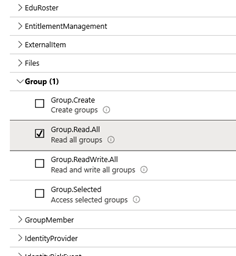
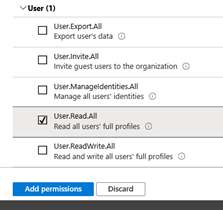
- Grant consent from administrator by clicking on <Grant admin consent for CWA>
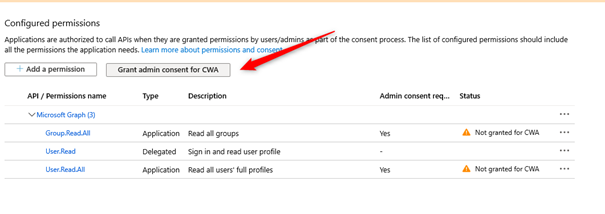 CWA is the name that has been defined above.Result:
- Now you can create a new Azure profile in the SmartProcess settings.
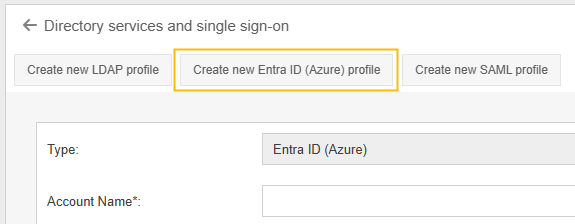
Field | Description |
Type | Type of the directory. Determined automatically by the previous selection |
Account Name | Name to be chosen freely |
Application id | Application (client) ID to be transferred from Azure Account |
Application secret | Password generated from Azure Account (Secret) |
Expiration date application secret | Four weeks before the date is reached, an infomail will be sent to all people who have the authorization to maintain the profile. |
Tenant | From the Azure Account |
Authority URL | https://login.microsoftonline.com/ This entry can remain unchanged |
Allow only members of group (Object ID) | If you only want to allow users from certain Entra ID groups, they can be defined here. |
Group for organigram synchronization (Object ID) | All groups contained in this Entra ID group are read in to map the org chart structure in SmartProcess from them. Org. units are not automatically deleted in SmartProcess if the counterpart is no longer contained in Entra ID. |
Roles synchronization group (Object ID) | All roles directly contained in this Entra ID group are read in, transferred to the role directory of SmartProcess and the users are assigned to the roles accordingly. Roles are not automatically deleted in SmartProcess if the counterpart is no longer contained in Entra ID. |
Activate SSO | If the login via Azure is active, a Single Sign-On can be activated via this button. A user does not have to re-enter his or her access data when logging on to SmartProcess. A button is displayed, which can be used to log on to SmartProcess with your Azure account.  |
Log user on automatically | Automatic login via Windows. This option only works if users are only allowed via Azure because the normal login page does not appear. Otherwise the login screen shown above will appear. Multiple Azure profiles can be used simultaneously for automatic user sign-in. |
Automatic import | New users are automatically imported at night. Otherwise, users can be imported manually via the user administration. For each new user, a new org. unit is created in the specified main unit (see below) in the organization chart, to which the person is assigned. |
Authorization profiles | Default authorization profile for new users (Both when importing automatically and when adding manually via the user administration) |
Main unit | Main organizational unit for automatically imported, new users. Mandatory if automatic import is used. |
Assign authorization profiles based on group membership | When synchronizing with AD or Entra ID, each user is checked in which AD groups he is a member of. For each group name, the system checks whether there is an authorization profile in SmartProcess with the same name and if so, assigns the appropriate authorization profile. Example: User is assigned to the following groups in AD: Sales, Administration, Processor, Viewer, Site Manager. The following authorization profiles exist in SmartProcess: - Administrator - Editor - Process Designer - Viewer - Document Processor During synchronization, the agent would receive the following authorization profiles: - Editor - Viewer |
Active | Use this checkbox to set the directory service active or inactive. |
Azure profile for Exchange authorization
For successful connection, API permissions must be granted for the registered SmartProcess app in Azure Portal.
- In the Azure Portal, go to the API Permissions menu and select + Add new permission.

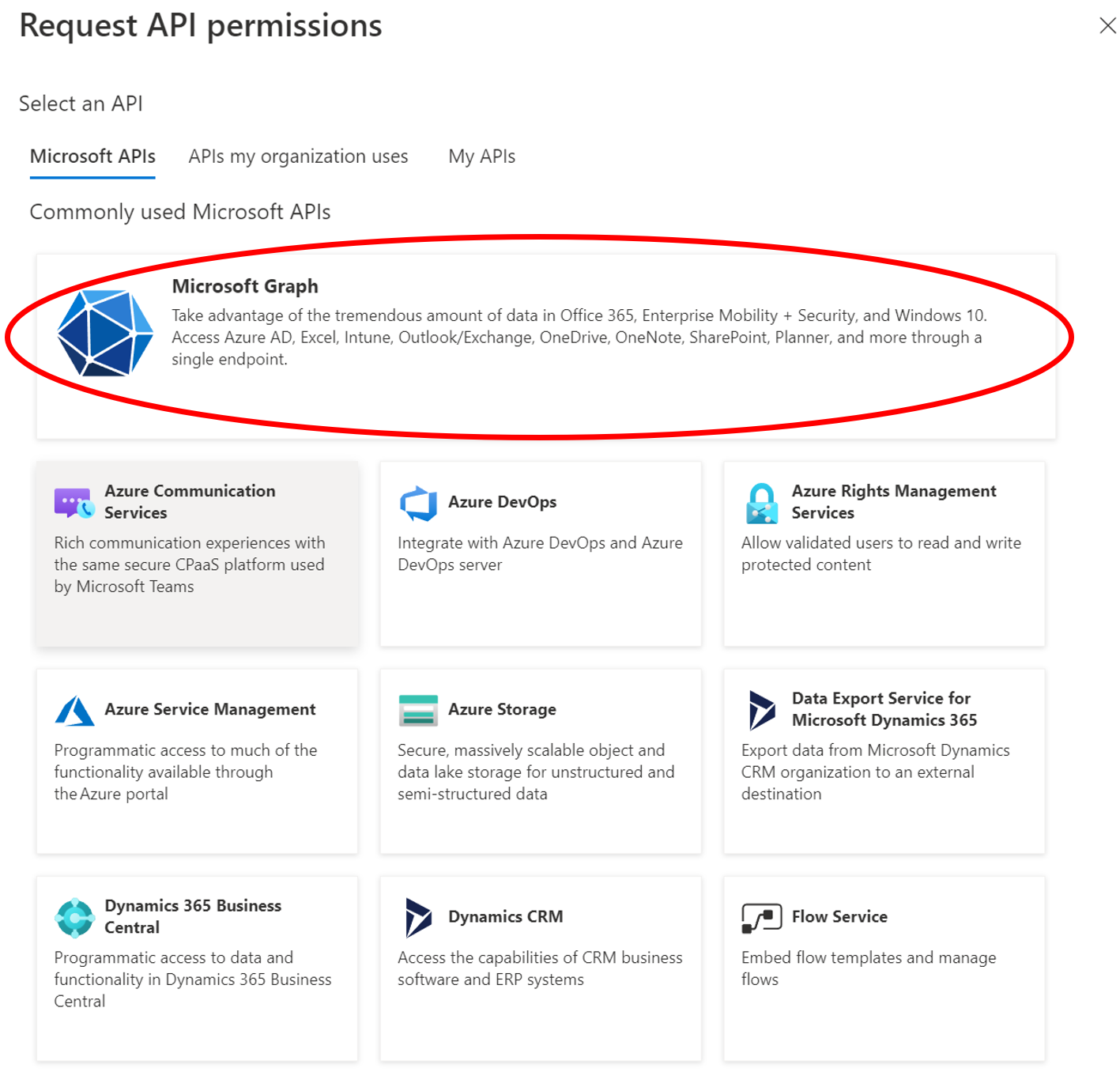
- Choose Microsoft Graph
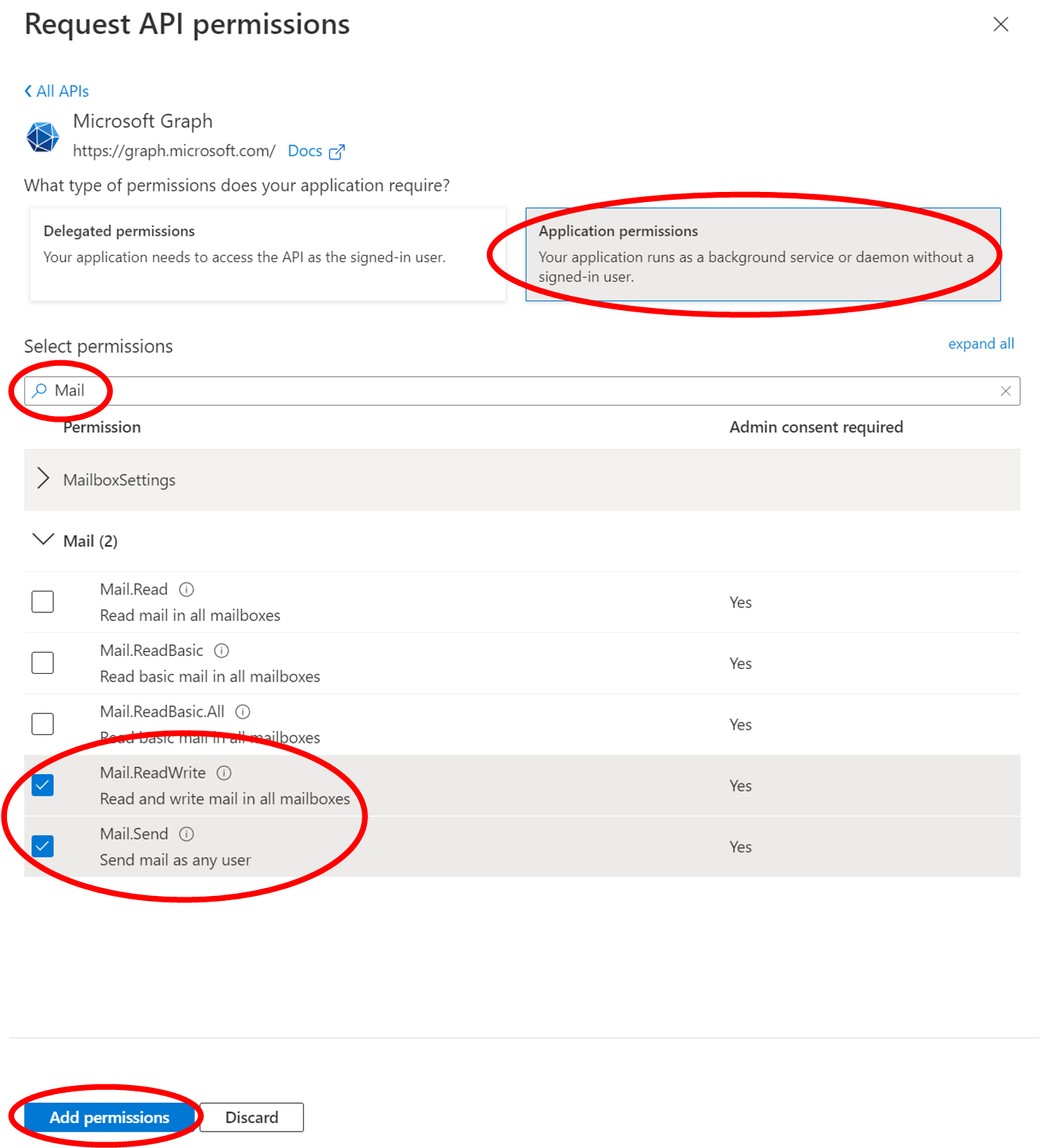
- Select Application permissions and then search the permissions for the keyword Mail. Select the permissions Mail.ReadWrite and Mail.Send and confirm the selection via Add permissions.
https://learn.microsoft.com/graph/auth-limit-mailbox-access
- In the subsequent overview, select Grant admin consent for "CWA GmbH"
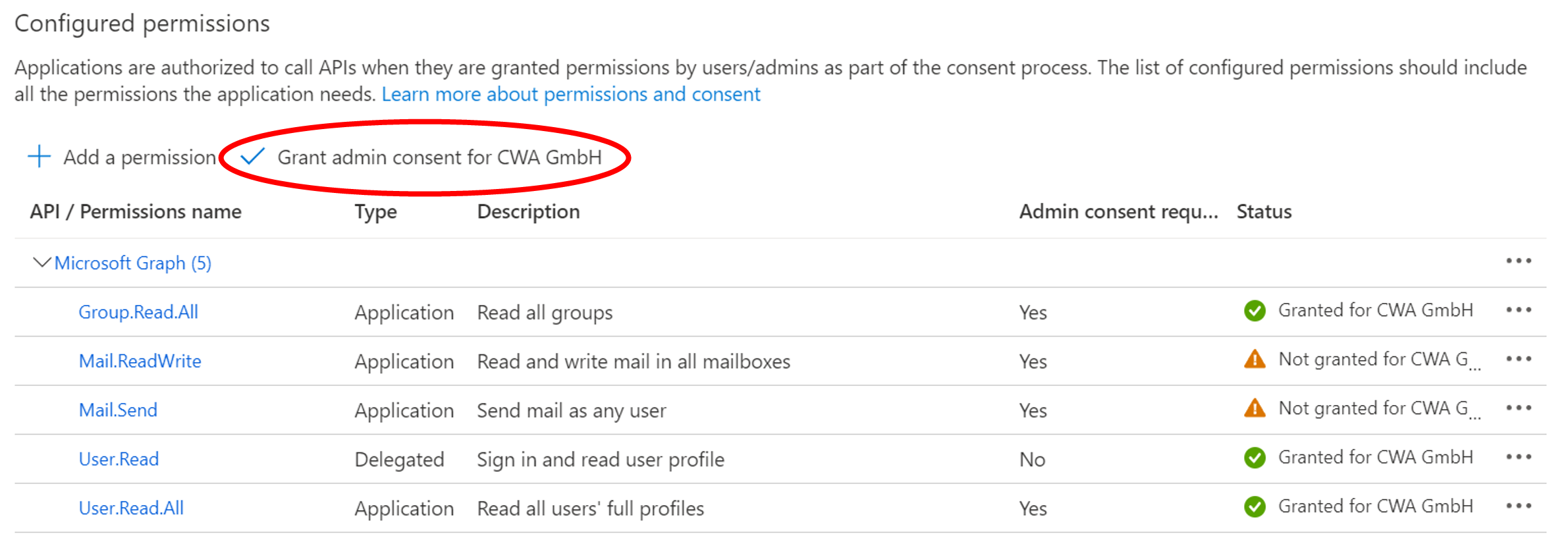
- As a result, the granted access is confirmed in the overview of configured permissions.
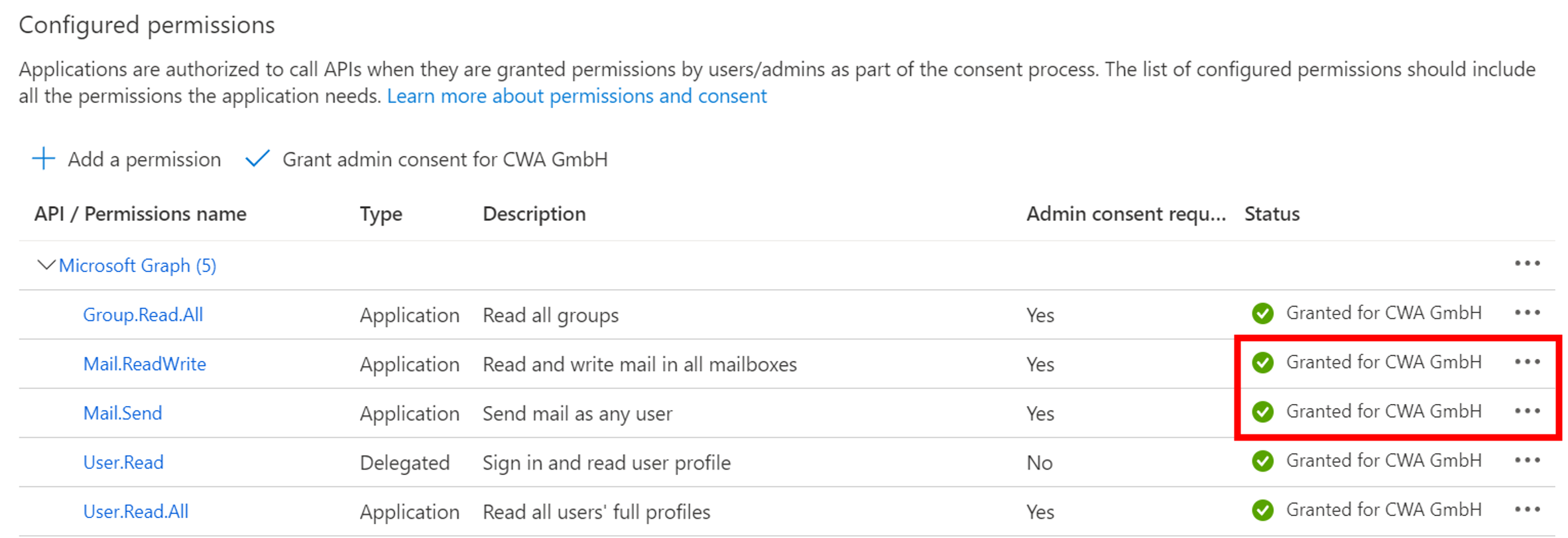
- Subsequently, the Azure profile can be created in SmartProcess. Without the LDAP / AD add-on module, the following data is required.
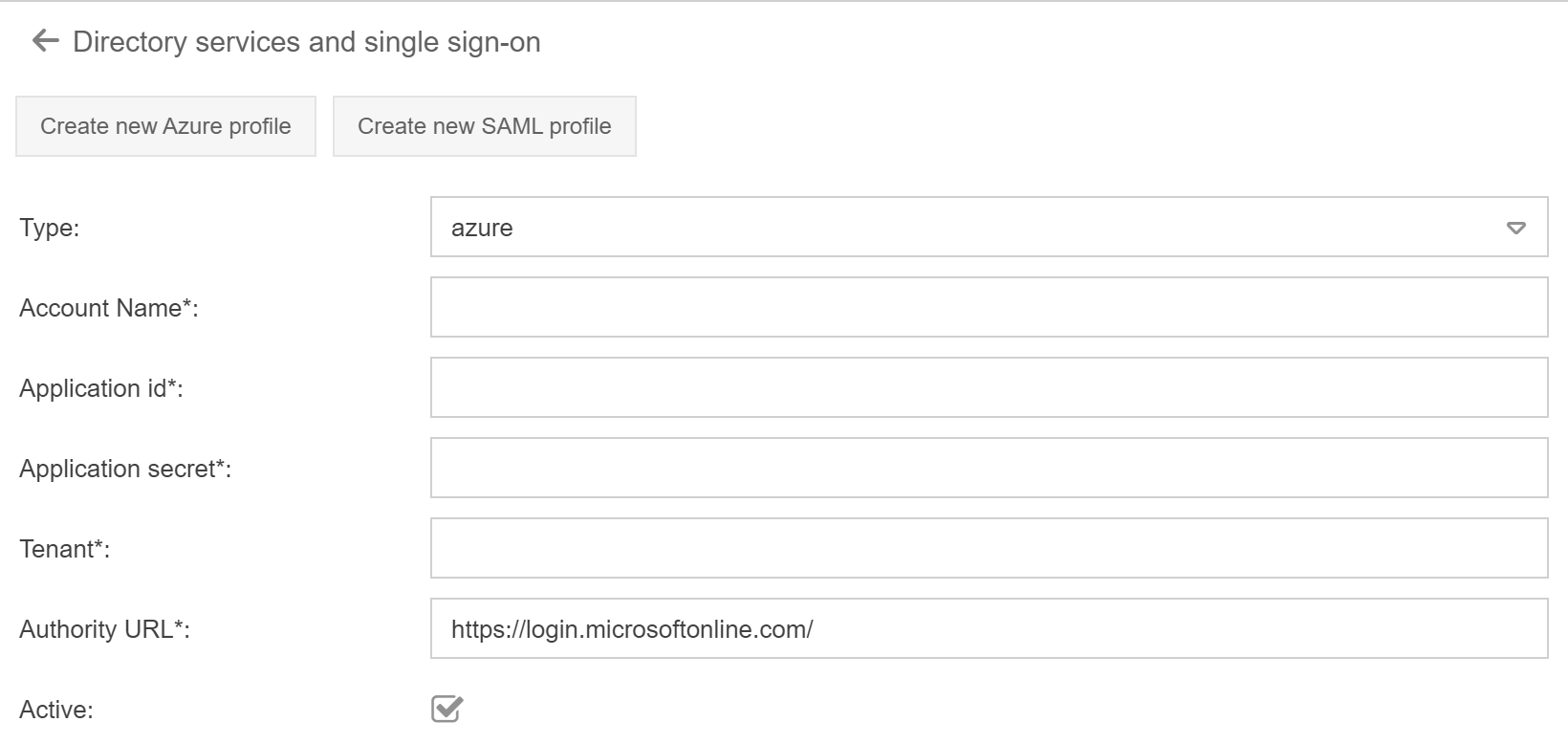
Field | Description |
Type | Type of the directory. Determined automatically by the previous selection |
Account Name | Name to be chosen freely |
Application id | Application (client) ID to be transferred from Azure Account |
Application secret | Password generated from Azure Account (Secret) |
Tenant | From the Auzure Account |
Authority URL | https://login.microsoftonline.com/ This entry can remain unchanged |
The Azure profile configured in this way can now be selected for authentication in SmartProcess when creating an Exchange profile in the e-mail settings.
General information about Active Directory synchronization
In an Active Directory, users are centrally managed in a company.
- Users and organizational units can be transferred from AD or Entra ID to SmartProcess.
- Users from the AD or Entra ID are synchronized once per night. In addition to the user name, the synchronized data also includes the image (only AD), the mobile phone number, the title and the position of the user.
- Users are automatically deleted when they are no longer in the AD or Entra ID. This also affects users that have been deactivated in AD or Entra ID.If a user has been deleted in SmartProcess because it has been deactivated in AD or Entra ID, synchronization will automatically restore it when it is re-activated in AD or Entra ID.
- The users can be transferred from the AD or Azure with standard authorizations or an authorization and organizational unit can be assigned to the user manually. If there are organizational units in the AD or Entra ID that correspond to the organizational structure in the SmartProcess, the organizational units can be transferred from the AD or Entra ID to the SmartProcess.
- SSO - During installation, it can be set so that users can call the SmartProcess from the AD or Entra ID via a single sign-on without having to log on separately (for Windows systems).
Create LDAP profile
The following parameters must be set (Create new LDAP profile for AD):
Account Name
The name of the account under which this profile is displayed.
Server Name / IP
The host name or IP address of the LDAP server.
Server Port
The port the server is listening on
search base
Branch or directory to search in
User
The name to log on to the LDAP server.
password
The password to log in to the LDAP server.
User Filter
The LDAP class for the user data
Group Filter
The LDAP class for the data of the organizational units / groups
User field for additional group
With this field SmartProcess can automatically create departments in the organizational units / groups.
Create SAML profile
With SAML 2.0 (Security Assertion Markup Language) support for the cloud application, SmartProcess can be configured to use an external identity provider (IdP) to authenticate (single sign on) users by using SAML 2.0.
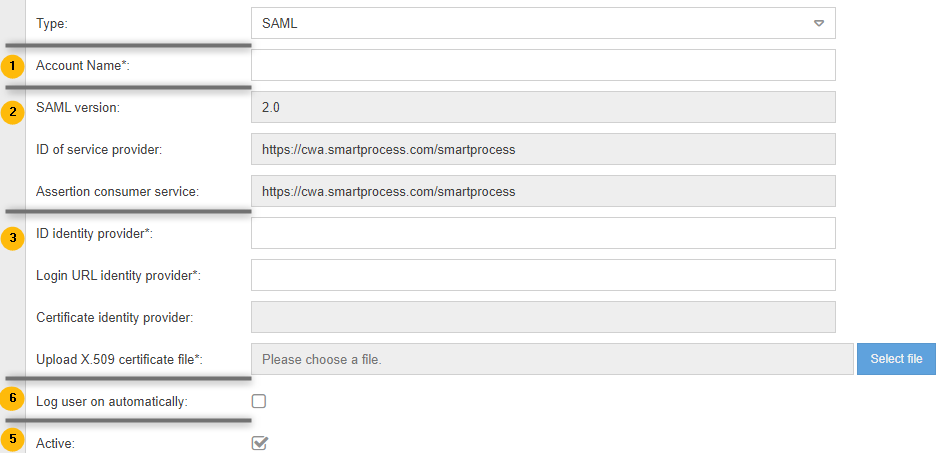
Freely configurable name for the profile. | |
Data coming from the service provider (SmartProcess) for the configuration of the identity provider. | |
Data coming from the identity provider:
| |
With automatic login the login page of SmartProcess is skipped and users are taken directly to the start page. Multiple SAML profiles can be used simultaneously for automatic user sign-in. | |
The profile must be active to be considered by SmartProcess. |
Since there are a variety of identity provider solutions, we refer you to some of their own help entries here:
- Configure a SAML 2.0 provider for portals with AD FS - Power Apps | Microsoft Docs
- Configure a SAML 2.0 provider for portals with Azure AD - Power Apps | Microsoft Docs
Registering SmartProcess as a SAML application using Entra ID as an example
- Log in to your Azure portal as an administrator and open your Active Directory / Enterprise Applications.
- Click <New application> and then <Create your own application>.
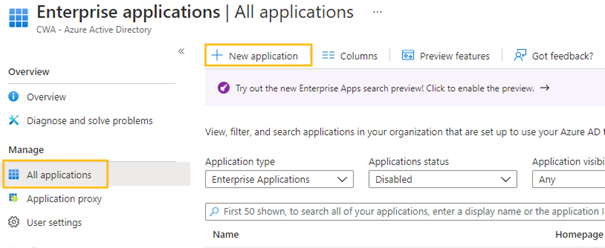
- Assign a name and select "Non-gallery".
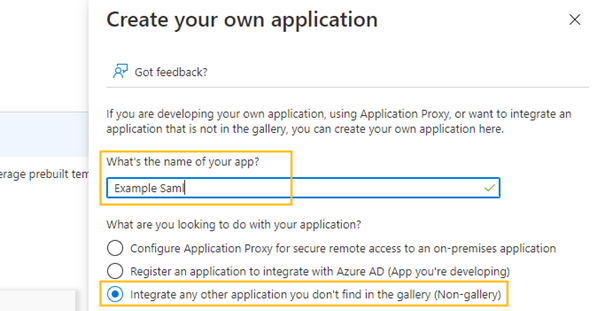
- Select <Set up single sign on> and as method "SAML".
- Edit the base SAML configuration and paste the data from the SmartProcess SAML profile. (If you have not already done so, you should now click the <Create new SAML profile> button in SmartProcess. From there you can now copy and transfer the data from the "ID of Service Provider" and "Assertion consumer service" fields).
- Download the SAML signing certificate and upload it in the SmartProcess SAML profile in the "Upload X.509 certificate file" field.
- Now transfer the Azure data from the Login URL and Entra ID Identifier fields to the SmartProcess SAML profile in the fields "Login URL identity provider" and "ID identity provider".
- After you have assigned users or groups to the application in Entra ID, you can test the function.
How did we do?
Unavailability for cases for dates
User notifications
