Login & Startpage
Login and password
Structure of SmartProcess
Customize start page
Elements on the start page
Customize main menu
Full text search
Workflows and Cases
Create Workflows
Workflow objects
Workflow object: Task
Workflow object: Decision
Workflow object: Forward case
Workflow object: Send e-mail
Workflow object: Start, intermediate and end event
Workflow object: Timer
Workflow object: Parallel gateway
Workflow object: Sub-Process
Workflow object: Incoming message
Workflow object: Send form via e-mail
Workflow object: Service/Export
Form designer
Form fields
General field properties
Field: Text / List without multiple selection
Field: Multiple selection list
Field: Multirow text
Field: Multirow formatable text
Field: Number
Field: Date
Field: Date / Time
Field: Function-Fied
Field: Contact selection
Field: Field group
Field: Catalog fields
Field: Data source for processes and documents
Field: Process and Document fields
Field: Wiki
Field: Free input
The form designer
Workflow basics
Process model of a workflow
Workflow Settings
Rights workflow participants
General placeholders for Word reports in workflows
Case processing
Workflow-Applications
Processes
Menu structure & terms
Process modelling
Process objects
Overview: BPMN objects
Object: Task
Object: Sub-Process
Object: Connectors
Object: Events
Object: Gateways
Object: Pool & Swimlane
Object: Artifacts in general
Object: Artifacts IT System, Resource
Object: Data object Input / Output, Adjacent process
Object: Artifacts KPI, Risk, Control, Opportunity
Object: Artifact Related document
Additional modelling objects
User-defined images as modeling objects
The process designer
Create process groups & processes
Formatting and positioning objects
Reuse & copy objects
Process details
List: Details
User-defined fields
List: Actions
List: Documents
Lists: Terms and abbreviations / Requirements
Lists: Indicator (KPI), Risks, Opportunities
List: Process participants
Process description
Publication and access rights
State and version
Publication of processes / documents
Validity
Read and edit access
Read confirmation
Knowledge questions for read confirmation
Additional features for processes
Documents
Documents - menu structure
Create documents
Document details
Edit files directly in Office
Properties and Placeholders in Word files
Documents - State, version, publication and validity
Organization chart
Reporting
Reporting menu
Reporting for processes and documents
Reporting for cases
Saved reports
Share reports
Excel Report Designer (Additional module)
Catalogs
Settings
Users, permissions & organizational units
Authorization profiles
Introduction authorization profiles
Authorization profile - Tab Workflows / Cases
Authorization profile - Tab Processes
Authorization profile - Tab Documents
Authorization profile - Tab Organization chart
Authorization profile - Tab Reporting
Authorization profile - Tab Contact
Authorization profile - Tab User
Authorization profile - Tab Catalogs
Authorization profile - Tab Wiki
Authorization profile - Tab Administration
Authorization profile - Tab Others
Organizational units and roles
Manage users
Representative
Catalogs
Import
Import of data
Contact import
User import
Organizational unit import
Case import
Meta data import for documents
Emails and text modules
Configure application
Language
Automatic translation
Date and time
Login options and views
Settings for process management
Modeling rules
Symbols for processes and process groups
Process view
Settings for document management
Document templates
Document type
Settings for the organizational chart
Display of the logos
Unavailability for cases for dates
Directory services (AD, Entra ID / Azure AD) and single sign-on
User notifications
Password security
IP Filter (only for SaaS Systems)
API Profile (Additional module)
Manage maintenance access (only for SaaS systems)
Word report designer for printouts (Additional module)
AI Function SmartAI (Additional module)
Audit Trail
Initial configuration SmartProcess - Process and document management
Video tutorials
Video tutorials: Business Process Management
Video tutorial for process participants
Video tutorial for working with workflow cases
Video tutorial on audit management
Version & Release notes
Release Notes
Version 24.9 Release Notes
Version 23.10 Release Notes
Version 22.10 Release Notes
Version 22.5 Release Notes
Version 22.3 Release Notes
Version 21.3 Release Notes
Version 9.1.0.10 Release Notes
Version 9.1.0.9 Release Notes
Version 9.1.0.8 Release Notes
Version 9.1.0.7 Release Notes
Version 9.1.0.6 Release Notes
Version 9.1.0.5 Release Notes
Version 9.1.0.4 Release Notes
Version 9.1.0.3 Release Notes
Manuals from previous versions
Version 25.11 Release Notes
Version 25.3 Release Notes
Info about version
General
SmartProcess API
Mobile Web App
HTML field
Contacts
File attachments in SmartProcess
Manage Wikis
Use QR codes with SmartProcess
Contact & Forum
- All Categories
- Workflows and Cases
- Create Workflows
- Workflow objects
- Workflow object: Send e-mail
Workflow object: Send e-mail
The Send E-Mail object can be used in a workflow to send individual e-mails from the generated process. Predefined text modules can be used in the e-mails, or an e-mail can be composed ad-hoc and sen…
The Send E-Mail object can be used in a workflow to send individual e-mails from the generated process. Predefined text modules can be used in the e-mails, or an e-mail can be composed ad-hoc and sent from SmartProcess. If a text module is used, field contents of the case can be transferred to the e-mail. The e-mail can be sent automatically or manually.
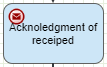
A name should always be entered in the object's properties so that a user can deduce which e-mail is being sent when viewing the process model.
Configuration options
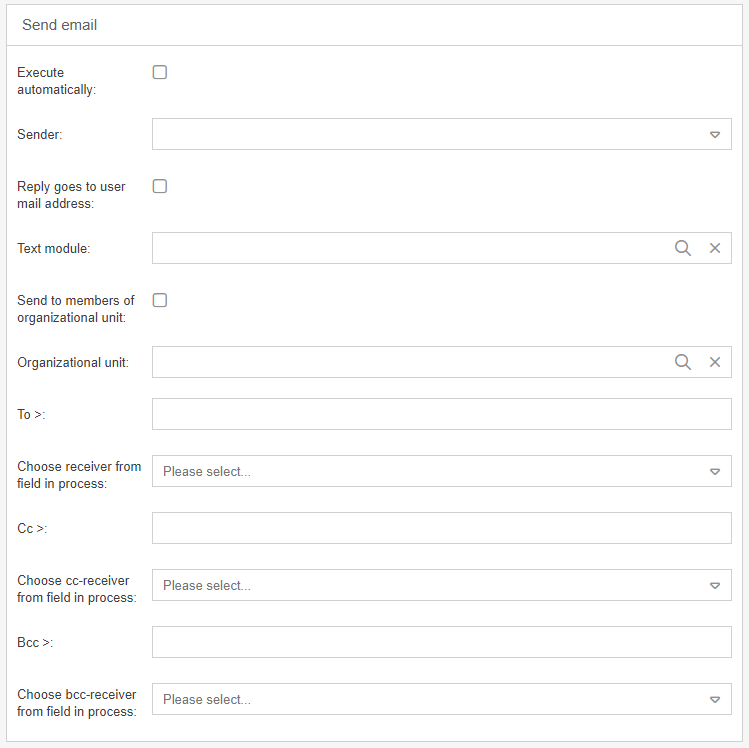
Option | Description |
Execute automatically | If an e-mail is to be sent automatically through the workflow, this option must be activated. In any case, automatic execution requires a predefined template, which is then sent automatically. |
Sender | The sender account for the e-mail must be entered in this field. By default, the e-mail account is listed here that was preconfigured and defined as default in the settings when SmartProcess was installed. A sender account must always be specified! |
Reply goes to user mail adress | If an e-mail response from the recipient is not to be sent to the sender address, but to the e-mail address of the user who sent the e-mail, this option can be activated. This option only works if an e-mail is sent manually. When sending automatically, the configured sender address is always used as the reply address. |
Template | This selection box displays all templates that have been configured in the Menu Settings under "Email and text modules". If a template is selected in this box, it will be automatically inserted in the e-mail. The language selected for the automatic sending of text blocks depends on the language with which the user logged in last time. |
Send to group members | This option must be enabled for the e-mail to be sent to the users of the organizational chart object selected in the Group field. |
Group | In this field, you can select an organization chart object whose assigned users will receive the e-mail, provided that the option "Send to group members" is activated. |
To > | In this field, the e-mail recipients can be entered with a fixed e-mail address. Multiple recipients can be entered separated by a semicolon. |
Choose receiver from field in process | In this selection field all fields of the main form are listed. A field selected here must contain an e-mail address in the process in order for the e-mail to be sent. System users with an assigned e-mail can also be selected in the format last name, first name, e.g. via text field with data source user management. In addition, there are a some predefined recipients to choose from, such as: - The case creator - The responsible for the case (if an Org. Unit / Role is responsible for the case at the time the e-mail is sent, all users of that Org. Unit / Role will receive the e-mail) - The process participants (if the case is linked to a process / document) - The process owner / document responsible (if the case is linked to a process / document) |
Cc > | In this field, the Cc-email recipients can be entered with a fixed e-mail address. Several recipients can be entered separated by a semicolon. |
Choose Cc-receiver from field in process | In this selection field all fields of the main form are listed. A field selected here must contain an e-mail address in the process in order for the e-mail to be sent. It is not enough to select a field that only contains the name of one user. |
Bcc > | In this field, the Bcc-email recipients can be entered with a fixed e-mail address. Several recipients can be entered separated by a semicolon. |
Choose Bcc-receiver from field in process | In this selection field all fields of the main form are listed. A field selected here must contain an e-mail address in the process in order for the e-mail to be sent. It is not enough to select a field that only contains the name of one user. |
Workflow Hint
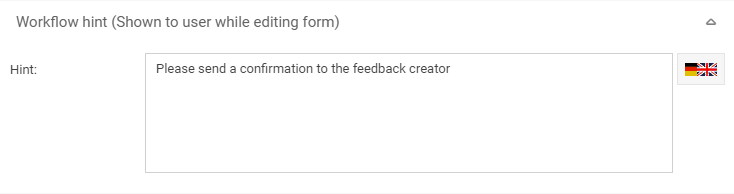
In the "Hint" field, you can enter a hint text that will be displayed below the e-mail message step to be performed manually.
How did we do?
Workflow object: Forward case
Workflow object: Start, intermediate and end event