Table of Contents
Manage catalog data
The Catalogs menu allows to add, edit or delete entries to already configured catalogs and to create new catalogues: To be able to edit catalog entries, the user needs an authorization profile with t…

Table of Contents
The Catalogs menu allows to add, edit or delete entries to already configured catalogs and to create new catalogues: 
The configuration of each individual catalog can be used to further differentiate which user authorization profiles are allowed to view or edit the entries of which catalog.
Catalogs are data storages. Data can be stored for various topics, which can then be accessed elsewhere in SmartProcess during process management, document management or in workflows.
For example, requirements & standards and terms & abbreviations can be entered in 2 pre-installed catalogs, with which modelled processes can be linked to a standards chapter or modelled processes can be better explained by defining terms. Furthermore, the entries in the catalog Document Type build the base for the automatic numbering of documents.
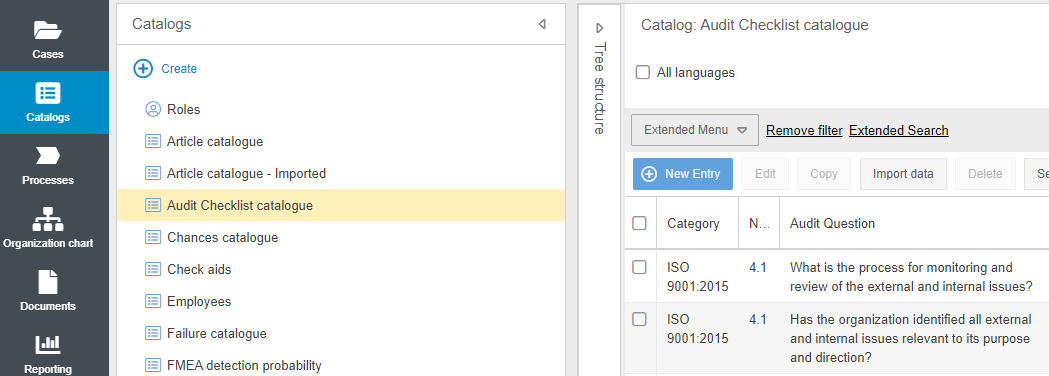
Additional catalogs can be created and configured individually directly in the Catalogs menu or in the settings. They are mostly used for workflow processing.
Create / edit catalog entries
A catalog entry usually consists of several pieces of information, which are entered in different fields. For example, for an article in the article catalog, not only the article description can be entered, but optionally in additional fields also an article number, a purchase price and a sales price. When configuring the catalog, you can determine the fields to be filled by yourself.
If a catalog has been selected, the existing entries are displayed in a list in which you have additional options:

New entry | Allows you to add a new entry to the selected catalog. In addition to the fields from the catalog configuration, you can specify the language for each entry and add a file attachment. German entries are then only displayed to users who login in the system language German. The same functionality applies to other languages.  |
Edit | You can select one or more entries via the checkbox in front of the respective catalog entry. If you have selected exactly one entry, you can edit its data. |
Copy | Copies are made of one or more selected catalog entries. |
Import data | Opens the dialogue to add catalog data via import (see description below) |
Delete | You can delete one or more catalog entries at once. |
Configure catalog | Via the configuration you can, for example, add more columns or rename the catalog. You can read a detailed description of the customization options in the linked article. |
Search in list | The search bar allows you to search all entries in the selected catalog by keyword. All fields of the catalog are searched for the search term. In order to search only certain catalog fields, you can have advanced search criteria displayed by clicking on the link <Extended Search>. |
All languages | Since the checkbox is deactivated by default, only the catalog entries in the user's current language are displayed. If the checkbox is activated, the list also displays catalog entries that were created in other system languages, such as the German catalog entries. |
Export & Print  | With the button With the button |
 either only the currently selected entries or simply all entries of the catalog with the currently visible table columns can be exported as .xls, .csv or .txt file.
 the tabular view with the currently selected or all catalog entries can be generated as .pdf file and saved on the own drive or printed.
Catalogs with tree structure
A tree structure can be generated for a catalog in the configuration. This is displayed when a catalog is called up for data processing. In the tree structure, folders and subfolders can be created by right-clicking, which can be used to divide the individual entries into categories.

Afterwards, several entries can be marked by checkbox and stored in a folder by drag & drop. The folder to which the catalog entries were added is reflected in the "Category" column.
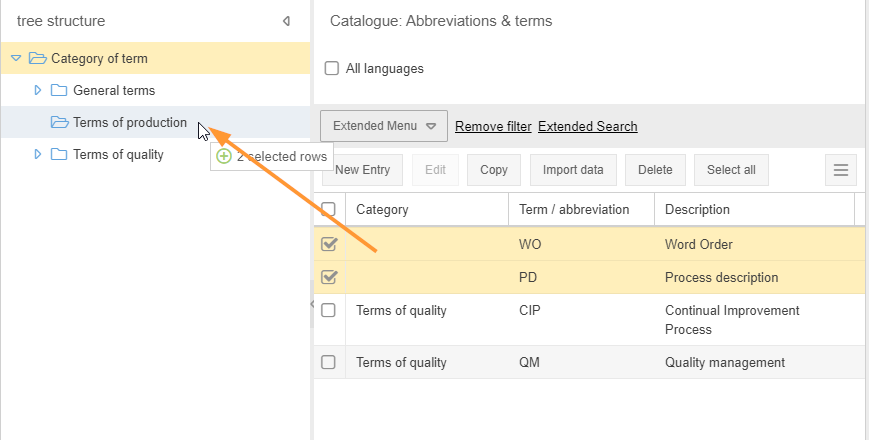
These folders can be used to pre-filter the catalog entries. The top node (here "Category of term") displays all entries of the catalog in the list. By navigating through the folders in the tree structure, you can display entries only from a certain category. This tree structure for pre-filtering is displayed both in the menu Catalogu and where the catalogs are used (in process modelling or in workflow forms).
Import catalog entries
In addition, each import should first be tested with a small number of data records!
For a general description of how to configure a data import, see the article Import of data.
Required columns
Each catalog entry must be assigned to a language. Therefore, especially for multilingual systems, the Language column should be listed in the import file and filled for each entry.
Users logging on in German will see only German entries - users logging on in English will see only English entries.
If existing catalog entries are to be modified with the import, additional columns in the import file should be taken into account, which SmartProcess uses to detect duplicates (see the following section).
Identifier for duplicates
In the import mask, the <Replace duplicates> checkbox can be used to control how SmartProcess should act when it detects duplicates during data import.
For catalogs, you can define in the configuration itself which fields mark a catalog entry as unique. If several catalog fields are marked as unique, only the combination of these values will be recognized as a duplicate.
Example 1 - One unique catalog field
- In the article catalog of SmartProcess, there is already an entry with the article number 111.
- Now a file is imported, which contains an entry with the No. 111 in the column 'Article No.'. This entry is recognized as a duplicate by SmartProcess.
Example 2 - Multiple unique catalog fields
- Therefore, in the Requirements & Standards catalog, both the 'Requirement' field and the 'Paragraph' field are marked as unique.
- In the Requirements & Standards catalog, there is already an entry for the requirement 'ISO 9001' with the paragraph '4.1'.
- If there is now an entry with the requirement 'ISO 9001' and paragraph '2.3' in an import file, this will not be recognized as a duplicate, because at least one of the two pieces of information is different. This also applies if there is an entry with the requirement 'ISO 14001' and paragraph '4.1' in the import file.
- Only if there is an entry with the combination Requirement = ISO 9001 and Paragraph = 4.1 in the import file, it will be recognized as a duplicate because a catalog entry already exists in SmartProcess for this combination.
Catalogs with tree structure - Category column
If a tree structure has been created for a catalog, such as in the qualifications catalog, new entries can also be assigned directly to the correct category via import.
To do this, add the Category column to your import file and enter the desired assigned category in the tree structure for each entry in this column.
How did we do?
Special catalogs: Roles
