Table of Contents
Editing the Organization chart
Creating new objects and editing existing ones. Clicking on the three dots in the center below the objects opens a context menu that allows you to edit individual elements as follows. Depending on th…

Table of Contents
Creating new objects and editing existing ones
Clicking on the three dots in the center below the objects opens a context menu that allows you to edit individual elements as follows. Depending on the object type, a reduced selection may be available.
Context menu
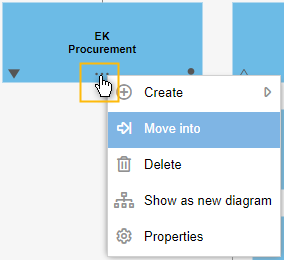
- Create: One layer below the clicked element, one of the selectable objects is recreated. Details follow in the next section.
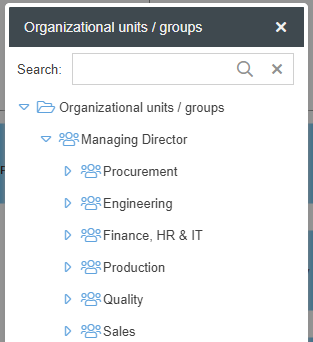
- Move into: This moves the selected element, along with all its child objects, to another area of the organization chart. A new window opens in which you can either use the search function or the tree structure to define the new object that is parent to the selected element.
- Delete: The element is deleted from the structure. You can only delete elements that are on the lowest level in their branch. If you try to delete elements on higher levels, an info text will appear with the hint to remove subordinate elements first.
- Show as new diagram: The corresponding branch is displayed in a new view as a separate organization chart. You can set this view as an entry point for future visits or leave it by clicking the <Back> button. The entry point to the organization chart is saved only for you personally.

- Properties: Here you can view or change details about the object. With a left click on the objects in the organization chart, the same properties window opens. More information follows in the next section.
Create and edit an organizational unit
After creating an organizational unit, its properties window opens and the following fields can be filled in:
Designation | Description |
Name | Name of the organizational unit. Relevant field for the alphanumeric arrangement of the elements in the organization chart. |
Type | You can select different types for the object, which affects the color representation in the organization chart. 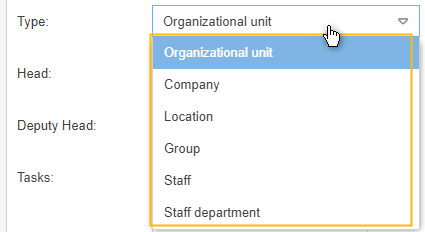 Additional function for "Location": As soon as you use the "Location" object, all users assigned to this and all subordinate elements will initially see the branch with the respective location when calling up the organization chart. To see the entire organization chart again instead, just click the highlighted button: 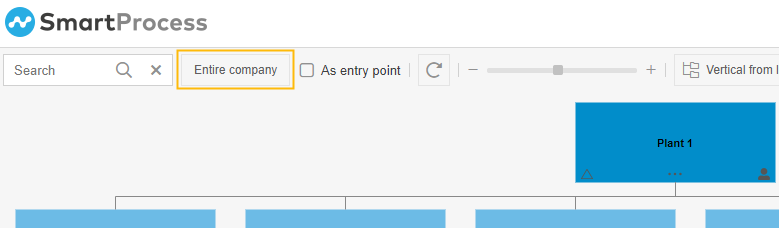 |
Head and Deputy Head | If users have already been assigned to the object in the user administration, a head and a deputy head can now be selected from this pool using the drop-down menus. The selected head is also displayed in the graphic element. 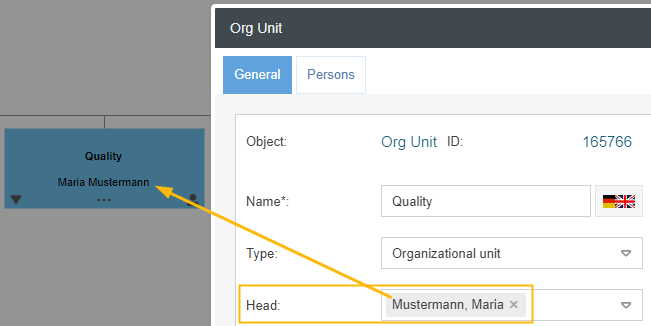 |
Tasks | The unit's field of activity can be described here. |
Abbreviation | The abbreviation appears in the organization chart above the name of the organizational unit. 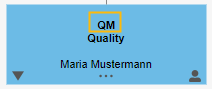 In addition, the abbreviation will be included in the name of a swimlane in the processes if the swimlane is linked to the corresponding organizational unit from the organization chart when it is created. |
Location and cost center | Additional detailed information can be stored here. |
Map logos | A separate logo can be defined here to be used instead of the global logo. 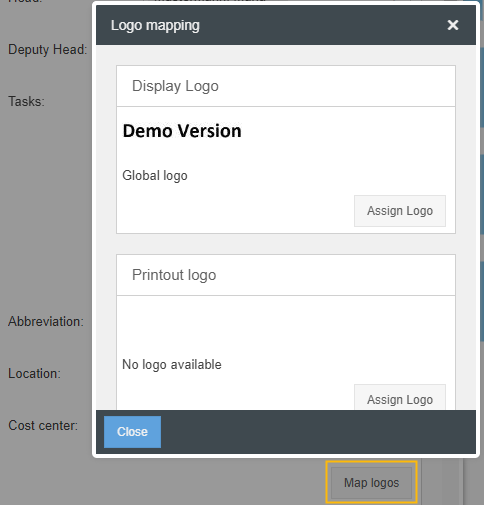 The logo when printing depends on the logged in user. When printing, the system first checks whether the personal organizational unit / group (main group) has its own logo. If not, the next higher organizational unit up to the root of the organization is checked in the tree. If none of these organizational units has its own logo for the PDF printout, the global logo is used. |
User-defined fields: | Learn how to create more fields here. |
Used in process | Here is listed in which processes the object is used. This information is also available in bundled form via reporting 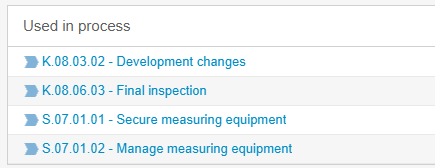 |
Additional information about the organizational unit
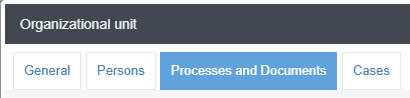
In addition to the master data in the <General> tab, there are further tabs in the properties that can be used to display supplementary information about the organizational unit.
- The <Persons> tab displays a list of users who have been assigned to the organizational unit so far.
- In the <Processes and Documents> tab, you will find a list of published processes and documents that are relevant to the organizational unit. Relevant are all processes or documents for which the organizational unit has been entered as a process participant or document user.
- The <Cases> tab displays a list of all open cases that are assigned to the organizational unit at the current time. This also includes cases that have been assigned to specific users within the organizational unit.
Create and edit a role
The Role object denotes a position, function or temporary role in the workflow. Roles can be created in the organization chart or in the Roles catalog.

You can also use a role in different organizational units at the same time and thus reuse it. When a role is added to the organization chart, the magnifying glass can be used to search for an existing role or to add a new role directly.
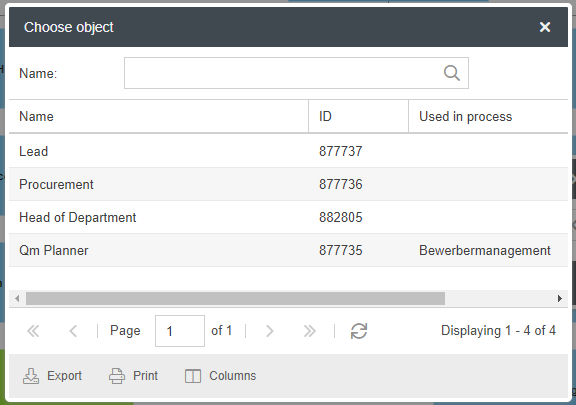
By clicking on the respective role in the organization chart, you can view and edit its properties.
Designation | Description |
Name | The role name can be changed. Keep in mind that the object is reusable and the change will take effect in all locations listed below in the properties. |
Tasks, Authority and Responsibility | Here the role can be defined in more detail. |
User-defined fields | Add custom fields to the role to capture more data. |
Organizational units / groups | Here the role can be manually linked to different organizational units. Via <Add> the tree structure of the organization chart opens and you can define additional operational locations. |
Person | In contrast to the organizational unit, the assignment of users to the Role object can be done directly in the properties of the role (in addition to the user administration). |
Used in process | This lists the processes in which the object is used. This information can also be retrieved in bundled form via reporting.  |
A PDF file with all the properties of the role is compiled here.  |
Additional information about the role
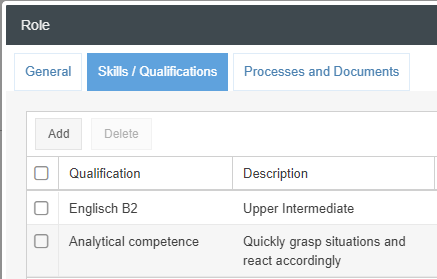
In addition to the master data in the <General> tab, there are further tabs in the properties that can be used to display additional information about the role.
- The <Skills / Qualifications> tab contains a list of all qualifications that have been assigned to the role from the corresponding catalog as target qualifications. The <Add> and <Delete> buttons can be used to manage the entries.
- In the <Processes and Documents> tab, you will find a list of published processes and documents that are relevant to the role. Relevant are all processes or documents for which the role has been entered as a process participant or document user.
Create a person
At this point you can create and assign a person, i. e. a new user, to an object organizational unit. A window from the user administration opens and data can be entered for the new user. It is not possible to link existing users in the organization chart itself.
How did we do?
Scope and structure of the organization chart
