Table of Contents
Mobile Web App
The mobile web view is a highly simplified mobile version of CWA SmartProcess. It opens automatically when you access the application from a smartphone or tablet. The possibilities and limitations of…

Table of Contents
The mobile web view is a highly simplified mobile version of CWA SmartProcess. It opens automatically when you access the application from a smartphone or tablet.
The possibilities and limitations of the mobile view for the different areas in CWA SmartProcess are described below.
Cases
List of cases
- The menu cases displays the list "My cases" from the desktop version.
- Using the magnifying glass icon, the user can search through all cases by keyword to which he or she has viewing rights.
- The displayed entries can also be filtered and sorted. Filtering and sorting is possible by:
- Case type
- State of the case
- Responsibility
- Modification date
- Creation date
- New cases can be created via the <Plus symbol>.
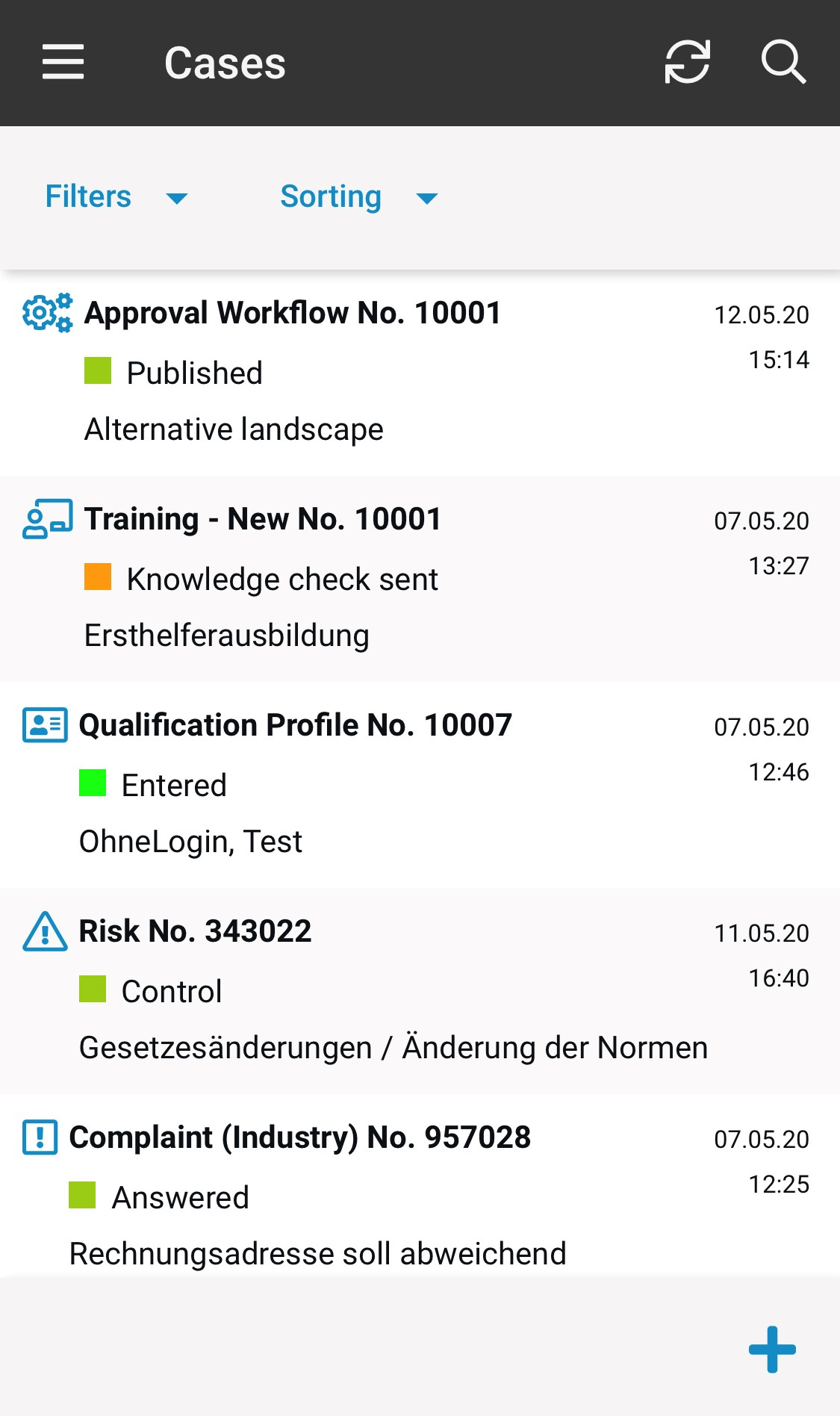
The cases window
When you open an case, 3 tabs are displayed:
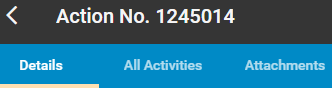
- The Details tab displays the data of the main form.
- The fields are displayed in a single-column layout.
- The properties State, Priority and Target Date are not available in this view.
- Use the <pencil symbol> to change these data of the main form

- Use the <arrow symbol> to forward cases directly (adhoc)

- The All Activities tab displays the entire activity list.
- With a click on an entry in this list, you can view the data of the activity.
- With a click on the pencil icon next to the activity, you can edit these data.
- The Attachments tab displays the images added to the activity
- When you open a case and tap the <staple>, you can take a picture or a saved file as an attachment to the case

- When you open a case and tap the <staple>, you can take a picture or a saved file as an attachment to the case
Working in the case window
At the top of the window, tasks/sub-cases controlled by the workflow step and requested activities can be processed. Manual forwarding that must be confirmed by workflow step is also supported. Automatically executed forwardings also work.
In addition, a new activity can be created for a case by tapping the <Plus symbol>.
All other menu items of the case window (e.g. create e-mail, delete activity) are not available.
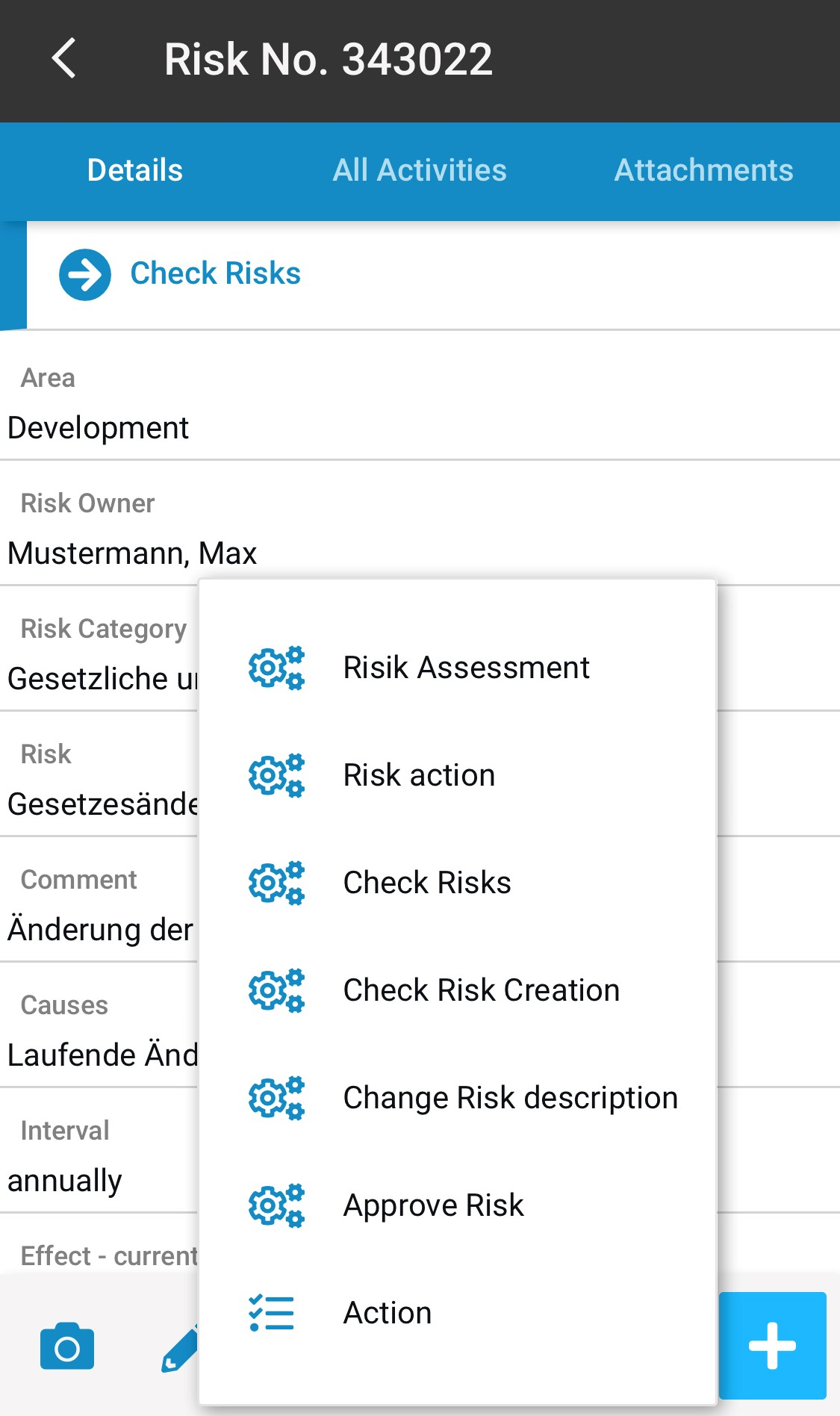
Sending an e-mail message cannot be executed via the workflow step. It is also not possible to request activities and create activities from a catalogue.
Links to processes or documents in the approval workflow open the process description of the process as a PDF file or the attachment of the document.
Fields
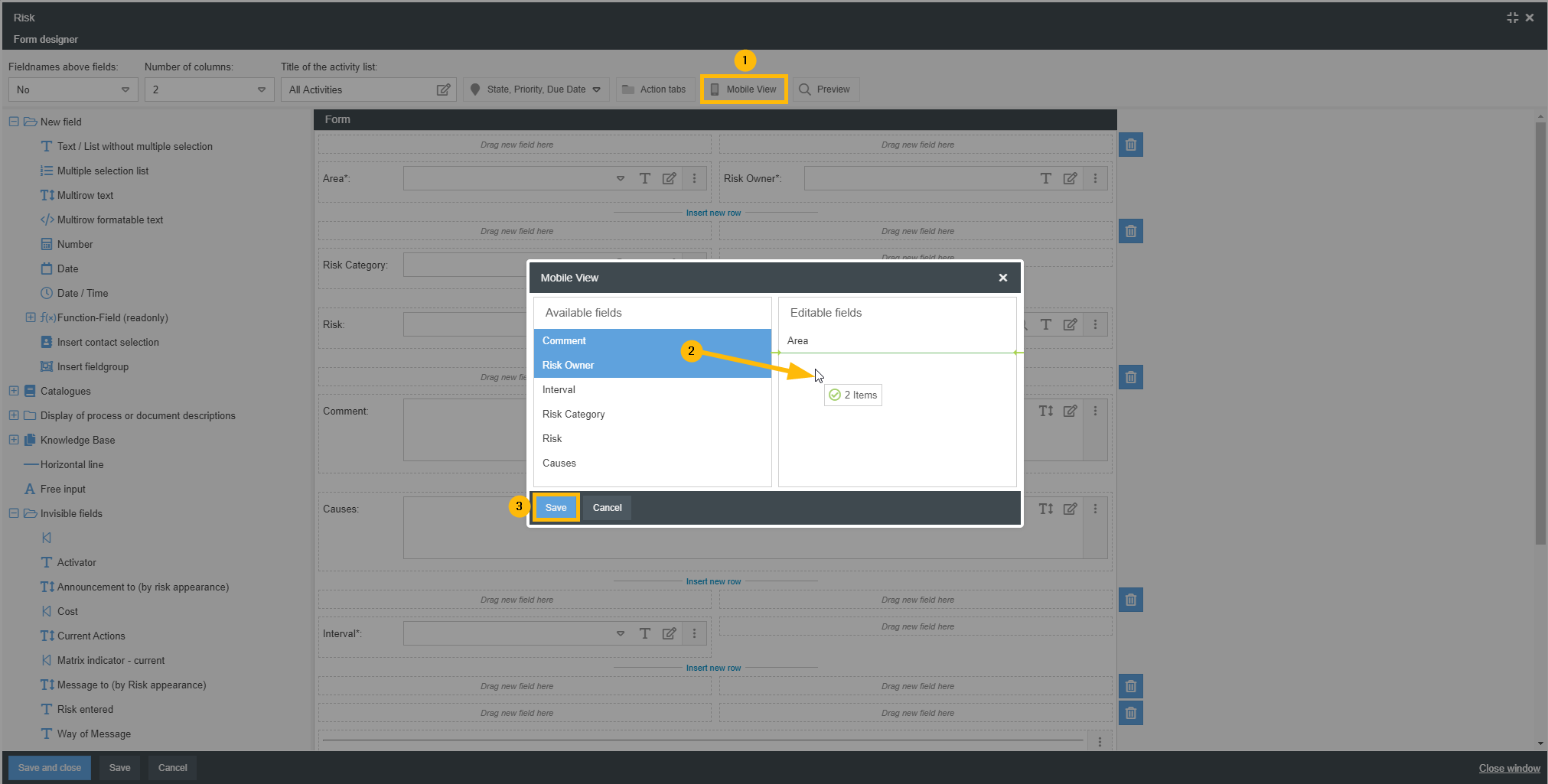
In the desktop version, it is possible to configure a view for the mobile version in the Form Designer that is valid for case processing. To do this, open the Form Designer and choose Mobile View (1).
In the following view, the left column shows the fields of the form that are available for the mobile view. Press and hold the <CTRL> or <SHIFT> button to select any number of fields in the left column and drag them to the right column (2).
In the right-hand column, you can then adjust the order in which the fields are displayed using Drag&Drop. Then confirm the change by choosing <Save> (3).
The following fields are available:
- Text fields
- Also with Data source = "Person", e. g. to select a person responsible for forwarding an action.
- Also with Data source = "Org. unit"
- Multirow text fields
- Multirow formatable text fields
- Number fields
- Date fields
- Date fields with time
- Selection fields with single selection in the form of:
- drop-down lists
- Checkboxes
- Radio groups
- Selection fields with multiple selection in the form of:
- drop-down lists
- Checkbox groups
- Function field from last activity / main process
Catalogue fields with selection from catalogue entries (from version 9.1.0.10)
- For each catalogue field from a form, you can decide individually whether or not it is displayed in the mobile web app
- If you configured the catalogue configuration so that catalogue fields in cases can only be filled using the catalogue selection, this also applies to the mobile web app
- Operation: A tap on the magnifying glass opens the catalogue selection, which can be searched for the desired term or number using quick search.
- If a tree structure is defined for the catalogue, the entries can also be filtered and sorted by category.
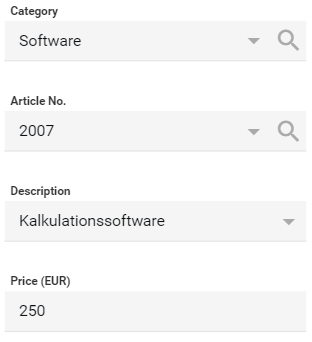
- A fingertip on a catalogue entry transfers the data into the form.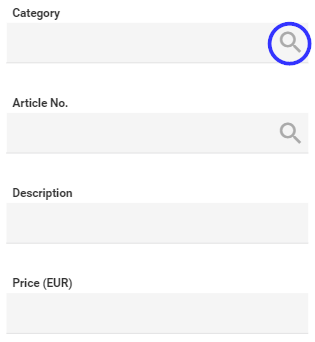 -->
--> 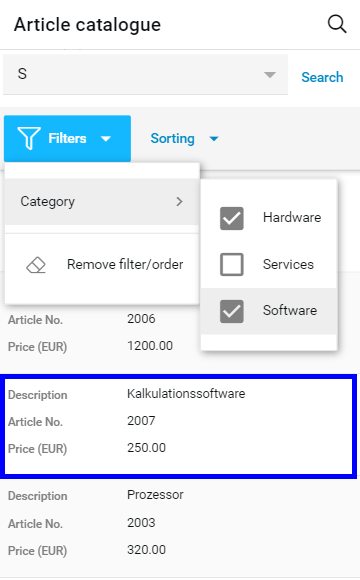 -->
--> 
Contact fields with access to contact management (from version 9.1.0.10)
- Contact fields can only be shown or hidden as an entire block in the mobile web app, like in the desktop view.
- The settings for contact fields apply in the mobile web app just like in desktop view (exception: visibility constraints).
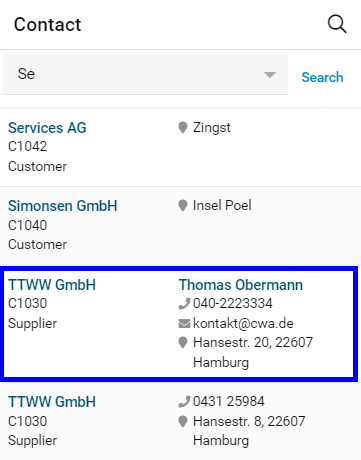
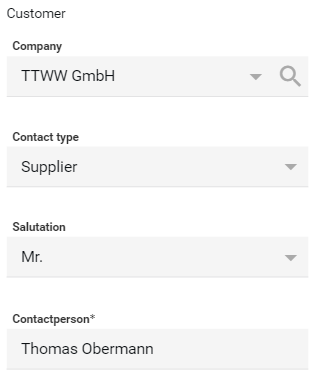
- Operation: To select a contact, tap the magnifying glass icon as usual to open the contact management.
- There you can browse through the contacts using quick search and then select a contact with a fingertip to transfer it to the form.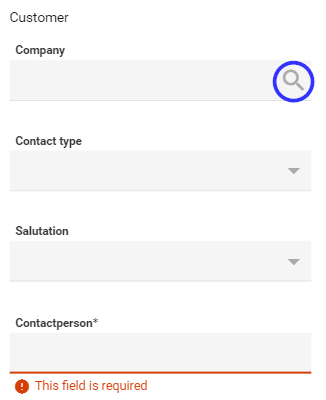 -->
-->  -->
--> 
The following fields are not available:
- Field groups
- Number fields with thousands separator (when the field is created, it is displayed without the separator)
- Hyperlink fields (Links can be inserted into multirow formatable fields instead)
Workflow application menus
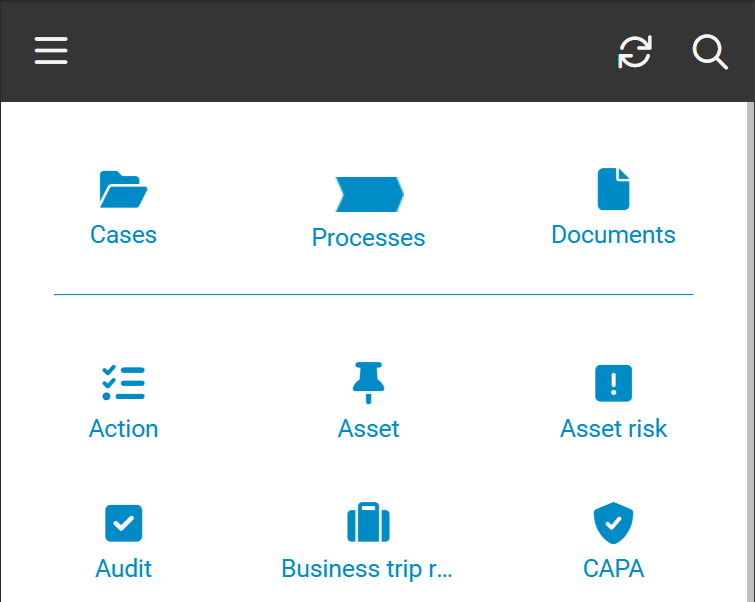
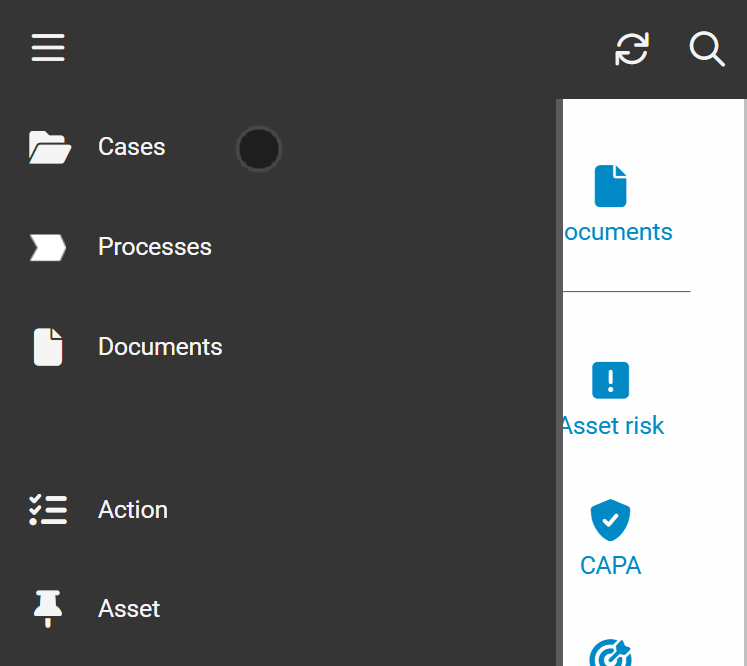
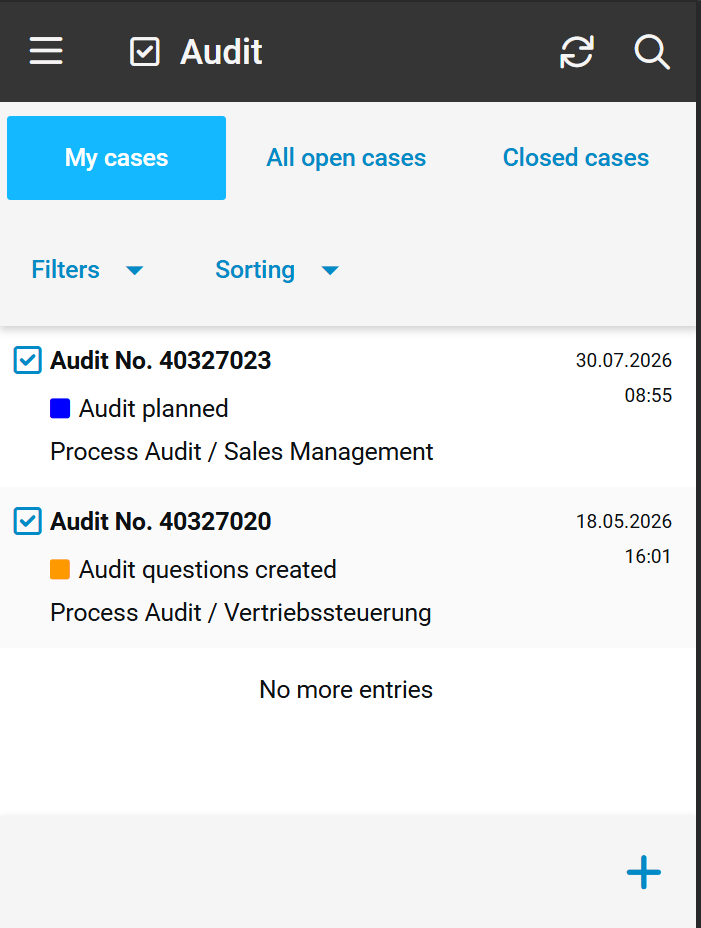
In addition to the My cases list, each workflow, such as “Action,” “Read Confirmation,” or “Risk”, is represented by a separate menu item.
On the start page | In the main menu |
 |  |
Within a workflow application menu, you can switch between the lists My cases, All open cases and Closed cases which are known from the desktop view. You can use the + button to start a new case for this workflow directly.
Processes / Documents
- The list displays My processes/documents. You can also search in all processes/documents you have reading rights for.
- By clicking/tipping on a process/document the process description/attachment to the document is opened.
- Editing or further filtering of processes/documents is not possible.
Switch from mobile view to desktop version
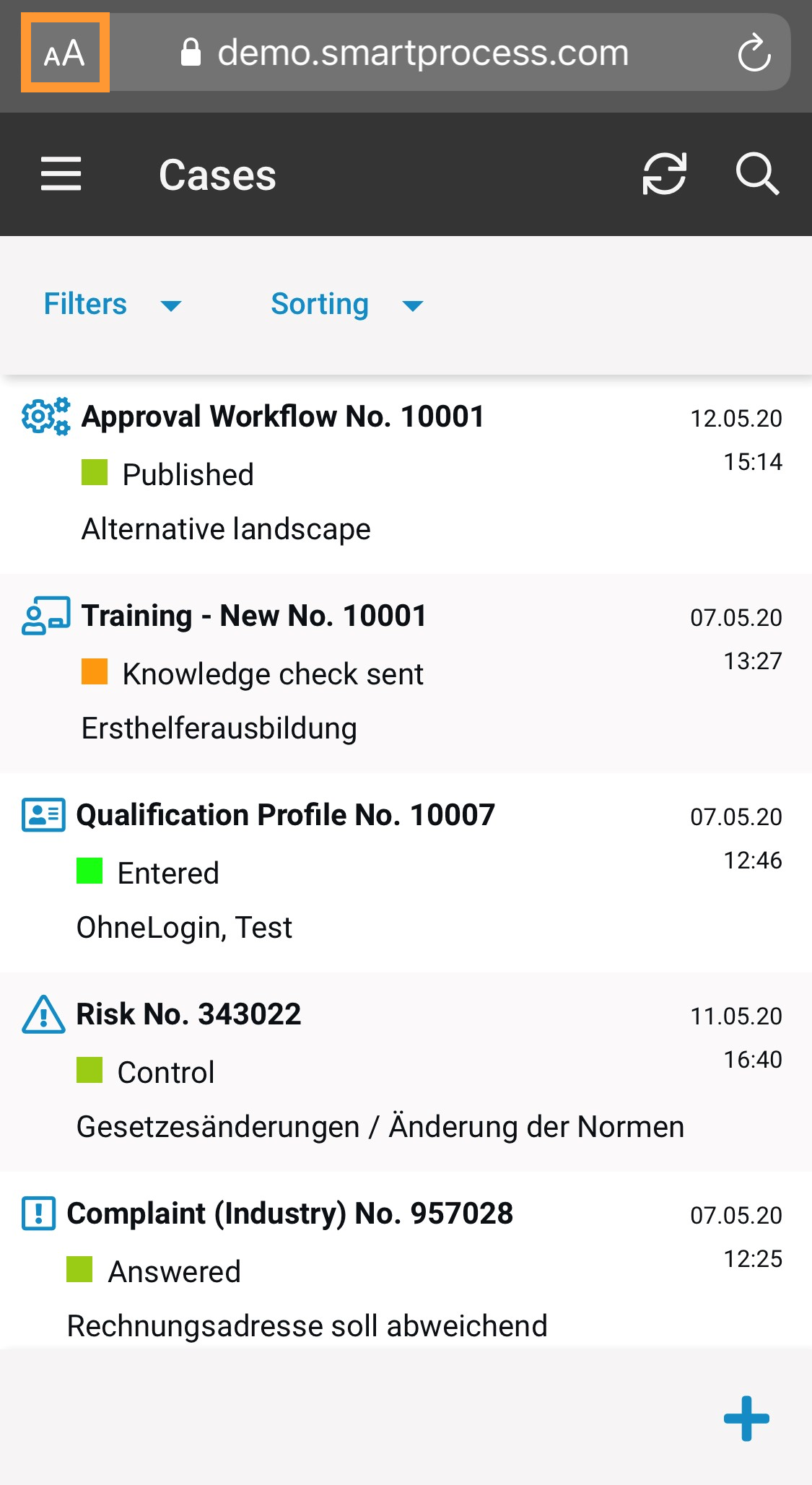
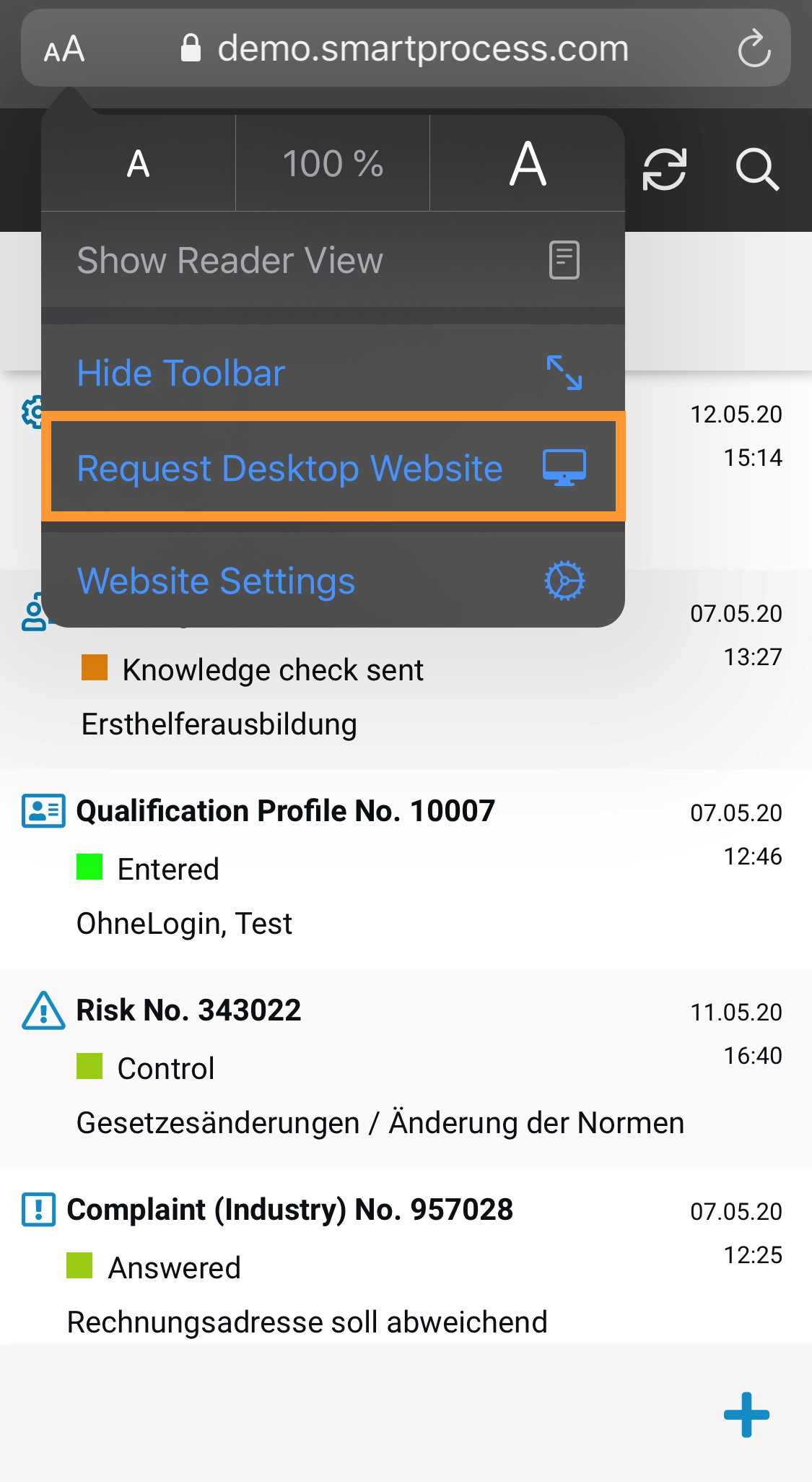
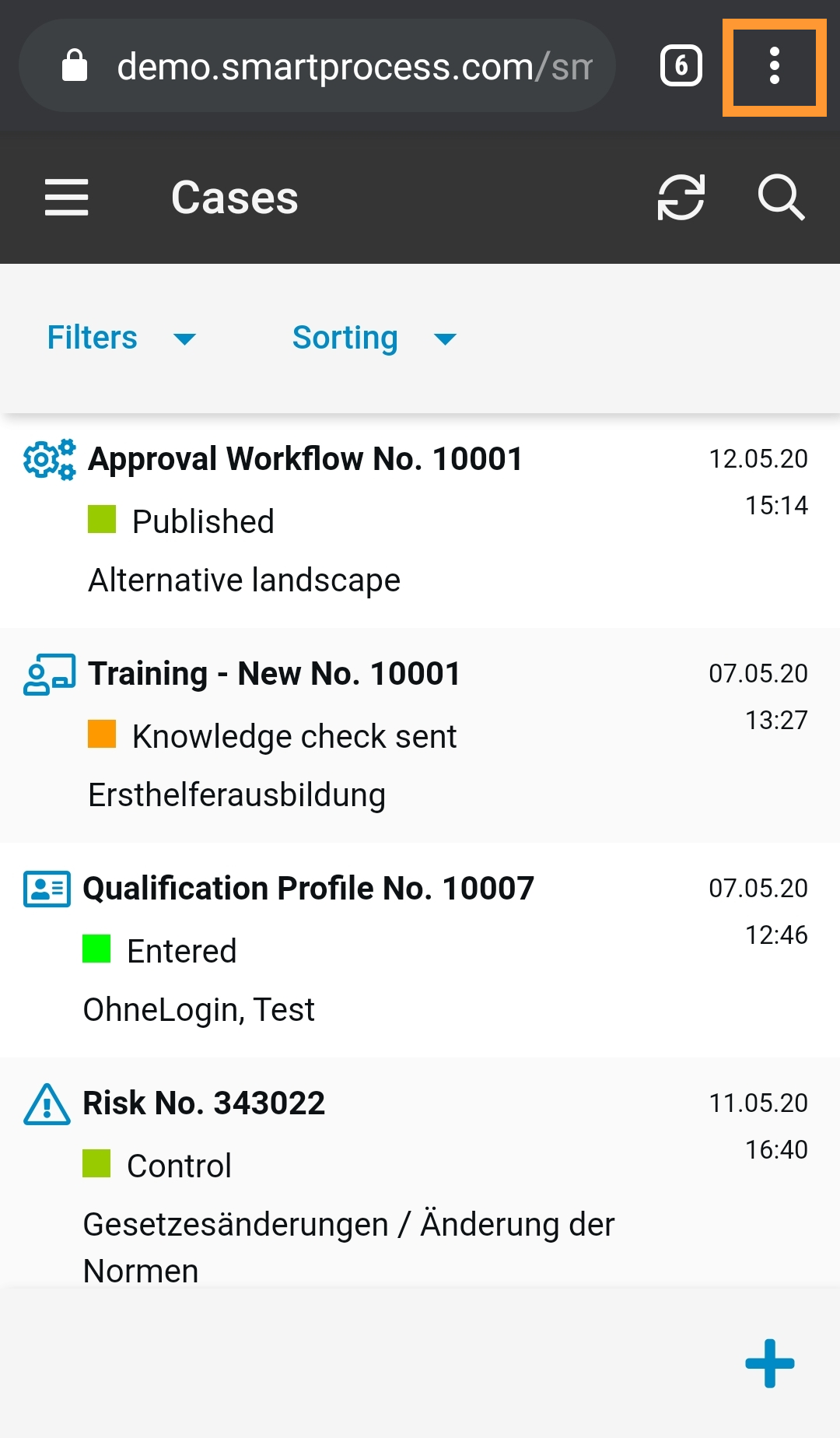
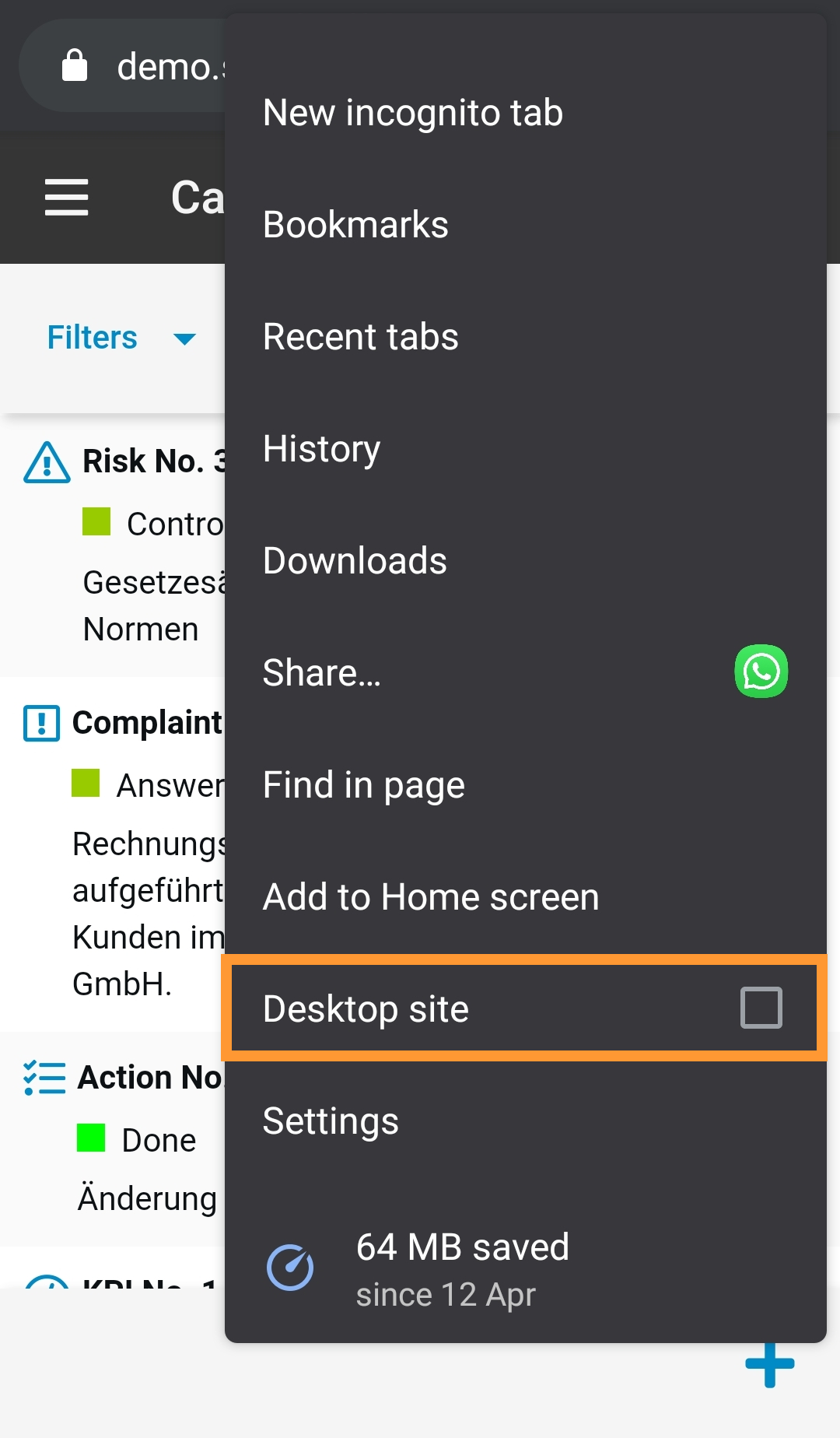
The mobile view opens on smartphones and tablets. You can also access the desktop version of CWA SmartProcess on the mobile device as follows:
iOS (iPhone & iPad) | Android |
Browser used: Safari
| Browser used: Google Chrome
|
How did we do?
HTML field
