Table of Contents
The form designer
Forms that are part of every workflow can be arranged in the Form designer by dragging and dropping the desired fields onto the sheet. To configure a new main form, for example, the Form designer can be opened via the <form designer> button, which can be found above the workflow model.

Table of Contents
Forms that are part of every workflow can be arranged in the Form designer by dragging and dropping the desired fields onto the sheet.
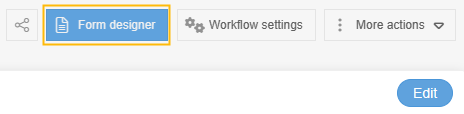
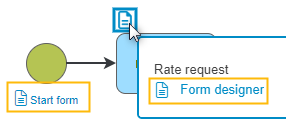
The button to open the form designer can be found for the start form above the workflow model and for task forms within the tasks (1). Alternatively, you can use the links in the workflow model (2).
Field supply and available fields
The area with the available fields is located on the left-hand side of the Form designer. A new field can be dragged and dropped onto a free cell and then a name must be defined.
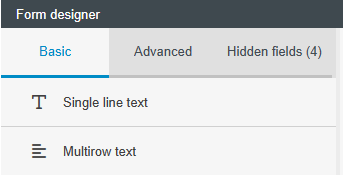
The <Advanced> tab gives you for example access to the catalogs created in the system and allows you to transfer the columns defined there as fields to the form using drag & drop.
The <Hidden fields> tab is used to store fields that exist in the form but should not be displayed because they are only needed for reporting, for example.
Create new fields
New fields can simply be dragged into the area above or below existing fields to insert a new line there. Alternatively, you can create sufficient space in advance with blank lines.
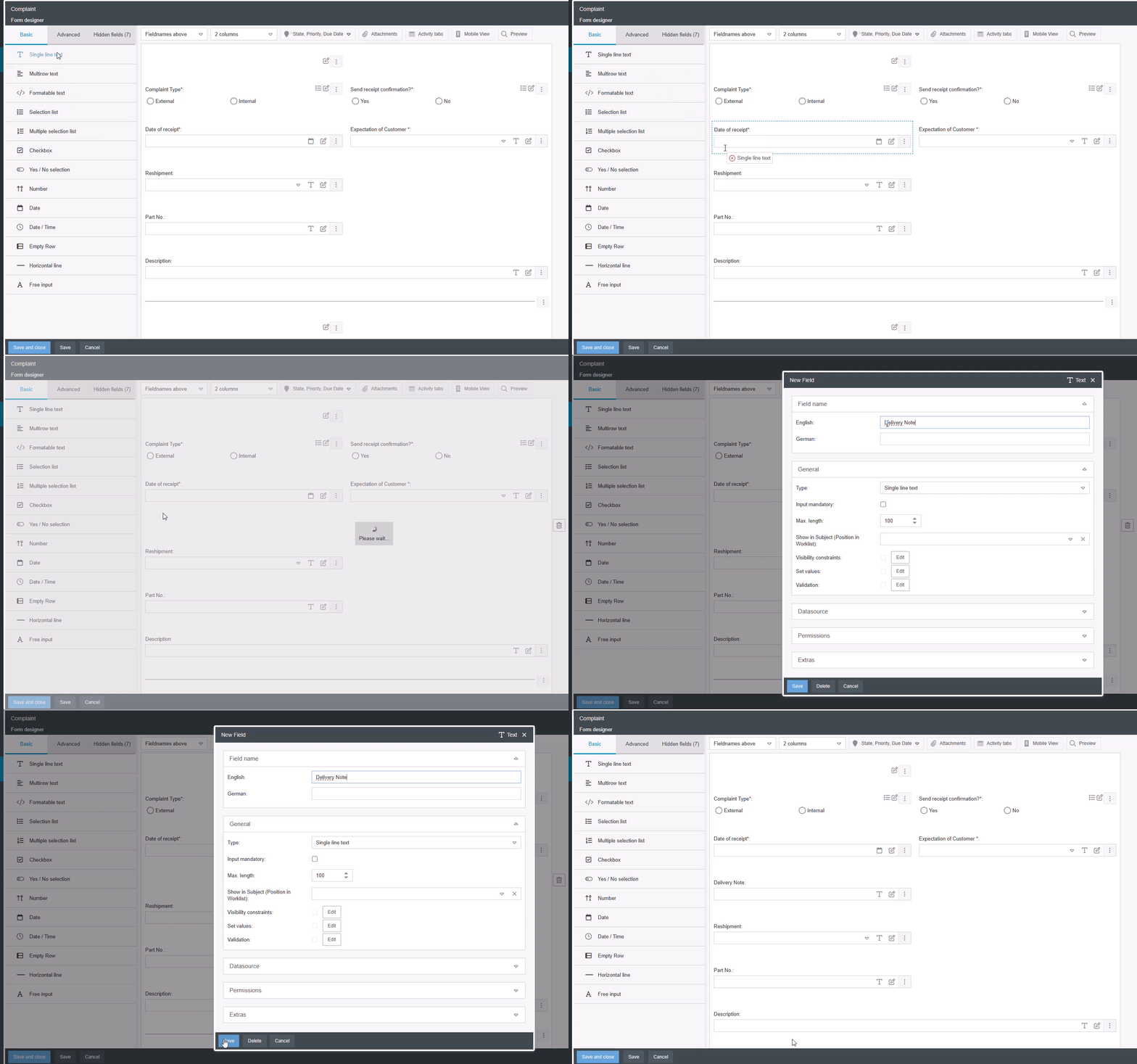
Excess empty lines can be deleted using the wastebasket symbol on the right-hand side. Deletion is only possible if there is no longer a field in the line.
Context menu for fields

Delete or edit fields
To delete or edit an existing field, you can right-click to open the context menu and select the corresponding option. Alternatively, you can also click on the three dots to open the context menu. There is also a button in the field for direct editing.
Move fields to hidden fields
Hidden fields can contain data that you do not need for the visible form, but which you want to access later elsewhere or need to evaluate in reporting. You can use the context menu to move fields to the "Hidden fields" area. Hidden fields can be dragged and dropped back into the form at any time.
Broaden or narrow fields
If you use a multi-column layout in your form, you can use the context menu to broaden fields and display them across multiple columns. Or you can narrow fields that are displayed across multiple columns.
Form settings

- The drop-down field can be used to select whether the names of the fields are above or next to the fields. The "above" variant is recommended for long field names, as words may otherwise not be wrapped appropriately.
- With the drop-down field <Number of columns> the number of columns of the form can be defined. It is recommended that you do not use more than a maximum of 3 columns in the form, since a 4-column layout can lead to confusion later in the process.
- Via the button <State, Priority, Due Date> you can adjust three standard fields and define whether the three fields should be displayed when creating an activity.
- The <attachments> button can be used to write a general note, e.g. to explain which attachments are required. In addition, you can specify whether attachments must be added when filling out the form. For this purpose, you can specify a minimum number of attachments and further restrict the allowed file formats if required.
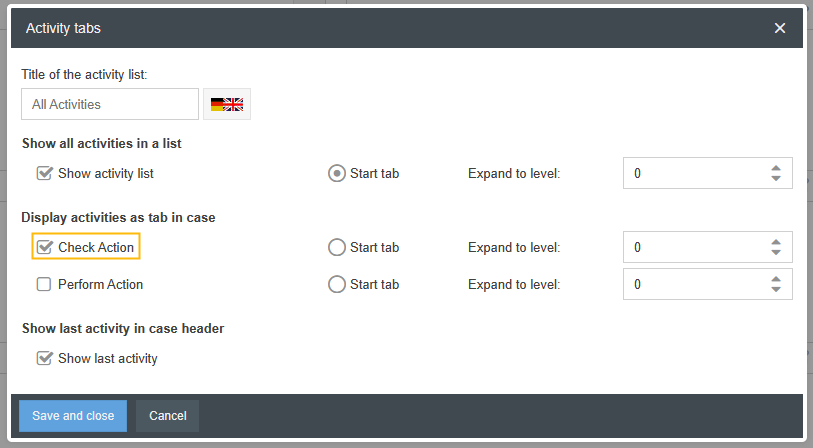
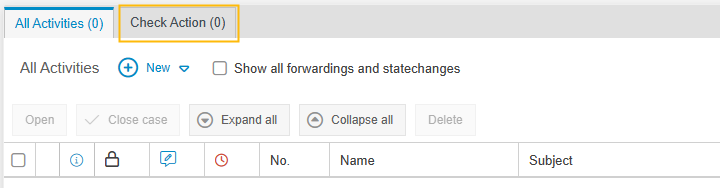
- You can use the <Activity tabs> button to customize the name of the first tab in the activity list (default "All activities"). Here you can also set for which workflow activity a separate tab is displayed for collecting in the activity list. It is also possible to set a default start tab for the activity list when the case is called up. In addition, the display of the "Last activity" box in the case window can be suppressed.
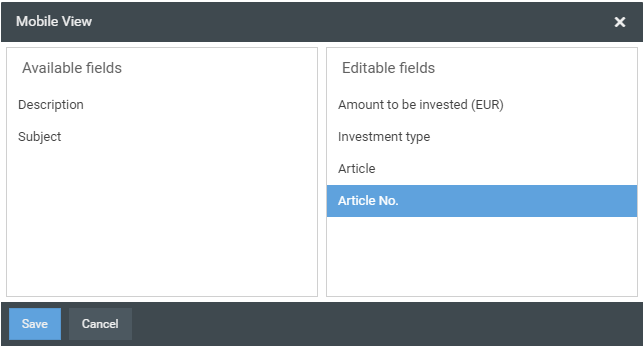
- Using the <Mobile view> button, you can use drag & drop to set whether there should be a different mobile view and which fields should be included in it. Read-only fields are always displayed.If you are not active here or no fields are selected, all fields are automatically editable. For manual sorting of the fields using drag & drop, the fields to the right must be defined as editable fields. Otherwise the fields are sorted alphanumerically.
- With the button <Preview> you can call up a preview of the form at any time and check how the form will be displayed to a user. If you have already created selection lists or worked with value assignments, you can already test them in the preview.
How did we do?
