Table of Contents
Connection via Zapier
Note: To be able to use the SmartProcess API, it is necessary to configure the API profile in the settings.. With the Zapier platform, more than 9,000 applications can be connected to SmartProcess to…

Table of Contents
To be able to use the SmartProcess API, it is necessary to configure the API profile in the settings.
With the Zapier platform, more than 9,000 applications can be connected to SmartProcess to exchange data between third-party systems and SmartProcess. Zapier's user interface requires no line of code during integration. Prerequisites for successful use are:
A SmartProcess user with a Designer license for whom an API profile has been created An API profile must be set up and configured in SmartProcess. Only the entities that have been activated in the API profile are available for the connection with Zapier! |
A Zapier account |
The following inviation link to connect SmartProcess with other applications via Zapier: https://zapier.com/developer/public-invite/138747/6911950d258b9bbdf1dd6fcbccfb776e/ |
The application that should o be connected to SmartProcess must be registered in Zapier Zapier is an external provider. There may be additional costs associated with a Zapier account. Please inform yourself about this on the Zapier website: https://zapier.com/pricing A listing of applications supported by Zapier can be found here. |
Once these requirements are met, the applications can be connected at the Zapier user interface.
Zapier connection
SmartProcess can be connected in two directions via Zapier:
1. Trigger: Data is read from SmartProcess (Read) and triggers changes in your company application.
2. Action: Data is read from your company application and triggers changes in SmartProcess (Create, Update, Delete).
The following examples show step-by-step how to create a Zap (this is what a connection between two applications is called in Zapier) for SmartProcess.
Configure Zapier connection to SmartProcess
The first step is to create a connection to SmartProcess in Zapier.
In the main menu of Zapier, under App Connections, a new connection can be created using the + Add connection button.
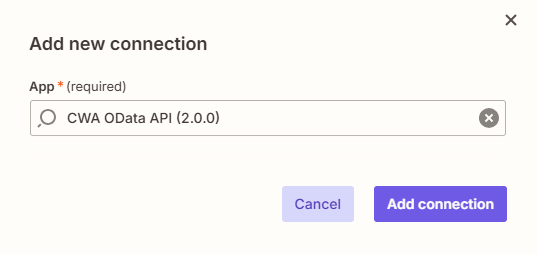
In the App field, you can search for the CWA OData API (2.0.0) by entering "cwa". Click on Add connection to set up the connection.
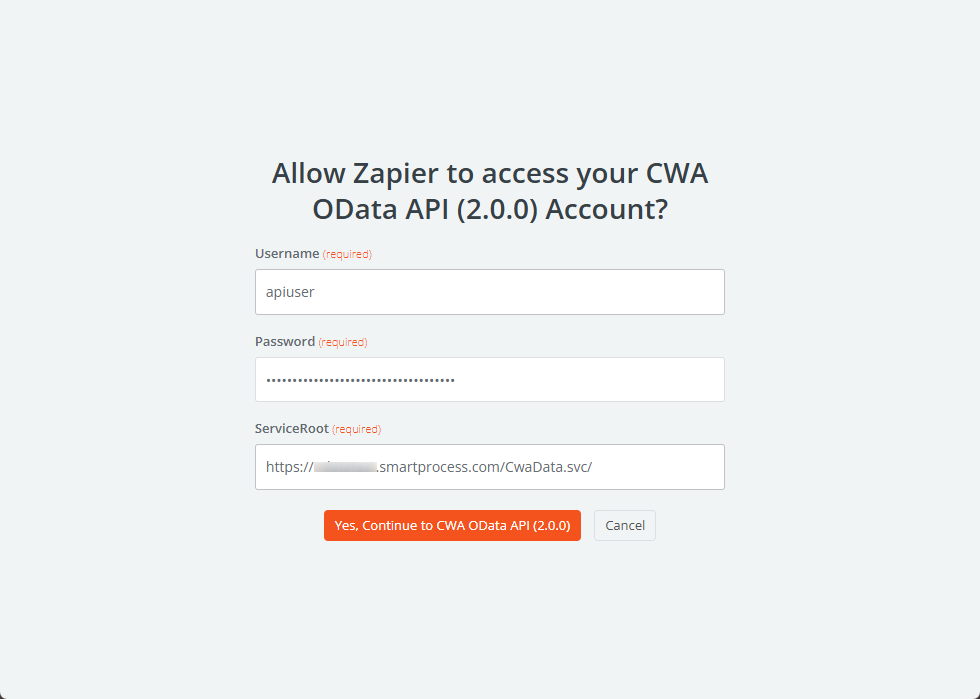
Username | User entered in the API profile as the user of the API connection. |
Password | The API key that was generated when the API profile was created in SmartProcess. |
ServiceRoot | The URL that is displayed in the API profile under Base url for accessing the API. |
By clicking on Yes, Continue to CWA OData API (2.0.0), the API connection is created in Zapier and can be used in Zaps from now on.
Create a Zap
In the Zapier main menu, click on the + Create button and select Zaps. Or switch to the Zaps menu in Zapier and click on the + Create button to create a new Zap.
SmartProcess can be the trigger that leads to an action in another application. In this case, the trigger event would be Read.
However, SmartProcess can also be the action. In this case, the action events would be Create, Delete and Update.
Configure SmartProcess as a Trigger
Click on Trigger to configure the trigger using a configuration wizard.
Setup
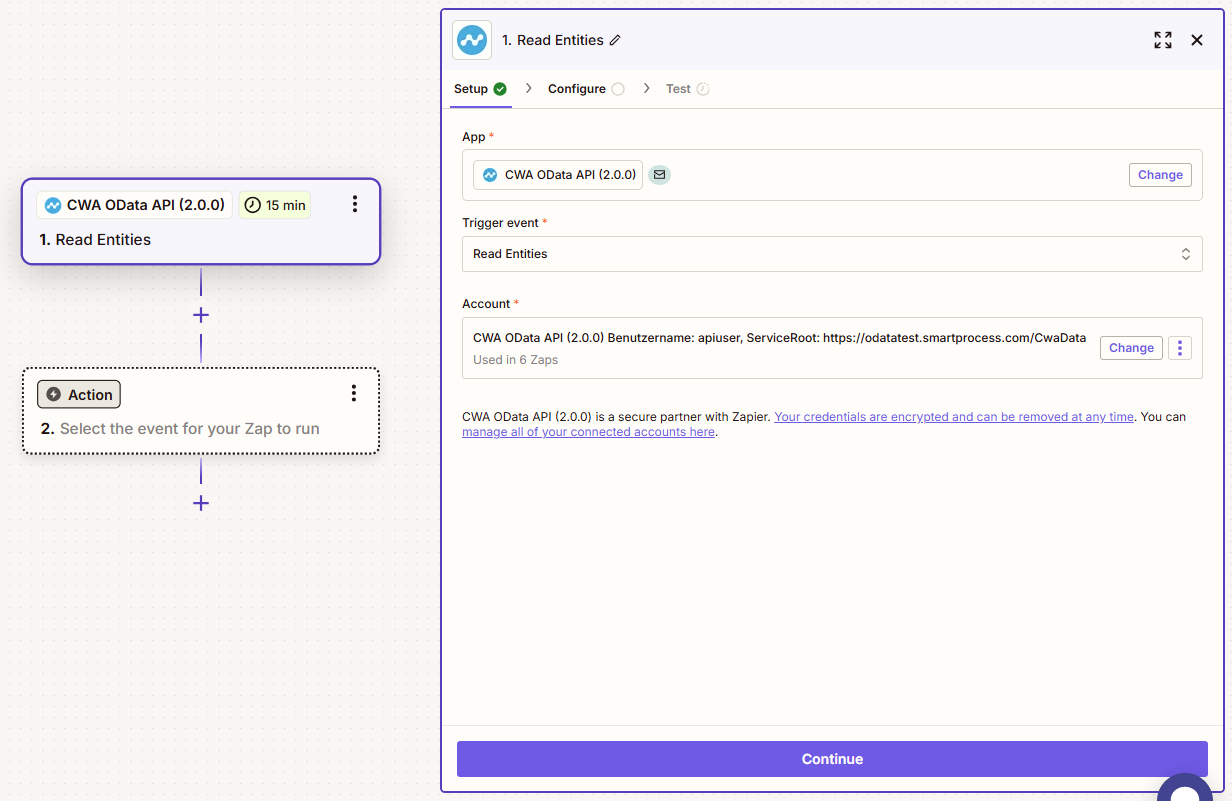
App | Here you select the CWA OData API (2.0.0). |
Trigger event | Select the read entry from the drop-down menu. |
Account | Select the previously set up account for your SmartProcess instance. |
Configure
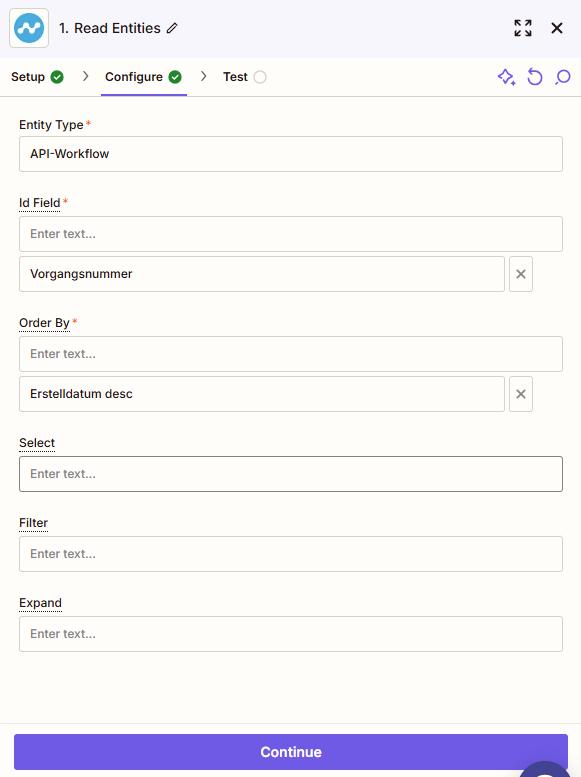
Entitiy Type | Name of the entity, e.g. the workflow that is to be read. |
ID Field | Name of all Id fields. These are used by Zapier to recognise whether an element is new. Only new elements activate a trigger. The fields specified here may differ from the API configuration in SmartProcess. For example, if a changed process should activate this trigger, it is advisable to use the edit date as part of the Zapier ID. |
Order by | In order for Zapier to recognise new or changed entries, the sorting must take place in reverse chronological order. If we are interested in new entries, we select the creation date, otherwise the edit date. |
Select | Only the fields specified here are made available to Zapier. Leave empty so that all fields are available. |
Filter | The OData filter according to their syntax. The syntax can be found on https://www.odata.org/ or in this SmartProcess online help article. |
Expand | Linked entities such as sub-processes or attachments are included if they are specified here. |
Test
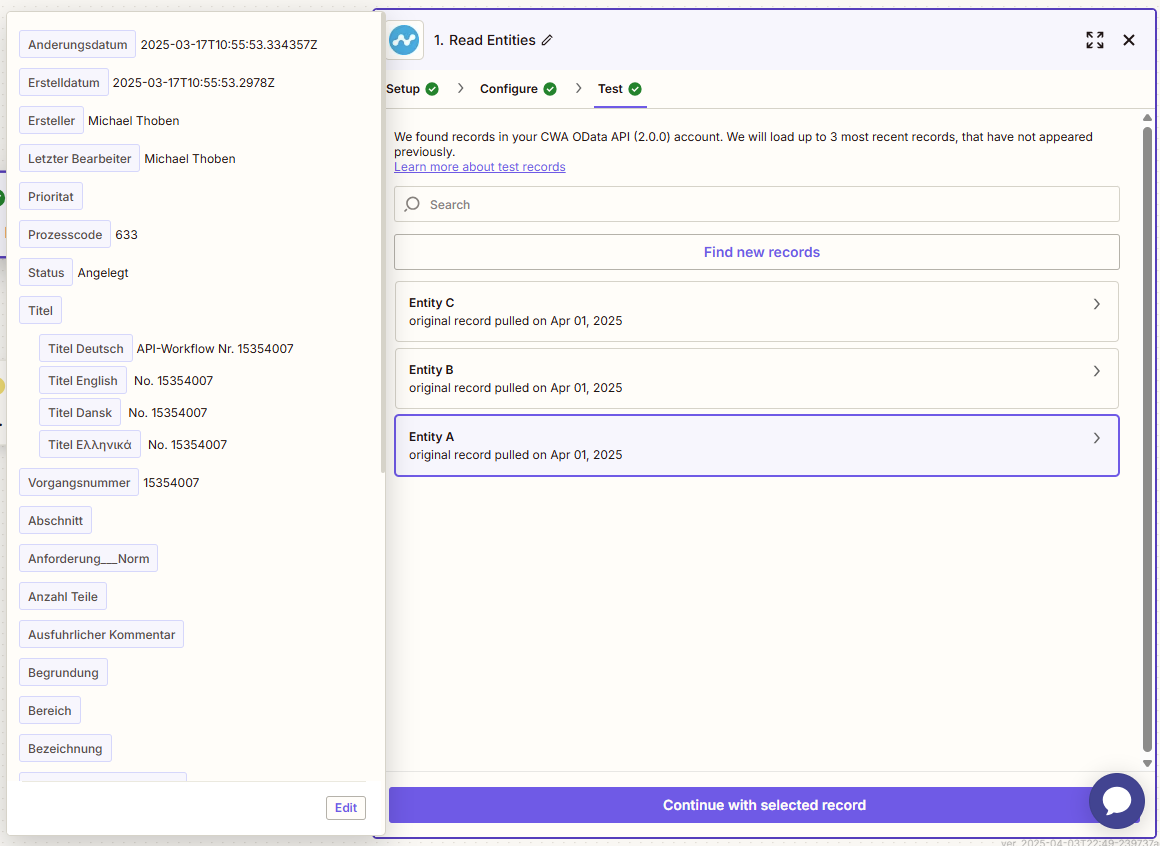
Zapier then requests that the trigger is activated once as a test to check whether the service (SmartProcess) is available and the trigger is configured correctly. If the test was successful, you will be offered up to three entities to choose from. Select the entity that best suits your use case (usually all three are suitable). The structure of the data returned here is available for the subsequent actions.
Configure SmartProcess as an Action
Click on Action to configure the action via a configuration wizard.
Setup
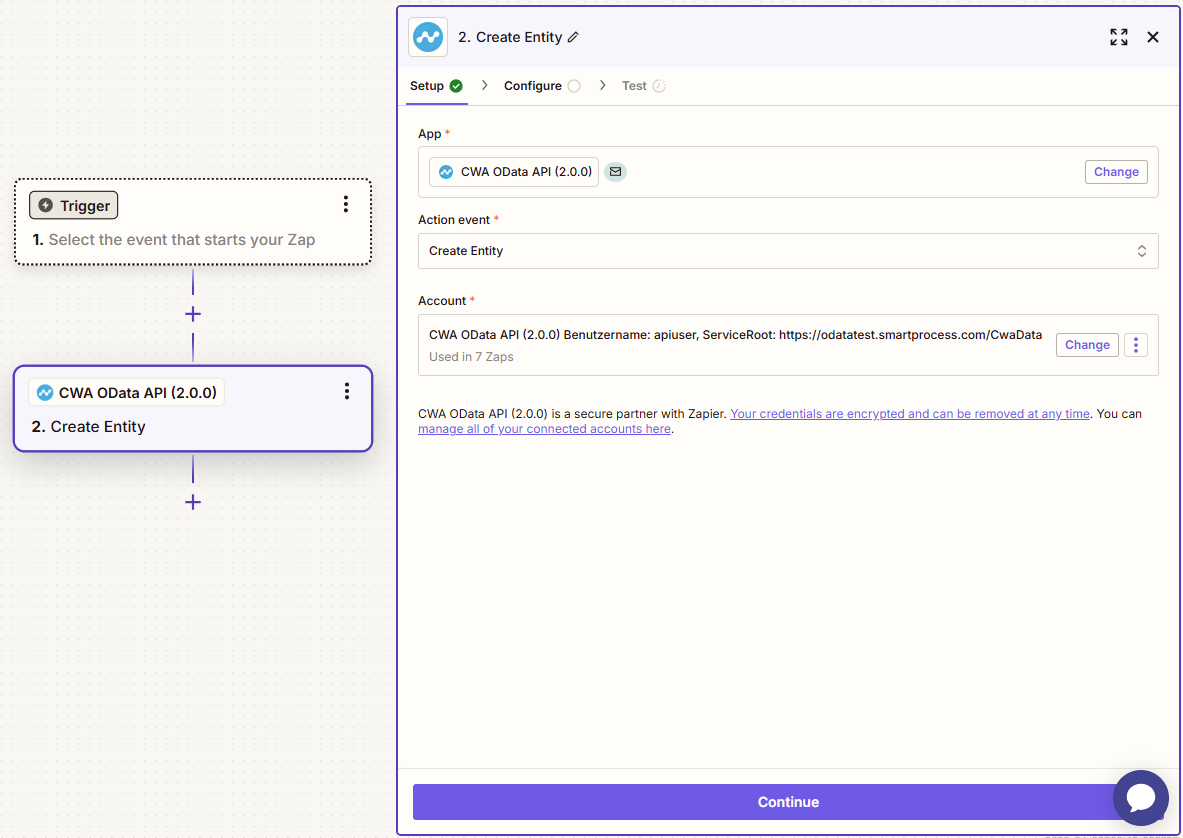
App | Here you select the CWA OData API (2.0.0). |
Action event | Select the Create, Delete or Update entry from the drop-down menu. |
Account | Select the previously set up account for your SmartProcess instance. |
Configure
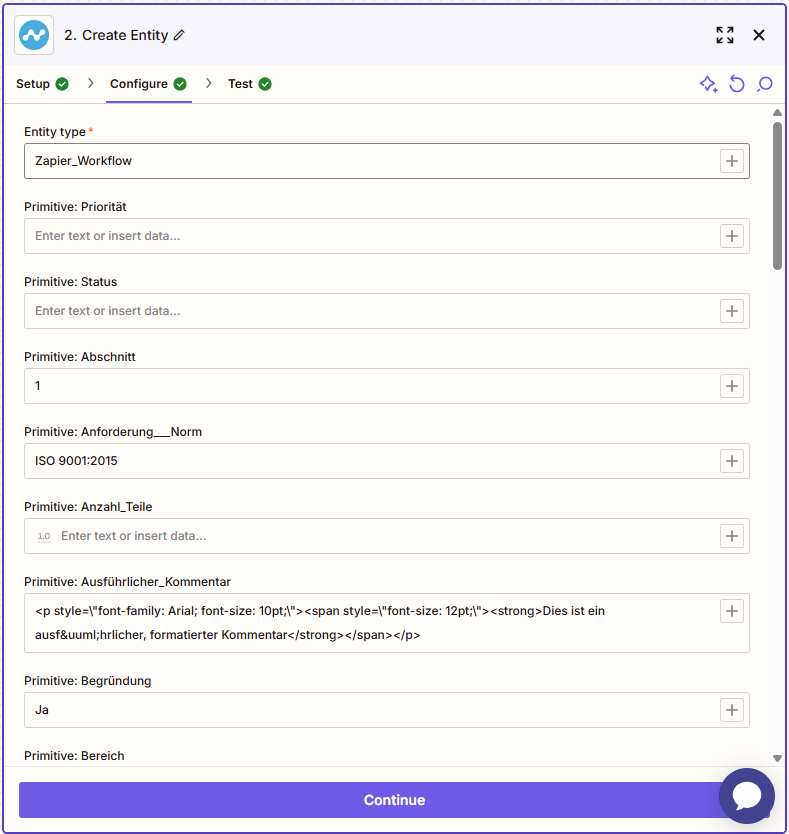
Firstly, fill in the "Entity Type" field. This could be the name of the workflow, for example. All fields that are linked to the selected entity then appear.
These fields can be divided into three categories:
- Primitive elements
- Complex elements
- Key for data binding
If a complex element represents a collection (e.g. for a field group), then several elements can be inserted by following this help article: Create line items in Zaps.
The keys for data binding can be used to bind objects to linked objects. This is useful for sub-processes or to add an attachment to a process.
Manage Zaps
In Zapier, you have the option to manage your active zaps in the My Zaps menu item. There you can temporarily deactivate, reactivate, manually trigger, rename, sort in folders or completely delete Zaps.
How did we do?
Direct API connection
