Table of Contents
Field: Field group
Create and use. With a field group it is possible to add several entries to the form as a list. An example of the use of a field group would be an article list in a complaint: With the button <+ Sing…

Table of Contents
Create and use
With a field group it is possible to add several entries to the form as a list.
An example of the use of a field group would be an article list in a complaint:
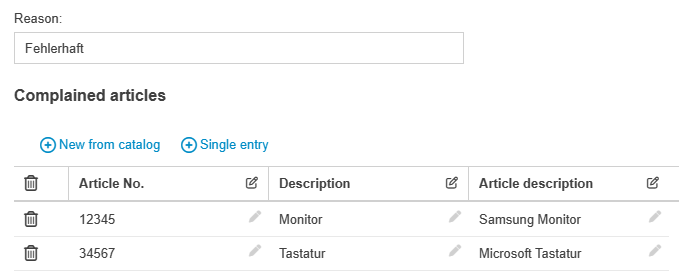
The field group is similar to a form in a form and has its own form designer. A name must be defined for the field group and you can decide whether entries in it are mandatory.


Any number of fields can be added to the field group. These can also be provided with the general field properties, just like the form fields that are not in a field group.
In field groups, it is also possible to display more than 4 fields side by side. To do this, the number of columns must be set to 4. The additional fields can then be created in a second line below the other fields. They are then displayed next to each other in the process.
Reporting
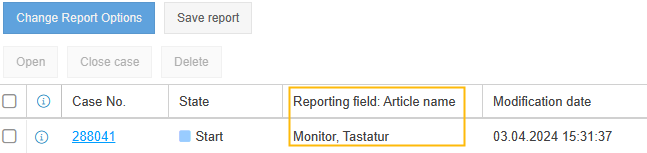
Reporting for field groups only works to a limited extent together with the "normal" case information, as the "one data record per field per transaction" approach is violated here. Therefore not all information on the case can be displayed in one line of the reporting list.
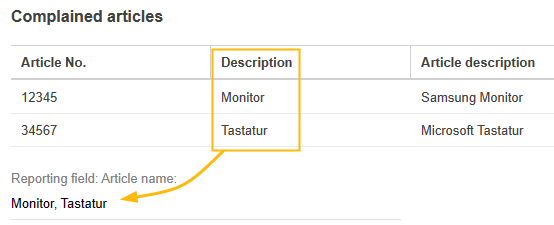
As a workaround, a formula field can be created in the form that combines the list entries per field from the field group in one field. To do this, use "Example 4: Read out field groups and combine them in one field" from the above help article. The field can also be hidden if required:
Word Report Designer
In the Word Report Designer, field groups are treated like activities. They are called up with TableStart:<field group name> and can be filled as a table:


How did we do?
Field: Contact selection
Field: Catalog fields
