Table of Contents
Document templates
By using templates to create new documents, you can ensure that all documents in SmartProcess follow a consistent format and design. Adding document templates. You can access the document templates i…

Table of Contents
By using templates to create new documents, you can ensure that all documents in SmartProcess follow a consistent format and design.
Adding document templates
You can access the document templates in SmartProcess via Settings -> Configure application -> Document management -> Document templates. An overview of all document templates saved so far is listed.
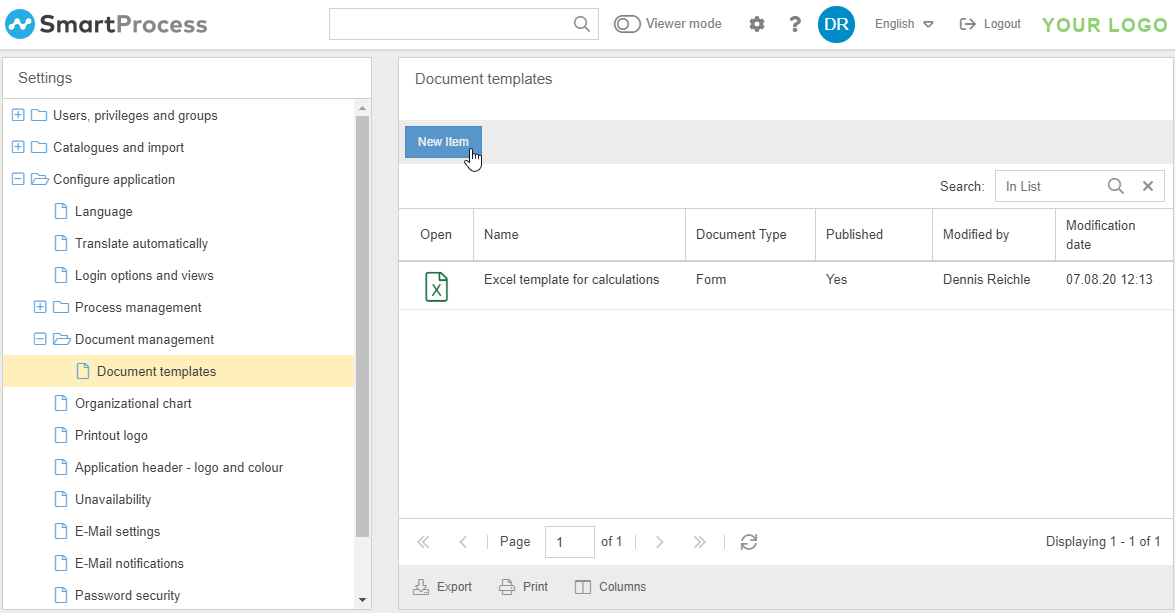
With a click on the table row of an entry you can edit it, e.g. to replace the current template with a customized one.
By clicking on the file icon, you can download the currently saved document template (the Excel icon in the example). To store a new document template in SmartProcess, select <New item>.
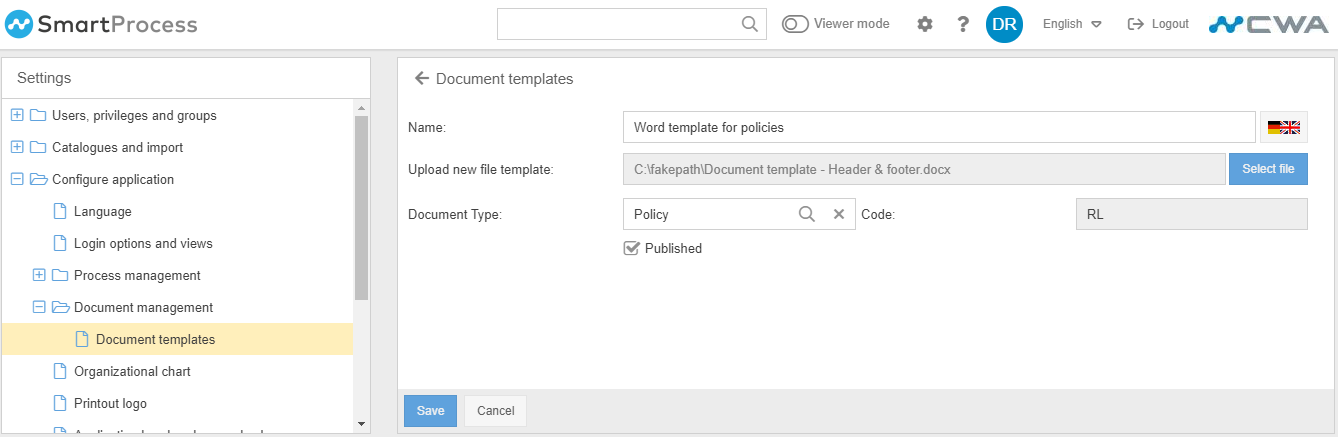
Then, various properties can be added to the document template and the template can be saved afterwards:
Property | Description |
Name | The name under which the template is created in SmartProcess. |
Upload new file template | With the button <Select file> you can upload the file from your drive that should serve as a document template. In theory, a template can be created for each file format. However, the use of document templates is particularly useful for Word, Excel and PowerPoint files. If new documents are created with a file template of these formats, the generated files can be edited directly from SmartProcess using the check-in/out procedure with the MS Office package. |
Document type | In this field you can optionally select an entry from the Document type catalogue. If you then create a new document based on this template, the value set here is automatically entered as the document type. However, the default document type can still be changed when the document is created. |
Published | If the checkbox is activated, users can use the template to create new documents. If the checkbox is deactivated, this template is hidden for users. |
Create new documents with templates
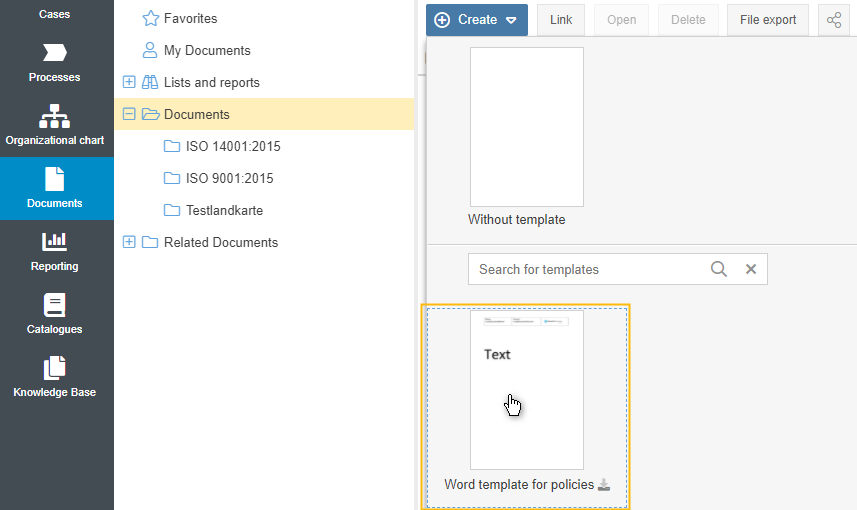
To create new documents using the saved templates, switch to the Documents menu. Use the button <Create> in the content area of the menu. Besides the possibility to create a document without a template, you can now also select one of your saved templates by clicking on the preview.
You will then be prompted to enter a name for the file to be created.
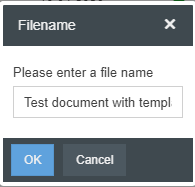
Once the name has been assigned and confirmed, the usual window for creating documents opens, in which the document details can be filled in. In this window the corresponding document template has already been added as a file attachment and the preselected document type has been entered.
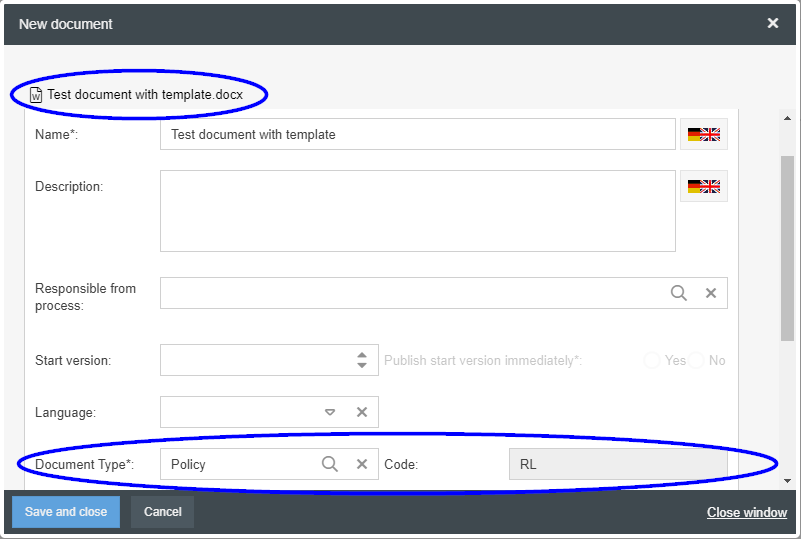
Fill in the required fields and complete the creation via <Save and Close>. As a result, a new document is created in SmartProcess that contains the document template you specified as a file attachment.
Documents that were previously created based on this template do not adapt to the layout of the new template.
Download templates
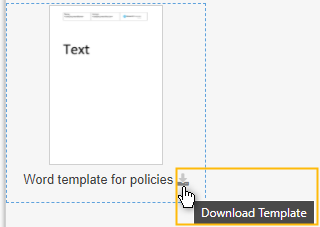
Instead of creating a new document from the template directly in the system, you can also download a template and then work with it locally.
Document details from SmartProcess in templates
For some file formats, you can create templates to display data from SmartProcess within the files.
Word templates
When you create MS Word files as document templates, you can use placeholders (mergefields) to display details of the document in the Word file.
Using mergefields ensures that the current content from SmartProcess is always displayed at the desired position. Thus, if the version number changes in SmartProcess, this change is also automatically applied in the header of the Word file.
The procedure is described with an example in the article Properties and placeholders in Word files.
Excel templates
Since MS Excel, unlike MS Word, does not support mergefields, there is another way to display document details in the Excel file. To do this, the name of the file is split using Excel functions so that individual details of the document can be output.
To create the prerequisites for using this function, use the option Add data to file name for versioned documents in the Document management settings. This allows you to add selected document properties to the file name so that SmartProcess generates the name "Test Template_2.00_FO" from the file name "Test Template" by adding the properties version number and code.
This file name, separated by underscores, can now be split using Excel functions so that the individual contents are displayed in different Excel cells.
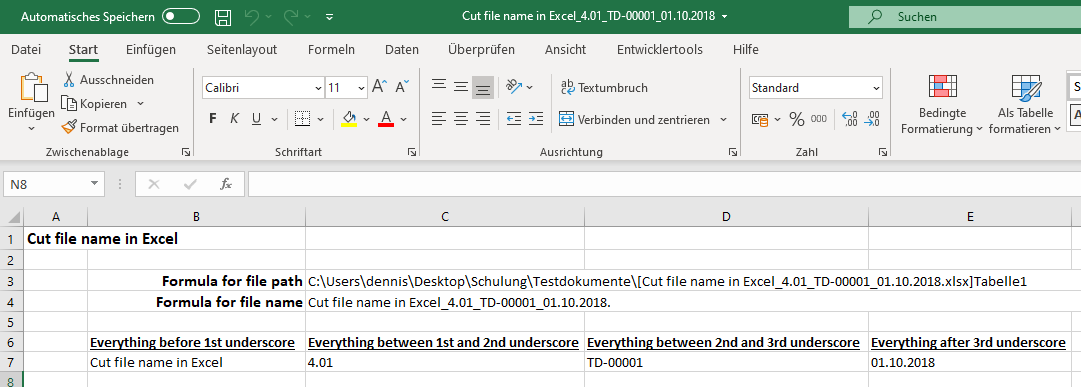
The file shown on the screenshot can be downloaded here as an example of use: Cut file name in Excel_4.01_TD-00001_01.10.2018.xlsx
To make the formulas work in the Excel file, change the hyphens back to underscores.
How did we do?
Settings for document management
Document type
