Table of Contents
General placeholders for Word reports in workflows
When creating Word reports for workflows there are some placeholders that are always available and provide general information, in addition to the individual placeholders (differ depending on the workflow) that can be downloaded via the Word Report Designer sample file.

Table of Contents
When creating Word reports for workflows there are some placeholders that are always available and provide general information, in addition to the individual placeholders (differ depending on the workflow) that can be downloaded via the Word Report Designer sample file.
Accessing fields from the start form
Description | Field |
Logo for PDF-printout | Image:applicationLogo |
Processname (or Workflowname) | Processname |
Casenumber | Processnumber |
Status | Processstate |
Priority | Processpriority |
Target date | ProcessTargetDate |
Full name of the creator | firsteditor |
Name of the creator | firsteditor_name |
Firstname of the creator | firsteditor_firstname |
Company of the creator | firsteditor_company |
Phonenumber of the creator | firsteditor_phone |
E-Mail of the creator | firsteditor_email |
Department of the creator | firsteditor_department |
Creation date of the case | firstdate |
Creation date and time of the case | firstdate_time |
Full name of the last editor | lasteditor |
Name of the last editor | lasteditor_name |
First name of the last editor | lasteditor_firstname |
Company of the last editor | lasteditor_company |
Phonenumber of the last editor | lasteditor_phone |
E-Mail of the last editor | lasteditor_email |
Department of the last editor | lasteditor_department |
Date of the last edit | lastdate |
Image of the signature (Only available if it has been activated in the workflow settings that a signature is required for confirmation in order to save an case or task. | Image:lastSignature |
Current date | currentdate |
Current date and time | currentdatetime |
Signature of the Word report creator with current date and time | ReportCreationData |
Responsible person or department for the case | CaseResponsible |
Value of a custom form field | <Name of a custom form field> |
Accessing fields from activities
The fields of the main case can be accessed before TableStart and after TableEnd. The fields of the respective activity can be accessed within the two commands.
Example of access to activity fields
Within TableStart and TableEnd, it is possible to access the special fields from the activity form and the general fields, such as the case number.
This can be shown using the example of the workflow Risk with the activities Assess risk and Action. The activity list of an exemplary risk case looks like this:
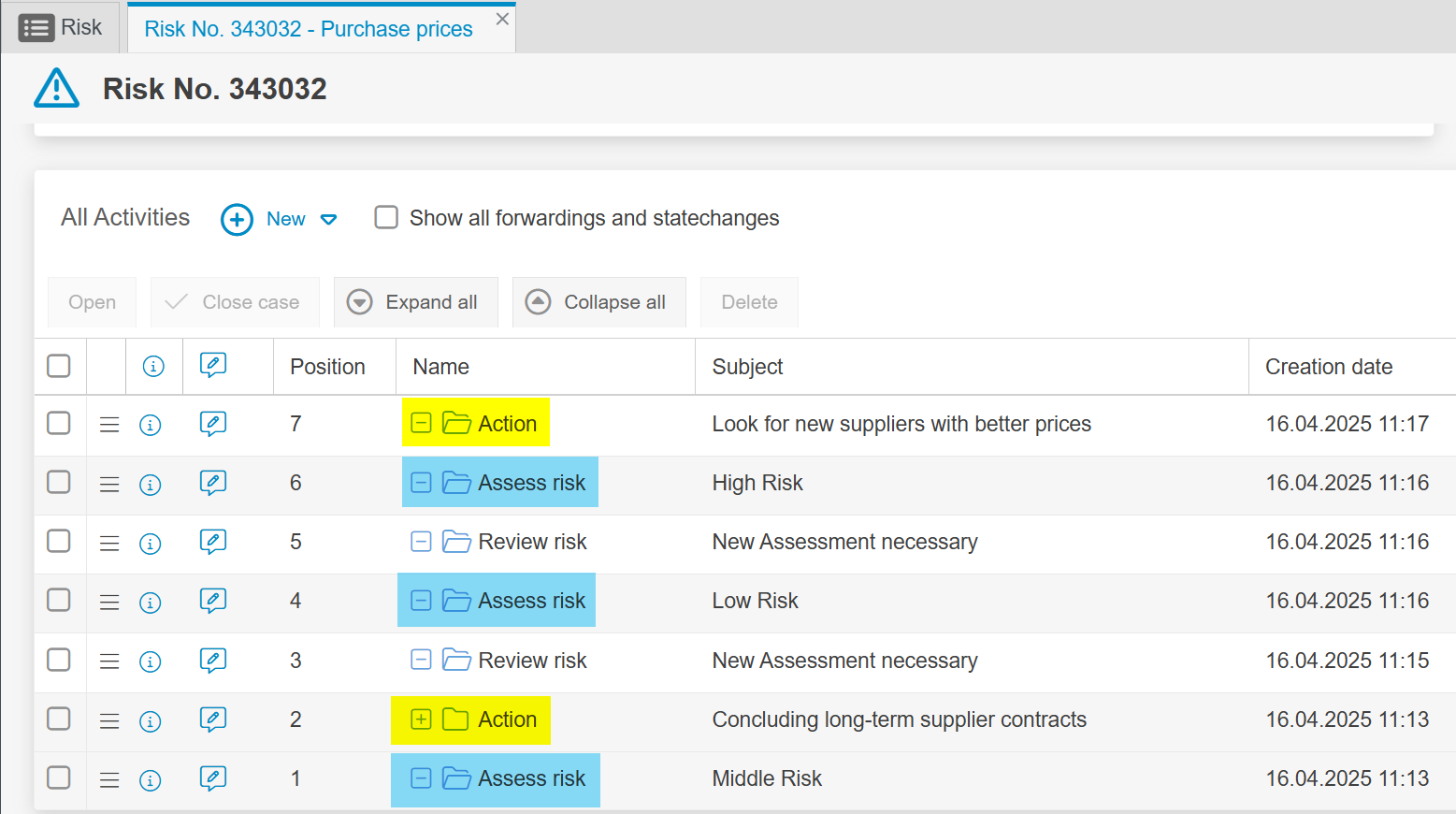
The template of a Word report, in which data from the activities Assess risk and Action are to be displayed in addition to master data from the start form of the risk, could look like this:
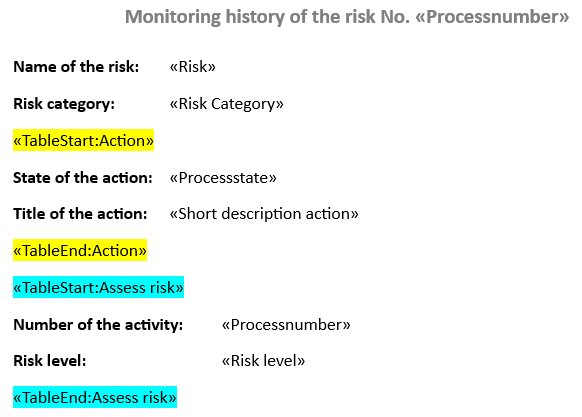
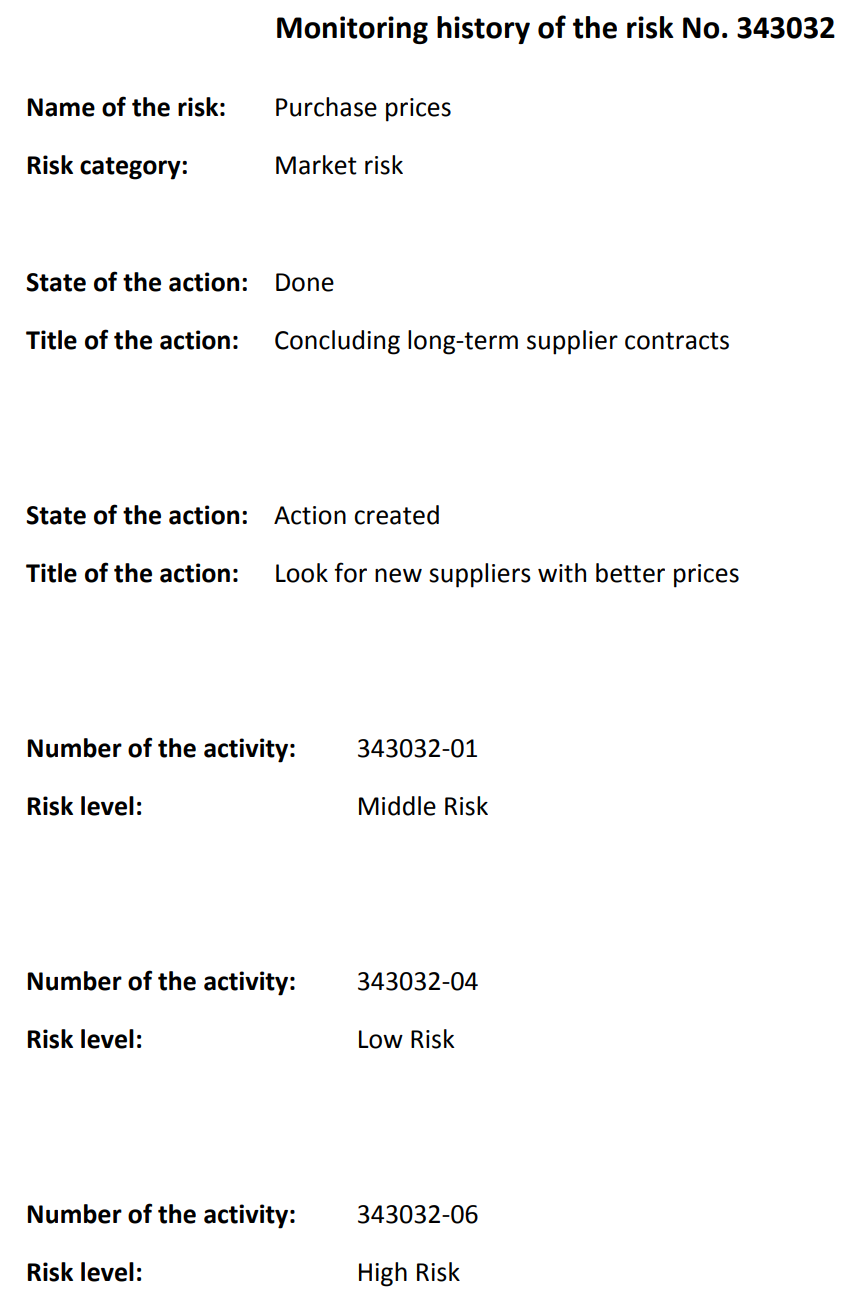
The result of this template is that the name and category of the risk from the start form are displayed once. The entire block between «TableStart:Action» and «TableEnd:Action» is then displayed for each action that exists for this risk. As there are 2 actions in the example case, this block is therefore output twice with the respective action data. Similarly, the block between «TableStart:Assess risk» and «TableEnd:Assess risk» is displayed three times because this activity exists three times in the example case.
Sorting the list of different activities by creation date
The standard behavior when listing activities in Word reports is that the activities are displayed in blocks.
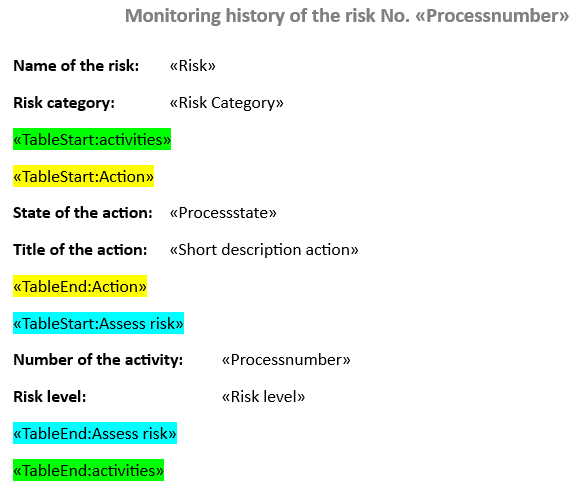
If you want to sort the blocks of activities chronologically, the entire section of the listed activities must be included in the «TableStart:activities» and «TableEnd:activities» commands. These commands ensure that all activities are sorted chronologically from top to bottom according to their creation date. The table below shows the customized file and the corresponding result.
 | 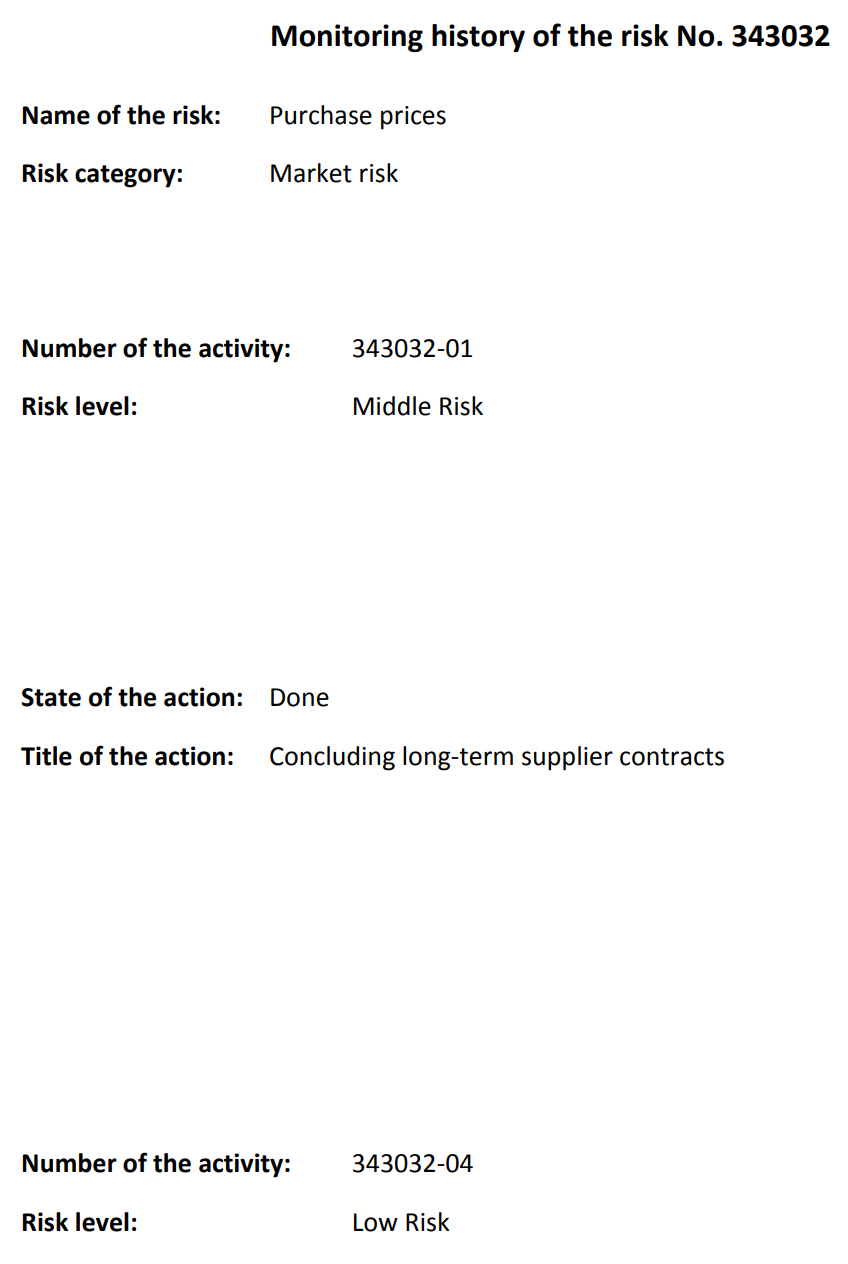 |
Tables
Activities
Table name: activities
Within TableStart and TableEnd the basic fields can be accessed. Activity tables can also be accessed (if the corresponding activity type is contained in the activities).
Case
TableName: <name of the workflow>.
Within TableStart and TableEnd, the basic fields can be accessed. Task tables can also be accessed (if the corresponding task type is included in the activities), as well as the activities table (see above).
Image attachments
Table name: ProcessImages (excluding images from email attachments)
Table name: ProcessImagesIncludingEMailAttachments (including images from email attachments)
Description | Fieldname |
Image attachment | Image:processAttachment |
Image attachment for two-column tables | Image:processAttachmentWithSkip |
Configuration for images in a two-column table:

Image attachments for specific activities
This placeholder can be used to retrieve images from specific activities. Only images that have been stored directly in the activity are taken into account. Images that are inherited from the higher-level activity are excluded.
Table name: ActivityImages
Description | Fieldname |
Image attachment from activity | Image:processAttachment |
Example: In the audit, images were captured for individual audit questions, which should also be assigned to the respective question in the report. This could look like this:

Sorting option for the activities and activity tables
The #sortBy=<criterion> addition can be used to determine the sorting of the activities. Fields or other values such as the processing date can be used as criteria.
Example: TableStart:activities#sortBy=lastdate // TableEnd:activities#sortBy=lastdate
How did we do?
Rights workflow participants
