Table of Contents
Structure of SmartProcess
SmartProcess is divided into three main areas. 1 - Main menu. The main menu contains quick links to the most important areas of SmartProcess (e.g. Processes, Cases, Reporting) as well as links to the…

Table of Contents
SmartProcess is divided into three main areas.
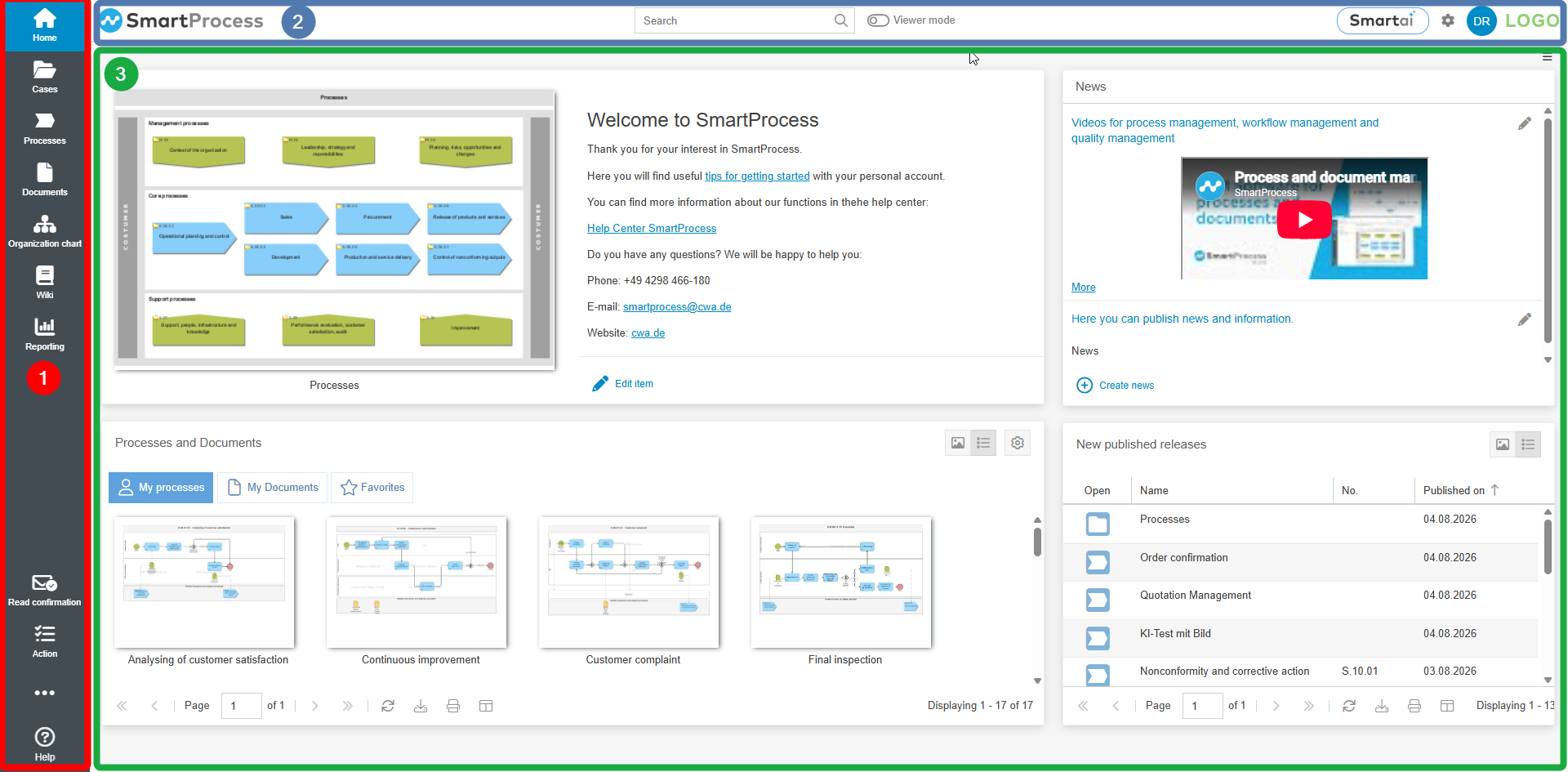
1 - Main menu
The main menu contains quick links to the most important areas of SmartProcess (e.g. Processes, Cases, Reporting) as well as links to the workflow applications the user has access to.
The main menu can be flexibly adapted to the user's own needs.
2 - Application header
The application header is always visible regardless of the selected menu and contains the following elements:
Product logo  | The logo can be changed application-wide in the Application header - logo and color setting. |
Full text search  | See article Full text search |
Viewer mode  | The button is displayed only for users with a Designer license. When activated, the Designer adopts the view of a user with a Viewer license for the Processes and Documents menus. Thus, only the published versions of processes and documents are displayed. |
SmartAI chatbot  | Click the button to launch the SmartProcess AI chatbot, which answers user questions based on published processes, documents, wiki entries, and the SmartProcess online help. The button is displayed only if: - The SmartProcess AI add-on module has been purchased - The SmartAI chatbot has been enabled in the basic settings |
Settings  | A link to the general settings of SmartProcess |
User initials / User image  | Clicking on the initials or the image opens a drop-down menu with user options. These are explained in more detail below in Section 2.1. |
Display Logo  | The logo can be changed application-wide in the Application header - logo and color setting. |
2.1 - User options
Clicking on the initials or user image in the application header opens a drop-down menu with the following options:
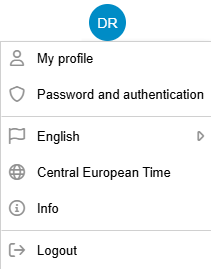
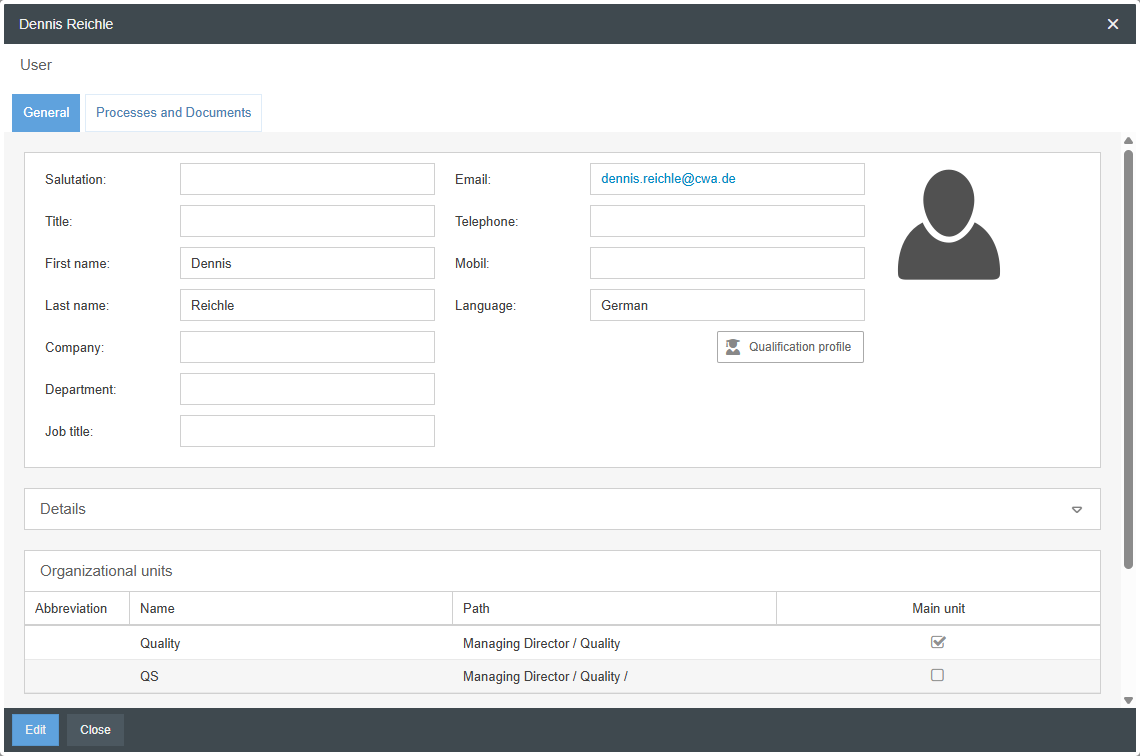
My profile | Opens a read-only view of the currently logged-in user’s profile, which displays various pieces of information and, depending on permissions, different options:
 |
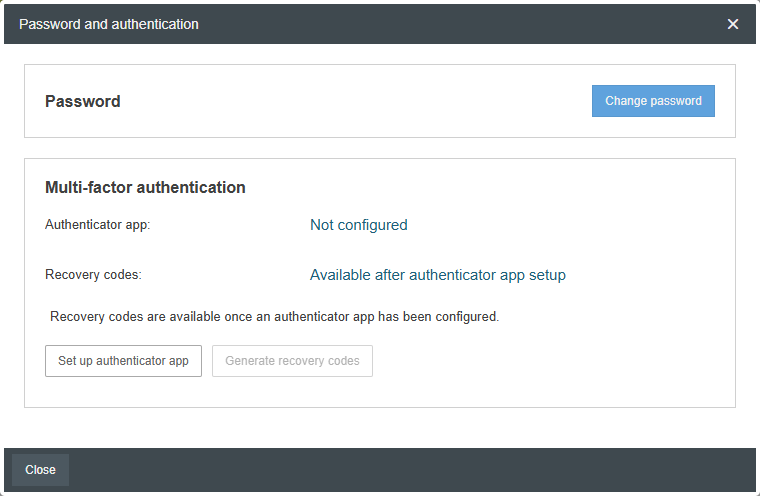
Password and authentication |
 |
Language selection | 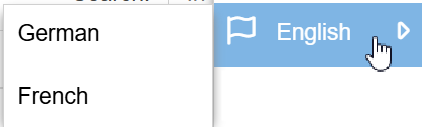 This option is only displayed if more than one content language has been enabled for SmartProcess and allows users to switch between them. Beim Wechsel der Sprache kann der Benutzer die ausgewählte Sprache als dauerhafte Präferenz festlegen. Dies sorgt dafür, dass der Benutzer beim nächsten Login direkt in dieser Sprache angemeldet wird und die System-E-Mails aus SmartProcess in dieser Sprache empfängt. 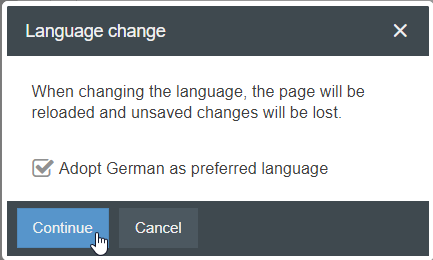 |
Display of time zone |  This entry is only displayed if it is defined in the general settings for date & time that each user should have the time information in SmartProcess converted to his own time zone (e.g. Creation date, Modification date). The entry shows the time zone that was determined for the currently signed in user when logging in. |
Info |  Clicking Info opens a window with two tabs:
|
Logout button |  Logging out will unlock processes, documents and cases that may be locked for editing for other users. |
3 - Content area
The content area displays the content of the currently selected menu item.
How did we do?
Login and password
Customize start page
