Table of Contents
Rights workflow participants
In the Workflow settings section you can find the button Rights workflow participants. This button opens a window in which you can define special access rights to the cases of this workflow. Here you…

Table of Contents
In the Workflow settings section you can find the button Rights workflow participants. This button opens a window in which you can define special access rights to the cases of this workflow.
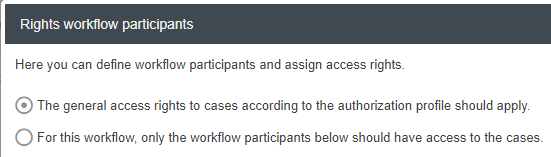
Here you have the following choice at first:
The general access rights to cases according to the authorization profile should apply. | For this workflow, only the workflow participants below should have access to the cases. |
If this is selected, no special access rights apply to the cases of this workflow. Instead, users can access the cases of this workflow according to the general settings of the authorization profile assigned to them. In this case, no further actions are required in this window. | If this is selected, the general authorization profile settings are disabled and accordingly no longer have any significance for this workflow. Only the access rights for the defined workflow participants then apply for access to cases of this workflow. In this case, the workflow participants and their access rights are defined in the following list. The restrictions of an assigned product license are always retained. A user with a viewer license will therefore not suddenly be able to process action cases just because these rights have been assigned to his authorization profile or his role in the workflow participants list. |
List workflow participants
The following controls are available in the list:

This button adds a new row to the list. Any number of rows can be added. | |
Use the trash can icon to remove the corresponding row from the list. | |
The workflow participant can be selected via the drop-down menu. A workflow participant is a group of persons who are supposed to participate in this workflow. Available for selection are:
For the authorization profile or role selected in a row, you can specify in the other columns the degree to which these groups of people are allowed to participate in this workflow. | |
This button displays further information about the selected workflow participant. | |
If the checkbox in the "Create case" column is selected, the selected workflow participant is allowed to create new cases of this workflow. | |
 x | The selection in the "Read access" column controls which cases of this workflow the workflow participant is allowed to see. The selection options and their meaning correspond to the general explanations of the authorization profile in the article section on read access for Workflows / Cases. The only difference is the option "No cases". With this selection, the workflow participant is not allowed to see any cases of this workflow. |
 x | The selection in the "Write access" column controls which cases of this workflow the workflow participant is allowed to edit. The selection options and their meaning correspond to the general explanations of the authorization profile in the article section Which cases may be edited? The only difference is the option "No cases". With this selection, the workflow participant is not allowed to edit any cases of this workflow. |
 x | If the workflow participant has been granted access to cases in the "Write access" column, the actions that the workflow participant is allowed to perform on this workflow in the case window can be defined in the expandable "Advanced edit rights" area. The selection options and their meaning correspond to the general explanations of the authorization profile in the article section What may be edited? |
If the checkbox in the "Access to reports" column is activated, the workflow participant is allowed to view saved reports for cases of this workflow that other users have saved as "Visible to all". This checkbox does not automatically allow the workflow participant to create his own reports for cases of this workflow. Whether the user is allowed to create his own reports still depends on the permission entered in his assigned authorization profile. |




Example list with meaning
In the following screenshot, the list of workflow participants has been filled for the action workflow as an example.
By using the workflow participants, all general access rights from the authorization profiles are irrelevant for the action workflow.
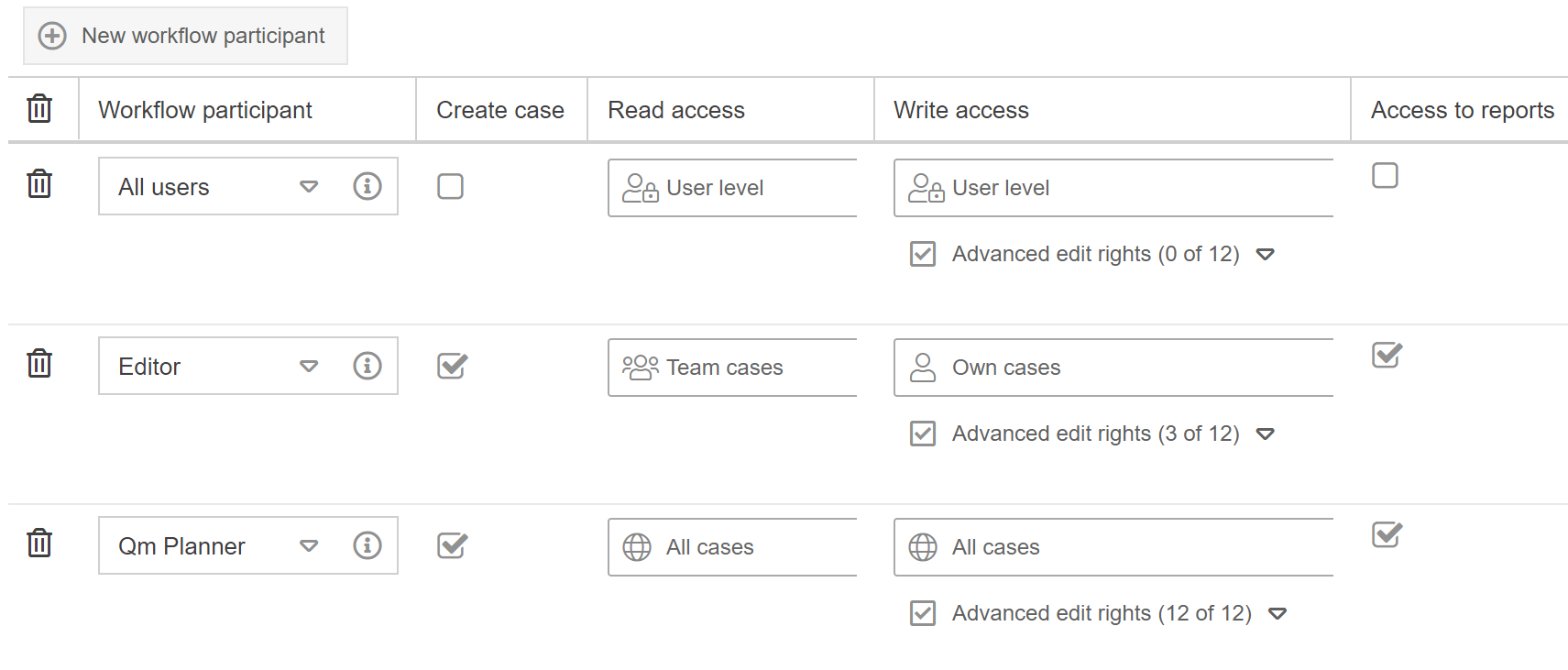
The following groups of persons and access rights thus apply to the action workflow:
All users |
|
Authorization profile Editor |
|
Role Qm Planner |
|
How did we do?
Workflow Settings
General placeholders for Word reports in workflows
