Table of Contents
The process designer
The modeling of process groups and processes takes place in the process designer. It is called up by selecting a process in the Process Explorer and then opening it in edit mode via the button. The f…

Table of Contents
The modeling of process groups and processes takes place in the process designer. It is called up by selecting a process in the Process Explorer and then opening it in edit mode via the button  . The following areas are available in the Process Designer:

BPMN symbol area
In this area there are different tabs available:
Symbols | Contains all objects that can be used to model process groups and processes. For process modelling, the symbol palette is based on the BPMN specifications. How exactly we interpret this BPMN standard and implement it with SmartProcess or have to deviate from it in individual cases is described transparently in an article on our CWA-website. A different symbol palette is available for the modeling of process groups than for processes. Objects can be placed in the Process Designer work area (no. 2) using drag and drop to create them. Alternatively, you can use the mini icons that appear when you click on an object in the working area. Drag and drop the new object to the desired location and a matching connector to the source object is automatically created. 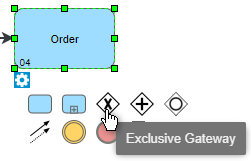 The available symbols for modeling and their order in the symbol area can be adjusted in the process management settings. |
Processes and tasks | In this tab, already created process groups, processes and tasks are displayed. The display corresponds to the view in the Process Explorer. Using drag & drop, these objects can be inserted into the process model and thus reused in several process groups and processes in SmartProcess. |
Organizational units / groups / roles | This tab displays the modeled organizational chart in a fold-out tree structure. The organizational units and groups can be placed on swimlanes via drag & drop to assign this organizational unit to the swimlane. |
Inputs / Outputs | In this tab, the data objects created so far are listed and can be inserted by drag & drop and thus reused. |
Documents | This tab lists all documents created in SmartProcess. They can be inserted using Drag & Drop and can therefore be reused. |
Working area
The model of the process or process group is designed in the working area.
The dotted lines for "limiting" the working area represent the dimensions of a DIN A4 page in landscape format. You can model as far to the right and bottom as you like, but in this case the objects and font sizes are scaled down accordingly when the process model is printed out on one side in A4 format.
Formatting bar
Objects created via drag & drop are inserted into the process model in a standardized format. Using the elements of the formatting bar, the objects and their labeling can be subsequently changed in shape, color and alignment.
The process model can be created as a one-page or multi-page PDF file, which can then be downloaded or printed.
More actions
- The process model can be checked with regard to the modeling rules made in the settings
- The tasks and sub-processes can be numbered automatically in the process model
- The process model can be exported in BPMN format (.bpmn file)
- Both title and footer elements can be hidden separately
- The watermarks in the swimlanes can be deactivated
- The current layout of a process or process group can be saved as a template for new models. The templates are managed in the selection window when creating new processes or process groups.
Modeling rules
When the modeling rules check is started in the More actions (4) or when saving, if this has been specified in the settings, the rules that are violated by the model are displayed on the right side. If the same rule is broken several times, it will also be listed several times. By simply clicking on the rules, the corresponding location in the process model is highlighted:

After making a change to the model, you can initiate a new check at the bottom right of the rule window by clicking <Refresh>.
Options for process modelling
During process modeling some options can be set for specific objects:
Move edge labels | If this is activated, the labels of connectors can be moved to any position. Otherwise, the arrangement of the labels is restricted to specified positions using the formatting options. |
Move object labels | If this is activated, the names of objects can be moved to any position. These include:
Otherwise, the arrangement of the labels is restricted to specified positions using the formatting options. |
Allow dangling edges | If this is activated, connectors can be modeled starting from an object so that they end in free space instead of ending at another object. It is recommended to keep this setting deactivated to ensure the correct connection of all process elements. |
Show checkered background | If this is activated, the work area is displayed with a checkered background. Otherwise, the background of the process model is a white area without pattern. |
Grid enabled | Determines whether the alignment of objects should be based on a predefined grid. If this is activated, it makes it easier to align modeling objects evenly. Otherwise, new objects can be freely positioned in the process model and the alignment lines are only oriented to existing objects. |
Grid size for alignment | A pixel size can be specified for the switched-on grid. This allows to move or align objects in the process model at smaller distances if required. |
How did we do?
Create process groups & processes
