Login & Startpage
Login and password
Structure of SmartProcess
Customize start page
Elements on the start page
Customize main menu
Full text search
Workflows and Cases
Create Workflows
Workflow objects
Workflow object: Task
Workflow object: Decision
Workflow object: Forward case
Workflow object: Send e-mail
Workflow object: Start, intermediate and end event
Workflow object: Timer
Workflow object: Parallel gateway
Workflow object: Sub-Process
Workflow object: Incoming message
Workflow object: Send form via e-mail
Workflow object: Service/Export
Form designer
Form fields
General field properties
Field: Text / List without multiple selection
Field: Multiple selection list
Field: Multirow text
Field: Multirow formatable text
Field: Number
Field: Date
Field: Date / Time
Field: Function-Fied
Field: Contact selection
Field: Field group
Field: Catalog fields
Field: Data source for processes and documents
Field: Process and Document fields
Field: Wiki
Field: Free input
The form designer
Workflow basics
Process model of a workflow
Workflow Settings
Rights workflow participants
General placeholders for Word reports in workflows
Case processing
Workflow-Applications
Processes
Menu structure & terms
Process modelling
Process objects
Overview: BPMN objects
Object: Task
Object: Sub-Process
Object: Connectors
Object: Events
Object: Gateways
Object: Pool & Swimlane
Object: Artifacts in general
Object: Artifacts IT System, Resource
Object: Data object Input / Output, Adjacent process
Object: Artifacts KPI, Risk, Control, Opportunity
Object: Artifact Related document
Additional modelling objects
User-defined images as modeling objects
The process designer
Create process groups & processes
Formatting and positioning objects
Reuse & copy objects
Process details
List: Details
User-defined fields
List: Actions
List: Documents
Lists: Terms and abbreviations / Requirements
Lists: Indicator (KPI), Risks, Opportunities
List: Process participants
Process description
Publication and access rights
State and version
Publication of processes / documents
Validity
Read and edit access
Read confirmation
Knowledge questions for read confirmation
Additional features for processes
Documents
Documents - menu structure
Create documents
Document details
Edit files directly in Office
Properties and Placeholders in Word files
Documents - State, version, publication and validity
Organization chart
Reporting
Reporting menu
Reporting for processes and documents
Reporting for cases
Saved reports
Share reports
Excel Report Designer (Additional module)
Catalogs
Settings
Users, permissions & organizational units
Authorization profiles
Introduction authorization profiles
Authorization profile - Tab Workflows / Cases
Authorization profile - Tab Processes
Authorization profile - Tab Documents
Authorization profile - Tab Organization chart
Authorization profile - Tab Reporting
Authorization profile - Tab Contact
Authorization profile - Tab User
Authorization profile - Tab Catalogs
Authorization profile - Tab Wiki
Authorization profile - Tab Administration
Authorization profile - Tab Others
Organizational units and roles
Manage users
Representative
Catalogs
Import
Import of data
Contact import
User import
Organizational unit import
Case import
Meta data import for documents
Emails and text modules
Configure application
Language
Automatic translation
Date and time
Login options and views
Settings for process management
Modeling rules
Symbols for processes and process groups
Process view
Settings for document management
Document templates
Document type
Settings for the organizational chart
Display of the logos
Unavailability for cases for dates
Directory services (AD, Entra ID / Azure AD) and single sign-on
User notifications
Password security
IP Filter (only for SaaS Systems)
API Profile (Additional module)
Manage maintenance access (only for SaaS systems)
Word report designer for printouts (Additional module)
AI Function SmartAI (Additional module)
Audit Trail
Initial configuration SmartProcess - Process and document management
Video tutorials
Video tutorials: Business Process Management
Video tutorial for process participants
Video tutorial for working with workflow cases
Video tutorial on audit management
Version & Release notes
Release Notes
Version 24.9 Release Notes
Version 23.10 Release Notes
Version 22.10 Release Notes
Version 22.5 Release Notes
Version 22.3 Release Notes
Version 21.3 Release Notes
Version 9.1.0.10 Release Notes
Version 9.1.0.9 Release Notes
Version 9.1.0.8 Release Notes
Version 9.1.0.7 Release Notes
Version 9.1.0.6 Release Notes
Version 9.1.0.5 Release Notes
Version 9.1.0.4 Release Notes
Version 9.1.0.3 Release Notes
Manuals from previous versions
Version 25.11 Release Notes
Version 25.3 Release Notes
Info about version
General
SmartProcess API
Mobile Web App
HTML field
Contacts
File attachments in SmartProcess
Manage Wikis
Use QR codes with SmartProcess
Contact & Forum
Table of Contents
- All Categories
- Workflows and Cases
- Create Workflows
- Workflow objects
- Workflow object: Task
Workflow object: Task
The task object is used in a workflow to represent a work step or an activity that is saved in the activity list of the process after execution. Such a work step usually consists of filling out a for…
The task object is used in a workflow to represent a work step or an activity that is saved in the activity list of the process after execution. Such a work step usually consists of filling out a form.
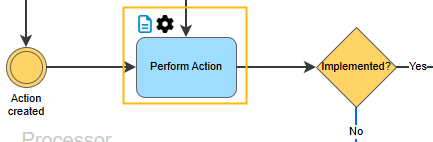
Task form
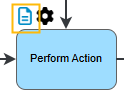
The form is designed with the form designer, which can be opened directly with the icon above the task or via a button in the task.
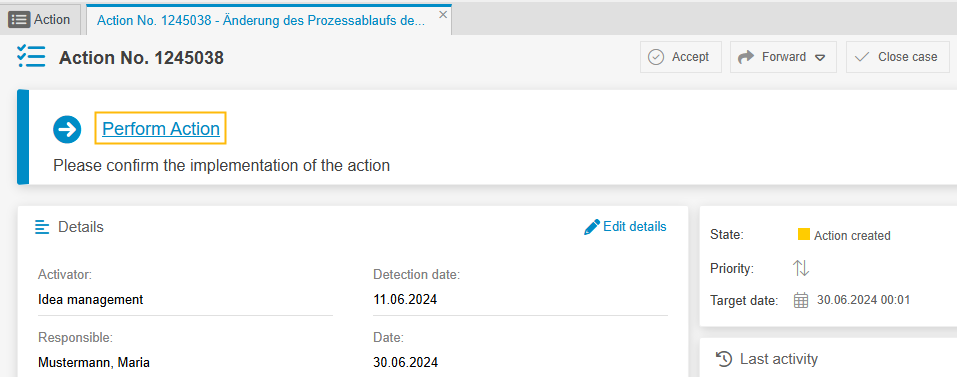
A task is later displayed in a task as a work step above the task details. The form is opened by clicking on the link.
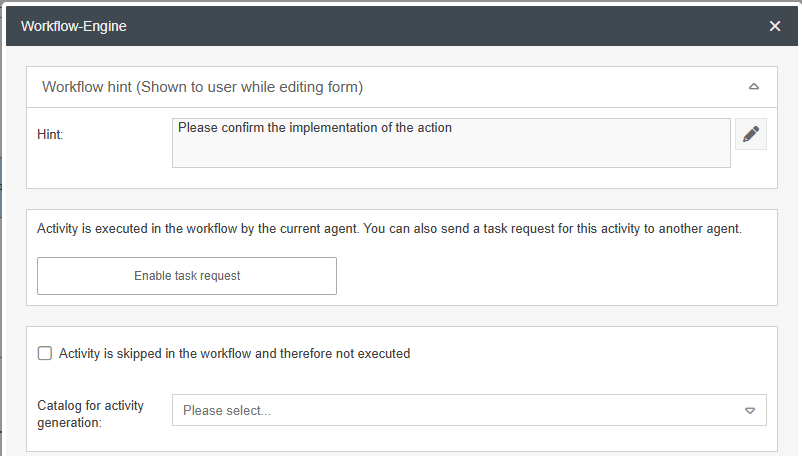
Workflow Engine for furthr settings
![]() | ![]() |
Workflow hint
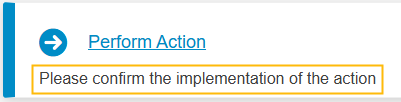
A processing note can be added for each task, which is displayed in the case under the task to be carried out and can serve as an explanation. This is a freely formatable text field so that images can also be embedded, for example.
Task request
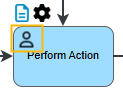
Instead of forwarding the entire task with the Forward object, this option can be used to request the task from another person or office only. In this way, the task remains in the “My tasks” list with the last person responsible, while the recipient receives the task. Tasks requested in this way are marked in the model:
The options for recipient selection described in the article Forwarding apply with an addition:
Option | Description |
Suppress email notification | Requesting a task always automatically triggers a system-generated email that is sent to inform the recipient(s) that the task has been received. If this e-mail is not to be sent, this option can be used. No individual text module can then be used. |
Individual email notification | If an individual task receipt notification is to be sent to the recipient(s), this option can be activated. After activation, a selection window appears in which the text module can be newly created or, if it already exists, selected. |
Suppress email notification on completion | When the task is finally processed and then sent back, an e-mail is automatically generated by the system to inform the person responsible for the overall case that the task has been completed. If this email is not to be sent, this option can be used. |
Execute automatically | The task is automatically requested from the configured recipient. If this option is not activated, the task request must be triggered manually by clicking in the process. |
Workflow is not continued directly after requesting the activity. The creation of the activity is waited for. | If activated, the process remains at this point until the task has been completed by the recipient. If deactivated, the next step is triggered immediately. If you do not want to wait at this point, but at a later point, a decision object can be used to check the progress. |
Save activity immediately | The task and form are created directly and saved empty or with the selected default values. It is therefore available in the activity list and can be edited afterwards. |
We recommend using the default settings.
Enable timer
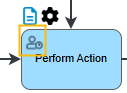
This option makes it possible to link the task to a due date without modeling it separately in the model. It can be set in the same way as a timer and behaves in a similar way: Overdue tasks are highlighted in the activity list. In the workflow model, requested tasks with an active timer are displayed in this way:
Activity is skipped in the workflow and therefore not executed
A task marked in this way is not taken into account in the workflow process. Such tasks, which are not relevant for process control, can be added to the process model for better visualization, e.g. if the model is used for teaching purposes.
Catalog for activity generation
If catalog fields are used in a task form, it can be set here that the selected catalog is automatically called up via the task link in the task instead of the activity. An activity or task is then created for each selected item in the catalog.
How did we do?
Workflow object: Decision