Table of Contents
Meta data import for documents
Imports should only be carried out by users with very good SmartProcess knowledge! In addition, each import should first be tested with a small number of data records ! The metadata import of documen…

Table of Contents
In addition, each import should first be tested with a small number of data records!
The metadata import of documents can be used to either change and add information to existing documents or to create new documents in SmartProcess.
The function is located under Settings -> Catalogs and import -> Import -> Meta data import for documents.
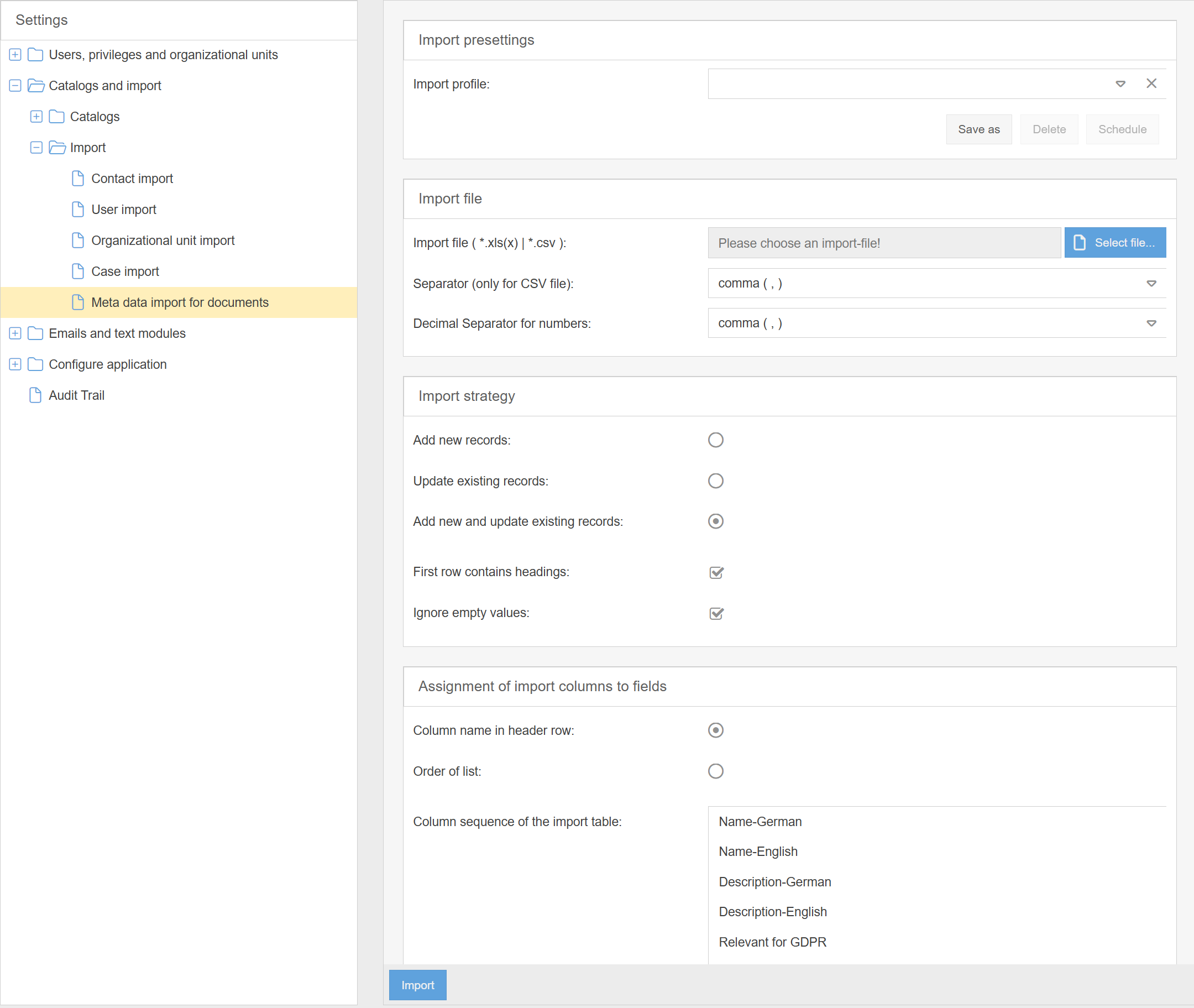
The general use of the import dialog is described in the article Import of data. The following section describes the special features and points of attention that must be fulfilled for a successful document metadata import.
Adding data to existing documents
In order to modify or add to data in existing documents, two requirements must be met:
- Under Import strategy, you must select an option that includes Update existing records.
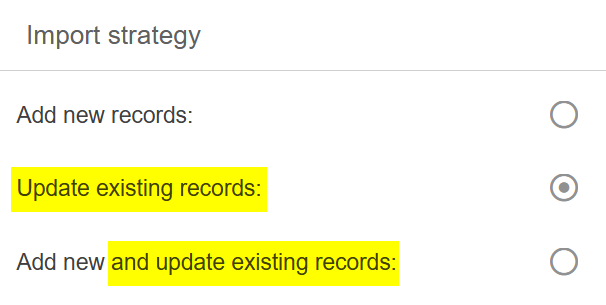
- SmartProcess must be able to “find” the existing document based on the import file. An identification column is used for this purpose.
- If an ID column exists in the import file, it is used for identification.
- If this column is not present, the system checks whether a Document No. column exists in the import file and uses that for identification.
- If neither of the two aforementioned columns is present, the column Name-<User Language> is used for identification instead. If the import is performed by a user who is logged on in the system language English, the column Name-English is used for identification.
Example "Document No." |  Result: The document is recognized in the system based on the Document No. column. Since the Name-English column is also included, the name of the document in English is changed by the import. With this variant, the number of all documents must be unique. |
Example "Name-English" |  Result: Since the column Document No. does not exist, the document is recognized by the column Name-English. In addition, the import changes the responsible organizational unit in the "Responsible" field for the documents. With this variant, the name of all documents must be unique. |
Important notes for the document update
General points of attention
- The value in the identification column must be assignable to the current version of an existing document in SmartProcess
- The value in the identification column must not be empty
- The user performing the import must have editing rights for the identified document.
- To ensure that the required information is imported into the correct fields, the column headers in the import file should be named exactly as listed in the import dialogue in SmartProcess. You should then select Column name in header row as the import behavior.

- Not every possible column must be specified in the import file. For example, if there is no column "Relevant for GDPR", the previous value in the field remains unchanged for all documents in the system.
However, if there is a "Relevant for GDPR" column and no value is entered in this column for a document, the previous value is deleted in SmartProcess because this empty entry is also imported.
In the example, for the document with the number CL-00010, the value in the "Relevant for GDPR" field would be empty after the import.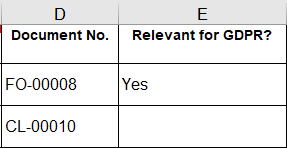
The only fields that cannot be cleared by an import are Version number and Document No.
Attention points for fields to be imported
If the import file is filled with data, you should observe a few points for certain import columns so that the import can be carried out successfully.
Version number | Must be an integer that is higher than the current version number of the document to be modified. If the column is not specified during import, a new minor version of the document is automatically generated. If an invalid version number is specified (for example, a decimal number), this specification is ignored during the import and a new sub-version is also automatically created by SmartProcess. |
Published | Only the information Yes or No can be imported here. If "Yes" is entered in the import file, the corresponding document has the state "Published" after the import. If Published = "Yes" is imported and no version number is specified during import, a new main version of the document is automatically created by SmartProcess instead of a minor version. |
Document type | A valid document type from the Document types catalog must be entered in this column. If an invalid document type is entered, the import of the corresponding document fails. |
Language | In this column, one of the valid languages from the drop-down list of all languages available in SmartProcess must be entered. If an invalid language is entered, the import of the corresponding document fails. |
Hyperlink | The Hyperlink column can be used to add a hyperlink to an existing document. If the document contains a file attachment at the time of import, this is removed. If the Hyperlink column is present in the import file, but no value (hyperlink) is entered in the cell, the document attachment is also removed! The hyperlink column should only appear in the import file if a hyperlink is to be stored for all documents contained in the import file. |
Responsible | In the Responsible field of a document an organizational unit, a role or a user can be selected. Regarding the import, 3 different columns are available for this purpose:
Only one of these 3 columns should be filled for each document in the import file, because only one organizational unit, role or user can be responsible for a document at a time.  If an invalid value is entered (for example, an Organizational unit that does not exist in the organizational chart), the import of the corresponding document fails. |
Document-Users | Multiple organizational units and roles can be added to the Document users list. For organizational units, there is an additional option to set a checkbox so that all subordinate organizational units are also considered as document users. For these different cases, 3 different columns are available during import. Several organizational units and roles can be imported per document in each column, separated by semicolons:
Example of importing document usersDocument users are to be added to the document with the no. FO-00002. Structure of the import file  Result in SmartProcess 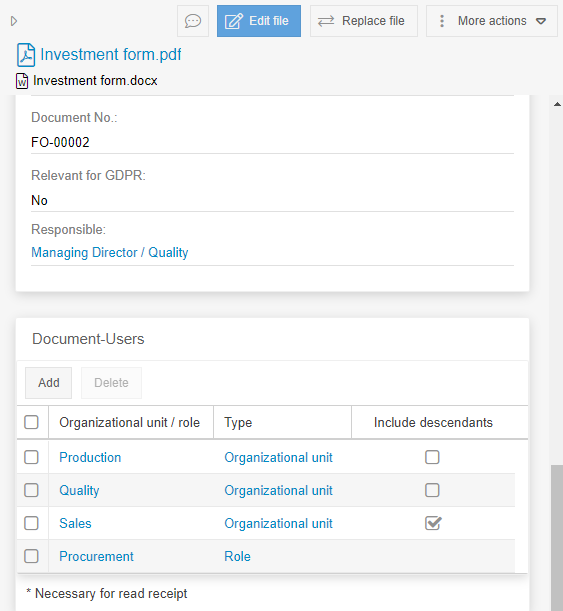 If an invalid value is entered (e.g. an organizational unit that does not exist in the organization chart), the import of the corresponding document will fail. |
Valid from / Valid unil | Validity values should use the date format set for the application. The import of the corresponding document will fail if the specified format is not respected (e. g. comma as separator). |
User-defined fields | All user-defined fields can also be filled via import. Note the special features of the respective field type:
|
Create new documents
The meta data import for documents can also be used to create new documents in SmartProcess. The newly created documents are automatically stored in the top Documents folder in the Documents menu.

For the creation to be successful, some general notes and cautions regarding certain fields to be imported must be observed.
Important notes for the creation of documents
General points of attention
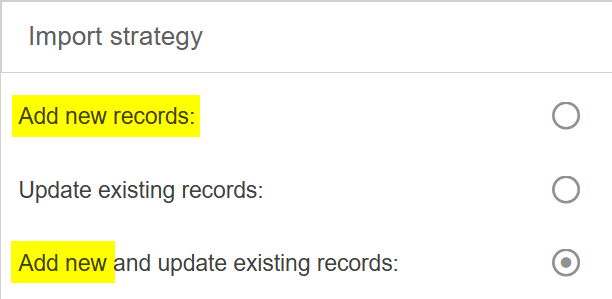
- Under Import strategy, you must select an option that includes Add new records.
- At least the column Document No. or Name-<User language> must be specified in the import file. If a user is logged on to the system in the language English, the required column would be Name-English.
- In the Document No. import column, you must not enter a number that is assigned to an existing document in SmartProcess at the time of import. If this is the case, the data of the existing document would be updated instead of creating a new one.
- If there is no Document No. column in the import file, no document name that already exists in SmartProcess may be entered in the Name-<User language> column.
- If the Document No. column is used in the import file, automatic numbering must not be activated in the Document management settings.
- The user performing the import must have the permission "Edit every document" set to "Yes" in his or her authorization profile.
- Not every possible column must be specified in the import file. If, for example, there is no column "Relevant for GDPR", the field for the imported documents remains empty.
In the example, the document with the number FO-00008 would have entered a value after the import. However, the document CL-00010 did not. If there were no "Relevant for GDPR" column in the Excel file, both documents would have no value in the corresponding field after the import.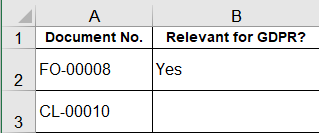
Attention points for fields to be imported
If the import file is filled with data, you should observe a few points for certain columns so that the import can be carried out successfully.
Version number | Must be an integer that is at least 1. If the column is not specified during import, the document is automatically created with version 0.01. |
Published | Only the information Yes or No can be imported here. If "Yes" is entered in the import file, the corresponding document has the state "Published" after the import. If Published = "Yes" is imported and no version number is specified during import, the document is automatically created and published in version 1.00. |
Document type | A valid document type from the Document types catalogue must be entered in this column. If an invalid document type is entered, the import of the corresponding document fails. |
Language | In this column, one of the valid languages from the drop-down list of all languages available in SmartProcess must be entered. If an invalid language is entered, the import of the corresponding document fails. |
Hyperlink | The hyperlink specified in the column is added to the newly created document as a file attachment. |
Responsible | In the Responsible field of a document an organizational unit, a role or a user can be selected. Regarding the import, 3 different columns are available for this purpose:
Only one of these 3 columns should be filled for each document in the import file, because only one organizational unit, role or user can be responsible for a document at a time. If an invalid value is entered (for example, an Organizational unit that does not exist in the organizational chart), the import of the corresponding document fails. |
Document-Users | Multiple organizational units and roles can be added to the Document users list. For organizational units, there is an additional option to set a checkbox so that all subordinate organizational units are also considered as document users. For these different cases, 3 different columns are available during import. Several organizational units and roles can be imported per document in each column, separated by semicolons:
Example of importing document usersDocument users are to be added to the document with the no. FO-00002. Structure of the import file Result in SmartProcess If an invalid value is entered (e.g. an organizational unit that does not exist in the organization chart), the import of the corresponding document will fail. |
Valid from / Valid until | Validity values should use the date format set for the application. The import of the corresponding document will fail if the specified format is not respected (e. g. comma as separator). |
User-defined fields | All user-defined fields can also be filled via import. Note the special features of the respective field type:
|
File with all import columns
The following Excel file is for support and contains all system fields with the required column headers that can be used for the document metadata import. It is not an import template, as it depends on your use case which columns are generally required and which columns are mandatory to be filled in.
To prepare the file according to your needs, please refer to this help article.
How did we do?
Case import
