Table of Contents
State and version
The state and version number indicate the current situation of the process from the perspective of a user with editing rights as opposed to a user with reading rights. The information in the article…

Table of Contents
The state and version number indicate the current situation of the process from the perspective of a user with editing rights as opposed to a user with reading rights.
State
State & symbol | Description |
 Not published | Only users with editing rights for the process can see it. |
 Unpublished changes | Changes have been made to the process since the last publication. Users with read-only access to the process will see it in the published version (in the example version 6.00). Users with editing rights see the process in its current editing state (in the example version 6.08)  The screenshot shows a part of the Details list in the process details. |
 Published | Users with reading rights see the same version of the process as users with editing rights. |
 In Approval | Previously unpublished changes are currently published with an ongoing release workflow. When this has been successfully completed, the process receives the state "Published". |
 Validity expired | The validity period specified during publication has been exceeded. The read rights from “Published” still apply. The process owner has been informed by a system e-mail. Persons with editing rights (with the privilege Manually edit validity of processes) can extend the validity. |
 Withdrawn | A published version of the process has been withdrawn. Only users with editing rights for the process can still see it. Editing is only possible again after a release (see section below). |
Version number
SmartProcess automatically assigns version numbers for processes. The digit before the decimal point stands for the main version and the digits after the decimal point for the minor version.
Each time the process model or process details are saved, a new minor version of the process is created (e.g. version 0.01 becomes version 0.02). These changes are only visible for users with editing rights as long as the changed process has not been published again.
When the process is published, a new main version is created and the numbering of the minor version is reset (e.g. a processing status 0.43 becomes version 1.00). If the process is edited again after a period of time, new minor versions are created again (1.01, 1.02 etc.) until these changes are published again in a new main version (2.00), that become visible to users without editing rights.
The Versions window
The Versions window can be opened via the drop-down menu More actions in the process model view or alternatively via the button  to the right of the process model.

Here it is listed which user created which version of the process at what time. The following version states are possible:
- Published -> This version state is currently displayed to users with a viewer license and read rights for the process..
- Archived -> This version was once published and can be viewed by users with a viewer license and read rights for the process via the Versions window. A published version is automatically switched to Archived state as soon as a newer version of the process is published.
- Draft-> This version was never published and can only be viewed by users with a Designer license and editing rights for the process via the Versions window.
Users who have read-only access to the process will only see all ever published versions of the process and can compare them graphically (see below).
Users with editing rights can display any editing state ever saved by activating the checkbox <Show all minor versions> and open it or use it for version comparison. For users with editing rights, there are also other options, which are described below.
Graphical version comparison
Version comparison for processes
As soon as exactly 2 versions have been selected in the Versions window via checkbox, the button <Compare versions> can be clicked. In a new window the process models of the two versions are compared, whereby the newer version is shown on the left. Differences are graphically highlighted as follows:
- If objects have been added in the newer version, which did not exist in the older one, they are coloured or framed in green .
- If the properties of existing objects have changed in the newer version, they are coloured or framed in yellow.
- If objects that existed in the older version are no longer available in the newer version, they are coloured or framed in red.
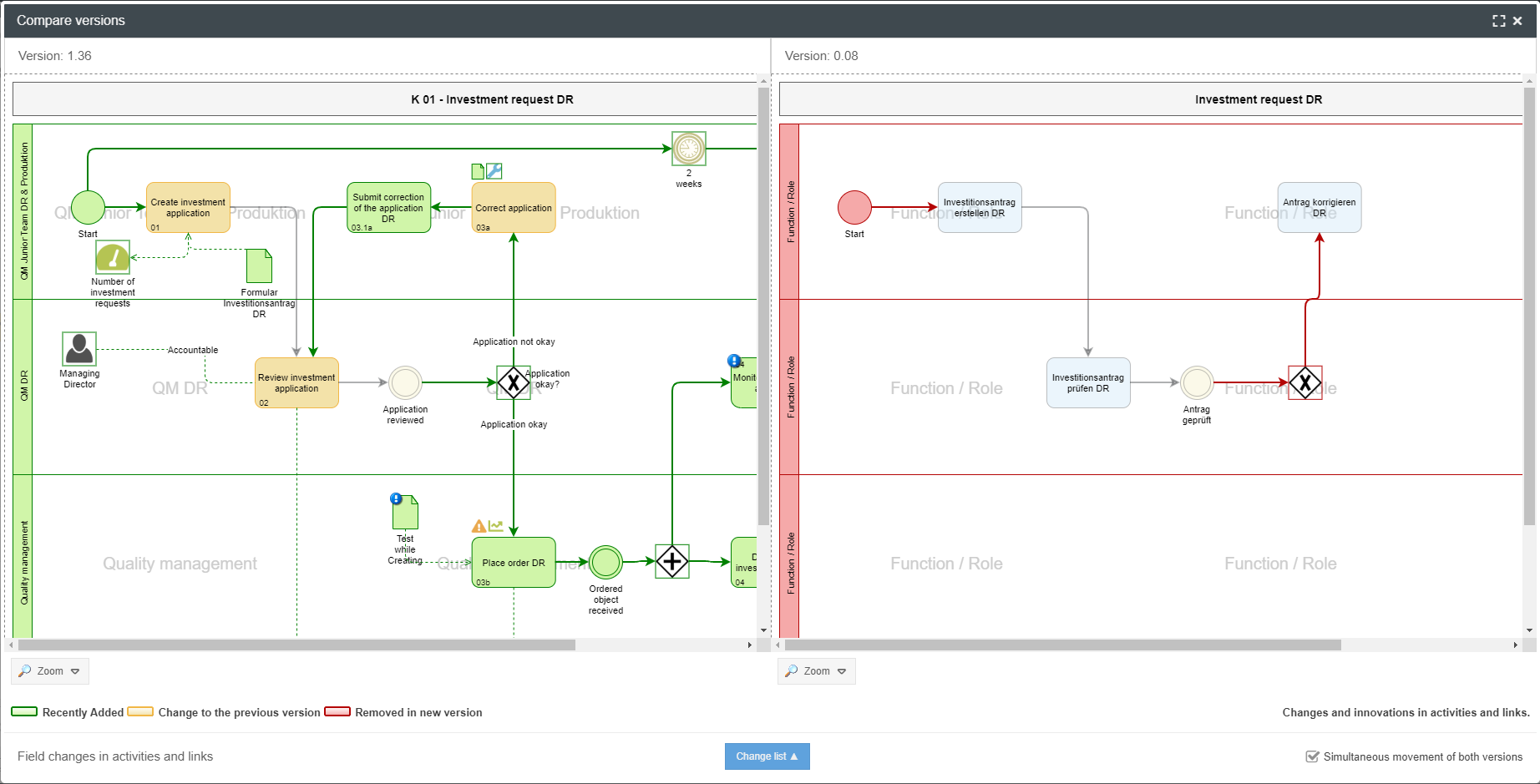
The two process models are automatically scrolled simultaneously and parallel to each other so that the same range of models can always be compared. This option can also be deactivated with the checkbox <Simultaneous movement of both versions>.
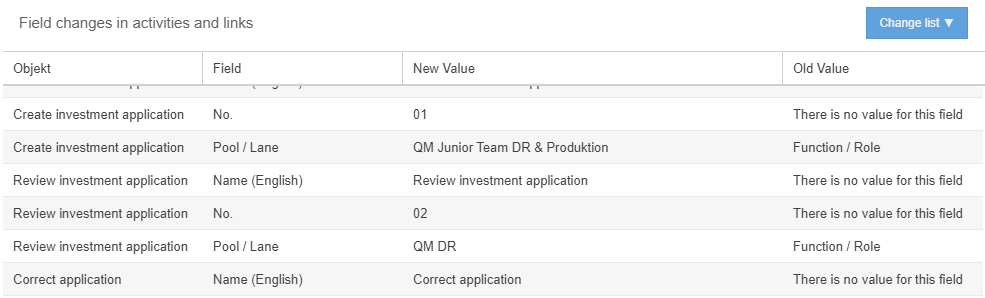
If changes have been made to field values that cannot be recognized graphically at first glance, the button <Change List> can be used to additionally display a comparison of the changes made to these field values.
Version comparison for Word file attachments
Analogous to processes, in the details of a document, the button <More Actions> can also be used to open the Versions window, which has an identical structure.
Word files published as PDF files are also available for comparison.
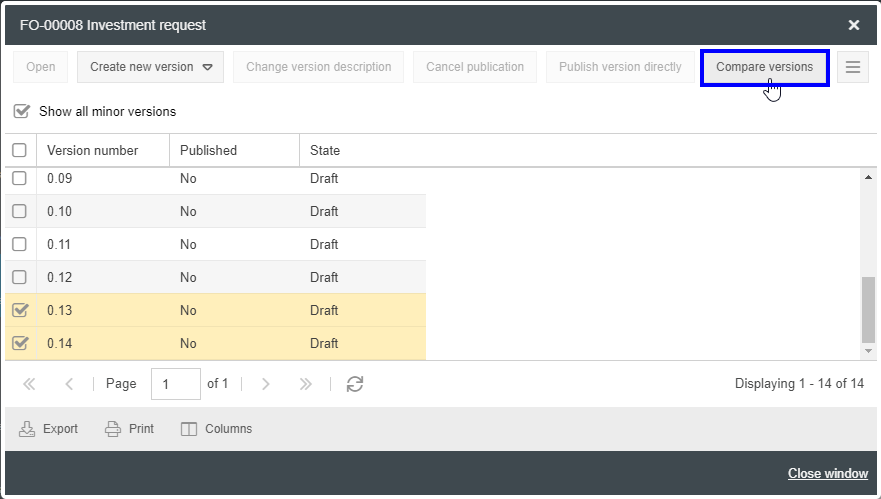
If two suitable versions were selected, the button <Compare versions> can be clicked. A window will open in which the newer version is displayed on the left side and the older version on the right side.
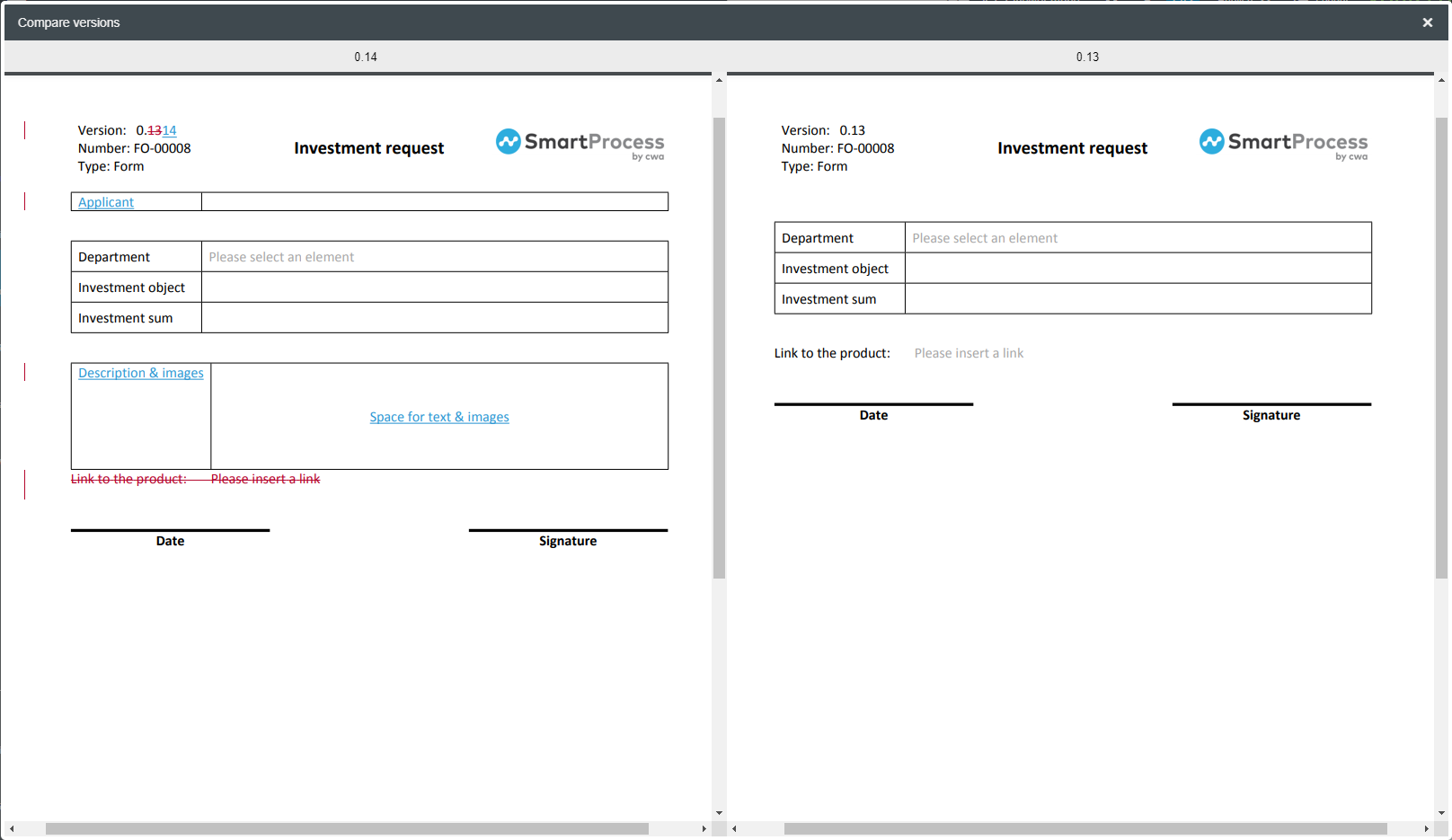
- Content added in the new version is displayed underlined in blue
- Content that has been deleted in comparison to the older version is displayed in red with a strikethrough.
Restore versions and create new main version
If you want to undo changes made to a process, you can restore older versions. To do so, choose the desired version by selecting the checkbox and click the drop-down menu <Create new version> and then the button <Restore selected version>.
Using the drop-down menu, a selected process version can also be created as a new main version. If the latest version was previously number 0.45 and a new main version is created from any version, this version is created as version 1.00.
Withdraw publication
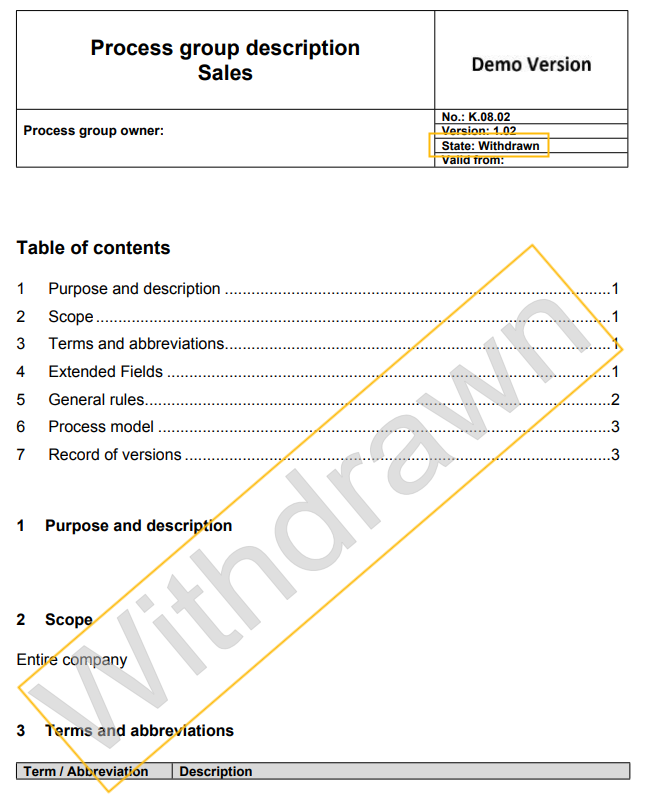
If you withdraw a published version, a reason must be given for this, which, if available, is also noted in the audit trail. At the same time, the process and all (sub)versions created since the published version are set to the status "Withdrawn". Only persons with editing rights for the process can still see it.
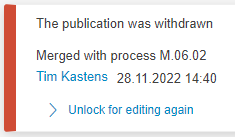
This is reflected, for example, in the process description:
To edit the process again, it must be unlocked. For users with read-only access to see the process again, it must then be republished.
Publish version directly
A selected version number can also be published manually immediately. This allows, for example, to republish older main versions of a process if the already newly published main version needs to be changed after all.
Processes should always be published with the approval workflow for standard-compliant control according to ISO 9001:2015.
How did we do?
Publication of processes / documents
