Table of Contents
Import of data
Imports should only be performed by users with very good SmartProcess knowledge. In addition, each import should first be tested with a few data records ! In SmartProcess, various contents can be cre…

Table of Contents
In addition, each import should first be tested with a few data records!
In SmartProcess, various contents can be created and modified via import from a Microsoft Excel or CSV file.
The import mask is always structured similarly, regardless of the imported content. The generally applicable import mask is described in this article. The special features to be considered when importing the respective content are described in the linked articles:
- Special aspects of the contact import
- Special aspects of the user import
- Special aspects of the organizational unit import
- Special aspects of the case import
- Special aspects of document metadata import
- Special aspects of catalog data import
The import window is divided into 4 segments.
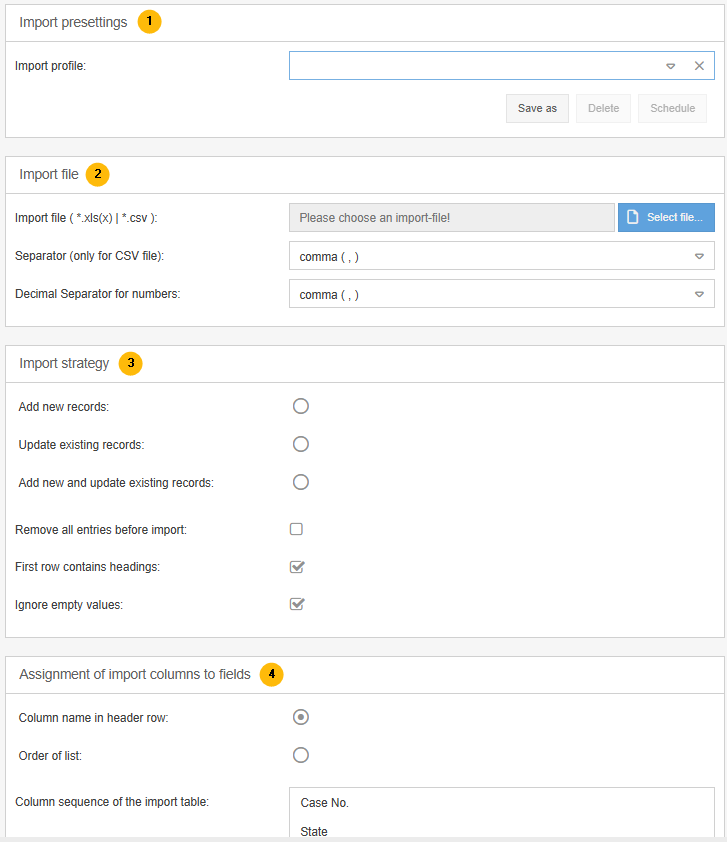
1 - Import presettings
With this it is possible to import data from an Excel or CSV file automatically at regular intervals.
To do this, create an import profile with the desired settings for segments 2 to 4 by typing a name in the field and clicking <Save as>. Afterwards the button <Schedule> is clickable, which opens the following window:

In the Schedule area, you specify how often SmartProcess should attempt to retrieve the specified data source and perform the import into the system. In the example, the system will attempt to trigger the import daily at 4:00 a.m.
In the Notification area, you can enter an e-mail address to which information is sent after the import attempt, whether the import was successful or not.
In the Data Source area you define how SmartProcess can access the Excel or CSV file.
Therefore, if you export the data that SmartProcess should import from another system, this exported Excel or CSV file must always overwrite the previous one in the specified location under the same name.
You can give SmartProcess access to the file in different ways (the best way to set up the automatic import is that yout IT contact the CWA support):
File | To ensure access via this option, the file to be imported must be stored on the same server as the SmartProcess installation. With this selection, only the path to the storage location must be entered. The file is then accessed via the folder path of the server. This is only possible for on-premises installations. |
Web (HTTP) / Secure Web (HTTPS) | If the file can be accessed via a URL, this can be stored as the file name for access. |
FTP / Secure FTP (SFTP) | You store the import file on a file transfer protocol server. If anonymous access to the FTP server is not permitted, the login name and password for access must be entered in the corresponding fields. The host and port (default: 21, possibly different) must also be entered. |
Windows shared folder | For access, the file to be imported must be stored on a computer in the same network and domain as the server with the SmartProcess installation. The folder where the import file was stored can be shared within the network. To access it, the address of the Windows shared folder must be known and entered. If the folder access is password protected, the Login Name and Password fields must also be filled in for the import to work. This is only possible for on-premises installations. |
2 - Import file
For a one-time import, select the Excel or CSV file via the button <Select file>.
For a CSV file, it is also necessary to specify the character with which the data columns are separated. Also select whether decimal numbers are separated by comma or dot.
3 - Import strategy
Adding / updating data records
When importing a file, you can decide each time whether only data records recognized as new should be created, only existing data records should be updated or both should be combined.
To do this, SmartProcess must be able to recognize an existing data record. Therefore, depending on the imported content, there are always one or more fields that serve as a unique identifier for a data record (e.g. the user name is always unique for users).
If an attempt is made to re-import an entry with an identical unique field, SmartProcess identifies the entry as an existing data record.
A user with the user name 'a_kern' already exists. There is an entry in the import file that contains 'a_kern' in the user name column. This entry is identified as an existing data record.
The following options are available for handling new / existing data records during import:
Add new records | If SmartProcess recognizes an entry in the import file as an existing data record, it is ignored during the import. However, if SmartProcess finds an entry in the import file that does not yet exist, it will be created. Example: - In SmartProcess there is currently only one user with the user name a_kern. - In the import file there are 2 entries with the user names a_kern and b_smith. - The entry a_kern is recognized as an existing data record. The user's data in SmartProcess remains unchanged. - The entry b_smith is recognized as a new data record. SmartProcess creates this as a new user. - At the end of the import, there are two users in SmartProcess. |
Update existing records | If SmartProcess recognizes an entry in the import file as an existing data record, its data is overwritten with the information from the import file. However, if SmartProcess finds an entry in the import file that does not yet exist, it is ignored. Example: - In SmartProcess there is currently only one user with the user name a_kern. - In the import file there are 2 entries with the user names a_kern and b_smith. - The entry a_kern is recognized as an existing data record. The user's data in SmartProcess is overwritten by the data in the import file (e.g. to change the existing user's contact details) - The entry b_smith is recognized as a new data record and ignored during import. - At the end of the import, there is only one user in SmartProcess. |
Add new and update existing records | If SmartProcess recognizes an entry in the import file as an existing data record, its data is overwritten by the information in the import file. If SmartProcess finds an entry in the import file that does not yet exist, it is newly created. Example: - In SmartProcess there is currently only one user with the user name a_kern. - In the import file there are 2 entries with the user names a_kern and b_smith. - The entry a_kern is recognized as an existing data record. The user's data in SmartProcess is overwritten by the data in the import file (e.g. to change the contact details of the existing user) - The entry b_smith is recognized as a new data record. SmartProcess creates this as a new user. - At the end of the import, there are two users in SmartProcess. |
The Update existing records selection allows you to change or add field values to existing entries, e.g. the address data of the location of several users can be subsequently added or changed in this way.
The import file does not have to contain a separate column for each field. For columns that are not listed in the import file, the contents are left unchanged in the system.
Remove all entries before import (Only for catalog and case import)
So, if there were 100 entries in the catalog so far and 20 are added via import, only the 20 new entries will be in the catalog after the import. This is only useful if data is to be completely exchanged via import.
First row contains headings
In order not to import the headings in the first row of the import file as a data set, this checkbox must be activated.
Ignore empty values
This option determines how table cells that do not contain a value are handled when updating records.
- In SmartProcess, there is currently a single user with the username a_kern and various other details, such as a telephone number.
- The data is to be updated via an import.
- In the import file, there is no value in the ‘Telephone number’ column (e.g. because the number has not changed).
If the checkbox is not active, existing data is overwritten by an empty cell in the import file and values are thus deleted.
If the checkbox is active, the values are retained.
4 - Assignment of import coolumns to fields
This section instructs SmartProcess which value from the import file should be entered in which field in SmartProcess. There are two possible behaviors for this:
Column name in header row | This procedure is recommended for data import. To transfer the value from the correct column to the correct field in SmartProcess, the column name in the first line of the import file is used. The column must have the same name as the field in SmartProcess. A list of field names is also provided in the import window. 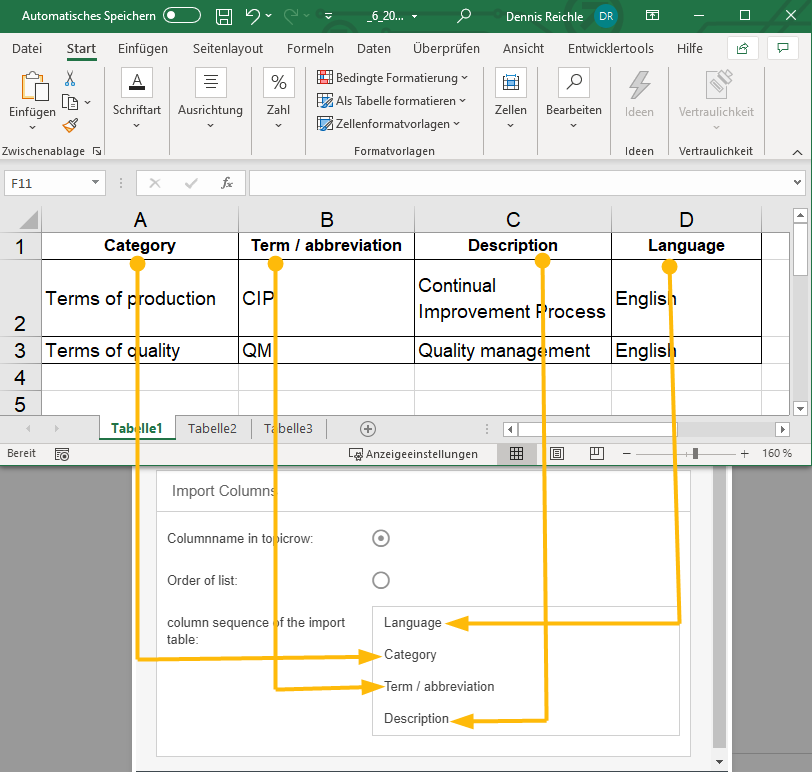 The order of the columns in the import file is not important for this selection. For catalogs, you can export the list view from SmartProcess. This generates a template for the subsequent data import, in which the column headers are already named correctly. |
Order of list | This import behavior uses the order of the columns in the import file to make entries in the appropriate fields in SmartProcess. To do this, the order of the columns in the import file, read from left to right, must correspond exactly to the order of the fields in the import window in SmartProcess, read from top to bottom. The entries in the first column are then written to the first-mentioned field, and so on. 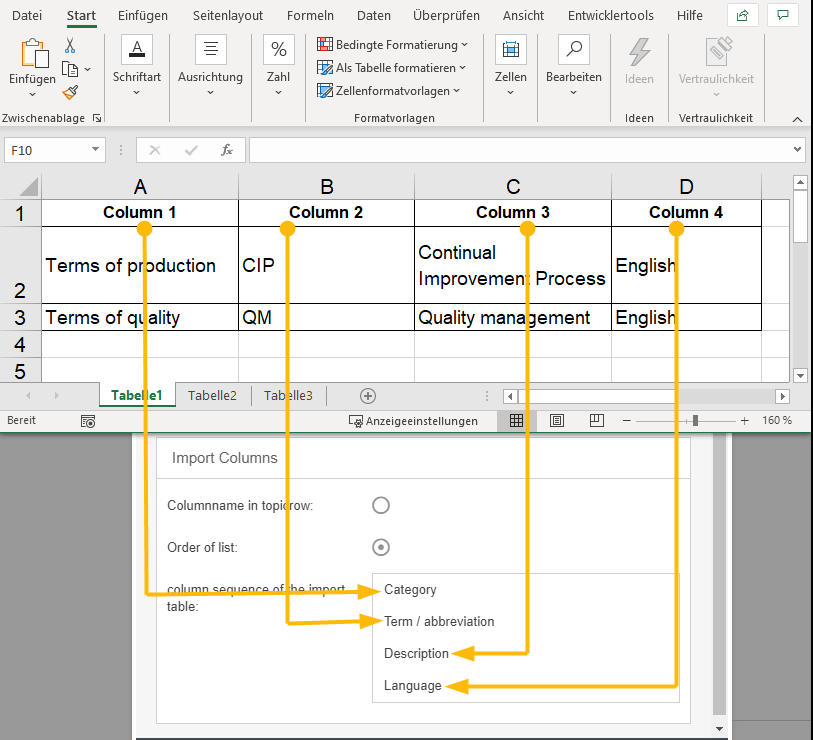 The headings of the columns in the import file are not important for this selection. You can use drag and drop to adjust the column order in the Import window of SmartProcess. |
Import preview
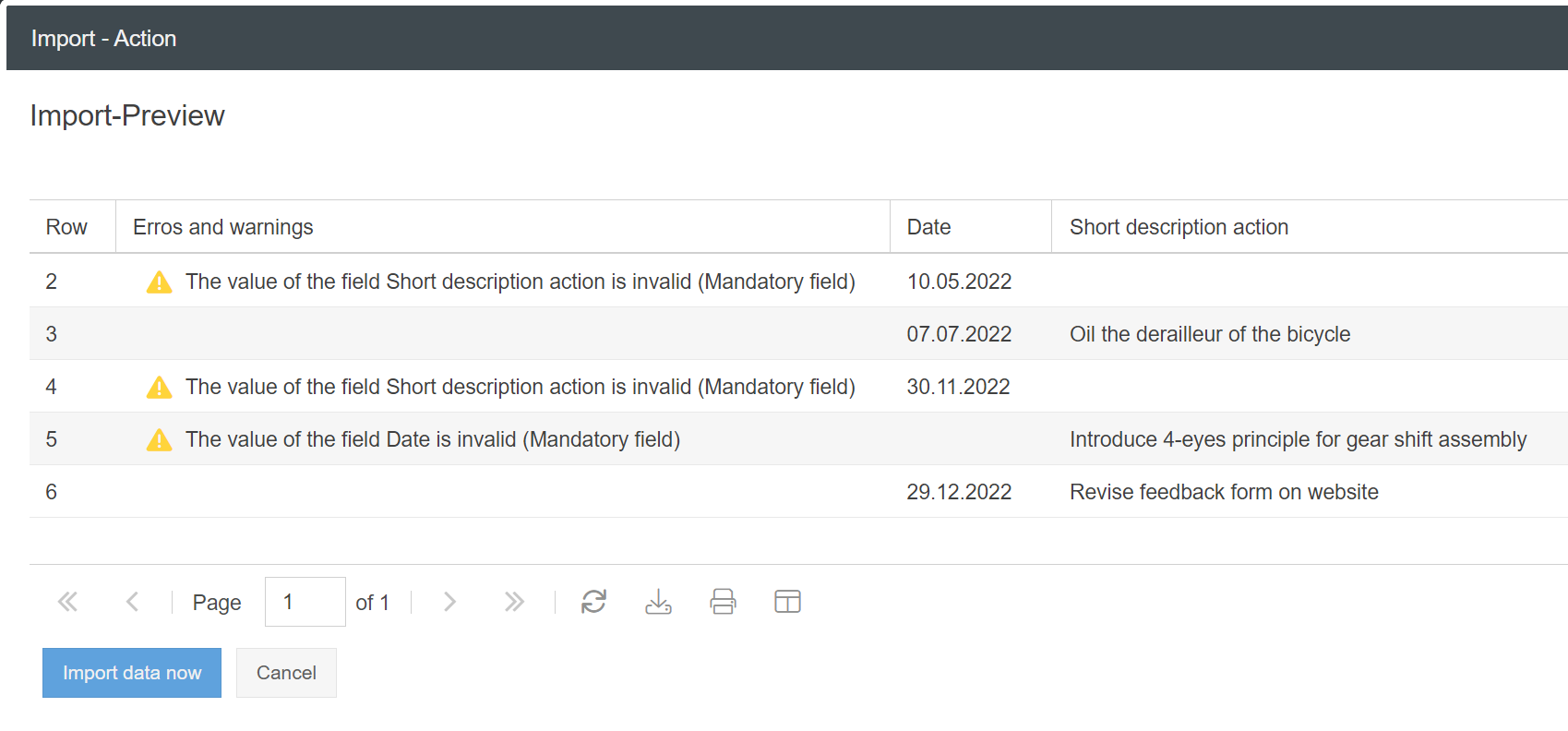
When you click on <Import>, the import is not carried out immediately. Instead, the import file is first read in the background and a preview is generated. This preview shows you if some lines contain incorrect data and would not be imported successfully.
- Red warnings prevent the import from being carried out for this line.
- Yellow notes can be ignored if necessary. This may result in undesirable behaviour. If, as in the example below, mandatory date fields are not filled in, the case cannot calculate a deadline later and therefore cannot escalate.
If you are satisfied with the result of the preview, you can start the import via <Import data now>.
How did we do?
Contact import
