Table of Contents
Text modules - Case e-mails
In the menu Settings > Emails and Text Modules you can configure the email accounts and text modules. This menu is used to create the text modules that can be sent automatically or manually from a ca…

Table of Contents
In the menu Settings > Emails and Text Modules you can configure the email accounts and text modules.
This menu is used to create the text modules that can be sent automatically or manually from a case via the workflow object send e-mail.
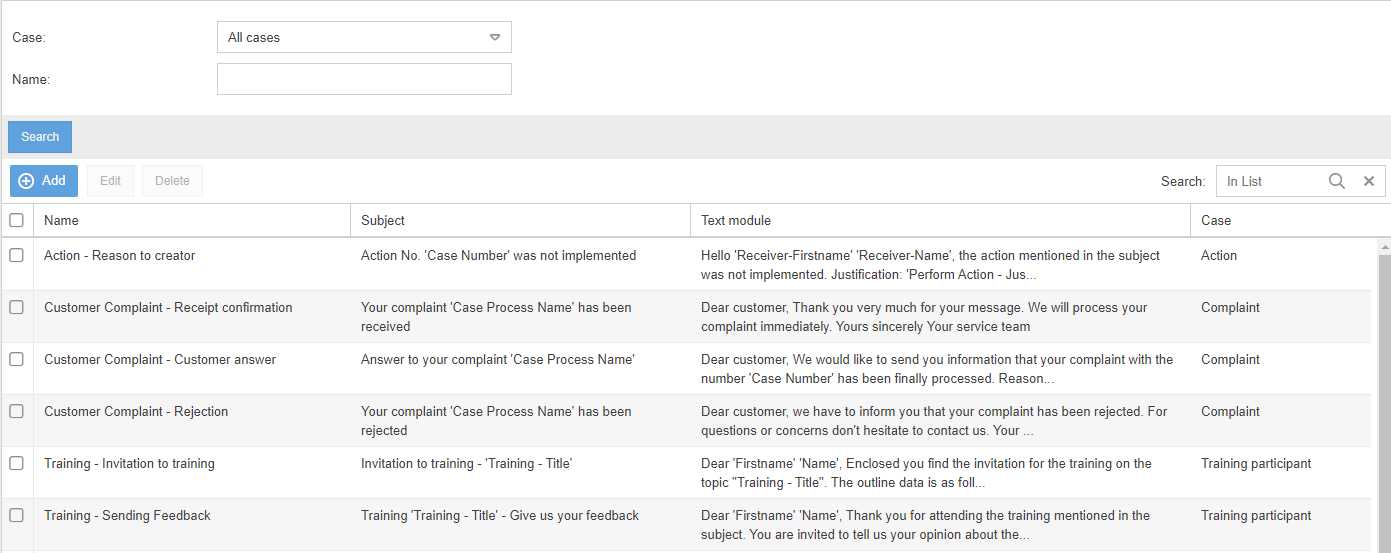
The two fields Case and Name can be used to search or filter for text modules. The search can be executed using the button <Search>.
In addition, you can also use the Search field on the right above the list of the text modules to search
Use the button <+ Add> to create new text module entry.
Create a new text module
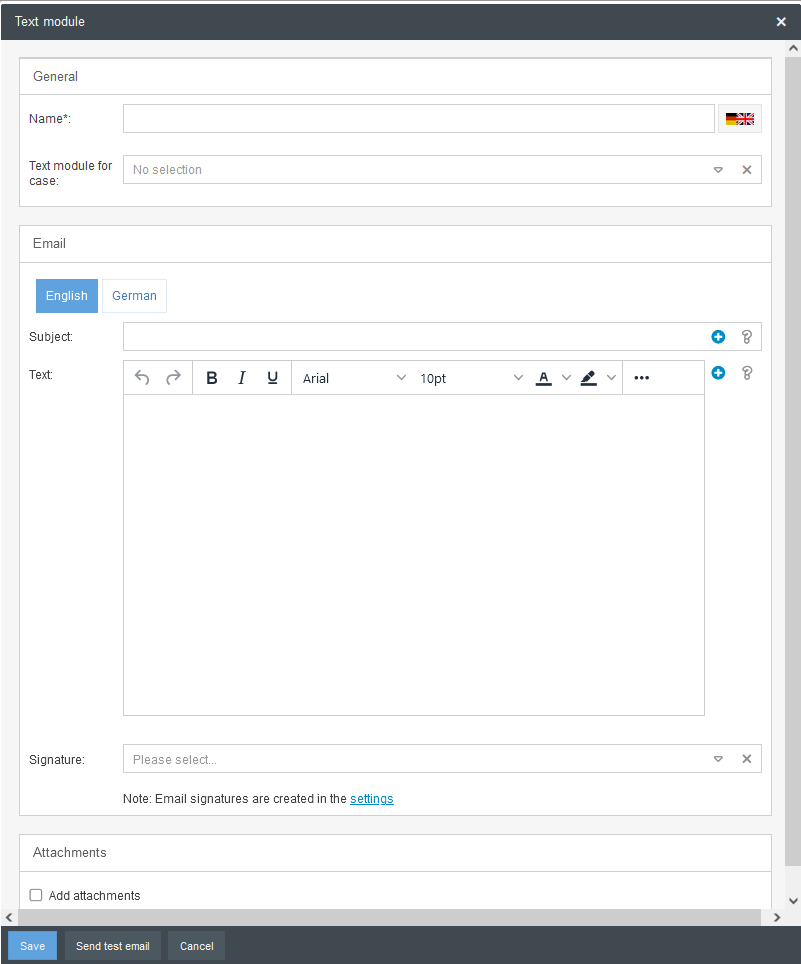
General
Name | This field is used to define the name for the text module. If several languages are activated in the system, a name must be defined for each language. The name of the text module will later be displayed in the Send e-mail workflow object in the text module selection list. |
Text module for case | In this field, you must define the case type for which the text module should be available. Selecting the case type will provide case-specific placeholders for the text module. This means that the fields of the task can be transferred to the text module as placeholders so that the contents of the case are transferred to the e-mail. If no transaction type is selected, only native placeholders are available, which exist for each transaction type. |
Language register | With the language register you can switch between the activated languages for which a text should be written.  |
Subject | In this field you define the subject of the e-mail. |
Text | In this field you define the text of the e-mail. |
 | Click the plus symbol to open the list of available placeholders. 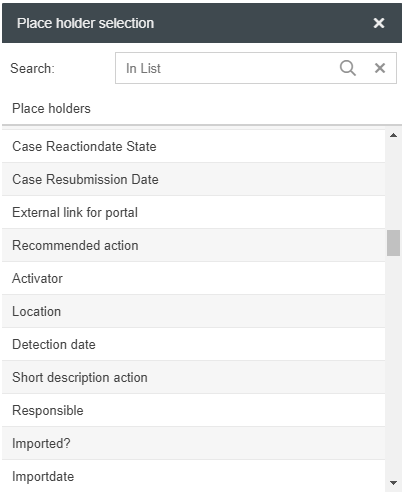 Once you have found the desired placeholder, insert it by a single click at the position where the cursor was previously placed. You can also use the search function to find a placeholder. |
 | The question mark allows to call a list of already inserted placeholders and their meaning. 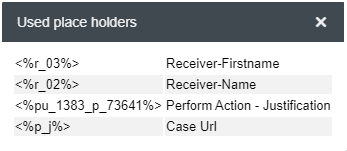 |
Signature | You can define a fixed signature for each text module. The signatures are also defined in the settings in the submenu Emails and text modules. The link will take you directly to the signatures. |
Attachments
If the checkbox Add attachments is activated in the Attachments area, different file attachments can be defined for the textbrick. These are automatically added to the e-mail.
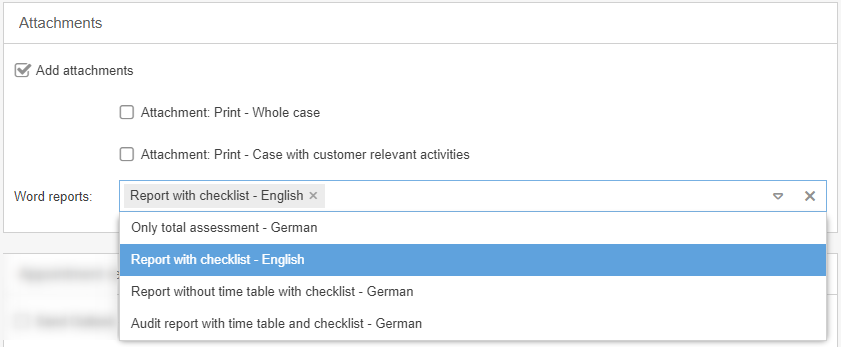
Attachment: Print - Whole case | If this checkbox is activated, the system default printout of the entire process is attached to the e-mail. The printout is the same as the one you get when the button <Print> is executed in the case window. |
Attachment: Print - Case with customer relevant activities | If this checkbox is activated, the system's own standard printout of the case including a list of the file attachments of the case is attached to the e-mail. The printout is the same as the one you get if you select <Print case with customer relevant activities> from the More Actions menu in the case window. |
Attachments of the case | If this checkbox is enabled, all attachments that were added at the top case level, e.g. in the start form or via drag and drop, are attached to the email. Attachments from activities are ignored here. |
Attachments of all the actions | If this checkbox is enabled, all attachments that have been added in activities such as tasks or sub-processes are attached to the email. Attachments from all available sub-process levels are taken into account Attachments from the top case level (see previous point) are ignored here. |
Word reports | This selection list lists the reports that were created with the Word Report Designer for printouts for the case selected above. This is a multiple selection list in which several entries can be selected to attach the reports to the e-mail. |
Appointment reminder outlook
If the checkbox Send Outlook event is activated, the details for sending an Outlook appointment for a text module can be defined.
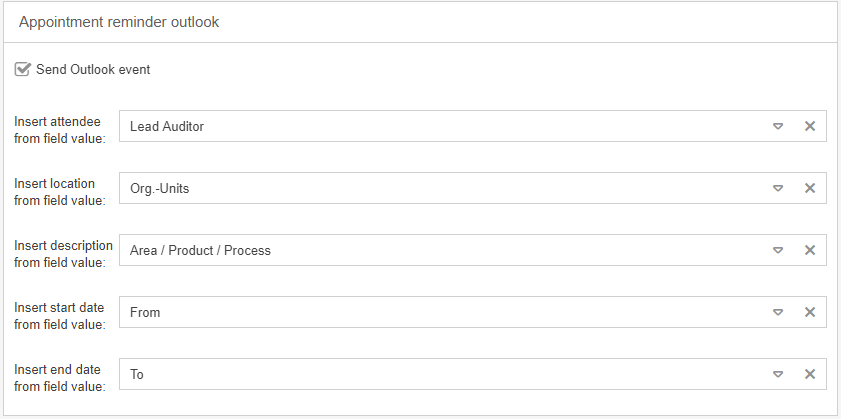
The following format requirements apply to the linked fields on the Outlook side:
- In general: The fields that are referenced must exist in the start form at the same workflow level as the email-sending object. The field data can also be transferred to the appropriate level via function fields.
- Attandee: An email address is expected here (at least the email of the person being contacted).
- Location and description: Text fields must be used here. "Description" (see third element above) refers to the free text of the appointment entry sent. The title or subject of the appointment is taken from the subject of the e-mail text module.
- Start date and end date: Date fields with time must be used here (date only is not possible).
How did we do?
Text modules - System e-mails
