Table of Contents
Version 25.3 Release Notes
Processes and documents. The approval workflow can now be configured so that the reviewers and approvers from the previous version of the process / document are initially adopted when the case is sta…

Updated
by Dennis Reichle
Table of Contents
Processes and documents
- The approval workflow can now be configured so that the reviewers and approvers from the previous version of the process / document are initially adopted when the case is started.
The prerequisite for this is the version of the approval workflow in which the reviewers and approvers are entered in a field group
If you have any questions about the function and the version of the approval workflow, please contact support@cwa.de

Processes only
- When saving templates for processes and process groups, images that have been inserted into the model from the User-defined images area are now also taken into account.
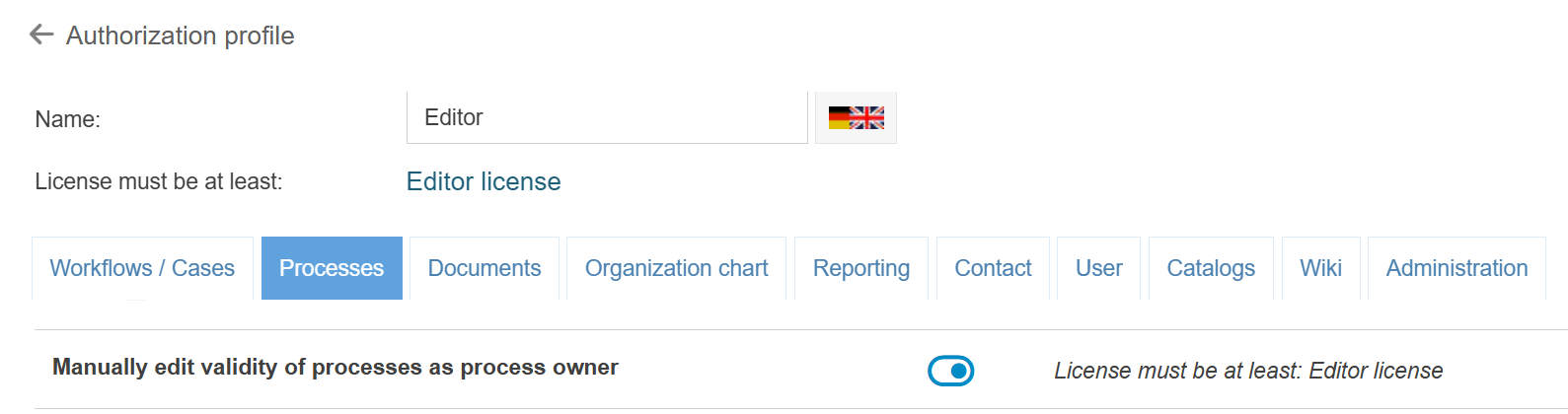
- The validity of process groups and processes can now be edited manually with an Editor license, provided the user is entered as the process owner or process manager. Whether this option should be activated or not can be set with a new privilege in the authorization profiles.
- When importing BPMN files, the import of task descriptions as (unformatted) text is now also supported.
Documents only
- With the file export function, all file attachments of linked / subordinate documents can now also be exported.

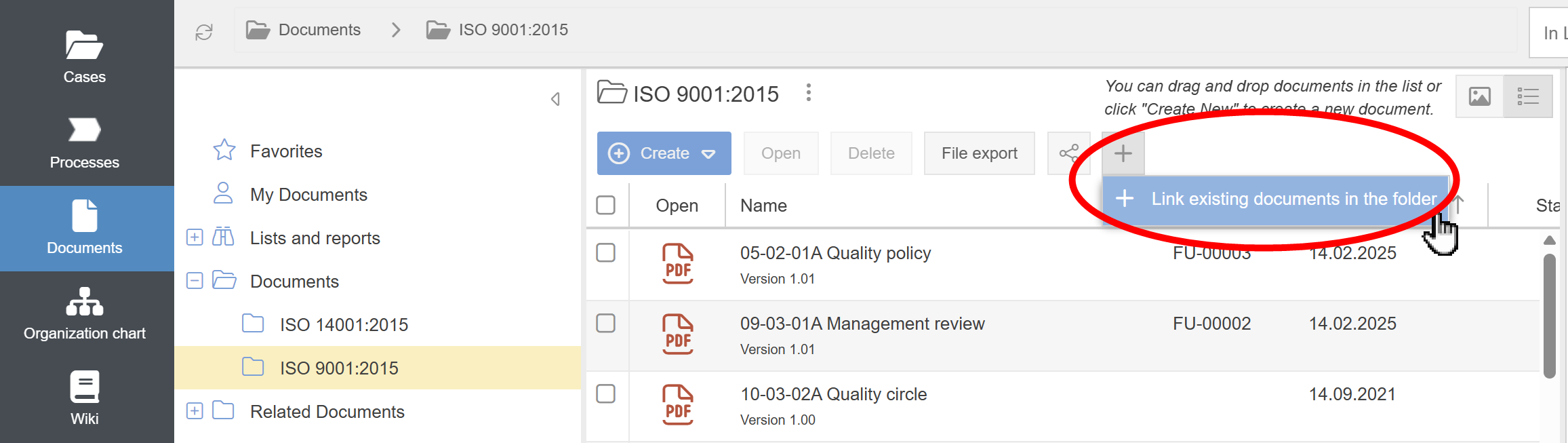
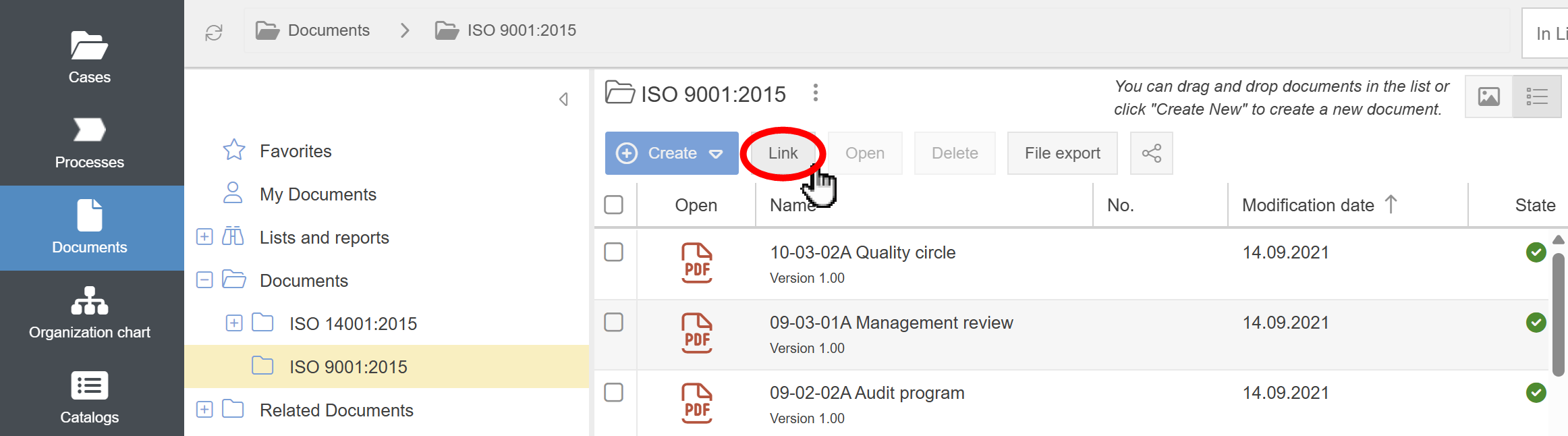
- In the list view of a folder in the Documents menu, the Link button for reusing documents from other storage locations in the currently selected folder has been removed. This function is now available by clicking the + button and afterwards on Link existing documents in the folder.
Comparison of the new and old layout
New
Old
Old
Case processing
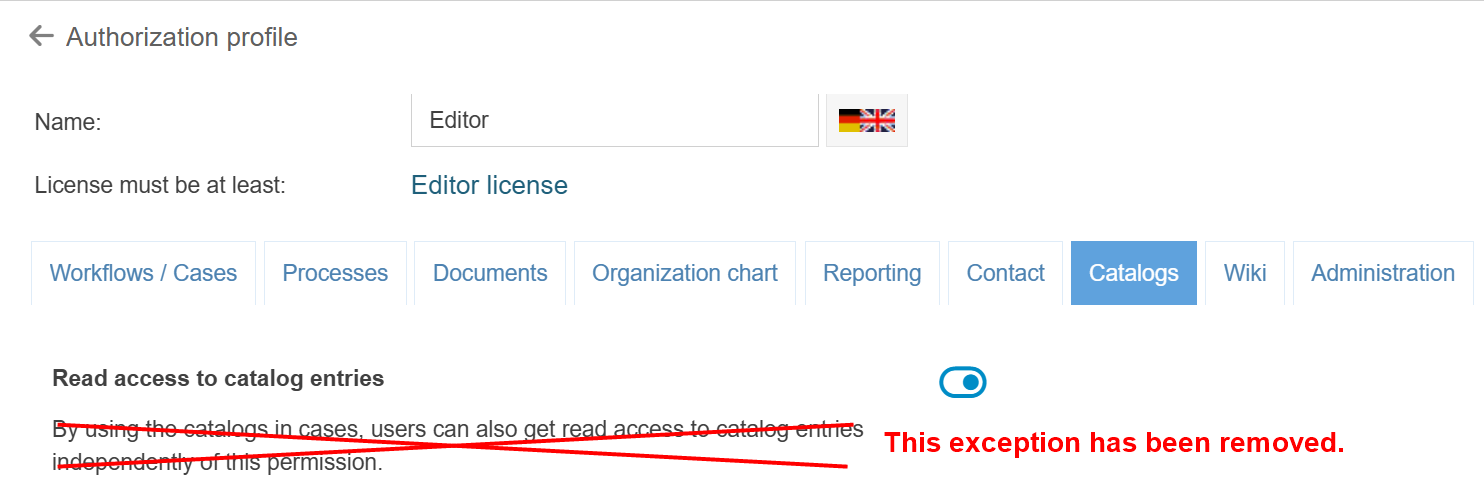
- To select entries from contacts and catalogs in transaction forms, read permissions for the contacts or the relevant catalog are now required. The previous exception for accessing contact and catalog entries from within a transaction no longer applies.
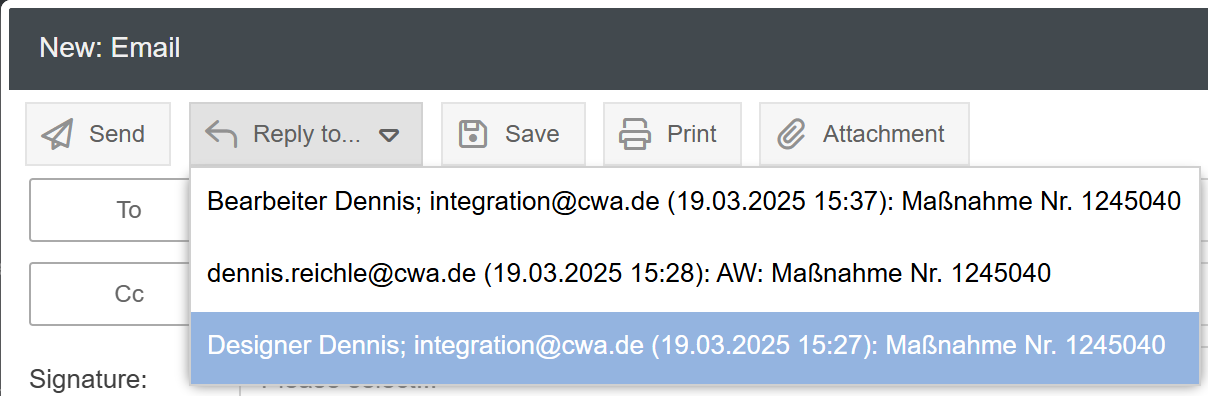
- When composing an email from a case, it is now possible to reply to a previous email in the case using the Reply to... button. The previous message history is then loaded into the text field of the e-mail that is being created.
The Reply to... button is only displayed if at least one email for the case already exists in the activity list.
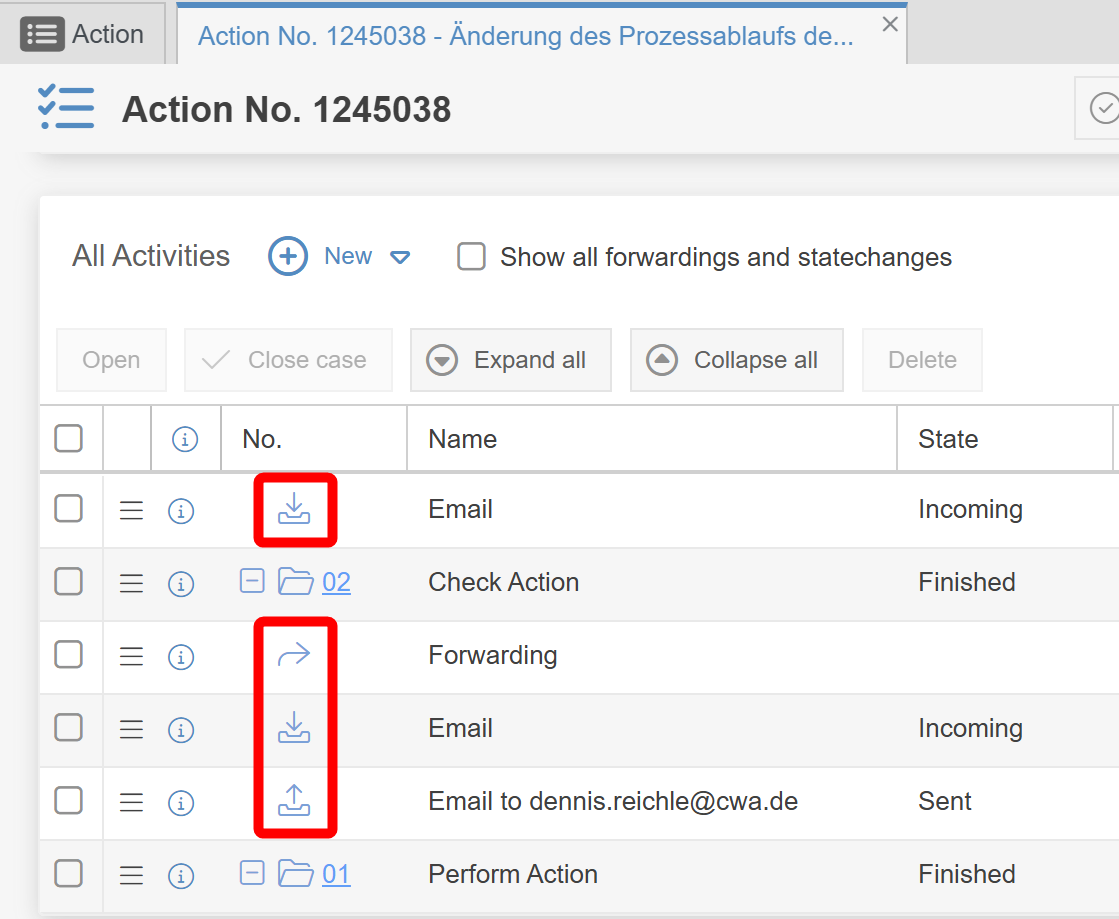
- In the activity list of a case, forwardings with comments as well as incoming and outgoing emails are now highlighted with their own icon in the No. column.
Workflow modelling
- In the form designer, fields and other elements can now also be inserted in the top line.

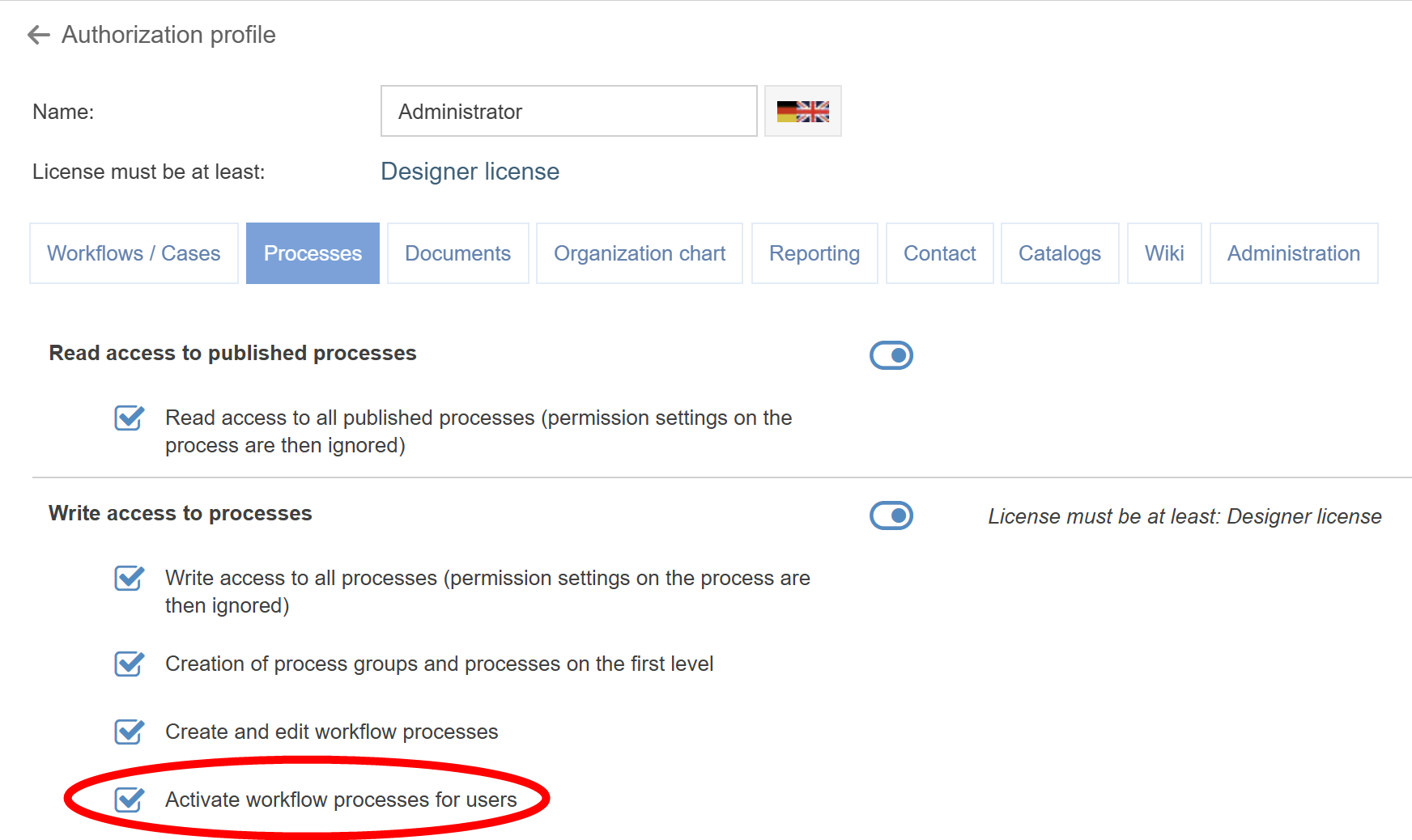
- In the Processes tab of the authorization profile, there is a new privilege Activate workflow processes for users. This is required to activate/deactivate a modeled workflow in the workflow settings for end users or to change the activated version.
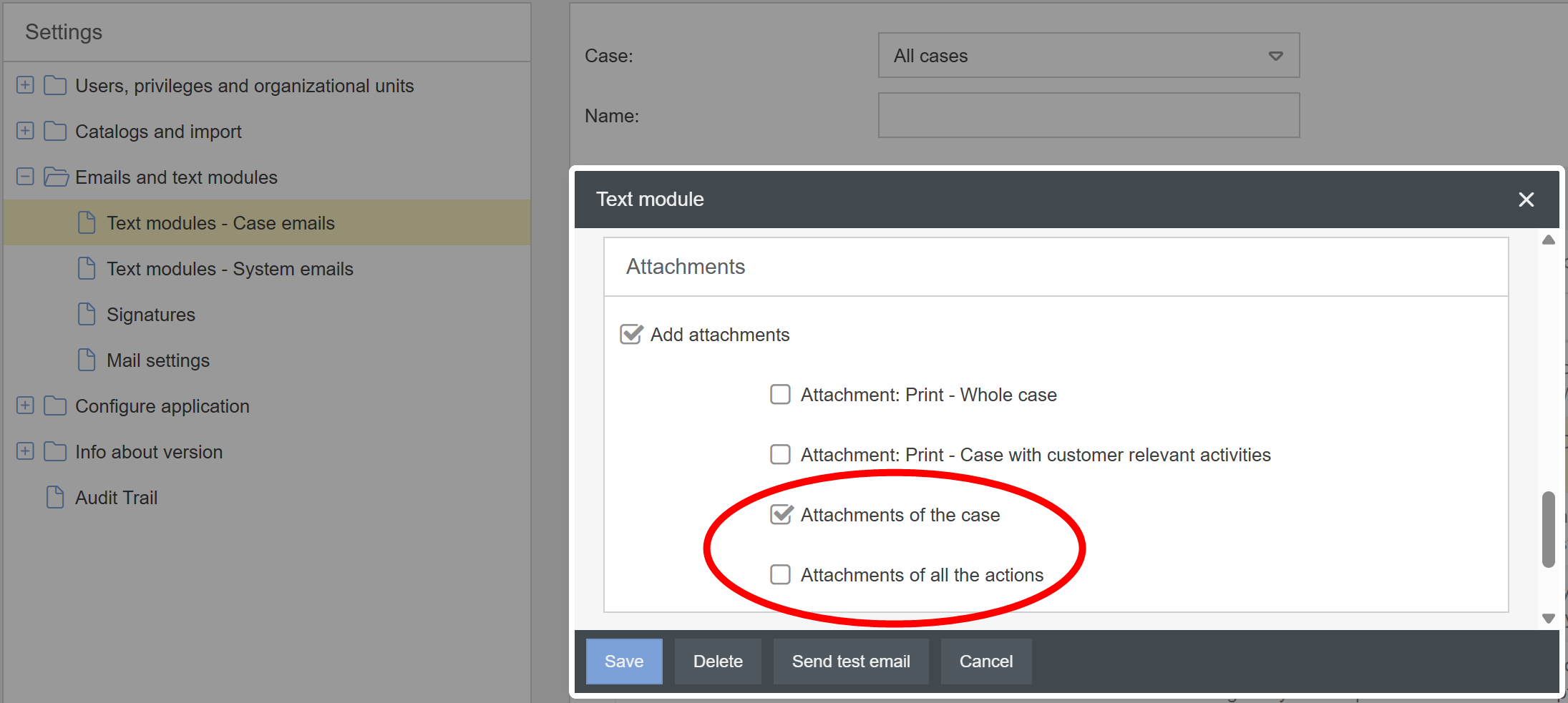
- When configuring text modules for case emails, you can select in the Attachments area that all attachments of the case or the attachments of all the activities of the case should be sent as email enclosures when the email is sent.
Organization chart
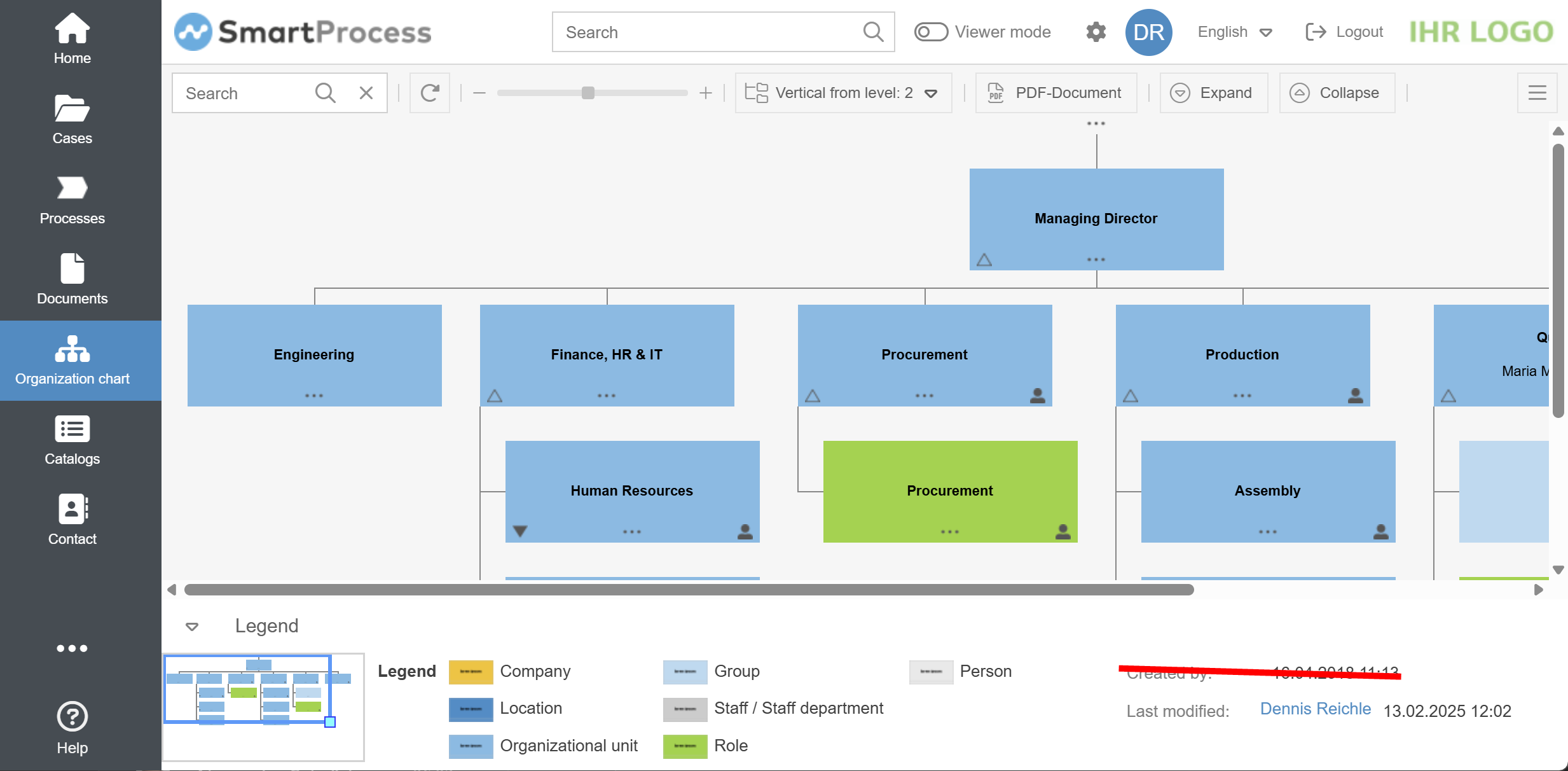
- The signature Created by has been removed from the legend of the organization chart as this information was not meaningful.
General
- The possibilities of the SmartProcess REST API have been extended. It is now possible to read, create, change or delete data for catalogs, cases and attachments of these cases. To find out how you call up the API by defining/programming the triggers and subsequent actions, please refer to the relevant online help articles.
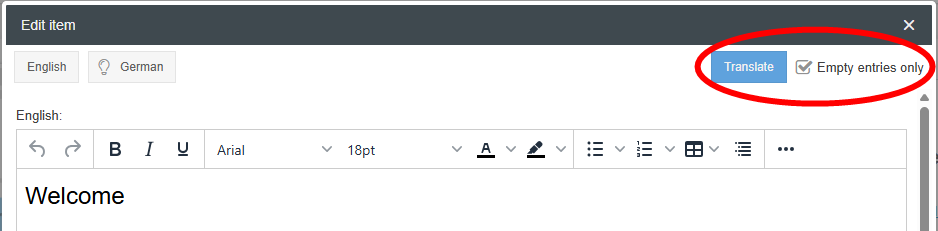
- When using the Automatic translation feature, the new Empty entries only option can be used to decide that the content to be translated is only entered for the languages for which a translation has previously been missing. The checkbox is activated by default. If it is deactivated before clicking on the Translate button, the content in the languages for which a translation has already been maintained is also overwritten during translation.
- In reporting for cases, one new time period is available for the Fixed period filter: Last two years
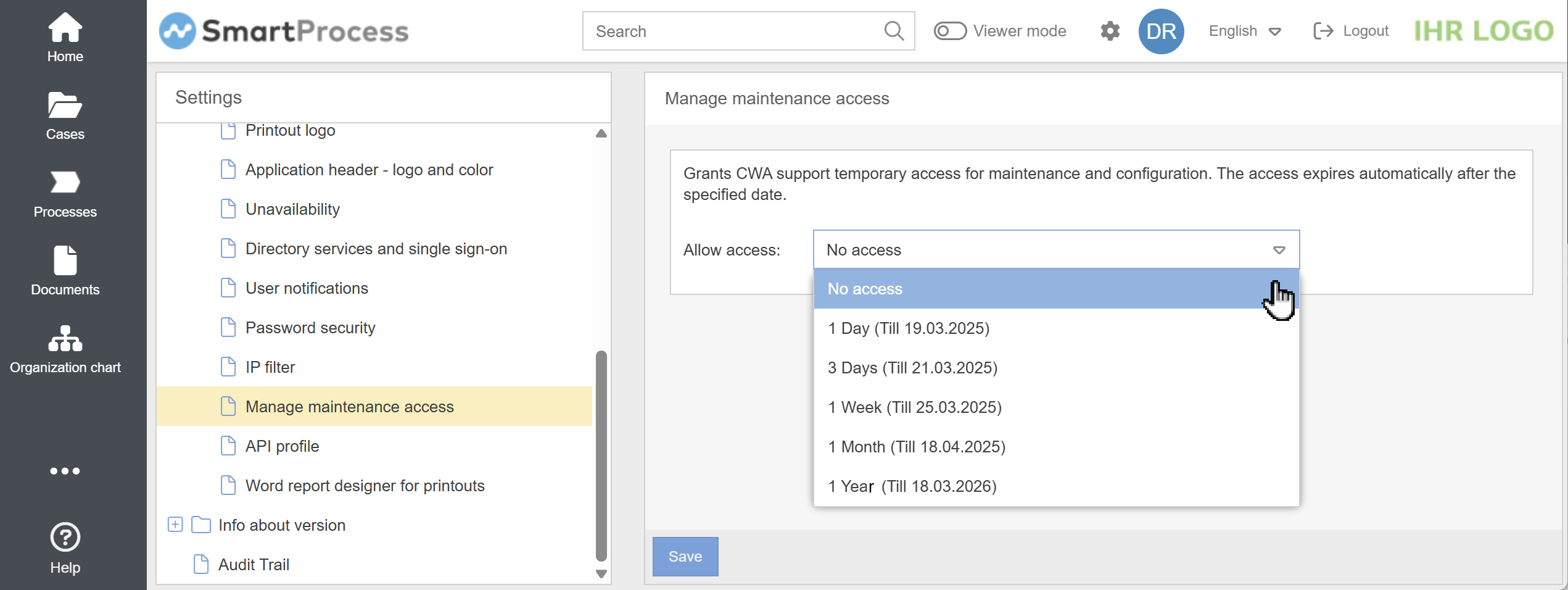
- Management of remote maintenance by CWA for SaaS systems. If you have a SaaS installation of SmartProcess, you can use the new Manage maintenance access setting under Settings -> Configure application to determine whether and within what time frame CWA support staff can access your SmartProcess installation with a maintenance user.
To be able to adjust this setting, the May manage maintenance access permission from the authorization profiles is required.
- The Audit Trail function has been extended and now also lists...:
- ...when a user has logged into SmartProcess
- ...when a CWA employee has logged into SmartProcess via the maintenance user
- ...when a user has adjusted the Manage maintenance access setting
- It is now possible to set up a dual control principle when creating users.
Explanation of the 4-eyes principle
From now on, users can be created in 2 ways.
1st way - Create user
The usual way remains the same. If a user has the Create users permission under Settings -> Authorization profiles -> Administration tab -> area User management (no. 1 in the screenshot), they can create and save users for SmartProcess without a second user having to check them.

2nd way - Requesting and approving users
If a user has the permission Request users for approval (no. 3 in the screenshot), they can define the master data of a new user in the user administration via the Request user button and save it for approval.

When saving, a window opens in which a person can be selected who should carry out the approval of the user. Only users who have the permission to perform user approvals are available for selection here (no. 2 in the screenshot).

The person who has been selected to approve the user is then notified by system e-mail and will find a User requests button in the Settings -> Users area.
This button can be used to view and approve/reject pending user applications in addition to those that have already been approved and rejected.
- If a user request is rejected, a reason can be entered. The user is then not created and the applicant receives a system e-mail with information about the rejection of the user application, including the reason for the rejection.
- If the user request is approved, the user is created and the applicant receives a system e-mail informing them that the user request has been successfully approved.
1st way - Create user
The usual way remains the same. If a user has the Create users permission under Settings -> Authorization profiles -> Administration tab -> area User management (no. 1 in the screenshot), they can create and save users for SmartProcess without a second user having to check them.
2nd way - Requesting and approving users
If a user has the permission Request users for approval (no. 3 in the screenshot), they can define the master data of a new user in the user administration via the Request user button and save it for approval.
When saving, a window opens in which a person can be selected who should carry out the approval of the user. Only users who have the permission to perform user approvals are available for selection here (no. 2 in the screenshot).
The person who has been selected to approve the user is then notified by system e-mail and will find a User requests button in the Settings -> Users area.
This button can be used to view and approve/reject pending user applications in addition to those that have already been approved and rejected.
- If a user request is rejected, a reason can be entered. The user is then not created and the applicant receives a system e-mail with information about the rejection of the user application, including the reason for the rejection.
- If the user request is approved, the user is created and the applicant receives a system e-mail informing them that the user request has been successfully approved.
How did we do?
Version 24.9 Release Notes
