Table of Contents
Audit management
You can use the standard application Audit to plan and carry out your internal audits and, if necessary, initiate suitable actions for improvement. The standard workflow can be purchased and used wit…

Table of Contents
You can use the standard application Audit to plan and carry out your internal audits and, if necessary, initiate suitable actions for improvement.
The sequence of the workflow steps and the forms (input masks) can also be flexibly adapted to individual company requirements in the Processes menu.
Summarizing video
The possible procedure for processing an audit with SmartProcess is summarized in the following video.
Planning audits
There are several ways to create a new audit:
- Via the menu Cases -> Create -> Audit
- Via the menu Audit -> Create
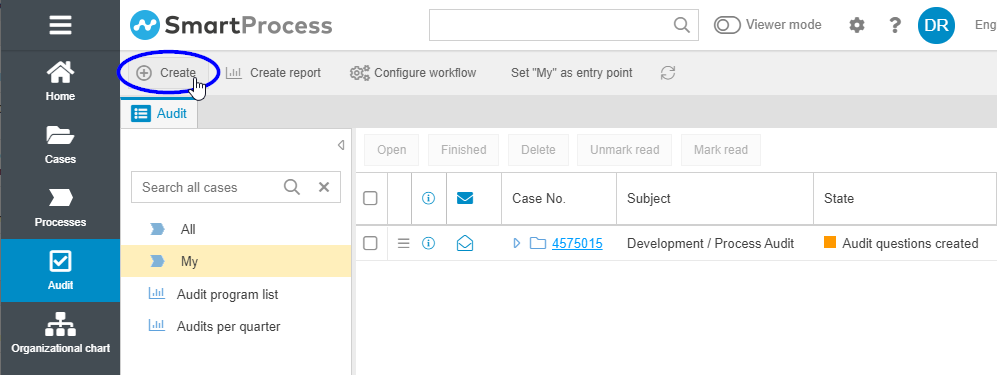
If you cannot find the menu item there either, you do not have the authorization to create new audits.
When a new audit case is created, the main form opens first, where the master data for the planned audit is recorded. The screenshot shows a part of the main form.
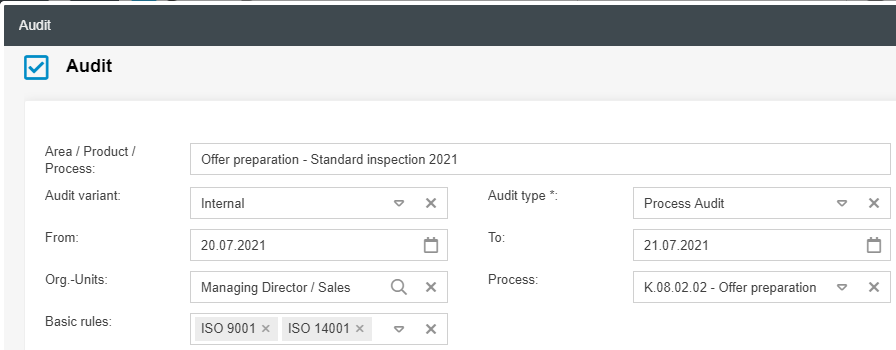
With a click on <Save> the audit is created. An overview of all uncompleted audit cases can be found in the Audit menu as a list view. There you can view the audits assigned to you in the "My" list or, with the appropriate authorization, the list of all open audits.
Conduct audit
Prepare audit questions
If you click on an audit case from the list, the case window opens. You can view the progress of the audit at any time by its state and the next activity to be performed.

Here, audit questions can be added to the audit case, whose assessment determines the later result of the audit. Since many questions are used repeatedly in audits, it is recommended to create them centrally in the audit question catalogue.
- Main chapter
- Number of the chapter
- Audit question
- Process / area
- Other sources
- Hint
The information that can be collected on an audit question can be customized by configuring the catalogue.
In the activity list of the case window, you can then access the entries of the audit question catalogue via <+ Audit Checklist catalogue>.

In the window that opens, you can use the predefined categories or the "Search in list" to filter and add one or more questions from the catalogue to the audit case using <Transfer>.

The added questions are then displayed in the activity list. When you have finished adding audit questions, confirm this by performing the task Confirm creation of audit questions.
Execute assessment
The assessment of the audit questions can be done directly via the corresponding field in the activity list. Select the rating and confirm it by clicking on <Save Changes>.

Depending on the assessment, further actions may be required to process the audit question:
- Assessment at least 8 -> No relevant deviation. The audit question is now completed.
- Assessment less than 8 -> Relevant deviation. A detection must be entered in the field provided and an action for improvement must be initiated.
- The assessment of the audit question is included in the overall result.
- If the audit question has not yet been answered or necessary actions have not yet been completed, the audit is not considered completed.
Whether and which audit questions require further processing can be determined by the state of the audit question. The higher-level audit case "waits" until all relevant audit questions have been completed.

Control actions
In the event of a deviation ( assessment < 8), the standard audit workflow provides for a measure to improve the current situation. For this purpose the action workflow is used, which can be started directly from the audit question.
In the creation window, a responsible person can be entered independently of the audit responsibility, who will be forwarded the action for implementation. The procedure for the action corresponds to the description in the article Action management. The reference to the audit question and the audit can be viewed at any time in the case window of the action via the box "Parent cases".

Only when the action has been completed the audit question is also considered to be completed.
Results & reports
Audit result
While you perform the assessment of the questions, the audit result is determined in parallel in the case window.

Each question can be rated with a maximum of 10 points. The maximum score is therefore calculated from the number of audit questions for which "Relevant" = "Yes", multiplied by 10. The achieved score represents the sum of the assessment points of all relevant audit questions. The level of compliance is calculated as the quotient of achieved score and maximum score.
PDF reports
The standard Audit application also provides report templates that can be called up from the audit case window.

In addition to the master data of the audit, these contain a list of the audit questions including their assessment and current state.

The reports are Word files in which Mergefields have been inserted to display data from form fields of the case at the desired locations in the document.
These report templates can be customized in the setting Word Report Designer for printouts. If you have purchased the Word Report Designer module, you can also create and upload your own report templates.
Reporting
In the Reporting menu and also in the Audit menu, you can access and view the saved reports provided by CWA.
To modify them or create your own reports, follow the description in the article Reporting for cases. To filter the cases, you can always use the fields from the respective workflow - in this case, the fields from the Audit main form.
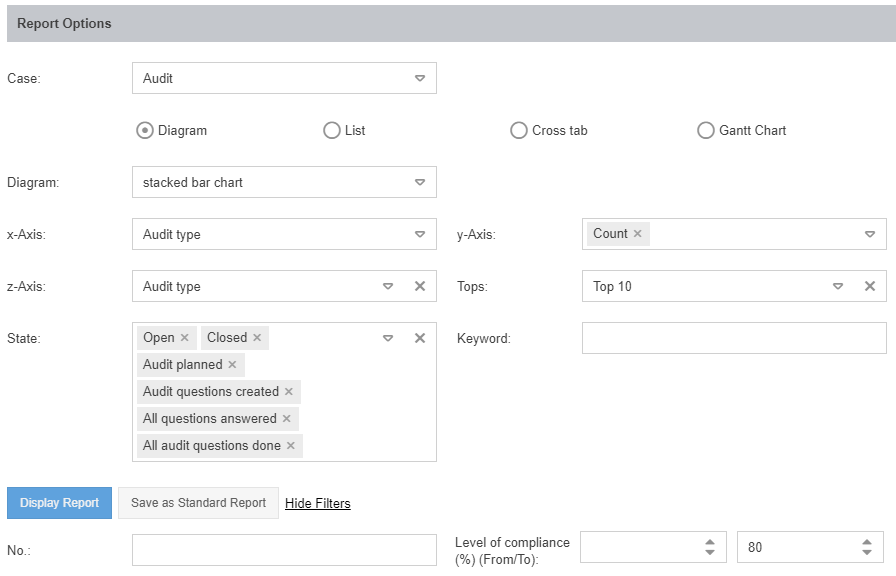
The following example shows the configuration and result view of a graphical report that lists all audits with a level of compliance of less than 80% categorized by audit type. By means of this evaluation, it is possible to recognize in which areas of the company strong deviations are most frequently found during audits.

How did we do?
Action management
