Export and import translations
If no translation is stored for processes and their objects in some system languages, the content of the objects is displayed instead in the default language of the system that was defined during ins…

You can use the translation export and import function to add the contents of processes that have already been created and modeled in other languages to SmartProcess later.
Export required information
In the Process Explorer, select the process group or process whose contents you want to translate via export/import. Then select the path Import/Export -> Export -> Translation.
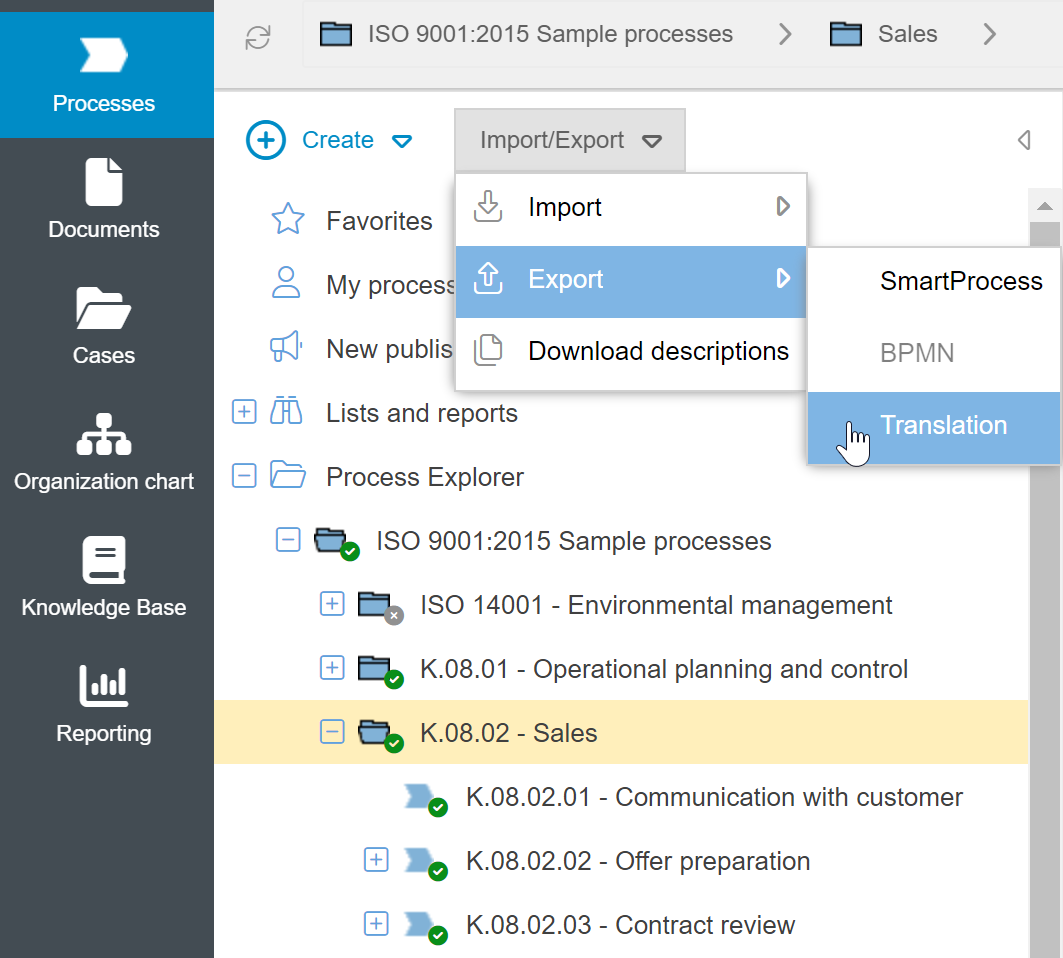
Thus, if the translation export is performed for the "Sales" process group, all data of the subordinate processes "Communication with customer", "Offer preparation" and "Contract review" will also be exported for the translation. If only the "Offer preparation" process is selected, only the data from this process will be exported for translation.
The export generates an Excel file and places it in the Downloads folder on the drive of your computer. When you open it, the following view is displayed:

The first 4 columns (framed in red) are used to assign the translations to the correct objects during import and should not be changed. In addition, a column is offered for each language activated in SmartProcess (framed in green), in which the translations can be entered. After editing, save the file.
Import translation file
The translation import is performed in the navigation area of the menu Processes via the path Import/Export -> Import -> Translation.

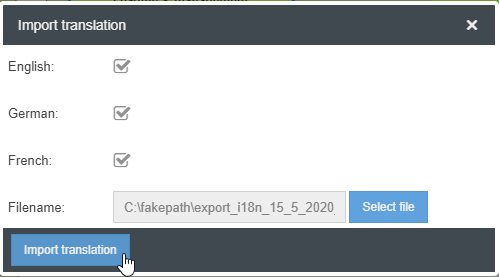
Then select the Excel file with the translations by clicking the button <Browse> in the window and select the languages for which the translations are to be imported. Afterwards you can start the import with the button <Import translation>.
How did we do?
BPMN import and export
Share processes and processgroups
