Table of Contents
Version 25.11 Release Notes
If you are interested in an update, simply request it via email to support@cwa.de. You can find your current version number under Settings -> Info abount about -> Version. AI function. The SmartAI ch…

Table of Contents
You can find your current version number under Settings -> Info abount about -> Version.
AI function
The SmartAI chatbot from SmartProcess has been released. Once the module has been activated, the chatbot is accessible in the SmartProcess application header.
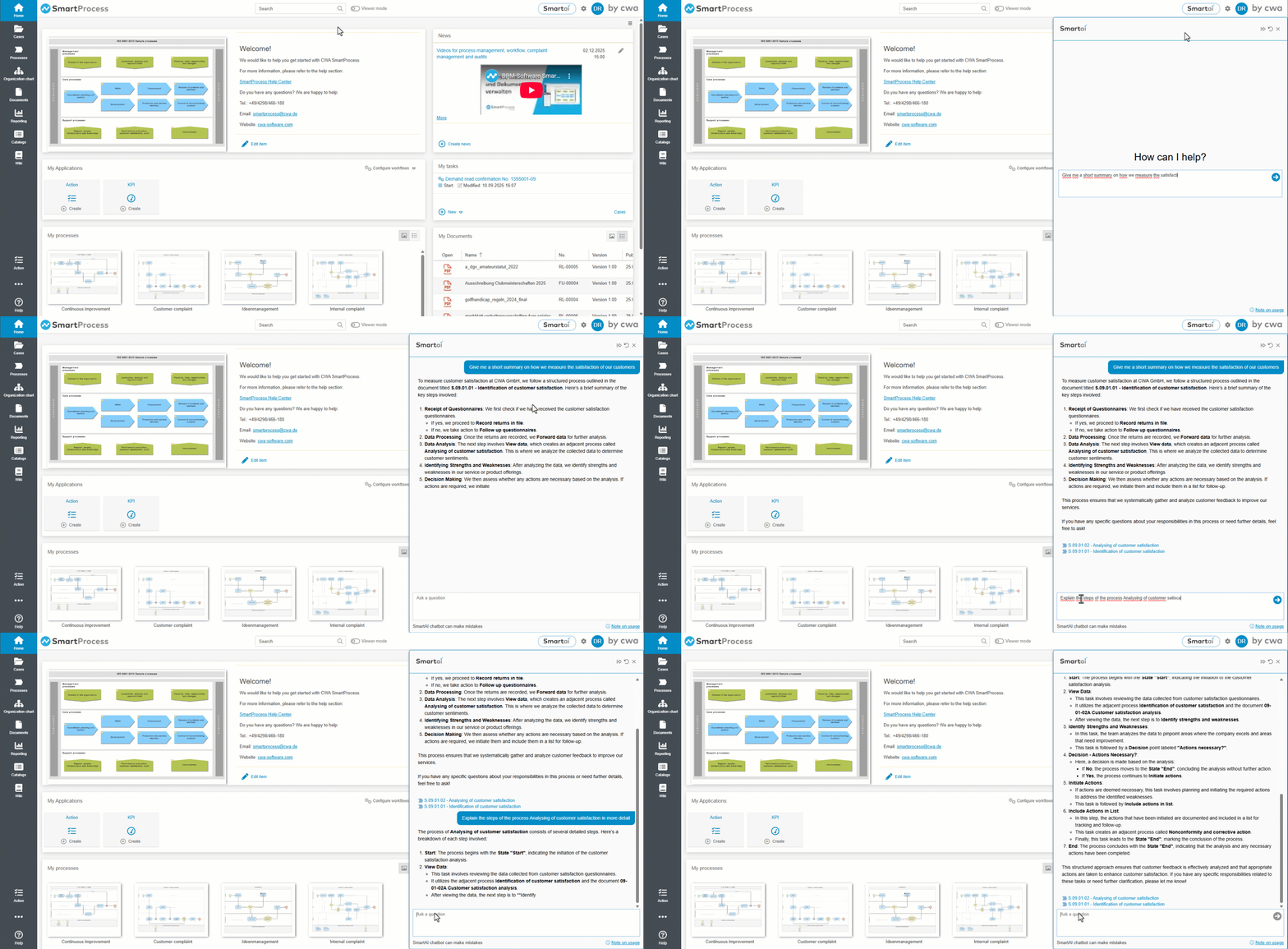
Requirements for use are:
- A SaaS installation of SmartProcess (‘cloud application’)
- The purchase of credits to use SmartAI
Details on functionality, sources used, limitations of the chatbot and the licensing procedure can be found in the corresponding help article.
Processes and documents
- For processes and documents, knowledge questions that must be answered by process participants / document users as part of the read confirmation after publication via the approval workflow can now be defined. The knowledge questions are specified directly in the details of the process / document before publication via the approval workflow. The following features are available:
- Any number of questions and associated answer options can be created.
- Multiple choice: One or more answers can be defined as correct for each question (if there are multiple correct answers, the question is only considered correctly answered if the user has selected all correct options -> no partial points are awarded).
- The knowledge questions can be weighted with points to give questions with greater relevance more weight in the overall result.
- You can specify the percentage of points a respondent must achieve for the read confirmation to be considered “passed”.
- In the configuration of the Read Confirmation workflow, you can decide after how many unsuccessful attempts the read confirmation is considered “finally failed.” As long as the respondent still has attempts available, the knowledge questions will be sent to them again after a failed attempt.
- For each question, you can add a description and help text for incorrect answers. The description is always displayed to the respondent - the help text is displayed for incorrectly answered questions as soon as the respondent has completed and saved all questions in the read confirmation.
- Different questions can be configured for each published version of a process / document. The questions from previous versions can be viewed via a history.
- All questions and answer options can be translated into all other system languages at once (provided that DeepL is connected to SmartProcess).
You can make these adjustments yourself using the corresponding instructions at your own responsibility, or you can commission our consulting team (smartprocess@cwa.de) to implement the changes.
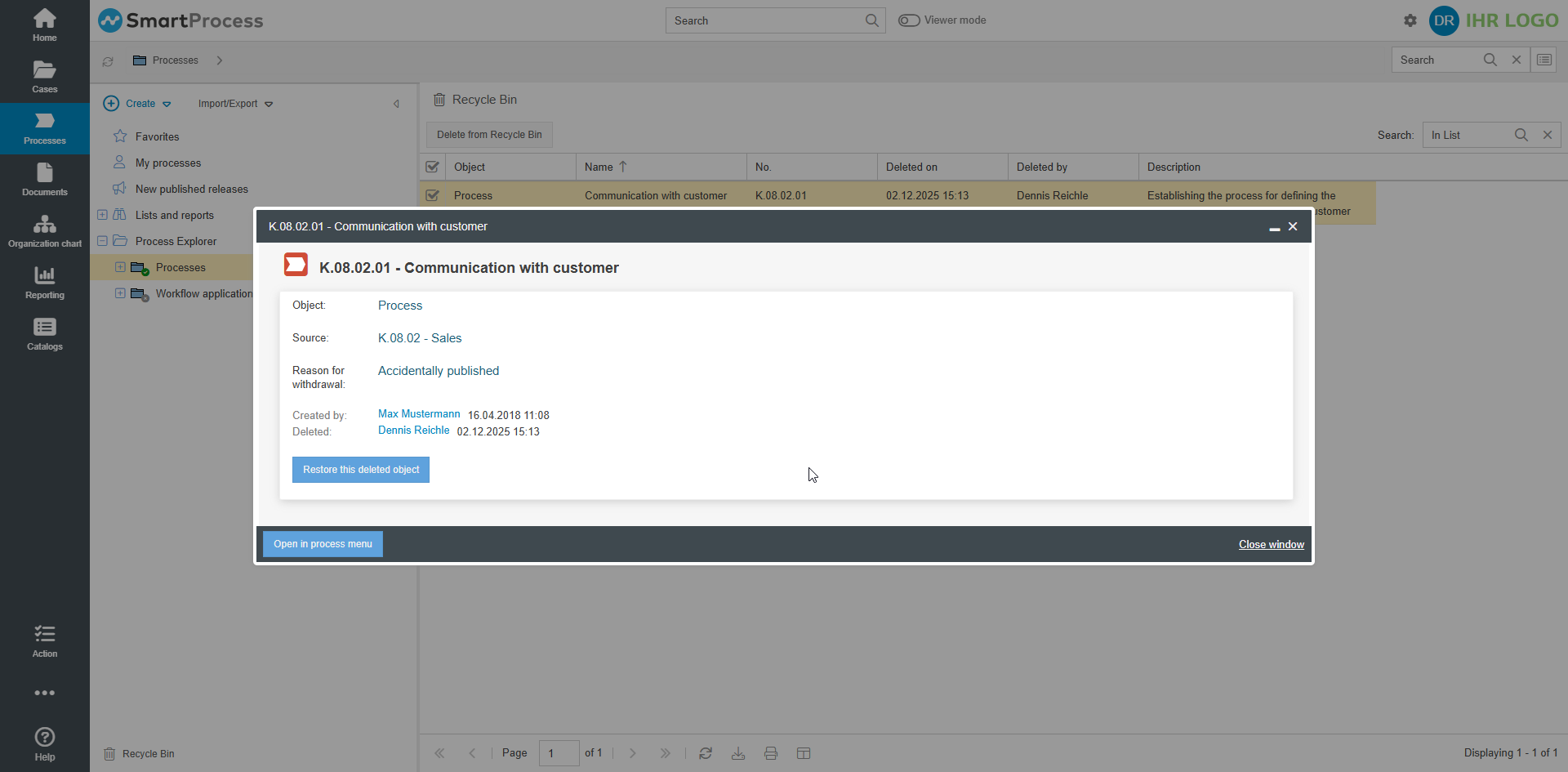
- If the publication of a process / document is withdrawn and this object is subsequently moved to the recycle bin by deleting it, the reason for withdrawing the publication is displayed in the recycle bin as long as the process / document has the state ‘Withdrawn’.
Processes only
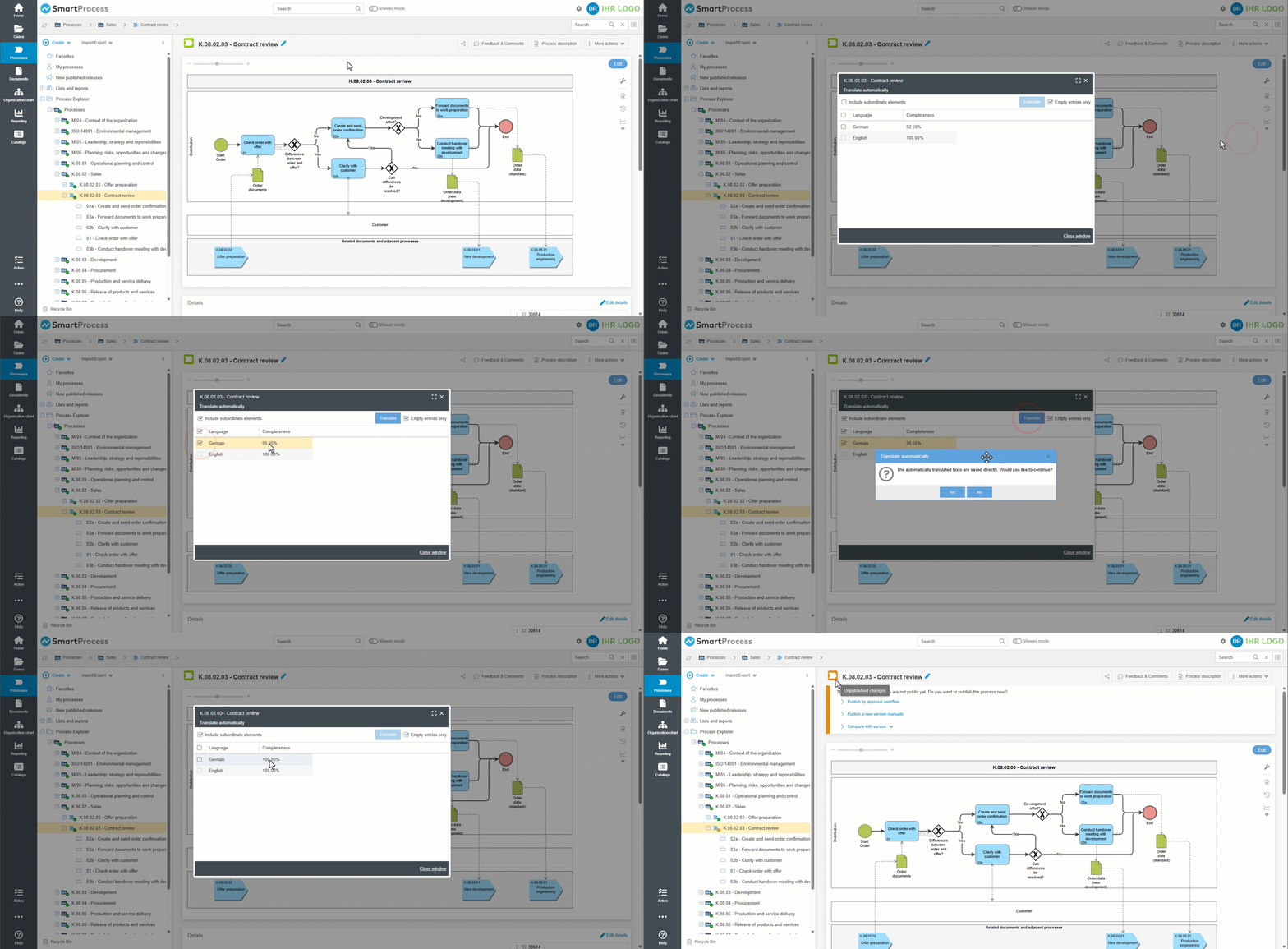
- Expansion of automatic translation: If the DeepL connection is set up, entire processes with all modelled objects and process details can now be translated.
The option is located on the process under More actions. Before the translation is performed, a list overview can be used to check the percentage of elements already translated in the respective language and the scope of the automatic translation can be controlled using two checkboxes:
1.) Decision on whether only the specific process or also subordinate elements should be translated. This means, for example, that a process group can be translated together with all subordinate process groups, processes, and sub-processes.
2.) Decide whether only empty / missing values in the selected languages should be supplemented with a translation, or whether all elements of the process should be retranslated into this language, even if a value already existed in this language.
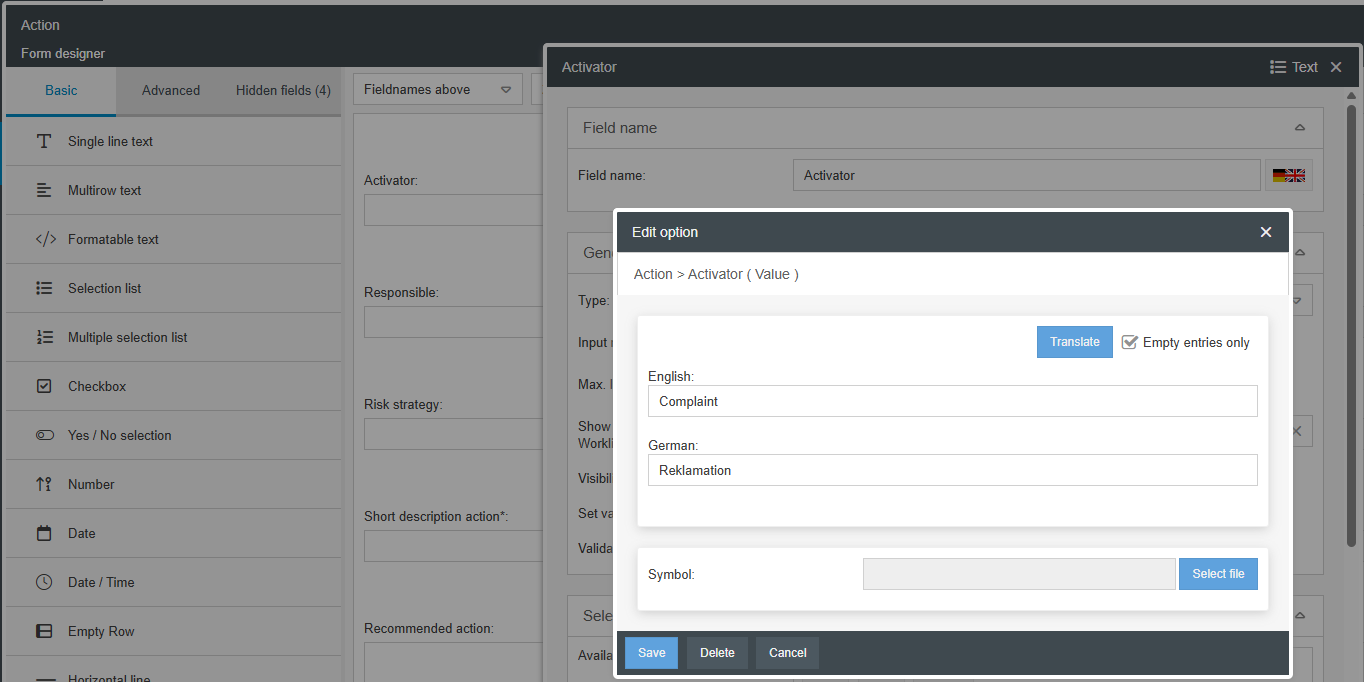
- Expansion of automatic translation: If the DeepL connection is set up, additional elements can now be translated in workflows, e.g., intermediate events, field names in forms, and selection options in selection fields.
- The simulation function has been fundamentally revised. In addition to a new user interface, this also includes the consideration of BPMN 2.0 modeling elements (e.g., gateways) and the option to save scenarios.
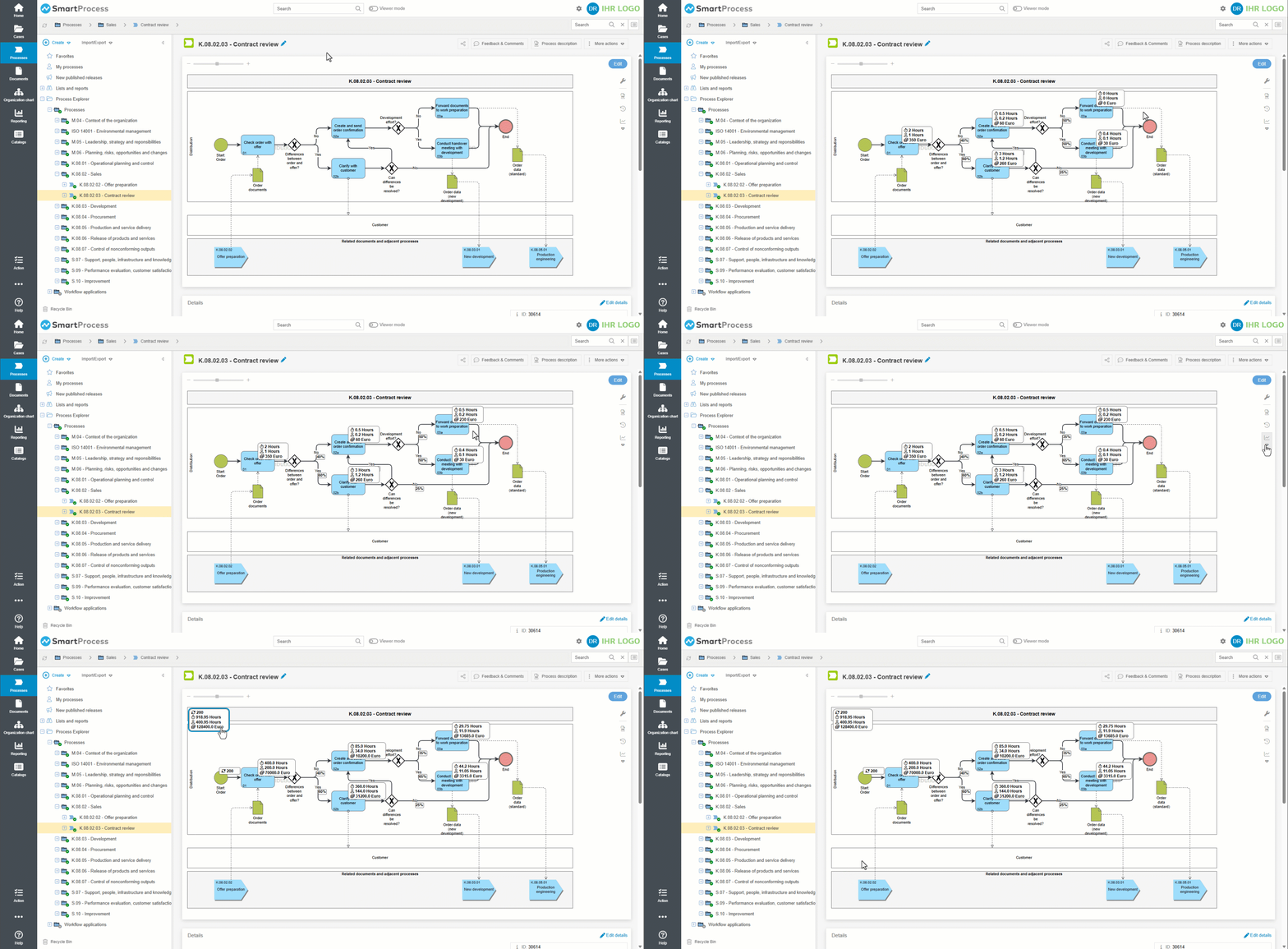
- When creating artifacts, the name is no longer automatically transferred to other system languages (previously, the name assigned during creation was entered as a value in all other system languages. The values in the other languages now remain empty initially).
Documents only
- If a read confirmation has been requested for a published document, the version comparison with the previous version can now be called up directly from the read confirmation (as was already possible for processes).
Case processing
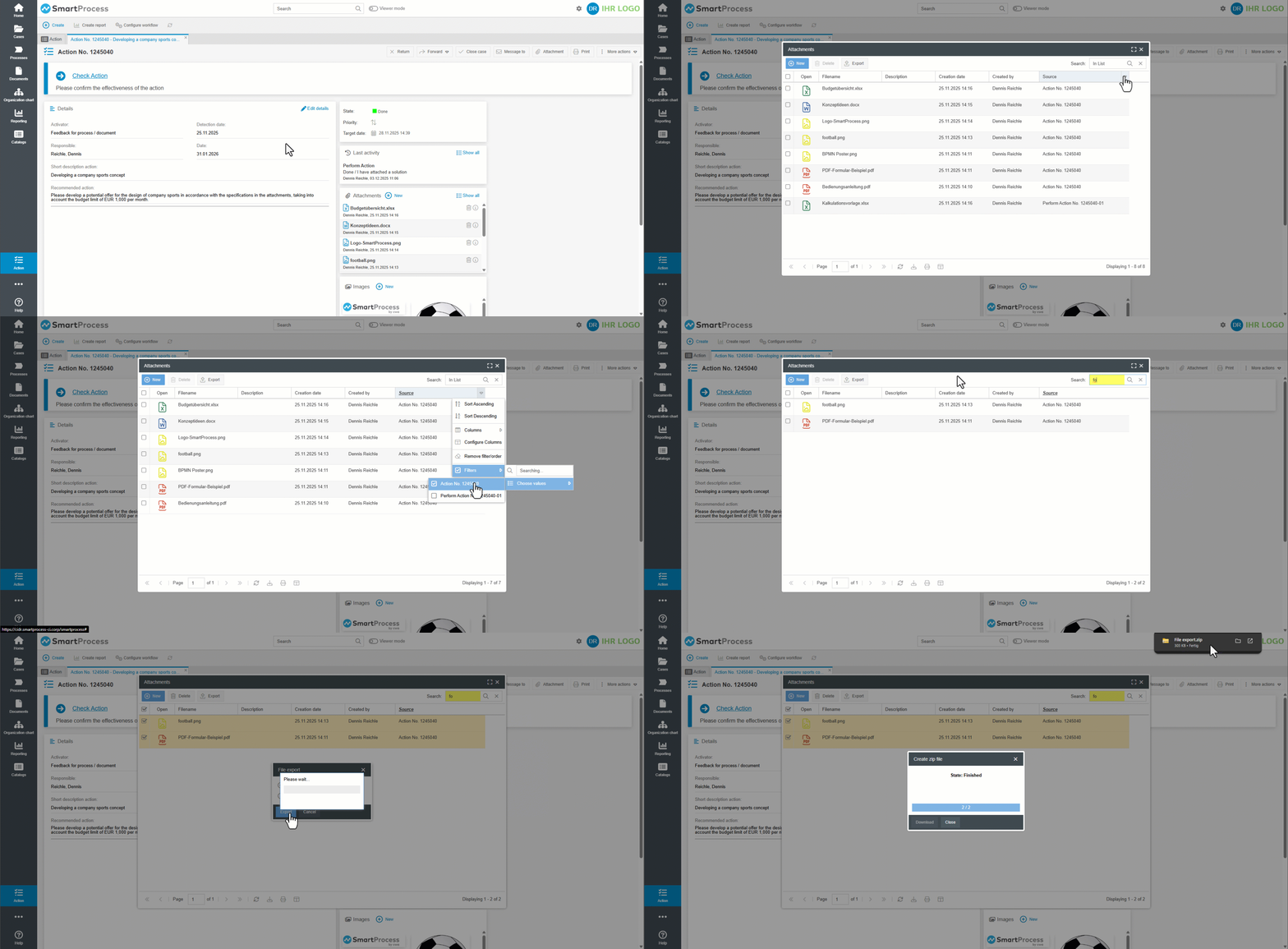
- All attachments of a case can now be displayed in a sortable and filterable list. Clicking on Show all in the Attachments area of the case window opens this list in a new window. The files can also be exported from this list if required.
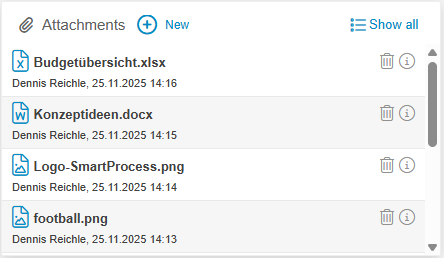
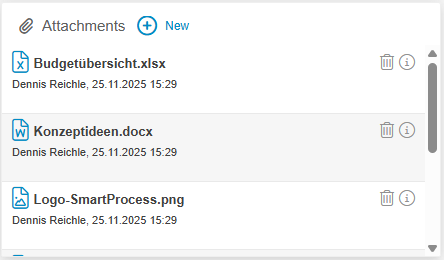
- In the Attachments window of a case, the added files are now displayed more compactly, so that up to 4 attachments are visible at a glance.
New | Before |
 |  |
Workflow modeling
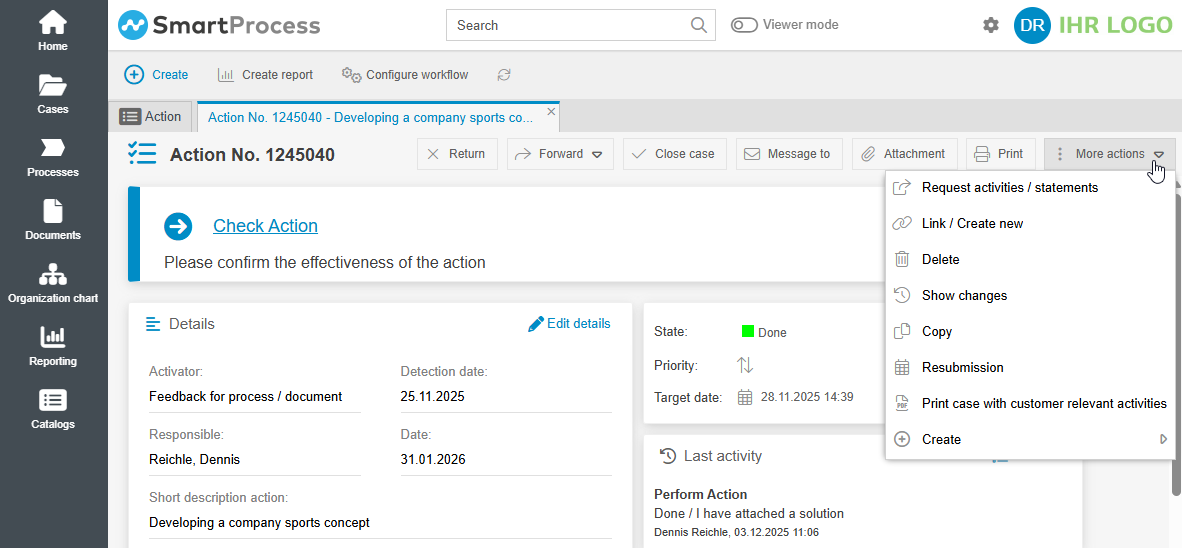
- In the authorization profiles, under the Workflows / Cases tab, the privilege Link cases has been renamed to Link and copy cases. In line with the new name, this privilege now controls whether users are allowed to manually link cases to each other or create copies of cases in the case window under More Actions.
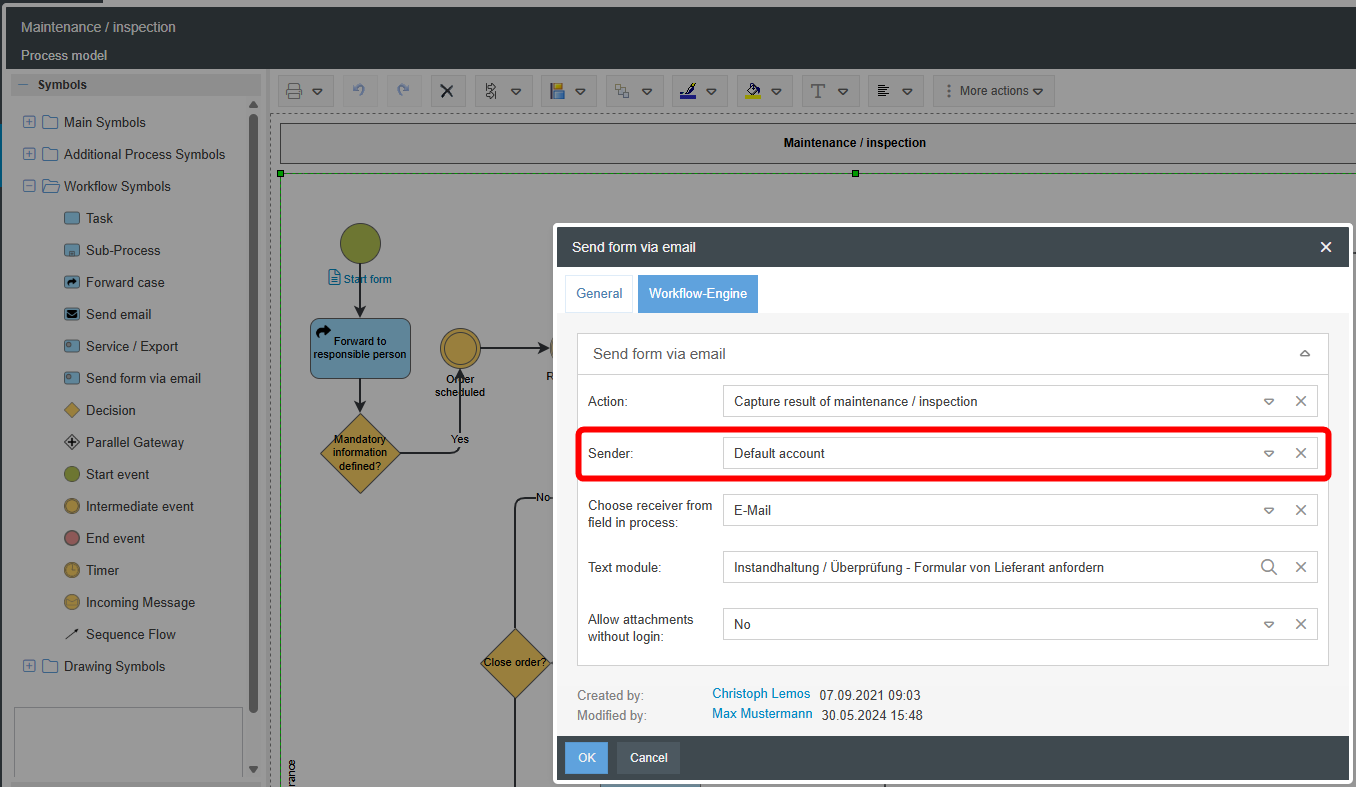
- In the Send form via Email workflow object, you can now select an individual sender account for sending the email, which was previously configured in the Email settings.
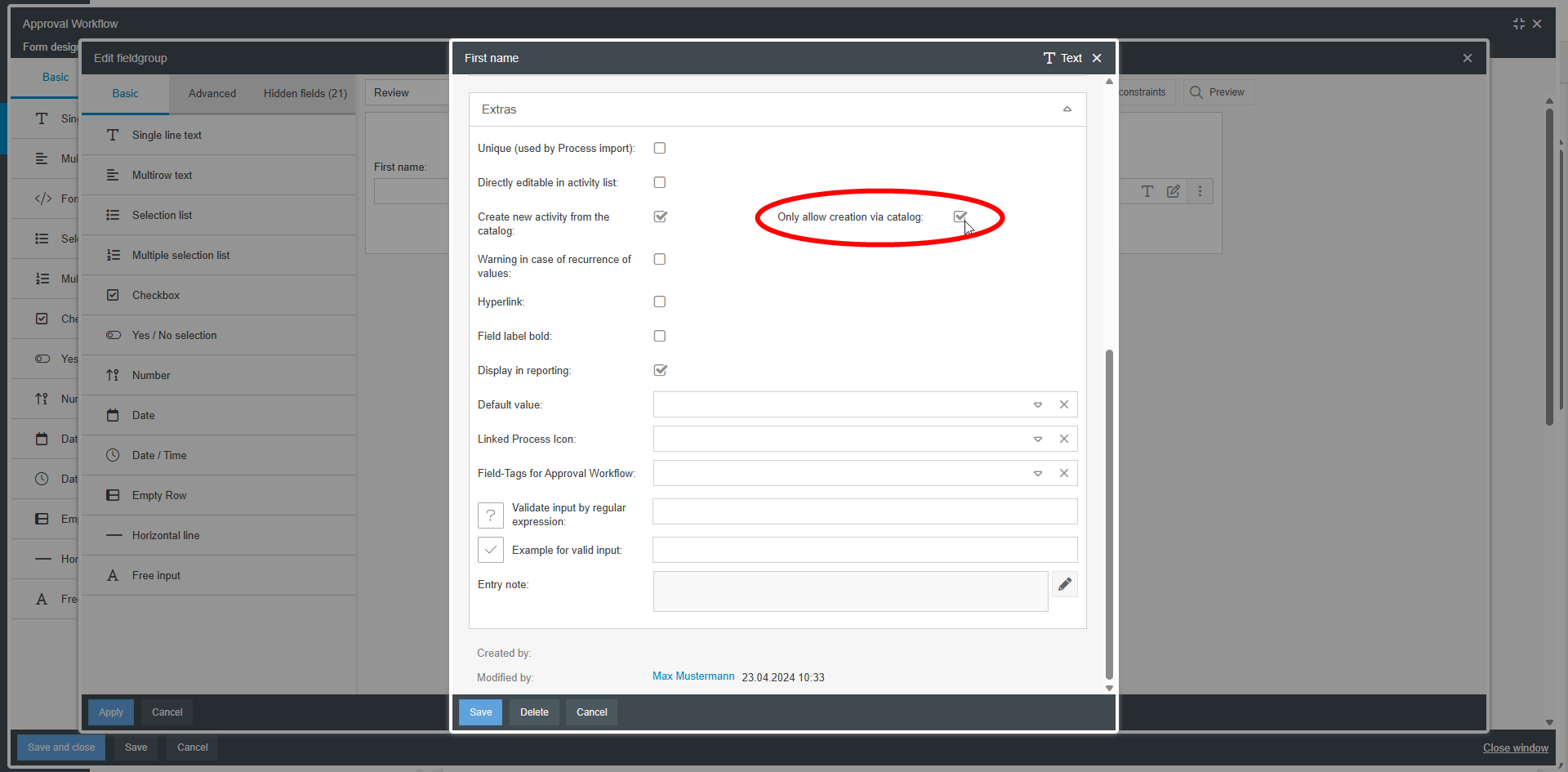
- When working with catalog fields or data source fields in field groups, a field setting can now be used to ensure that new entries in the field group can only be made from the catalog, thereby preventing the creation of individual entries.
General
- The handling of images in formattable HTML fields has been greatly improved. This includes:
- The algorithm for downscaling large images has been significantly improved, so that an image with a much higher resolution is displayed on the application interface.
- Each image in a formattable HTML field can be displayed in full screen mode in the read-only view with a single left click.
Opening the image in its original size via right-click -> Open image in new tab is also supported. - When generating PDF printouts (e.g., the process description), the images are scaled so that they are legible in the printout even with a wide variety of formatting variations in the HTML field (e.g., when using images inside tables within the HTML field).
- The layout of functions in the application header has been changed. For example, the full-text search has been centered, and user options such as language selection and logout can be accessed by clicking on the user's initials or user image.

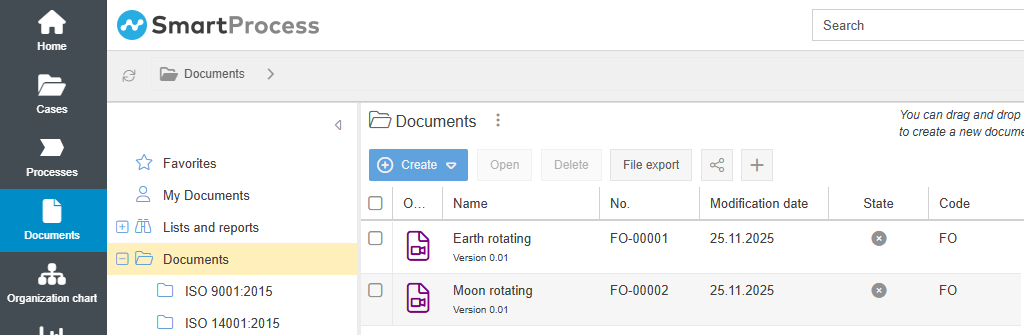
- If a video in file formats such as mp4, mov, or avi is used as an attachment in SmartProcess, it is now represented in lists with its own icon (e.g., in the Documents menu or as an attachment to a case).
- Mobile web app: The individual URL for starting a case is now also supported when accessed from a mobile device.
- Mobile web app: If a QR code for a specific SmartProcess case is generated using the browser functions (e.g., Chrome, Edge, etc.), this QR code can now be successfully accessed when scanned with a mobile device (regarding forum topic from August 1, 2025). (regarding forum topic from Aug 1st 2025)
The REST API function was already expanded in the previous version 25.3 so that the interface call can also retrieve case data from SmartProcess and create and edit them.
How did we do?
Version 26.7 Release Notes
Info about version
