Table of Contents
More actions (Process)
Above the process model, additional options for the process can be displayed by clicking the button <More actions>. Print. Various print options are offered. For each option, a PDF file is first gene…

Table of Contents
Above the process model, additional options for the process can be displayed by clicking the button <More actions>.
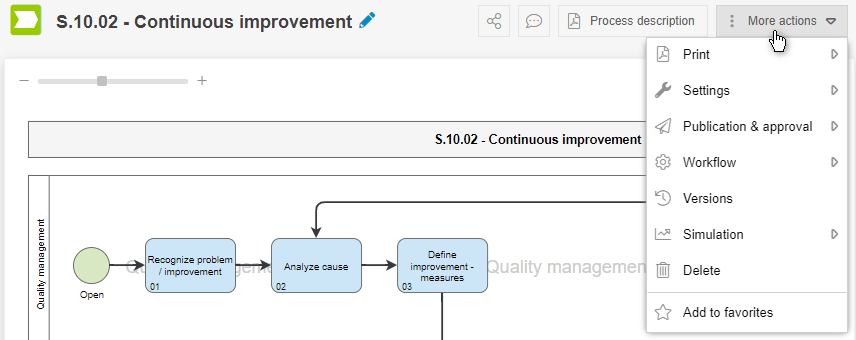
Various print options are offered. For each option, a PDF file is first generated, which can then be downloaded or printed:
- Process description -> Creates a PDF file of the process description
- Print process chart - one page -> The process model is generated as a one-page PDF file, regardless of how far it has been modelled in width or height.
You can use the dashed frame around the work area in the Process Designer to help you determine the size of an A4 sheet.
- Print process chart - multi-page -> If the process model is modeled wider or higher than a A4 page in landscape format, a PDF with several A4 pages is generated.
Settings
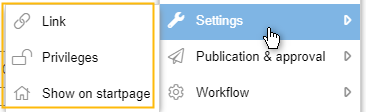
Link
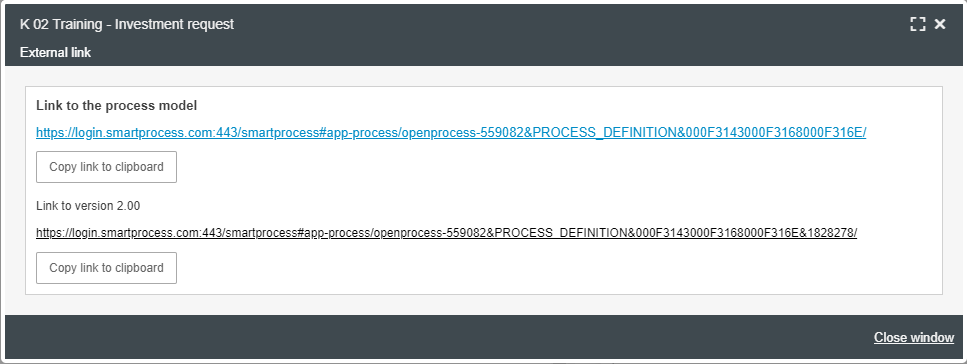
Each process group and each process can also be accessed from other websites via a unique link.
In dem Fenster stehen Ihnen verschiedene Links zur Verfügung, die Sie in die Zwischenablage kopieren und an anderer Stelle einfügen können:
- Link to the process model -> This is a dynamic link. It always takes the user to the latest version of a process that the user is allowed to see according to his or her authorizations.
- Link to version <<version number>> -> This is a static link that always leads to the process in the displayed version number, even if newer versions of the process are created later.
Privileges
Opens the option to change the read and edit rights for the selected process.
Show on start page
Here you can decide whether the selected process map (or the process group / process in general) should be displayed in the title element on the start page.
The <magnifying glass symbol> can also be used to specify whether this process map is displayed to all users or only to certain organizational units (in the example, for all users from the Org. unit Quality and Org. units subordinate to Quality). The selection made can be removed again with the <X>.
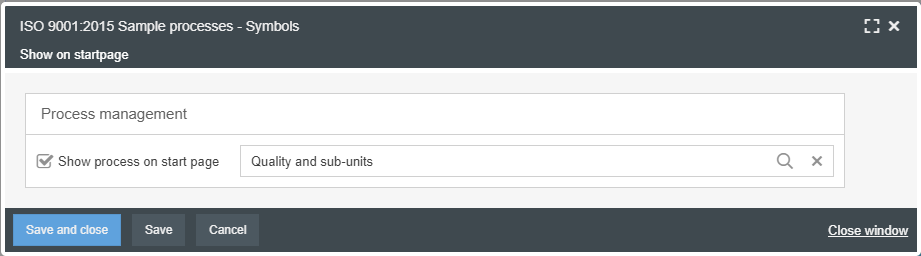
If you choose to display another process as the standard, for example, for Quality and the subordinate organizational units, the previous standard is overwritten.
Publication & approval
Depending on whether the process group / process has already been published or not, different options are available:
Process not yet published |
The option "Publish a new version manually" is only available with the appropriate permissions in the authorization profile. |
Process is already published |
|
Always displayed |
This approach does not correspond to a standard-conform control of processes according to ISO 9001:2015. This option can be used for process groups which, in your opinion, do not need to be controlled. 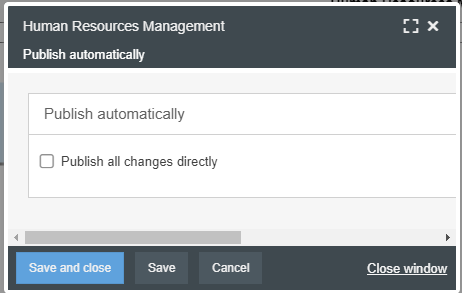 In process management settings you can configure that each newly created process group automatically receives the status "working copy published".
|
Workflow
Via the button <Workflow> the workflow functions can be enabled for the process. This allows a workflow to be created based on the process flow. In order to make the workflow functional, further adjustments to the process model and the creation of forms are necessary (see Workflow basics).
Versions
Opens the version history of the process.
Simulation
This can be used to start the simulation of processing times and processing costs of the process, if the necessary parameters have been set in advance.
Translate
The Translate function in the process  allows all translatable fields belonging to the process, such as gateways, events, or general details such as purpose and description, to be translated in one go. Translation can be carried out into several target languages simultaneously. The current translation status is displayed in the overview:
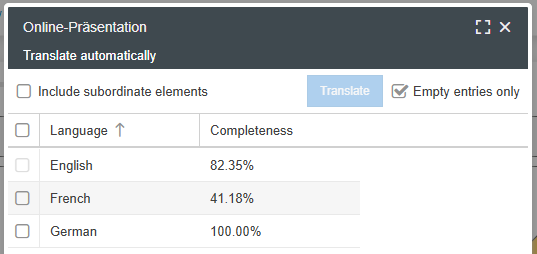
By selecting “Include subordinate elements,” the translation can also be extended to include tasks or sub-processes, for example. Artifacts are not included in the translation.
By selecting "Empty entries only" you can specify whether fields that have already been translated should be ignored or automatically retranslated.
Translating a published process results in a new version, so the process must be republished.
Automatic translation is also available for workflows and includes not only the workflow symbols but also, and above all, all form fields.
Delete
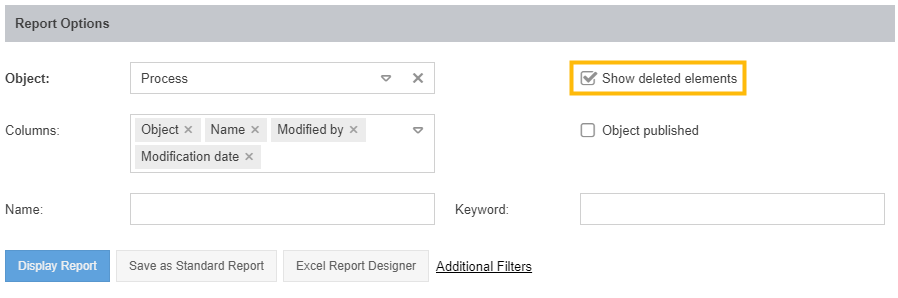
The process is moved to the recycle bin at the bottom of the Process Explorer. From there it can either be restored or permanently removed from the recycle bin.
Add to favorites
The process is displayed to the user in the Favorites list in the Processes menu and the window of the same name on the start page.
Alternative access to options
Some of these options can also be accessed via mini icons to the right of the process model.
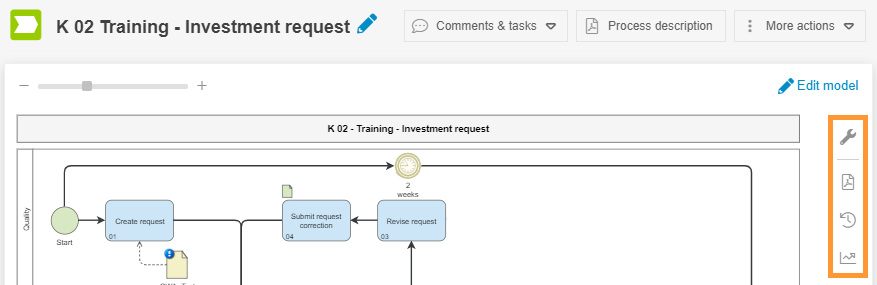
These include:
- Settings

- Print

- Versions

- Simulation

How did we do?
Feedback & Comments
