Table of Contents
Field: Data source for processes and documents
This field type allows fields to be inserted in the form that users can use to select content from the process and document management area, for example, to link processes or tasks in a case. All obj…

Table of Contents
This field type allows fields to be inserted in the form that users can use to select content from the process and document management area, for example, to link processes or tasks in a case.
All objects that can be evaluated in reporting for processes and documents are available, including processes, documents, and artifacts such as IT systems.
Create data source and fields
In order to insert new fields for the selection of an object in the form, a new data source must first be created. In the example, a document should be selected and linked in the form, which is why a new data source for documents is created in the <Advanced> tab via the expandable menu <Data source for processes and documents>.

After creating the data source, some standard fields are already available for the object. These fields can now be dragged and dropped into the form.
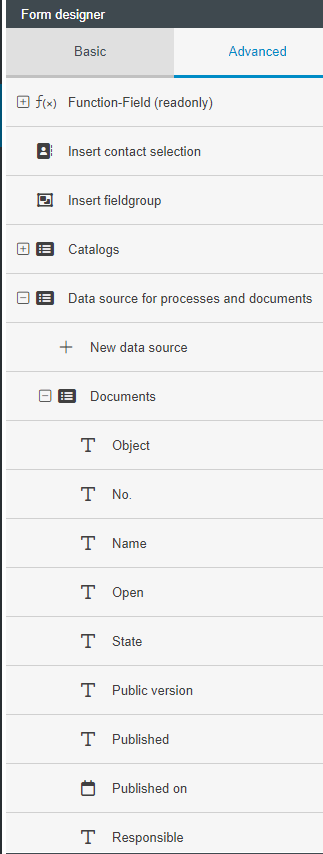
After adding it to the form, the data source field behaves like any other form field. For example, the general field properties can be used, it can be renamed or moved to the hidden fields.
If you are missing fields for the object or if displayed fields are not needed, you can configure the available fields in the data source properties.
Configure data source
By right-clicking, you can change the properties of the inserted data source.

Customize available fields (columns)
The fields available to you for insertion into the form are determined by the selected columns in the data source properties.
By adding new columns, this information can be inserted into the form as a field. By removing columns that are not needed, the clarity of the available fields in the form designer can be improved. Columns can be added or removed as desired.
In the example, only the fields Name, No., State, Public version and Responsible should be available as fields for the Form Designer. Confirm your changes afterwards via <Save>.
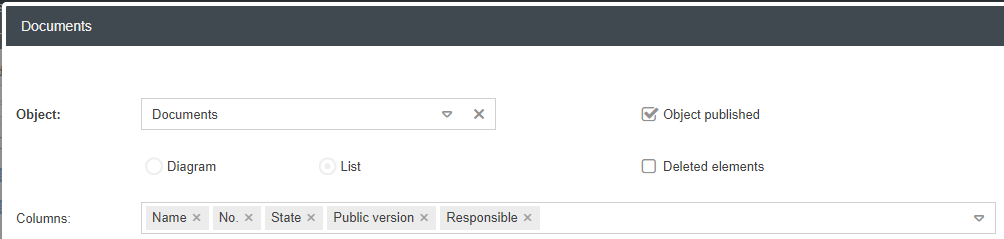
The customized columns will then be reflected in the available fields for the form designer.


Customize available content (filter)
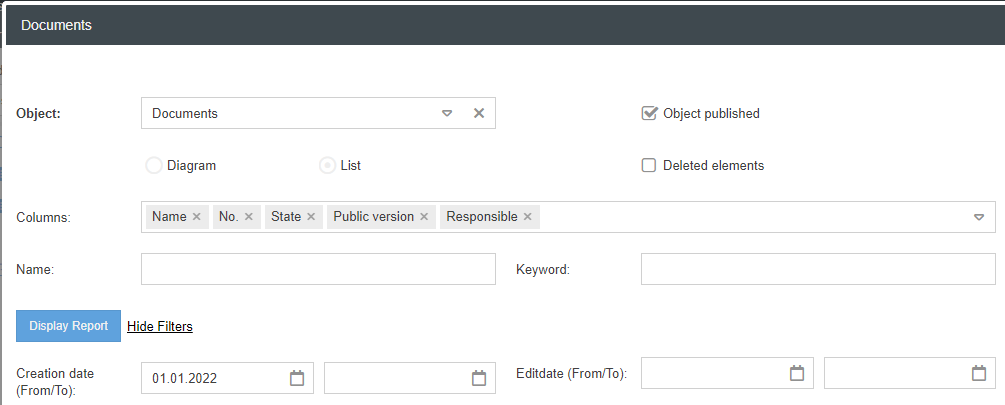
By filtering in the properties of the data source, it is possible to define that only pre-filtered contents are available to the user for selection during case processing. The filter options correspond to the evaluation options from the reporting for processes and documents.
In the example, the user should only be offered the documents for selection that were newly created after 01.01.2022. Then confirm your changes by clicking <Save>.
Result from the user's point of view
For users, data source fields behave just like catalog fields where an item is selected from a predefined catalog.
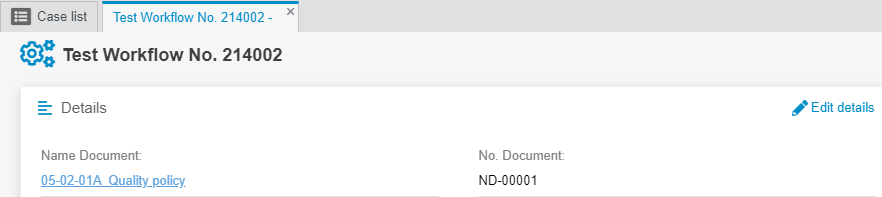
In the example, clicking on the magnifying glass and selecting a document from the list transfers both the name and the number of this document to the form.
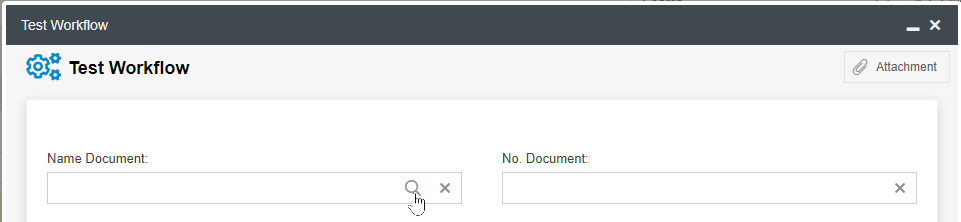
After saving the form, the respective object is also linked in the case. In the example, the properties of the selected document can thus be opened directly from the case window.
Remove data source
By right-clicking on the data source in the form designer, it can be removed.

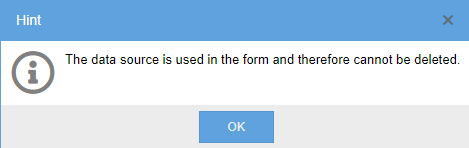
This is only possible if no field of this data source is used in the form anymore. Otherwise, the removal will be prevented and a message will be displayed.

Extra settings for data source fields in activities/field groups
Creating activities from the data source
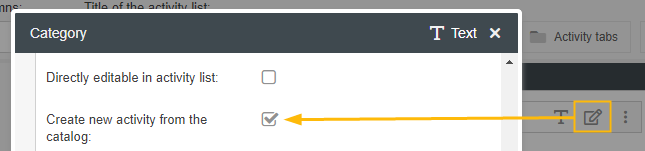
Data source fields have a setting that allows the creation of new activities or entries in field groups based on the configured data source. To do this, the Create new activity from catalog checkbox must be selected in the field properties (if there are several fields from the same data source in the form in question, it is sufficient to change the setting once).
Users then have two options for creating entries in activity lists and field groups:
- Creating individual entries via + Single entry
- Creating one or more entries based on the data source data via the + New from catalog button
Configuration in form designer | Result from user's perspective |
 |  |
Only allow creation via data source
If the Create new activity from catalog setting is enabled, the Only allow creation via catalog checkbox can be used additionally.
If this option is enabled, the creation of activities and field group entries as individual entries is prevented. Users can then only create these entries based on the configured data source.
Configuration in form designer | Result from user's perspective |
 |  |
How did we do?
Field: Catalog fields
Field: Process and Document fields
