Table of Contents
Training management
With the standard application Training documentation , training courses can be documented and the trained qualifications for several employees can be transferred to their qualification profiles at th…

Table of Contents
With the standard application Training documentation, training courses can be documented and the trained qualifications for several employees can be transferred to their qualification profiles at the same time.
Document trainings
There are various ways to start the documentation of a training:
- Via the menu Cases -> New case -> Training documentation
- Via the menu Training documentation -> Create
If you cannot find the menu item there either, you do not have the authorization to create new training documentation cases.

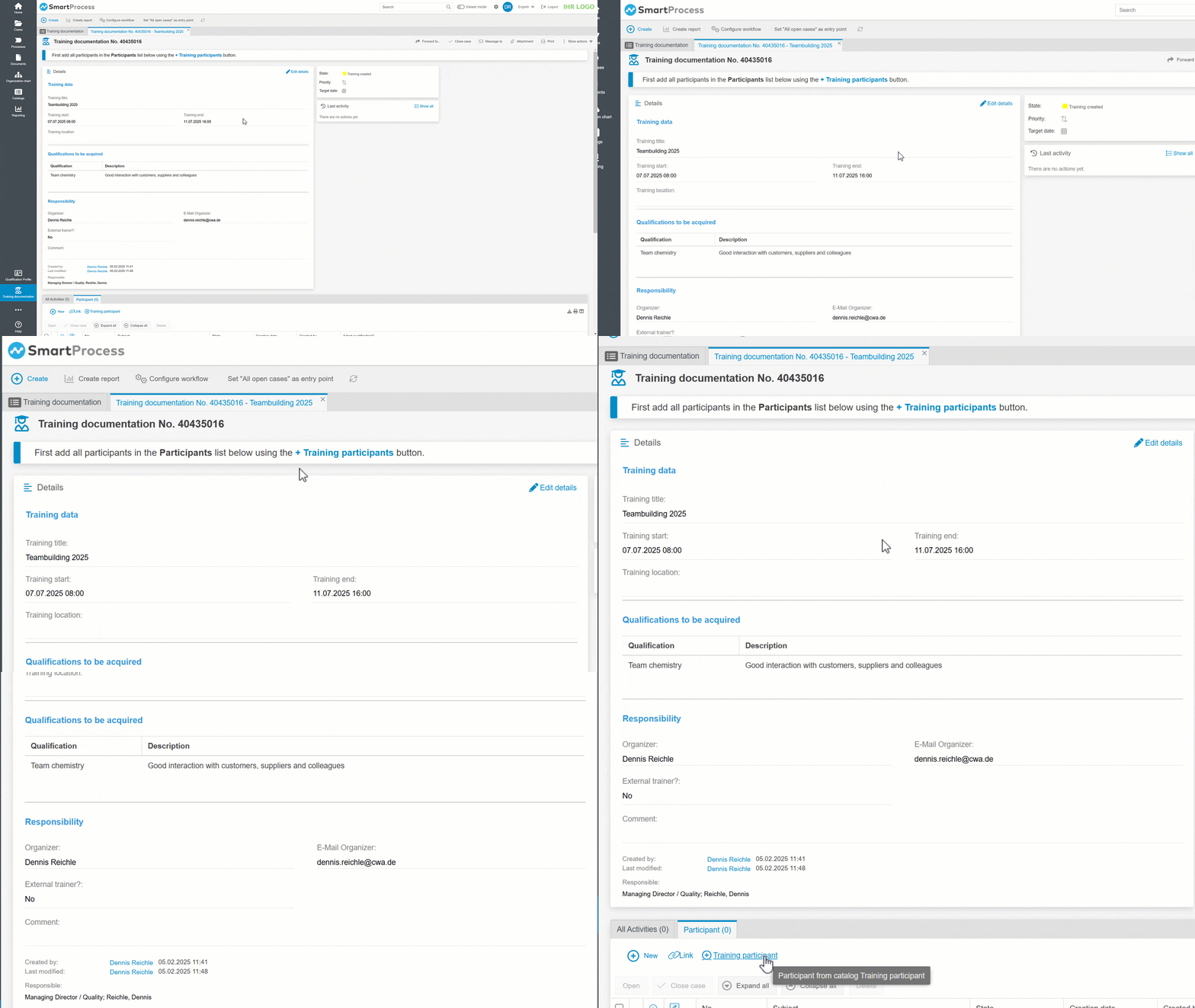
In addition to general master data, such as the title, period, location and organizer of the training, further data can be entered in the start form:
External trainer? | If it is not an internal training course, the External trainer? checkbox can be activated. Contact fields are then displayed, which can be used to select the contact details of the external trainer from the menu Contacts. |
Qualifications to be acquired | You can use + New from catalog to select several qualifications from the qualifications catalog that were covered in the training course. For each user who is entered as a participant in the training course in the following step, these qualifications are transferred to their qualification profile as Available or Valid. |
Add participants
After saving the start form, the case has been created. In the next step, the workflow requests that you add the participants. To do this, scroll down to the Participants list in the case window and click the + Training participant button.
The training participant catalog opens. This contains all users that have been created in SmartProcess.
If some employees are not to be actively involved in SmartProcess, a user without a login option can be created for them.
The special aspects of this catalog are the columns Skill confirmed? and Subsequent training required until.

Skill confirmed? | This column provides information on whether the person has entered one of the qualifications to be trained as a target qualification in their own profile (Qualifikation benötigt) or has already acquired it (Qualifikation vorhanden). If the user does not need the qualification according to their profile and has not acquired it Keine Angabe is displayed. If no qualification profile has yet been created for the user Kein Qualifikationsprofil is displayed. The catalog thus helps you to select a suitable group of participants for the training. |
Subsequent training required until | In this column, for valid qualifications with a check interval, the date until which the employee's qualification is still valid is listed. If the validity expires soon, it may be useful to add the employee to the training course. |
Select the desired participants in the window and add them by clicking Transfer.
Transfer qualifications of the participants
Once all participants have been added, the step Transfer qualifications of the participants is displayed at the top of the case window.

By confirming this task, the training case is completed and the qualifications are transferred to the qualification profiles.
Reporting
To evaluate the training documentations, proceed as described in the article Reporting for cases. The fields from the respective workflow are always available for filtering the cases - in this case, the fields from the start form of the training documentation workflow.
The following example shows the configuration and results view of a list report in which the qualifications trained and the number of people who have taken part in the training, are displayed.


How did we do?
Qualification management (Additional module)
Risk management
