Workflow object: Sub-Process
A sub-process can be used in a workflow to model a subordinate workflow. For example, it is possible to call up another workflow from various different workflows. This is how the action is used in Sm…

A sub-process can be used in a workflow to model a subordinate workflow. For example, it is possible to call up another workflow from various different workflows.
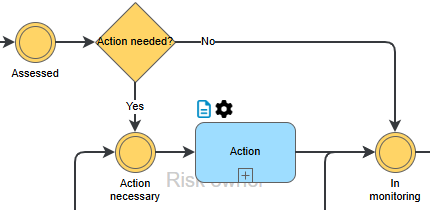
Process and presentation in case processing
If the action from the example above is reached in the case, an editor initially only has to complete its main form. From this point onwards, the action continues to run in parallel and independently of the main case. The risk changes directly to the status "In monitoring" after the main form of the action has been saved.
The progress of the sub-case can be tracked in the activity list of the main case:
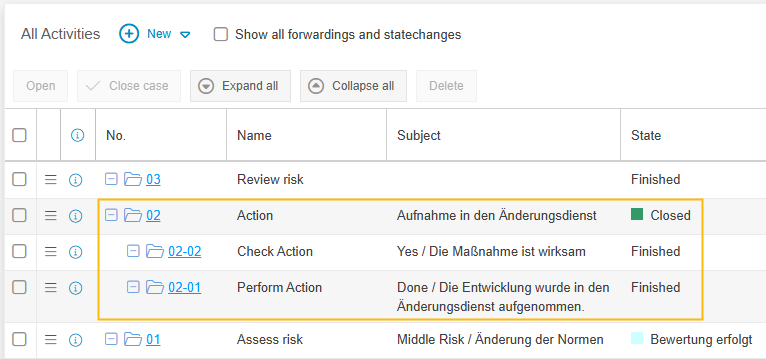
The number of a sub-case is made up of the number of the main case and the position in the sequence:

Transferring data to a sub-process
Data from the main form of the main workflow can be transferred to the main form of the sub-workflow if the fields of the two main forms are of the same type and have the same name. If the sub-workflow is called up later from the case, the fields of the sub-workflow are then already filled with the data of the fields of the superordinate main form.
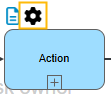
Workflow engine for further settings
 | 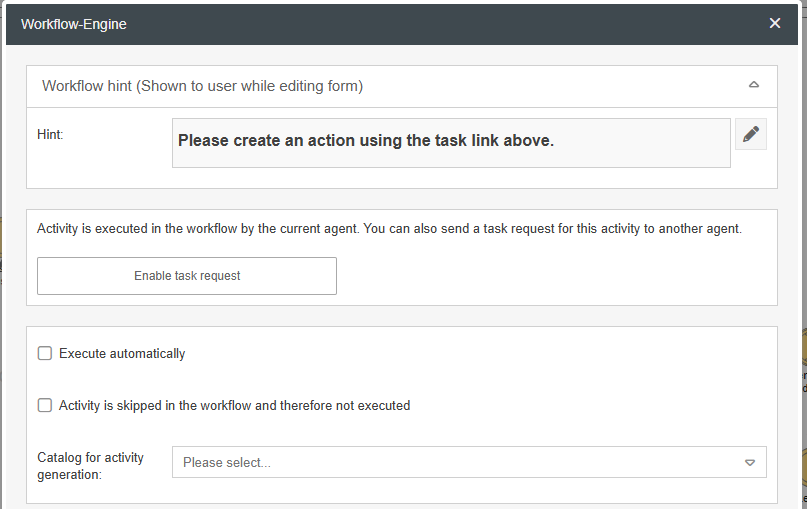 |
Workflow hint
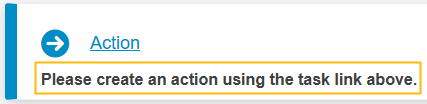
A processing note can be defined for each sub-process, which is displayed in the case under the task to be carried out and can serve as an explanation. This is a freely formatable text field so that images can also be embedded, for example.
Task request
Instead of forwarding the entire case with the Forward object, this option can be used to request only the task (completion of the main form of the sub-process) from another person or office.
The mode of operation is analogous to requested tasks. Additional settings are explained in detail here: Dealing with requested tasks
Execute automatically
Instead of starting the sub-process manually via a task link in the task, it can also be executed automatically. In this way, the main form of the sub-process is opened in the background, saved directly and closed. This allows parallel activities to be started in the background.
If this option is used, the main form should be prepared accordingly, as it is not filled in by any user at the start. Any mandatory fields are also saved empty. Here you can work well with the data transfer described above.
Activity is skipped in the workflow and therefore not executed
A sub-process marked in this way is not taken into account in the workflow process. Such sub-processes, which are not relevant for workflow control, can be added to the process model for better visualization, e.g. if the model is used for teaching purposes.
Catalog for activity generation
If catalog fields are used in the main form of the sub-process, it can be set here that the selected catalog is automatically called up via the task link in the task instead of the activity. A separate sub-process is then created for each selected item in the catalog.
How did we do?
Workflow object: Parallel gateway
Workflow object: Incoming message
