Table of Contents
General field properties
Field name. A field name must be specified for each field. If multiple languages are enabled in SmartProcess, a name must be specified for each language. Otherwise, the field is displayed in this dis…

Table of Contents
Field name
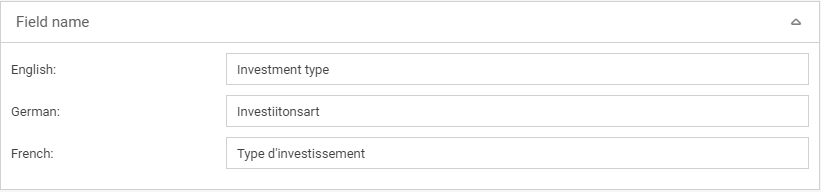
A field name must be specified for each field. If multiple languages are enabled in SmartProcess, a name must be specified for each language. Otherwise, the field is displayed in this display language without field names in the form.
Selection list
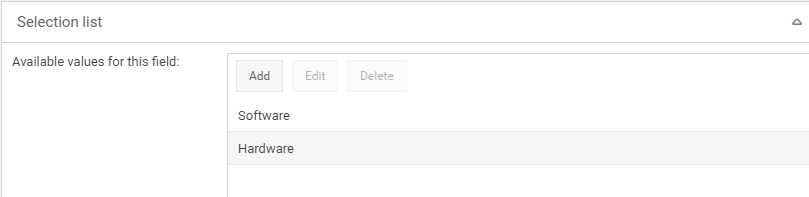
A selection list can be configured for some fields. The field is then displayed in the form as a drop-down list.
With the button <Add> new selection values can be defined.
With the button <Edit> selected values can be edited.
Selected values can be deleted using the <Delete> button.
General
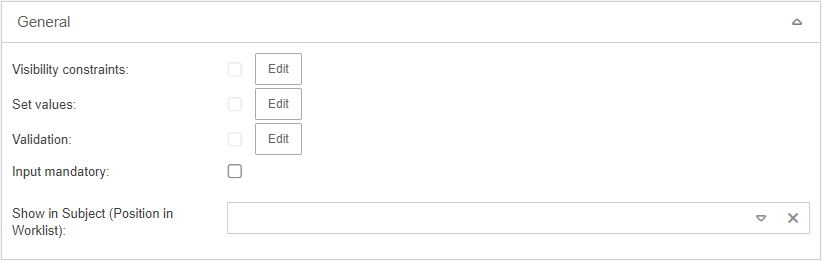
For many fields the behavior can be defined in the form.
Visibility contraints
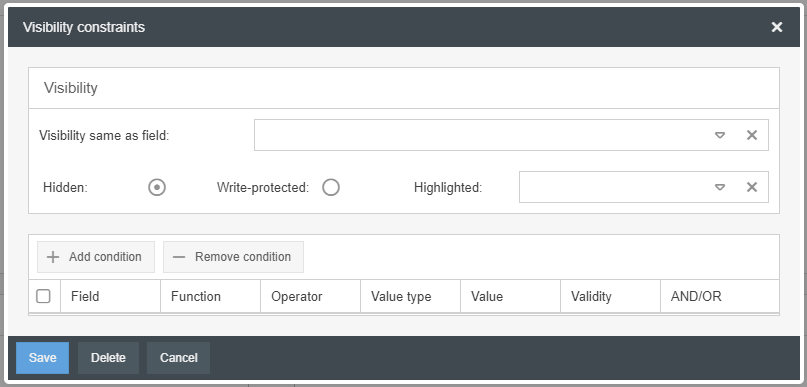
With the button <Edit> you can define visibility restrictions for the field. In this way, the field can be hidden or grayed out (Write protected) or highlighted under freely definable conditions.
If you want to define several form fields with identical visibility restrictions within a form, it is sufficient to set the conditions for one field and work with the <visibility same as field> function in the following fields.
Set values
With the button <Edit> value assignments can be defined for a field. In this way, the field can be automatically filled with a value if the freely definable condition applies.
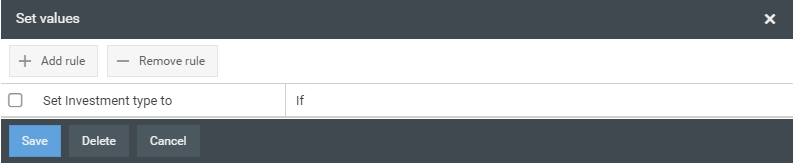
A new value assignment rule can be defined with the button <+ Add rule>.
One or more value assignment rules can be deleted using the <- Remove rule> button.
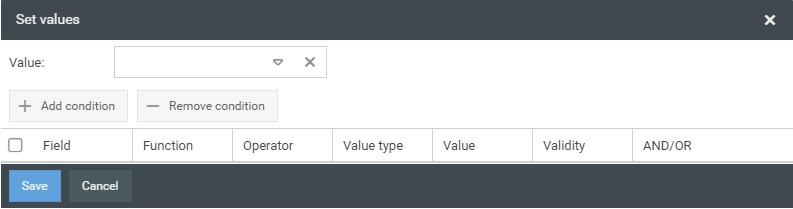
For a rule, the value to be automatically entered in the field is first defined. Afterwards, a condition must be defined via the button <+ Add condition>.
In some fields, it is also possible to define during value assignment that the value of another field is automatically transferred.
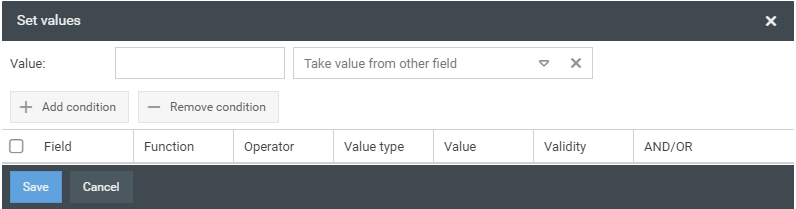
This can be specified in the field "Take value from other field".
Validation
Conditions can be defined for fields in the case, which must be fulfilled, so that a form can be saved. Example: In the form for a vacation request, saving can be prevented if the entered vacation end date is before the vacation start date.
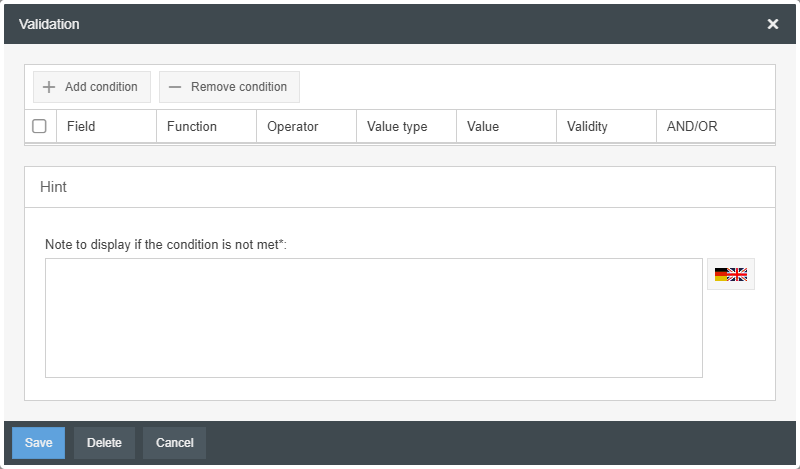
For this purpose, at least one condition must be set, which should be fulfilled when filling out the form.
In addition, a hint text must be formulated that will appear if the condition is not fulfilled at the time of the save attempt.
Input mandatory
By activating the checkbox "Input mandatory" the field can be configured as a mandatory field. It is then not possible to save the form of the case without entering a value for this field.
Show in Subject (Position in Worklist)
The operation list has a Subject column, the contents of which can be composed of various fields. In the field "Show in Subject (Position in Worklist)" you can set for each field where the content of the field should be placed in the subject.

If the contents of several fields are displayed in the subject, this is indicated by a slash (/).
Range
In the value range, settings can be made for the values that are later entered in the field.
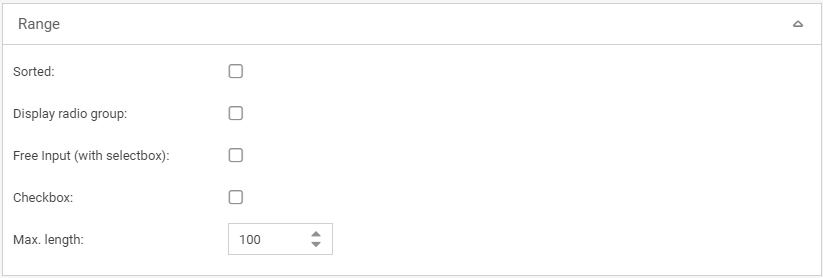
Property | Description |
Sorted | The values of a selection list can be displayed in alphabetical order if this property is activated. |
Display radio group | Instead of a drop-down field, the selection list can be displayed as a radio button group. |
Free input (with selectbox) | If this property is activated, it is also possible to make a free entry in a selection list and not only select from the offered values of the drop-down list. |
Checkbox | This function is only available for a simple field "Text / List without multiple selection". If this property is activated, all values of the selection list are deleted (if already entered) and the values Yes and No are entered. If a checkbox is activated, it has the value "Yes". If a checkbox is deactivated, it has the value "No". A checkbox always has "No" as default value. |
Display checkboxes | For a field "Selection list with multiple selection" the selection list can be displayed as a checkbox group. |
Max. length | In this field you can define the maximum number of characters for this field. |
Datasource
Einige Felder können auf eine Datenquelle des Systems zurückgreifen.

The following sources are available as data sources:
Datasource | Description |
No selection | No data source is linked. Instead, the field can be blank. |
Person | The field is linked to the user administration and in the process the user list opens, from which a user can be entered into the form. In the form, this field can also be used later as a search field. If a name is entered, value suggestions are automatically displayed. 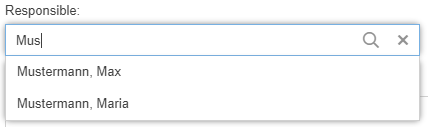 A free input of a name can therefore no longer be made. This function is often used to flexibly determine a recipient for forwarding an operation using the "Forward case" object. |
Webservice | This data source can only be used if this has been established by our development. |
Process | The field is linked to the process list of published processes. A drop-down list is then available in the process that lists all published processes. |
Organizational unit | The field is linked to the organigram and a list view of the organigram opens in the process. In this way, an organization chart object can be entered in the form. For users to be able to use the field, they need the Workkflow case privilege "Forward and send back case ad hoc" This function can also be used to forward the case to this organizational chart object using the "Forward case" object. |
Permissions
Permissions for editing can be set for some fields in the form.

In the field "Can be edited by", you can set which authorization profile may edit this field. A user must have this authorization profile to be able to edit the field.
In the field "Can be edited if case-state" you can set the status that the transaction must have in order to be allowed to edit the field.
Extras
Using the extended properties of a field, the behavior of a field can be configured in more detail.
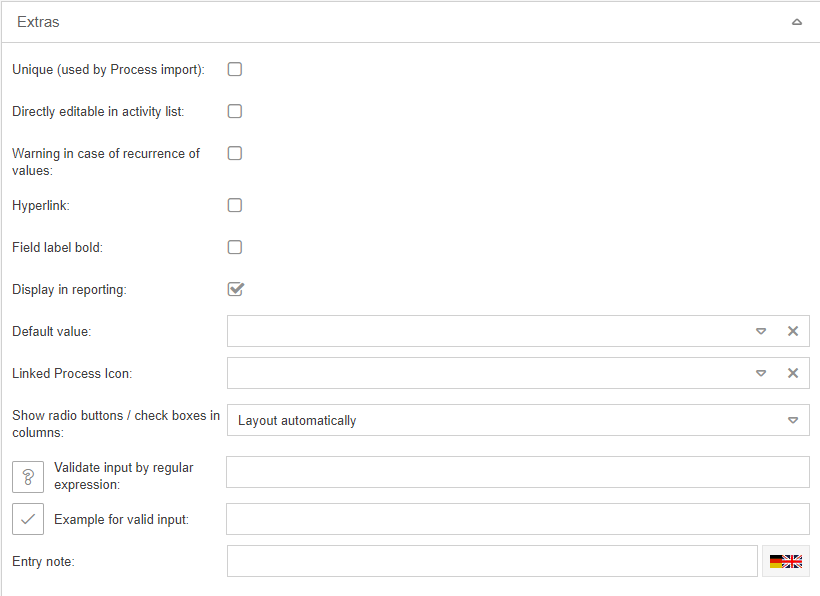
Property | Description |
Unique (used by Process import) | Tasks can also be imported by an import. If a field is defined as unique for import, the system checks during the import whether the value to be imported for this field already exists in an existing operation. If the field value already exists, the value is not imported. |
Directly editable in activity list | If a task or sub-process is already created in a case and therefore exists in the activity list, a field can be edited directly in the activity list if this property is activated. An example is the evaluation of the audit question from our standard workflow "Audit". |
Warning in case of recurrence of values | If this property is activated for a field, the system checks whether the entered value of the field already exists in this field in an existing case when the form is saved. If this is the case, the case cannot be saved and another value must be entered. |
Hyperlink | If this property is activated for a field, a hyperlink icon appears in the form and with a click on this icon the hyperlink entered in this field can be opened directly. The field must contain a hyperlink later in the process and the protocol must be specified for this hyperlink. For example http://, ftp://, etc. |
Field label bold | If this property is activated for a field, the field name is displayed bold in the form. |
Display in reporting | If you do not need the field either as a column to display in list reports or for filtering in the reporting menu, you can disable this option. For each newly created field, the option is enabled by default. |
Default value | If a selection list was defined for a field, the default value can be set in this field, which is automatically displayed in the field. The Default value field contains all entries from the selection list. |
Linked process icon | A case can also be started from a process model object. If this is the case, a value can be copied from the process model icon into the field by previous configuration of the process model icon. The field contains all available fields of the process objects. |
Show radio buttons /check boxes in columns | If a field is displayed as a checkbox, checkbox group or radio buttons, the number of columns in which the boxes should be displayed can be selected. The result of this setting is only visible in the preview. |
Validate input by regular expression | The entry in the field can be checked by a regular expression. To do this, you must specify the regular expression in this field. For example, it can be checked whether the entered value corresponds to the form of an e-mail address. Examples:
|
Example vor valid input | In this field a sample input can be stored for a regular expression, which is displayed to the user so that he knows in which format to enter a value. |
Entry note | A (multilingual) note can be entered here, which is displayed to the user as an input help directly below the field. 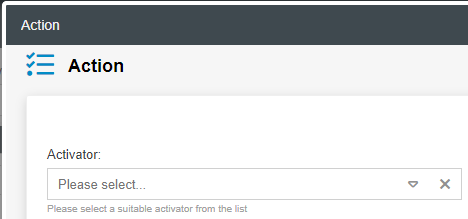 |
How did we do?
Field: Text / List without multiple selection
