Table of Contents
Workflow object: Forward case
The object "Forward case" is required in every workflow if the operations resulting from the workflow are to be processed by several agents. It is only possible to forward a case to an agent or reque…

Table of Contents
The object "Forward case" is required in every workflow if the operations resulting from the workflow are to be processed by several agents. It is only possible to forward a case to an agent or request a task from an agent using this object.
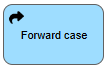
In the properties of the object, a name should always be added so that it is already possible to recognize in the process model who is the recipient of the process.
You can configure forwarding in the workflow engine of the object. A simple and an advanced view for configuring forwarding rules is available here. Usually, the simple view is sufficient for configuration.
Simple View
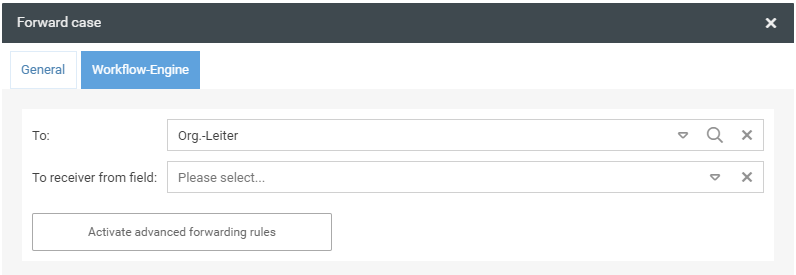
In the field "To" you can choose from predefined recipients. The following recipients are displayed using the drop-down selection:
Recipient | Description |
Back to creator | The case is sent back to the creator of the request. |
Back to last editor | The case is sent back to the user who last edited the operation. |
Authorization profile [Name of authorization profile] in same or upper org. unit | The case is sent to one or all users who have the specified authorization profile and are assigned in the same or higher-level organizational chart object in the organizational chart as the user who is currently sending the transaction. The search in higher organizational units goes in ascending order in the organizational chart until the authorization profile is found. This means not only up to the next higher unit. 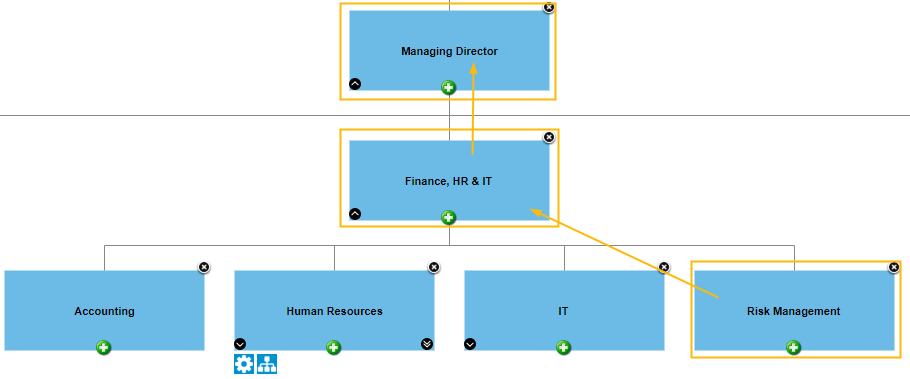 |
Authorization profile [Name of authorization profile] on same level or upper org. unit | The case is sent to one or all users who have the specified authorization profile and are assigned in the same organizational chart object or on the same horizontal level of the organizational chart or a higher level organizational chart object in the organizational chart as the user who is currently sending the activity. The search in higher organizational units goes in ascending order in the organizational chart until the authorization profile is found. This means not only up to the next higher unit. 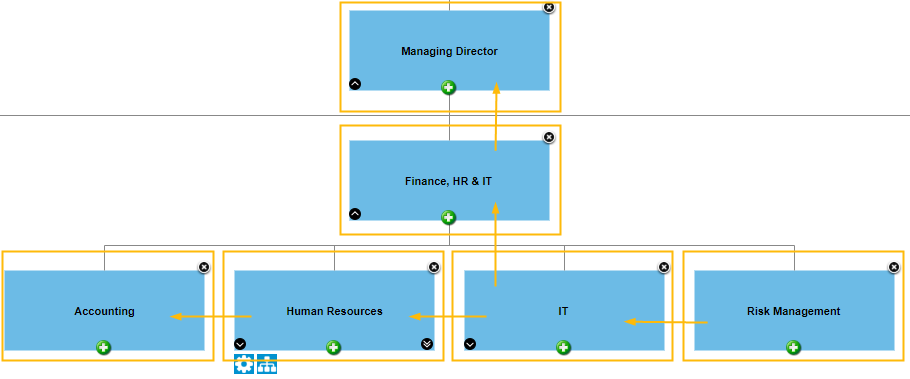 |
Use the magnifying glass in the "To" field to open the organization chart. In this way, an activity can be sent to an organizational chart object so that all users assigned to this object can see the case under "My cases". You can also use the organizational chart to enter a user of a particular organizational chart object as a fixed recipient.
If the recipient is not to be entered statically, but should refer to a field entry of a form, the field to be used for forwarding can be selected from the drop-down list in the field "To receiver from field".
The following variants are possible as entries in such a reference field:
- User name
- E-mail address
- "First name Last name" (Max Mustermann)
- "Surname, first name" (Mustermann, Maria)
- Organizational unit
- Role
Instead of using a free text field, it is highly recommended to define a selection list or a data source field.
Advanced view
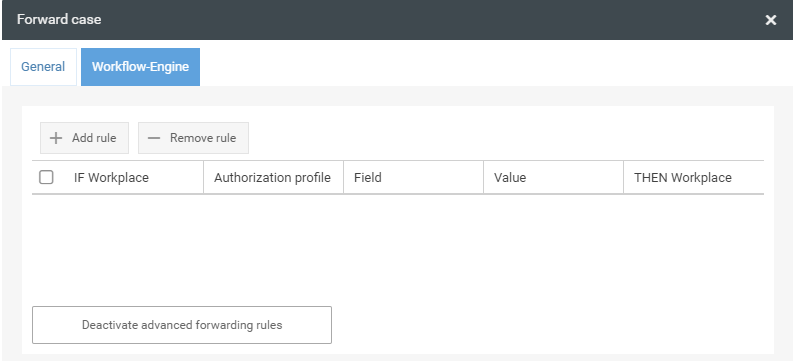
In the extended view, additional rules for forwarding can be defined.
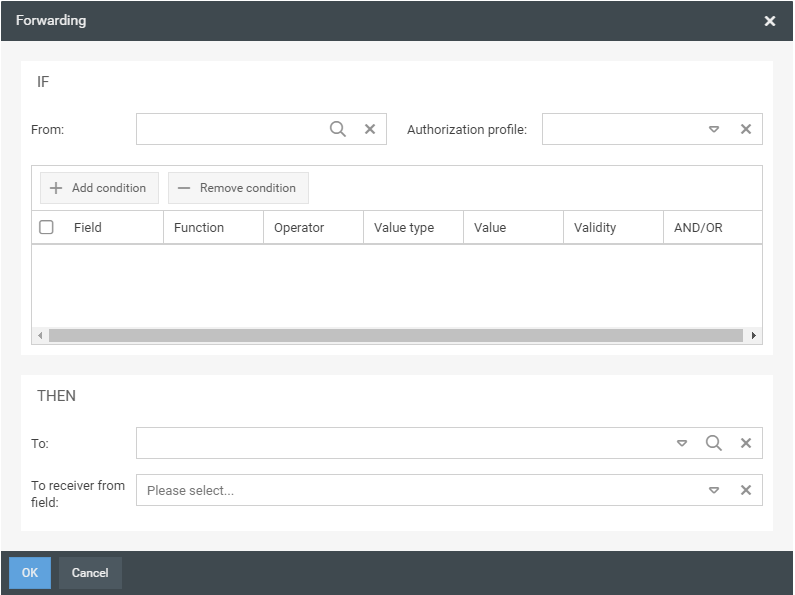
Thus, it can first be checked by whom the process is sent and which authorization profile the user has, and then sent to a specific recipient under a specific condition, which can be configured via <+ Add condition>.
Further controls
Option | Description |
Suppress email notification | Forwarding a case always automatically generates a system-generated e-mail that is sent to the recipient(s) of the case to inform them that a new case has been received. If this e-mail is not to be sent, you can activate this option. No individual text module can then be used. |
Individual e-mail notification | If you want to send an individual case receipt notification to the recipient(s), this option can be activated. After activation, a selection window appears in which the text module can be newly created or, if it already exists, selected. |
Execute automatically | The process is automatically forwarded to the configured recipient. If this option is not activated, the forwarding step in the case is only displayed and must be triggered manually by clicking. |
Send a task request | If this option is activated, an activity requested by the recipient must be selected. In this case not the whole case is sent to the recipient, but only the task. In addition, you can set whether the task must be executed in order for the process to continue and whether the requested activity should be stored temporarily after the request. Usually the default setting can be kept here. |
Difference of case forwarding and task request
If a case is forwarded to a recipient in its entirety, the case disappears from the "My cases" list from the last person in charge is responsible.
If a task is requested, the case remains in the "My cases" list of the last person responsible and only the task is sent to the recipient.
Workflow-Hint
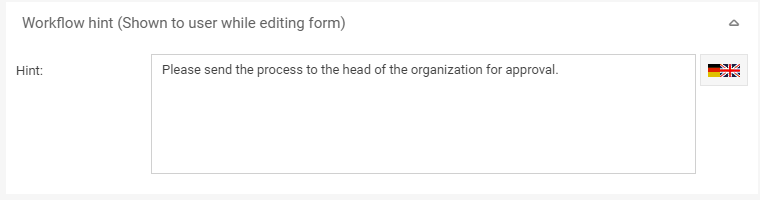
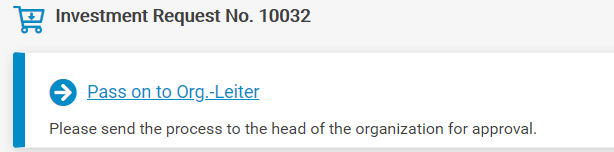
A note can be entered in the "Hint" field, which is only displayed if the forwarding is not carried out automatically. In this case the note is displayed under the forwarding step.
How did we do?
Workflow object: Decision
Workflow object: Send e-mail
