Table of Contents
Action management
With the standard application Action, all internal tasks in the company can be assigned to SmartProcess users, their execution can be documented and centrally controlled. This standard workflow is in…

Table of Contents
With the standard application Action, all internal tasks in the company can be assigned to SmartProcess users, their execution can be documented and centrally controlled.
The sequence of the workflow steps and the forms (input masks) can also be flexibly adapted to individual company requirements in the Processes menu.
Sequence of an action
Create
There are several ways to create a new action:
- Via the menu Cases -> Create -> Action
- Via the menu Action -> Create
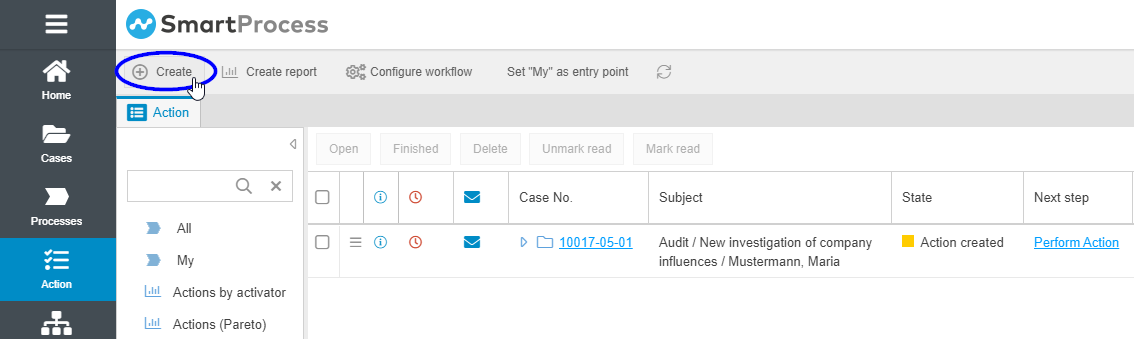
If you cannot find the menu item there either, you do not have the authorization to create new actions.
When a new action case is created, the main form opens first, in which the master data is entered. The decisive fields for the further procedure of the action are:
- Responsible -> With a click on the magnifying glass a user can be selected from SmartProcess. The action will be forwarded to this user for implementation after creation.
- Date -> The date selected here is entered as the due date of the activity. If the date is reached and the action has not been completed by then, the user responsible for the case at that time receives an automatic one-time reminder e-mail from the system.
The other fields are suitable for filtering in later evaluations (Activator) or are used to describe the tasks to be performed for the person responsible (Short description & Recommended action).
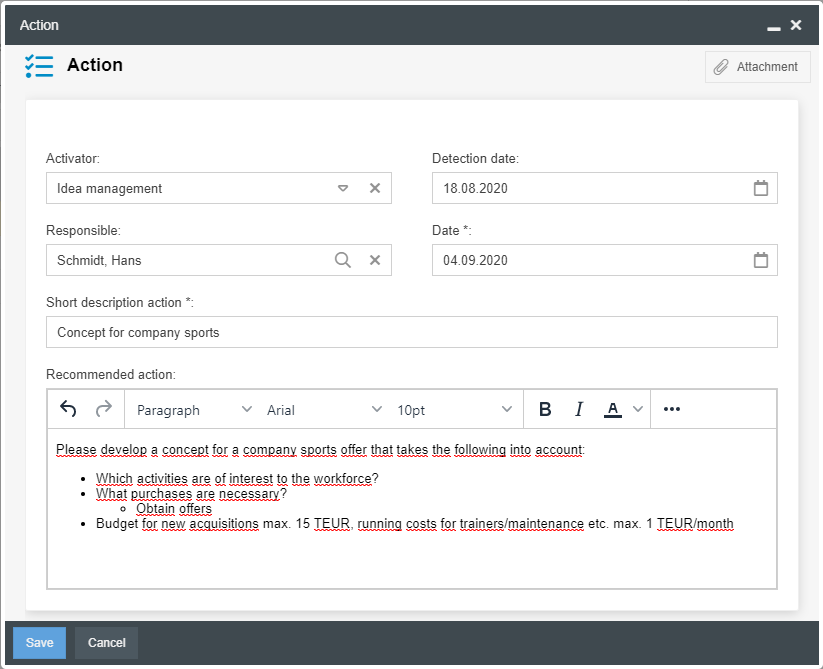
Once created, the action can be forwarded to the responsible person. Afterwards, you will find an overview of the actions assigned to you in the "My" list or a list of all open actions in SmartProcess in the "All" list.
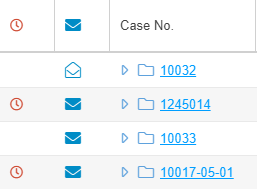
If the due date of an action is exceeded, this is indicated by a red clock in the case list. You can also use reporting to filter out the overdue actions.
Perform action
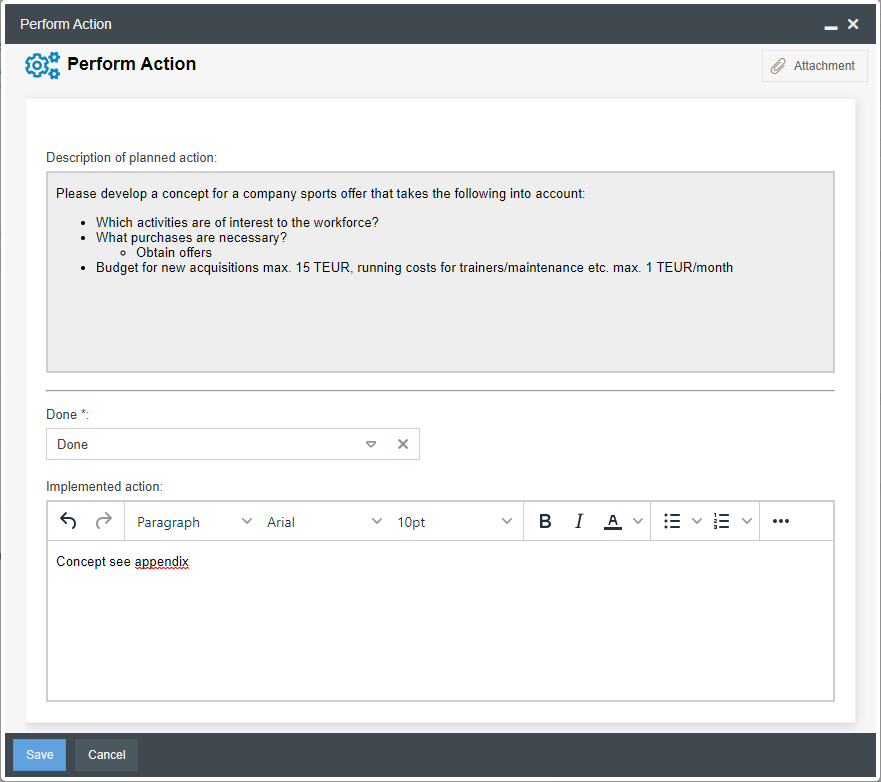
Once the person responsible has carried out the task, he or she can use the task "Perform action" in the case window to document that the action has been successfully implemented.

In addition to the selection that the task has been completed, the implementation can be described in a comment and, if required, file attachments can be added to the input mask by drag & drop. Afterwards, the case can be returned to the creator of the action with a click.
Check action
The creator now receives the case back to check whether the implementation of the person responsible has achieved the desired goal. For this purpose, the entries in the activity list as well as the notes in the "Last activity" box and any file attachments are available to him in the case window.
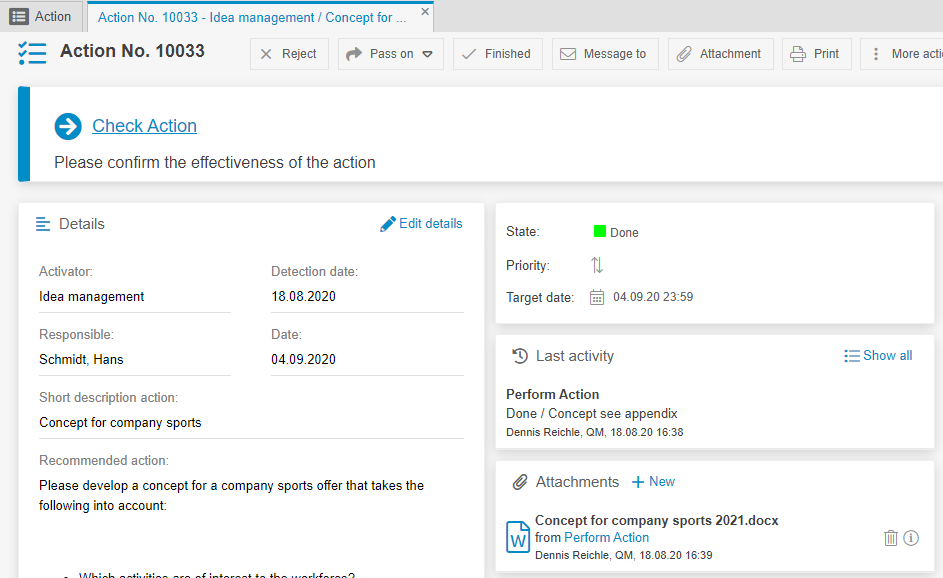
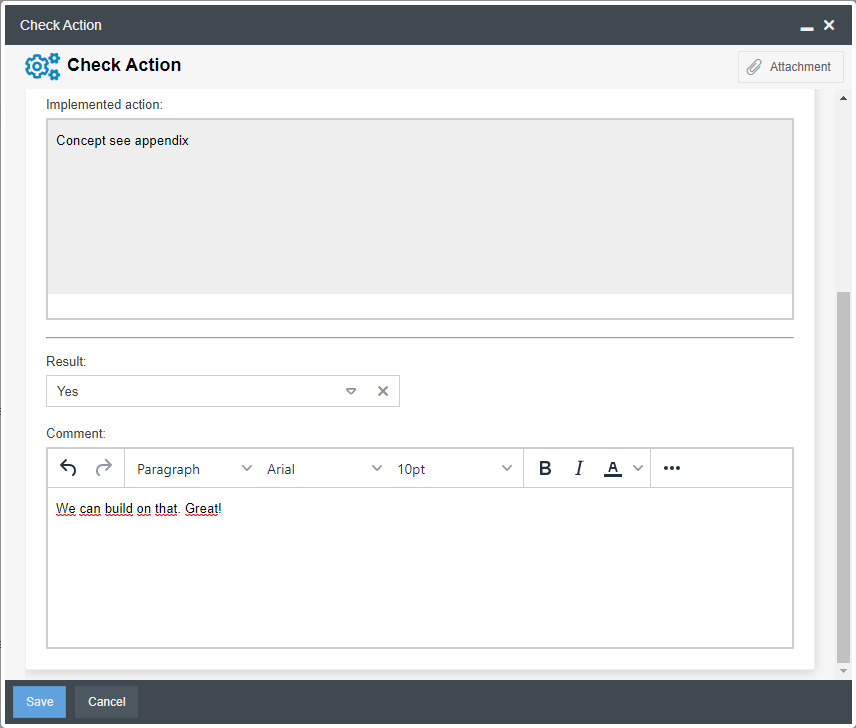
The creator can now use the task "Check action" to decide on the further course of the action:
- If the result is assessed with Yes, the action is completed successfully.
- If the result is assessed with No, the action case is returned to the person responsible with the status "Changes required". This person must consider an alternative implementation and document it again in the task "Perform action". This loop is repeated until the action is assessed as effective.
Evaluation
To evaluate action cases, follow the description in the article Reporting for cases. To filter the cases, you can always use the fields from the respective workflow - in this case, the fields from the main form of the action workflow.
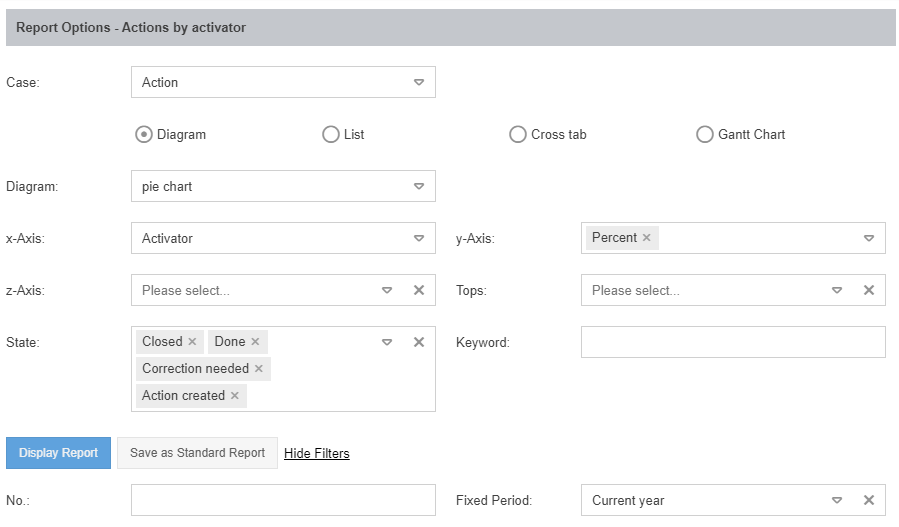
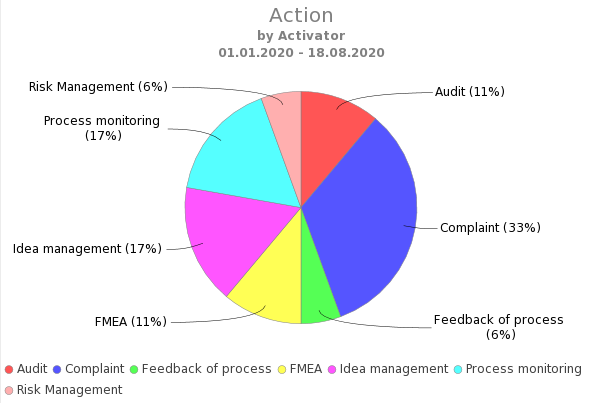
The following example shows the configuration and result view of a pie chart, in which all actions created in the current year are categorized proportionally according to the activator. From this, it can be derived which activities in the company result in many tasks to be executed.
Central action management
Because the procedure of the action workflow is kept general, it can be started from various other workflows if the execution of certain tasks is necessary - for example, as a result of deviations during audits, feedback on a process or document, a critically evaluated point in risk management or an FMEA.
This means that actions are processed according to a central and uniform procedure and can be evaluated together, regardless of their origin.
How did we do?
Audit management
KPI management
