Table of Contents
Create documents
SmartProcess offers different ways to create new documents. Create documents individually. Button "Create". Click on <Create> above the content area of the Documents menu. Here you can create a new d…

Table of Contents
SmartProcess offers different ways to create new documents.
Create documents individually
Button "Create"
Click on <Create> above the content area of the Documents menu. Here you can create a new document with or without a template. Templates can be searched and a preview is available.
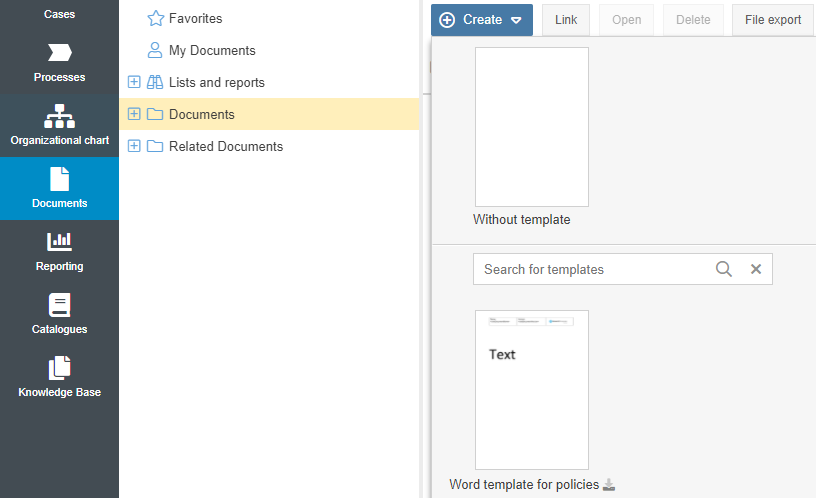
After selection, a window opens in which the properties of the document can be defined.
Property | Description |
Button <Add document> | With the button <Add document> a file attachment can be added to the document object. This can also be done by Drag & Drop directly from a folder of your drive. Simply open a folder and drag & drop the desired file into the creation window. Instead of a file attachment, you can also enter a URL that links to an externally stored document in the Alternate hyperlink field. This means that a document does not necessarily have to contain a Word, Excel or PDF file. 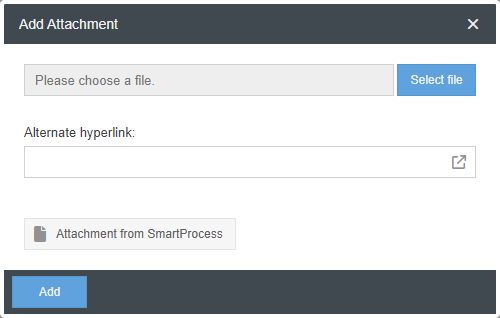 |
Name & Description | A name and a detailed description of the document can be stored in all activated system languages. |
Responsible | The responsible entity for the document can be entered in the field Responsible. Clicking on the magnifying glass opens the organizational chart from which an organizational unit, role or user can be selected. This field can be turned into a mandatory field via the settings. 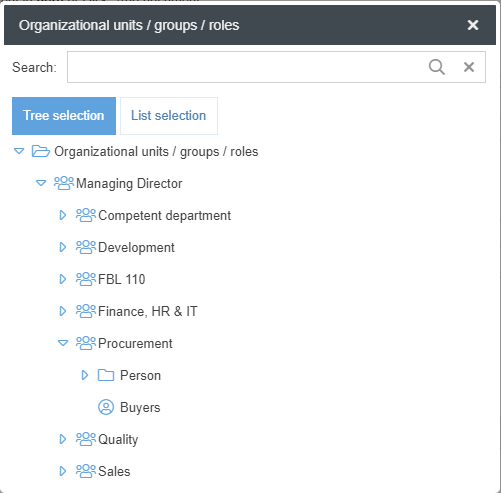 Select an organizational unit or role from the organizational chart for the document owner. If a user is selected, when the responsibility changes, the details of each document for which the user was entered as the owner must be edited. The document responsible has some special functions (if an org unit or role is set as responsible, this applies to all users of this org unit/role)
|
Document type & Code | The Document Type field is filled from the centrally stored Document Types catalogue. A code is set based on the document type. If automatic numbering is activated in the document management settings, a document type must be selected. If a user has authorization to edit catalogue entries, the document types can be called up and maintained via the Catalogues menu. |
Document No. | If automatic numbering is activated in the document management settings, no number can be entered. Instead, the document is numbered automatically based on the document type. The number consists of the document type code and a sequential number. Each document type is numbered separately. The first document of the type checklist is therefore assigned the number CL-00001, the first document of the type work instruction the number WI-00001. If the automatic numbering of documents is activated, the number is only assigned once and does not change. A manual change would only be possible by deactivating automatic numbering in the meantime. If automatic numbering is deactivated, any combination of letters and numbers can be entered in the field. |
Language | The language is initially only a descriptive property of the document. In some cases, however, it also has a functional importance:
|
Publish start version immediately | Optionally, you can set whether the document should be published immediately after creation. If "Yes", you can also specify a start version (integers only). This setting is useful if documents that have already been checked and versioned are to be transferred to SmartProcess. Select "No" to create the document in version 0.01 and not publish it. |
User-defined fields | If more information about the documents is to be captured in SmartProcess and no field is available for it, user-defined fields can be created. Once created, a value can be entered in this field for each document. Possible information is, for example, whether a document is only intended for internal use or whether it is also released for external use, or whether a document is GDPR relevant or not. The content of user-defined fields can also be used to filter and sort documents in reporting. |
After the document has been created, it appears in the folder list and can be previewed in the document preview area. The further processing of documents is described in the article Document details.
Create documents by drag & drop
In an existing folder a document can also be created by drag & drop. To do this, open a folder on your PC and drag and drop the required file into the content area of the Documents menu.
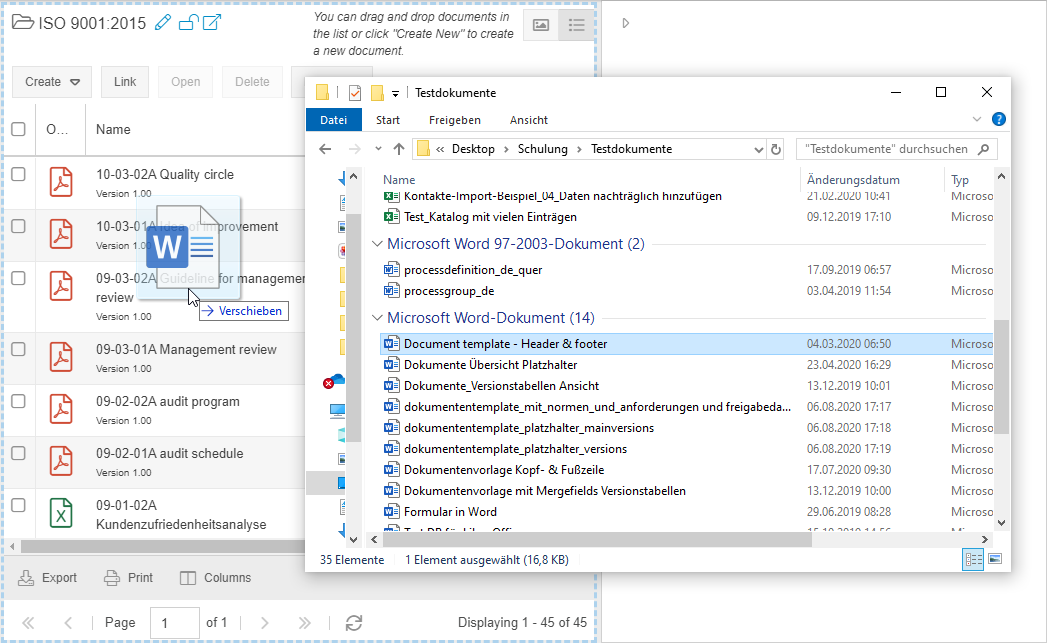
In the creation window that opens, the file is attached directly as an attachment. The rest of the creation process corresponds to the section Button "Create".
Create several documents simultaneously
Several documents can be created at the same time using drag & drop. To do this, open a folder on your PC and select several files. Use Drag & Drop to drag the selected files to the content area of the Documents menu.
The familiar creation window for documents with some special characteristics opens.
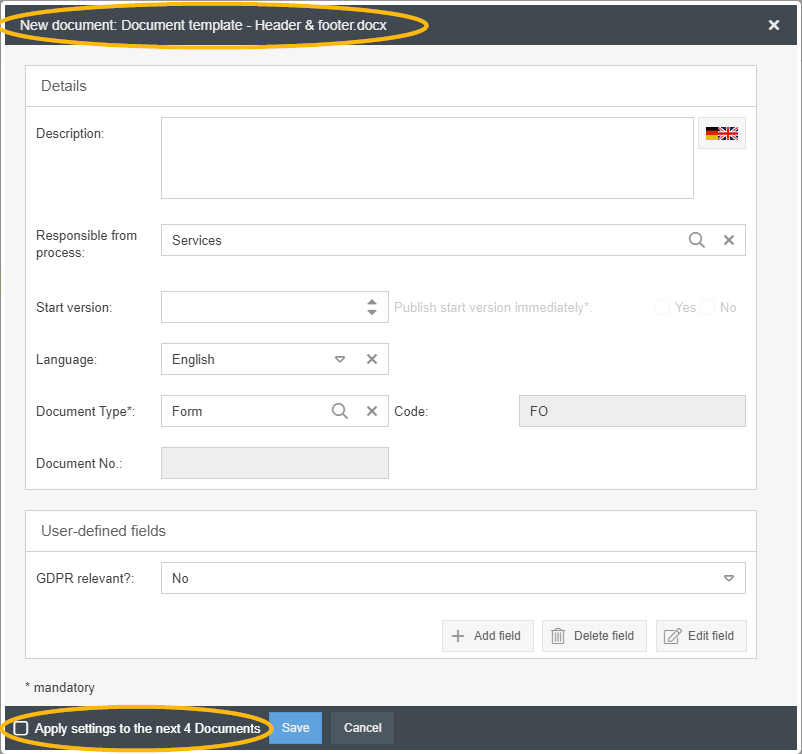
- Although several documents are created simultaneously in this way, only the properties of one document can be entered at a time. The file name in the header of the window tells you to which document the entered data applies.
- In the footer area there is a checkbox "Apply settings to the next X Documents".
- If the checkbox is not activated, the document currently displayed is created when you click on <Save> and the creation window opens again immediately afterwards to record the details of the next document. In this way, the details for each of the added documents can be entered one by one.
- If the checkbox is activated, all entered properties will be captured not only for the currently visible document, but also for all other documents that have been added together via drag & drop.
In the example, a total of 5 documents would be created, which all have the same responsible, the same language and the same document type, and all are marked as not GDPR relevant.
This procedure is particularly useful if several documents with many similar properties are to be added in SmartProcess. This allows you to create these documents quickly and add the missing information or supplement it using document metadata import.
Create documents by import
New documents can also be created with the document metadata import. The procedure is described in the linked chapter.
How did we do?
Documents - menu structure
Document details
