Table of Contents
Version 23.10 Release Notes
Processes and documents. The highlighting of expired validities for processes and documents has been improved. In the menu, an hourglass symbol and a note text draw the user's attention to this. In a…

Updated
by Dennis Reichle
Table of Contents
Processes and documents
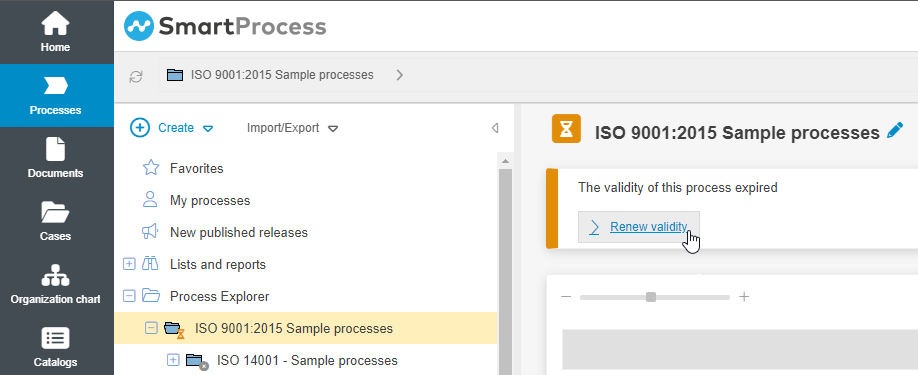
- The highlighting of expired validities for processes and documents has been improved. In the menu, an hourglass symbol and a note text draw the user's attention to this. In addition, the process or document changes to the state "Validity expired", according to which it can also be filtered in reporting.
If the user has editing rights for the process or document, he is furthermore offered a link to switch directly to the validity window in order to extend it.
- The read confirmation functions for (newly) published processes and documents have been extended. For example, read confirmations can be requested from newly created users without having to publish the relevant processes and documents again. For further information, please refer to the article Read confirmation.
To use the new read confirmation, a configuration in the system is required in addition to the update. For more information, see the Read confirmation article.
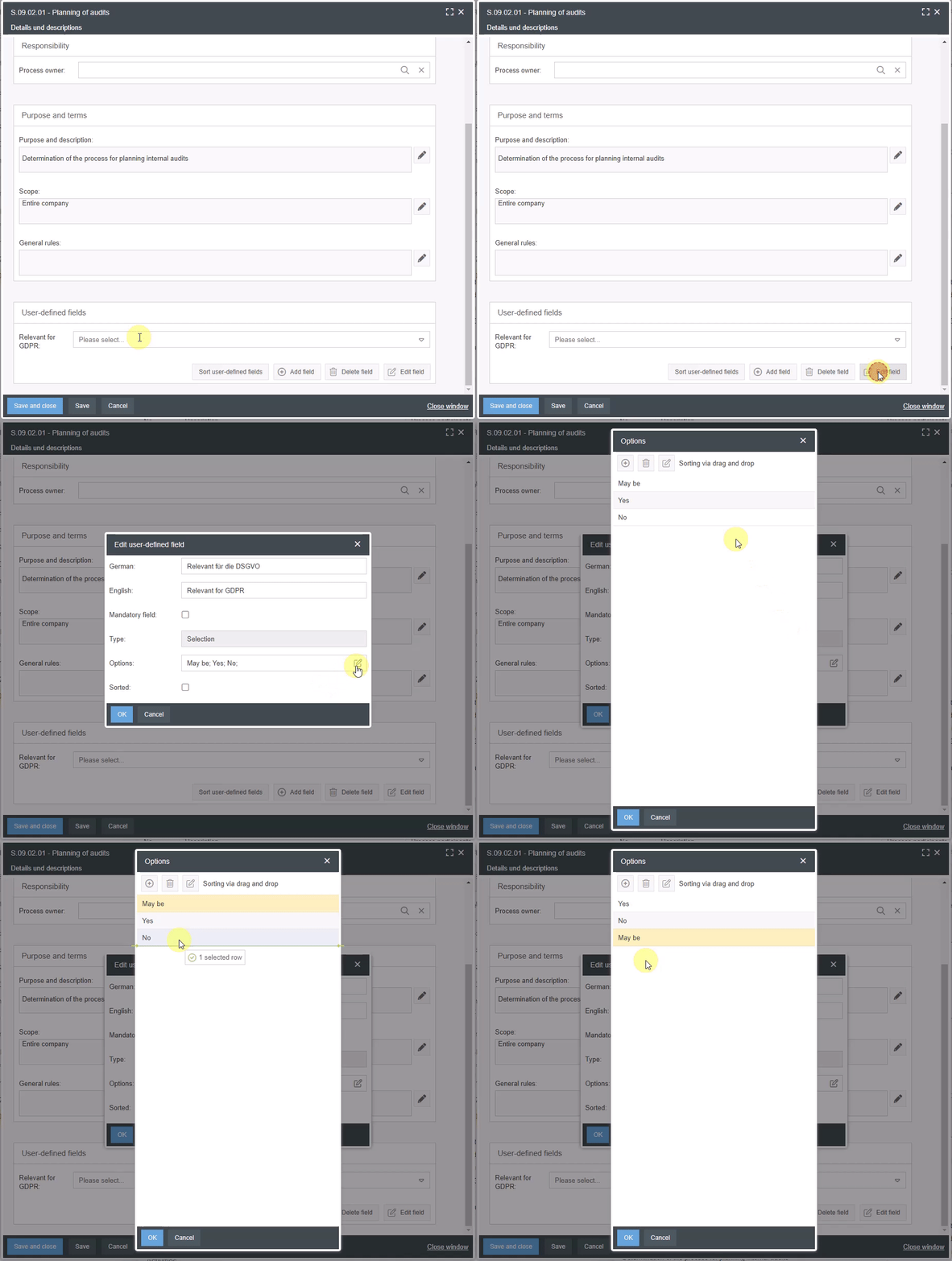
- User-defined fields now also support selection lists in which multiple items can be selected. To use this, select the "Multi-selection" type when creating a new field.
- For user-defined fields of type Selection or Multiple Selection, the order of the list entries can now be arranged using drag & drop.
- When publishing processes and documents without the approval workflow, the Valid from date is now pre-filled with the current date.
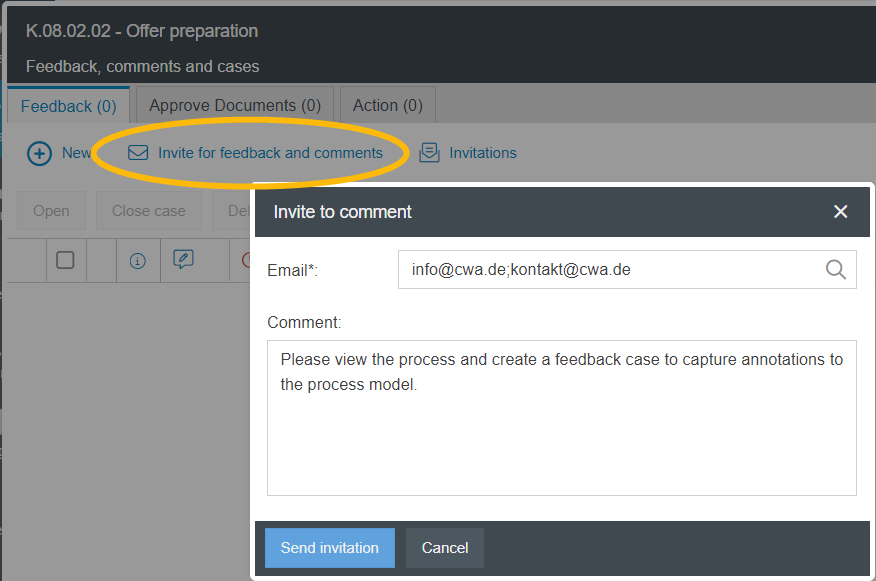
- If the process modeler wants to invite other users to provide feedback on a process / document, he can add a text that will be displayed to the invited users both in the email and in the application.
- When a user is invited to provide feedback on a process / document and opens the invitation link from the email, in the upper area of the window he/she is shown a banner with a link that can be used to open the window for starting the feedback workflow.

Processes only
- In the settings, rules and recommendations for modeling processes according to BPMN can be defined. The BPMN rules can be classified as error, warning or info and, if necessary, automatically displayed to the process modeler when the process model is saved so that the modeler can correct his/her draft. Independent of the automatic check, the modeler can trigger a manual check of the BPMN rules in the process designer.
- In the settings, it can be defined application-wide which lists with process details are to be displayed below the process model (e.g. documents, terms & abbreviations, opportunities).
- In the settings, a default value can be defined for the "Scope" field, which will be applied to newly created process groups and processes.
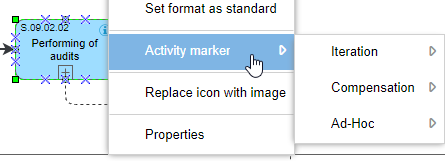
- In the process model, BPMN activity markers for iteration, compensation, and Ad-Hoc can be displayed at tasks and sub-processes.
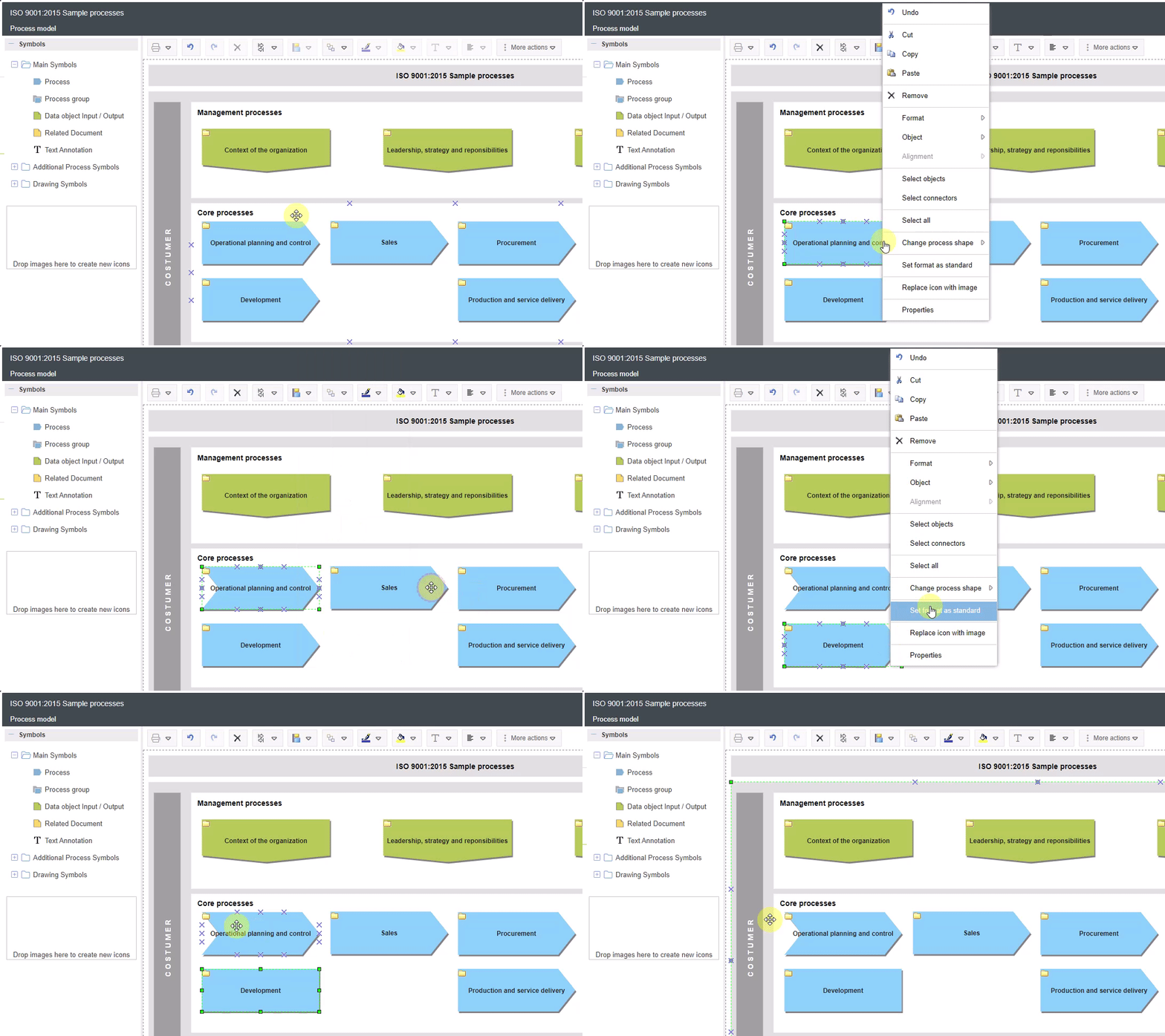
- When modeling process groups, the shape of process group and process symbols can now be subsequently changed between the simple, notched and rectangular representation by right-clicking.
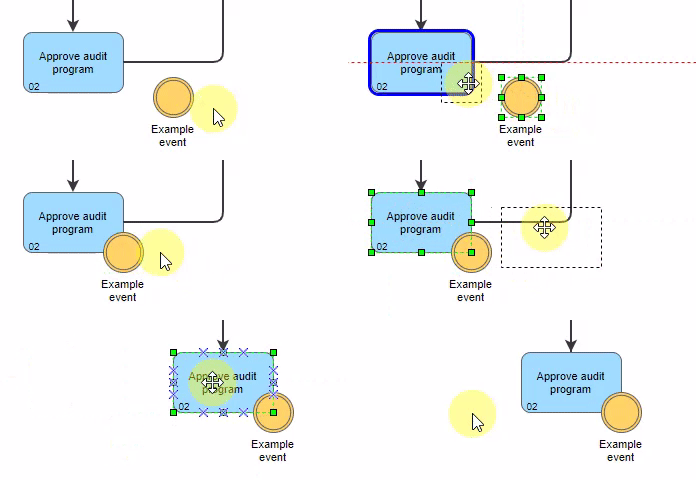
- Intermediate events can be stitched to activities in the process model. If this is done, the event is moved along with it when the associated activity is moved. In this case, the event type automatically changes to "Boundary intermediate event".
- If the Adjacent process object is modeled in the process model, the number of the process is now displayed in the icon, if a number has been assigned.
- When printing the process model to PDF, the process name, process number and version number are now displayed in the footer in addition to the print date.
- In the system text module for publishing a new process, placeholders can now be inserted for the fields "Scope" and "Purpose and description".
Documents only
- When creating documents, a start version can now only be specified in connection with direct publication. For this, the user must have the permission to publish documents without the approval workflow.
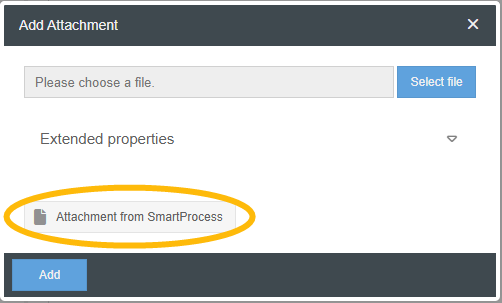
- In many places where attachments can be added, it is now possible to access file attachments of SmartProcess documents, e.g. in the menus Contacts, Catalogs, the Knowledge Base or ad hoc e-mails in cases.
Case processing
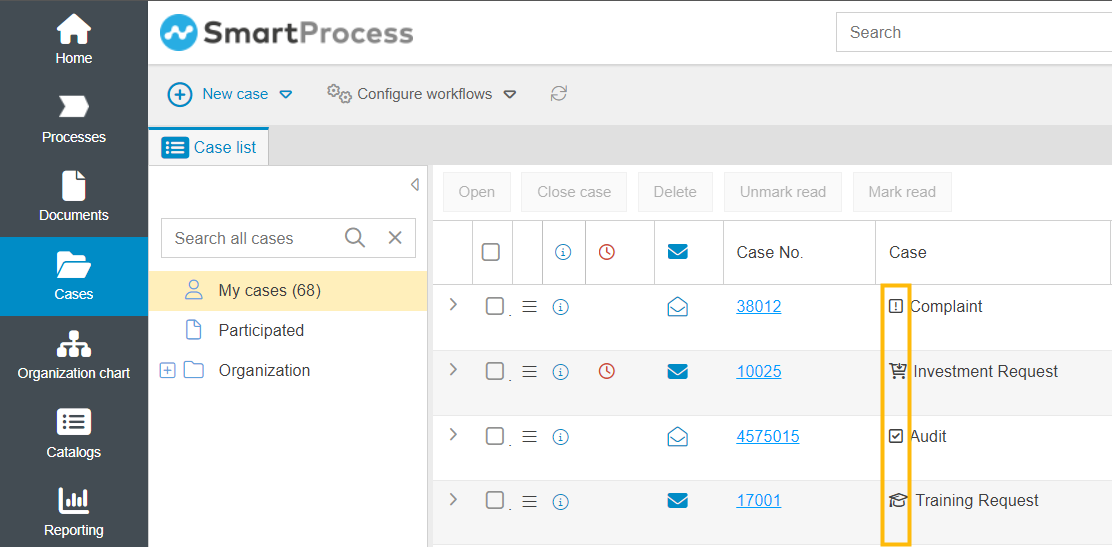
- In case lists (e.g. "My cases"), the workflow icon defined in the workflow settings is now additionally displayed in the "Case" column in front of the workflow name.
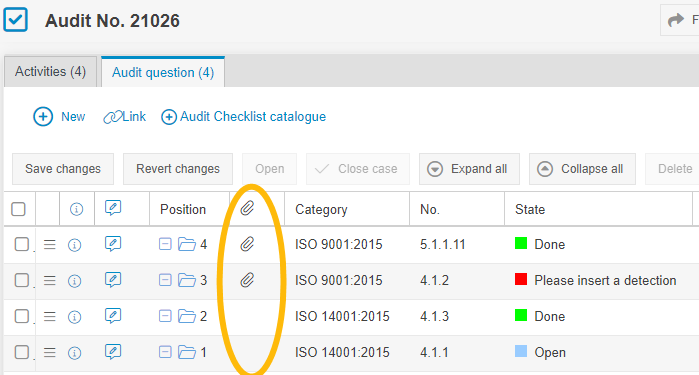
- A column can now be displayed in the activity list of cases to indicate whether attachments have been added to this activity.
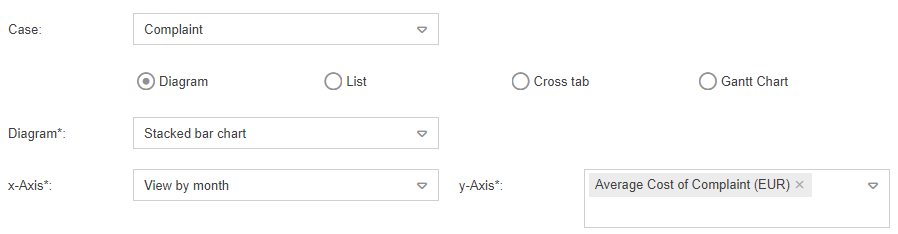
- When reporting cases with diagrams the y-axis can now also display average values of number fields, e.g. the average cost per complaint per month.
Workflow modeling
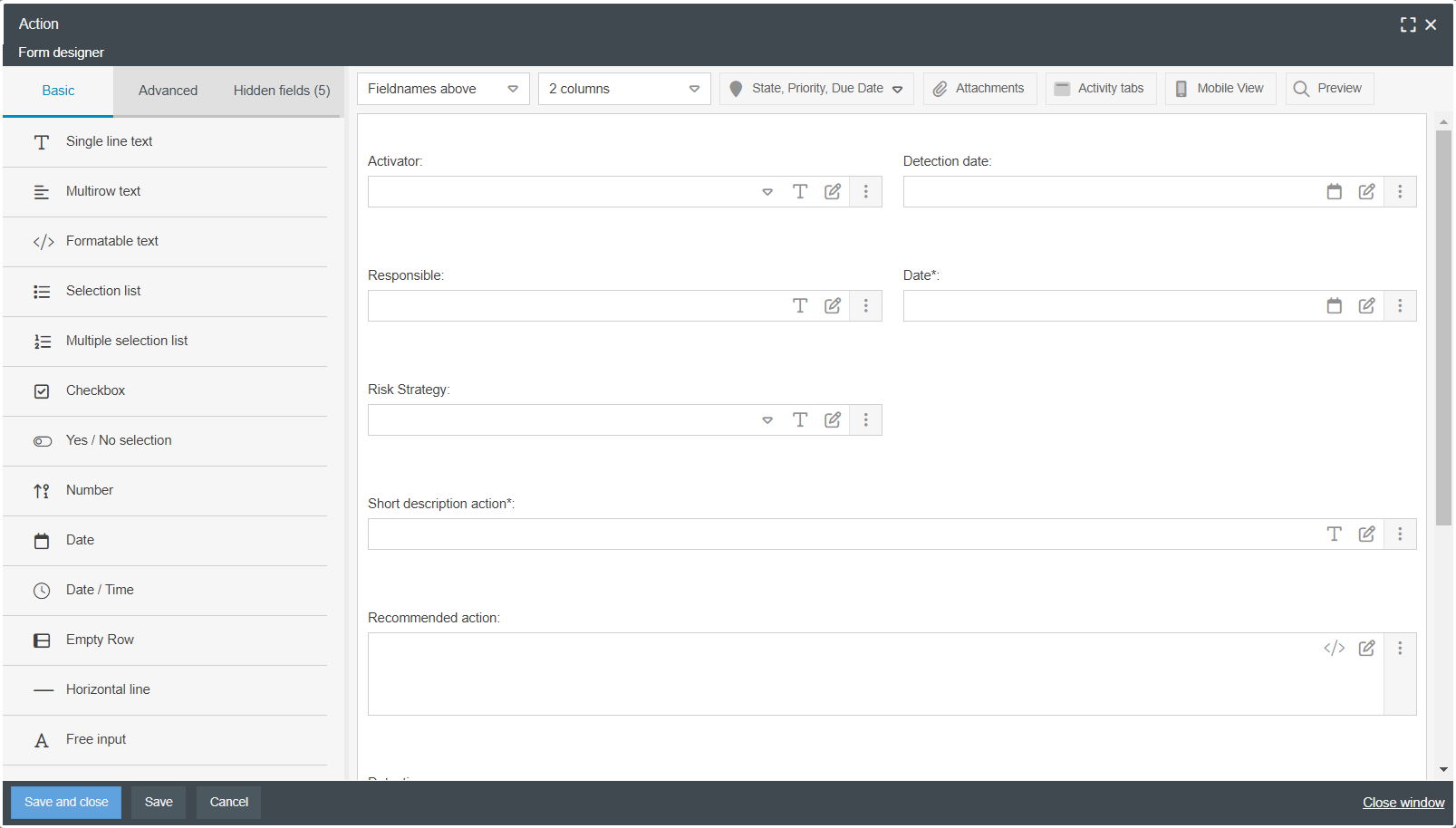
- The design of the Form designer has been revised. In the course of this, new field types were added for better differentiation (selection list, yes / no selection, checkbox) and the view of the field properties was restructured to improve clarity.
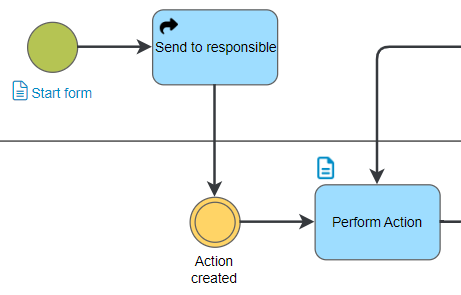
- In the process model of a workflow, the start form / main form can now be opened for editing via a link at the start event, or the activity form can be opened by clicking on the form icon at an activity
This enables the editing of the start form during the modeling of the process model.
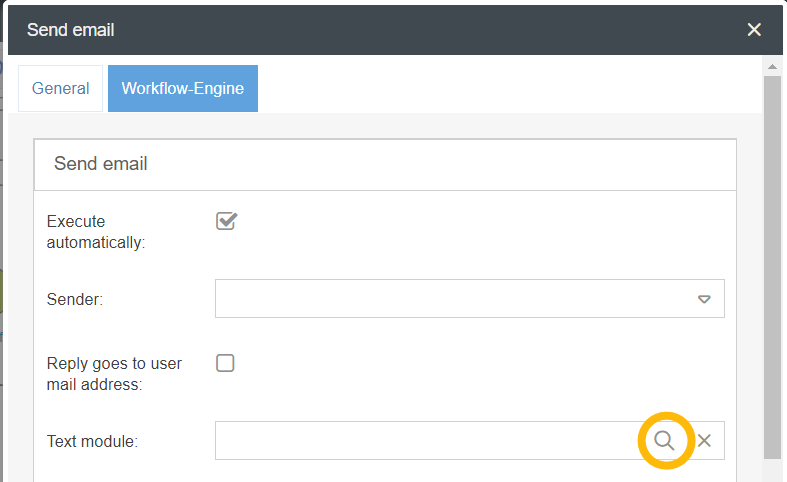
- The selection of text modules to be sent has been changed. A click on the magnifying glass icon opens a list of all existing text modules and offers the possibility to edit them or create a new one if required. This affects the objects Send email, Forward case (Individual e-mail notification) and Send form via email.
- A new configuration option has been added to the Forward case object: It is now possible to forward the case to the main organizational unit of the creator or last editor of the case.
Organization chart
- User-defined fields are now also available for roles.
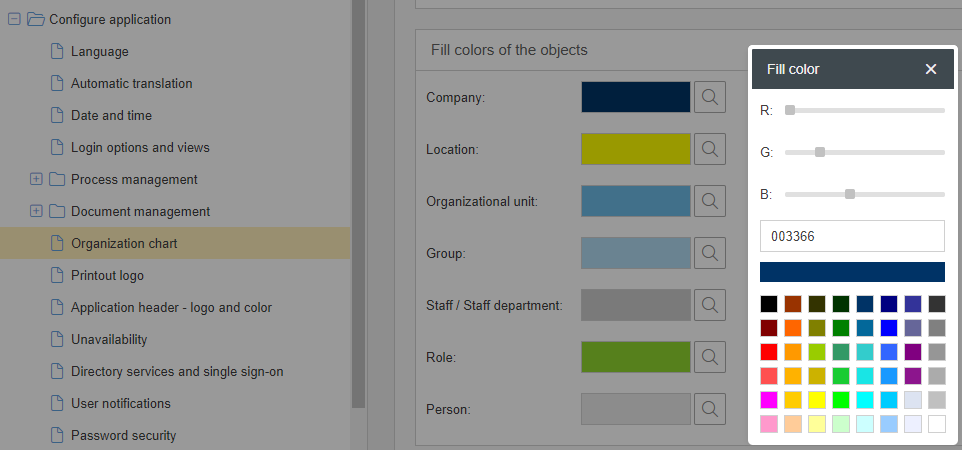
- In the settings for organization chart objects and the application header, the fill color can now be selected from a predefined palette (in addition to the previous option of entering a hexadecimal color code)
- The English names for "organizational unit" have been changed in the user administration, e.g. "Main organizational unit" instead of "Main group".
As a result, these changed designations must be taken into account in the columns of the import file when importing users in English.
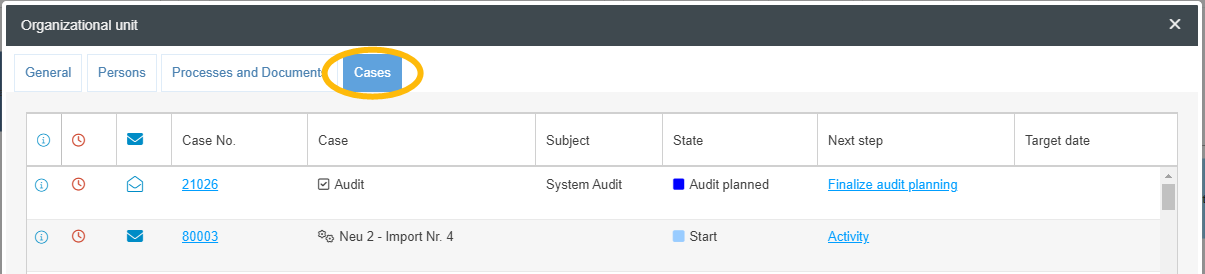
- A Cases tab has been added to the properties of organizational units. This allows viewing the cases currently assigned to the organizational unit directly from the organization chart.
General
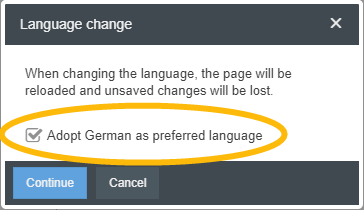
- In the user administration, a fixed language can be set for each user. In this language the e-mails from SmartProcess will be sent to the user and after login the contents in SmartProcess will be displayed to him.
- This customization eliminates the need to select the login language in the login screen. After logging in, the user can change the system language as before and also save it as a permanent language for his user.
- In the advanced settings of the "Qualification profile" workflow, it is possible to specify whether users are allowed to view their own qualification profile. If this is activated and the user calls up his user profile via the initials or the image in the application header, he can open and view his own qualification profile there.
(Only if the Qualification Management module is used and a qualification profile has been created for the user)
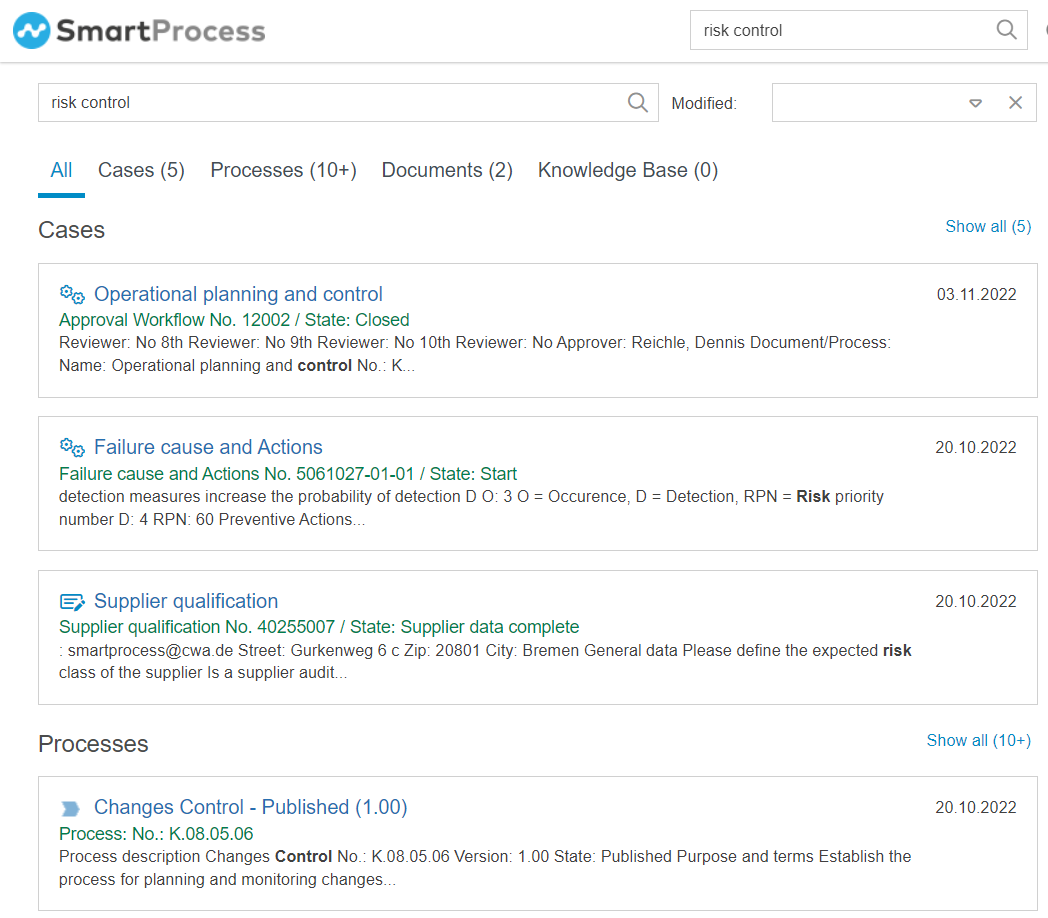
- The display of results in the full text search has been improved. There is now a cross-menu view "All" in which up to 3 results per menu are displayed. Using the tabs in the upper area, only the results for cases, processes, documents or the knowledge base can be displayed. In the tab Cases the possibility to filter the results according to the case type has been added.
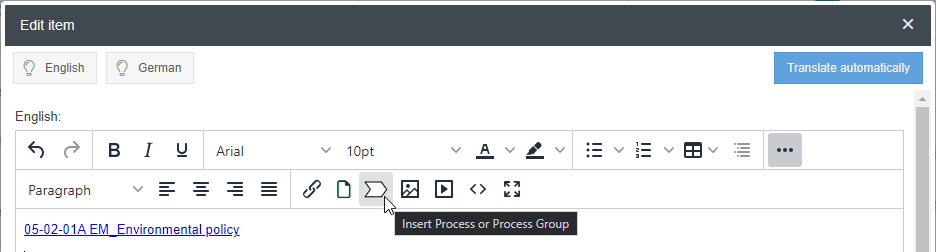
- In the HTML field it is now possible to select processes and documents from SmartProcess. When adding, the link to the process or document is inserted into the field.
- On the home page, the columns Valid from and Valid until can be displayed in the windows "Processes and documents", "My processes" and "My documents".
How did we do?
Version 24.9 Release Notes
Version 22.10 Release Notes
