Table of Contents
Publication of processes / documents
For a process or process group to be viewable by users without editing permissions , it must be published. If processes are to be viewed via the Process Explorer tree structure, ensure that any paren…

Table of Contents
For a process or process group to be viewable by users without editing permissions, it must be published.
To check which processes are currently visible, use, for example, the Viewer mode button in the SmartProcess application header.
As soon as the process has the state Not published or Unpublished changes, various options for publishing are displayed above the process model.
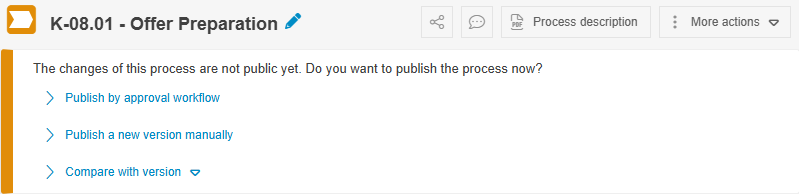
Publishing with the Approval workflow
The approval workflow consists of three steps, in which the process ist first reviewed, then released and finally published.
Start the Approval workflow
Clicking Publish by approval workflow opens the start form for creating the case.
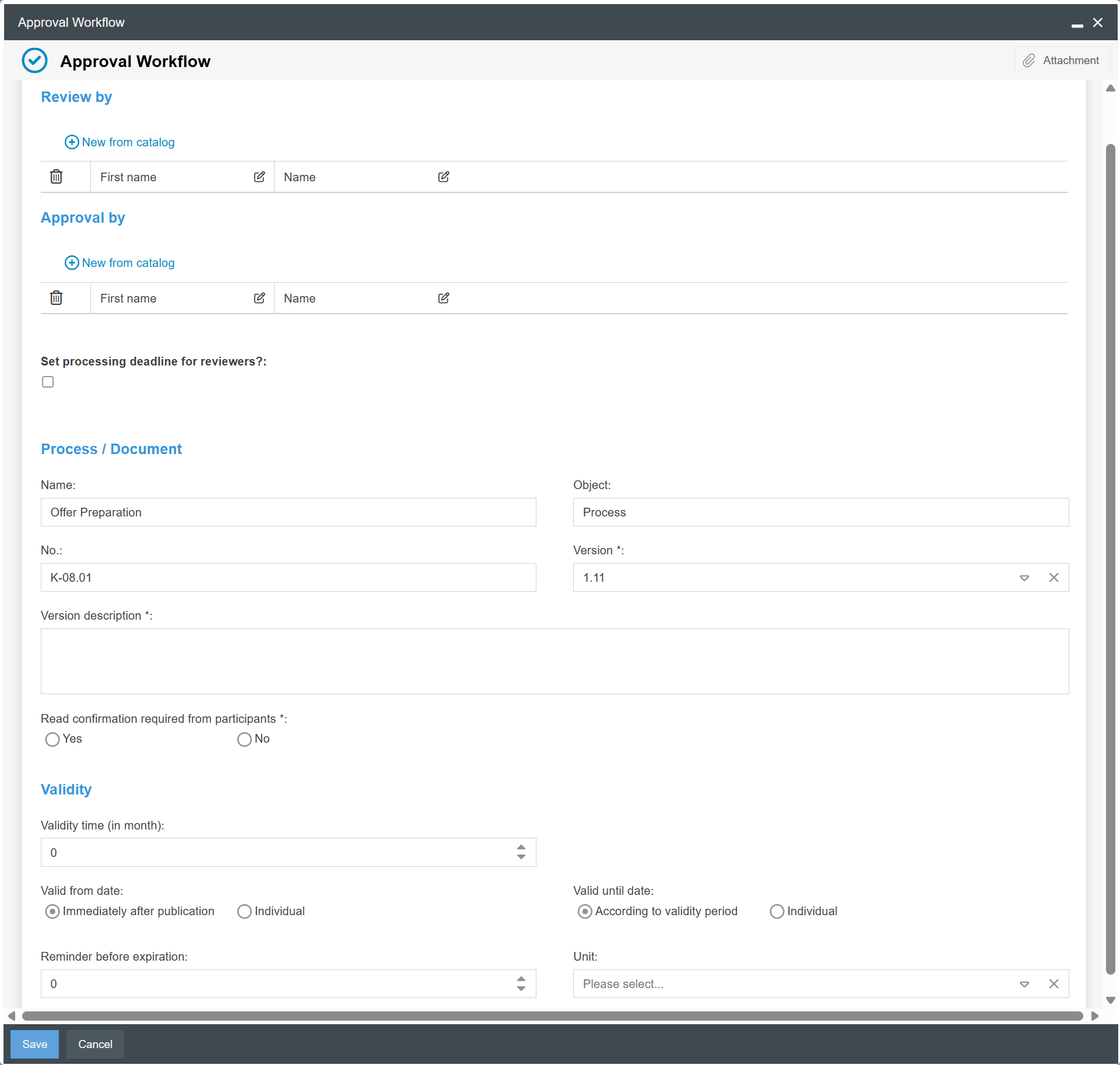
Enter reviewers and approvers
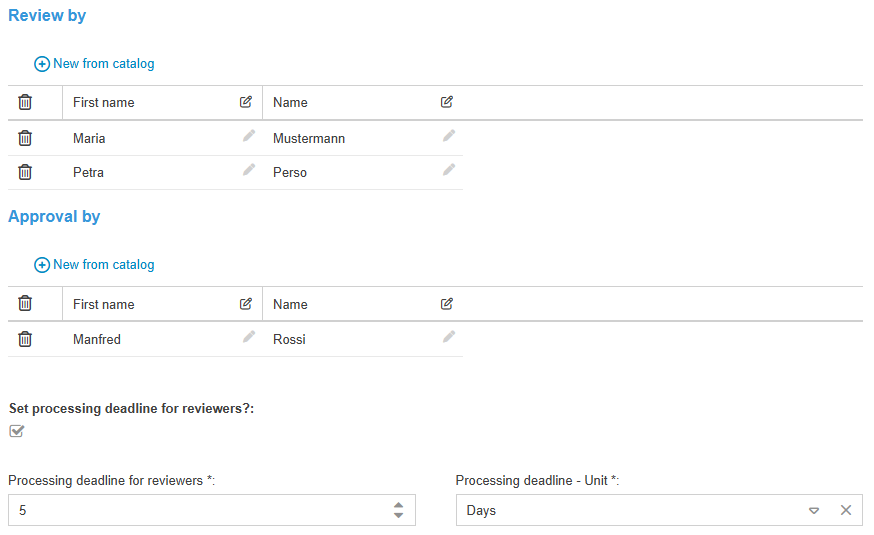
Clicking + New from catalog opens a user list from which any number of people can be selected as reviewers. After saving the start form, the review task is requested simultaneously from all selected users.
The same procedure can be followed when selecting approvers. Once all reviewers have approved the process to be published, the approval task is requested simultaneously from all selected users.
You can then edit the entries in the lists (add additional reviewers and approvers or remove existing ones) before saving the case and thereby requesting the review tasks.
When you activate the Set processing deadline for reviewers? checkbox, two fields appear that allow you to specify a timeframe after which reviewers will receive an automatic reminder email from SmartProcess if they have not yet completed their review task by the deadline.
Version description & notification of relevant parties
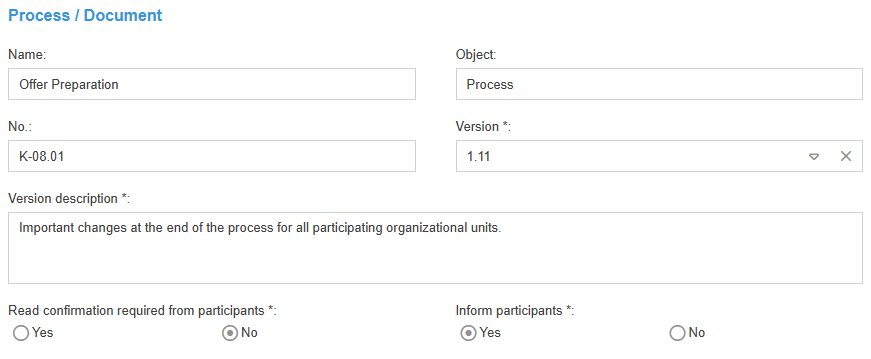
Process data, such as the name, number, and latest version, are automatically transferred to the start form of the approval workflow.
The most important changes compared to the previous version, or a note indicating that this is the first release, are entered in the Version description field.
Next, you define how process participants and document users should be notified after the process has been published:
Read confirmation required from participants | This article provides only a brief description of the read confirmation within the approval workflow. For a detailed description of how to use the read confirmation as proof that a new process version has been acknowledged, see the article Read confirmation. All process participants and document users receive an email notification containing a link. This link leads to a form in SmartProcess where the updated process version can be viewed, and the employee must actively confirm that they have taken note of the changes. In addition, the read confirmations requested by the user are displayed in SmartProcess under My cases. For each process, you can view which read confirmations have already been received or are still pending via More actions - Read confirmations. For each employee, you can also check in their user profile under the “Processes and Documents” tab to see whether read confirmations have already been submitted for all required processes. Details are described in the article Read confirmation. |
Inform participants | If No is selected in the read confirmation radio button selection, the Inform participants field appears. If Yes is selected here, all process participants and document users will receive an email notification containing the most important information about the published process and a link to SmartProcess, where they can view the new process version. Unlike with the read confirmation, no action is required from the user. |
Set validity dates
In this section, you can specify the parameters that determine the process’s validity dates after successful publication.
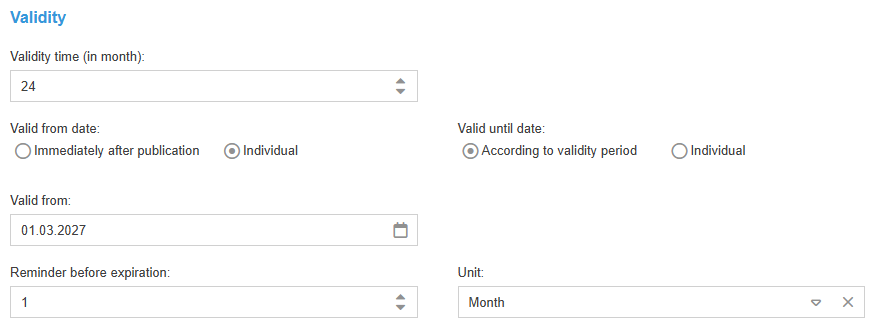
To specify the start and end dates of validity, you can choose from two different options using radio buttons:
Valid from | Immediately after publication
Individual
|
Valid until | According to validity period
In the process management settings, the validity period and the reminder before expiration can be preset and configured so that a validity period longer than that specified by the administrator cannot be entered. Individual
If the value “0” is entered in the Validity time field or no Valid until”date is specified, the process’s validity will never expire after publication. |
In the Reminder before expiration field, you can specify whether and when a reminder email should be sent to the process owner and process manager or document owner before the validity period expires. The available time units are days, weeks, and months.
Starting with version 26.7, a separate workflow can also be triggered when the validity period is about to expire to handle the validity extension. Details can be found in the article Validity.
Clicking Save starts the workflow and sends the tasks to the selected reviewers.
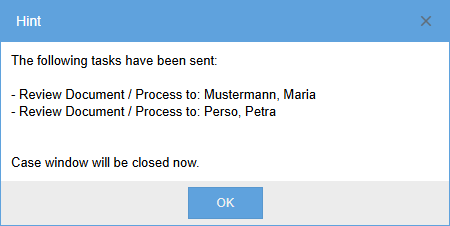
The case creator retains the approval workflow in their My cases list for monitoring and can track its progress there. From this point on, the process has the state In approval.
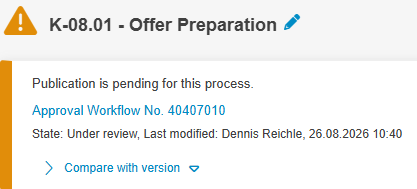
Changes should only be made if the case creator is assigned the task Execute changes as a result of a negative review or approval outcome.
Review & Approval
Reviewers are notified via email when a new review task is received. A link to the review task is included in the email. The case is also displayed in the My cases or My tasks window on the start page.

In the approval workflow window, the reviewer can open the task to be performed by clicking on the task link.
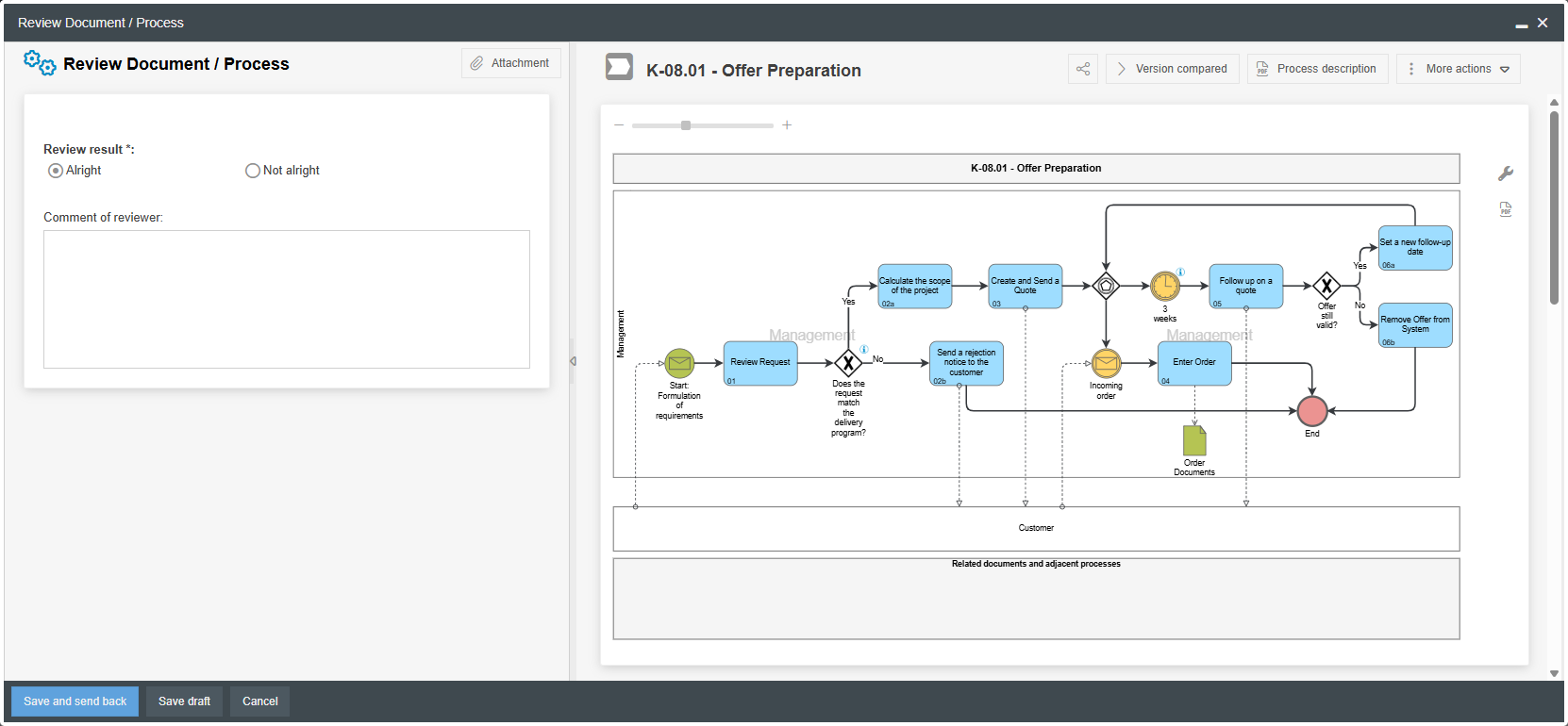
On the right-hand side, the reviewer sees the process model, including all details. Clicking the Version compared button highlights the changes in the current version compared to the previously published version. On the left-hand side, the reviewer can then enter the review result and, if necessary, a comment.
Clicking Save and send back completes the review. If all selected reviewers have reached a positive result (“Alright”), the task for approval is requested from all persons selected in the start form.
If the result of the review by one of the reviewers or one of the approvers is negative (“Not alright” / “Not approved”), the case is sent back to the creator for revision. In this situation, the case creator can revise the process model directly in the Execute changes task, where the comments from the reviewers or approvers are displayed.
When published, a major version is automatically created, and the selected information is sent to users (request for read confirmations or information to participants).
All approval workflows for a process can be viewed later via More actions -> Publication & approval -> All approvals.
Der Freigabe-Workflow ist wie alle Workflows flexibel anpassbar, sodass individuelle Abläufe definiert werden können.
Publish a new version manually
Publication without the approval workflow can be used for publishing process groups, since these are generally not business processes worthy of control according to ISO 9001:2015.
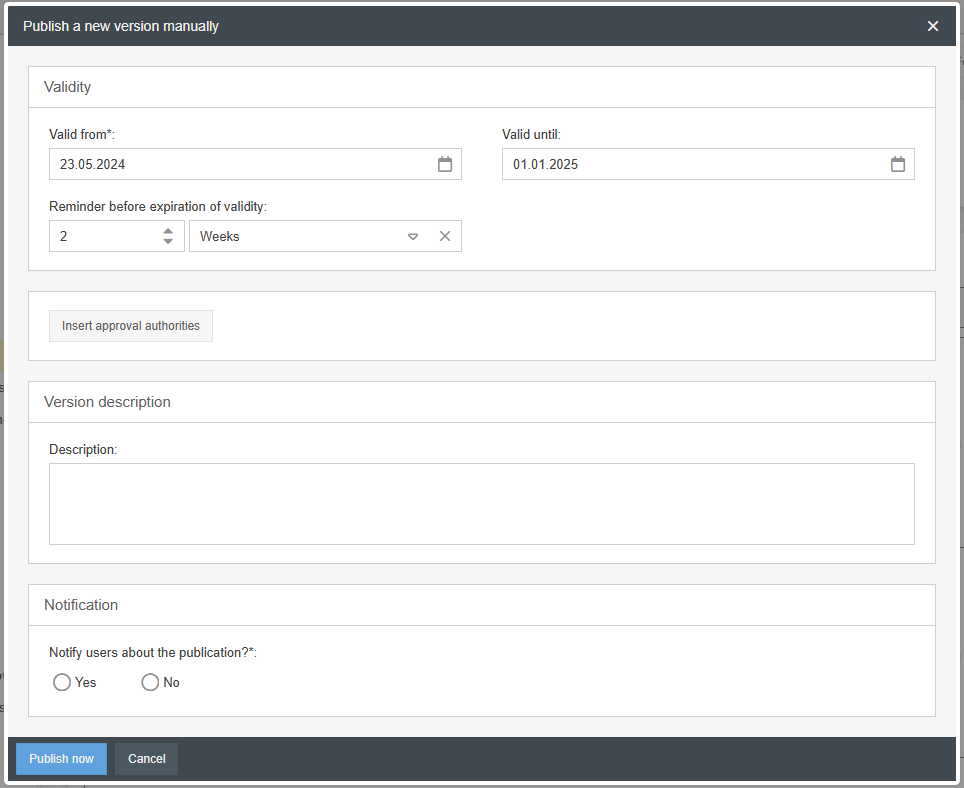
You can set any valid-from and valid-until date and a reminder before the validity expires (see Publishing with the approval workflow). As an option, reviewers and approvers who have worked out or reviewed the process / process group can be entered manually. Optionally, a version description can be added.
Notification can be suppressed via the “Notify user about the publication” radio button if desired. Otherwise (if “Yes” is selected), the internal text module "Process management - Process model has been published" is sent to all process participants.
After clicking on <Publish now> a new main version is created and the process is published immediately.
Automatic publication settings
In the drop-down menu More actions you can use the settings for automatic publication to achieve that all changes to the process / process group are always published immediately. The versioning of the process is stopped and replaced by the note "Working copy published".
This option can be used for process groups which, in your opinion, do not need to be controlled.
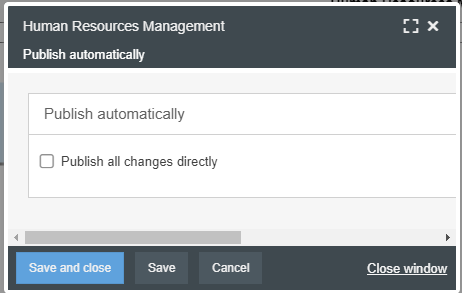
Publishing of related documents
In the settings for process management, you can define whether related documents are automatically published when the process is published.
If the setting is activated, unpublished documents that are used in the process model are published automatically when the process is published. This only applies if the document previously had the state "Not published". If the document has the state "Unpublished changes", only the version of the document that has already been published is visible in the published process.
If the setting is deactivated, only the symbols of unpublished documents are displayed in the published process model. If you click on the symbol, the document is not opened, but a note is displayed indicating that it is an unpublished document.
How did we do?
State and version
Validity
