Table of Contents
Customize start page
Each user can configure a personal dashboard in the Home menu, which is displayed after login. Provided the relevant authorisation is in place, a default setting can be defined for all users. Content…

Table of Contents
Each user can configure a personal dashboard in the Home menu, which is displayed after login. Provided the relevant authorisation is in place, a default setting can be defined for all users.
Content of the start page & standard view
A right click on an element of the start page opens a context menu:
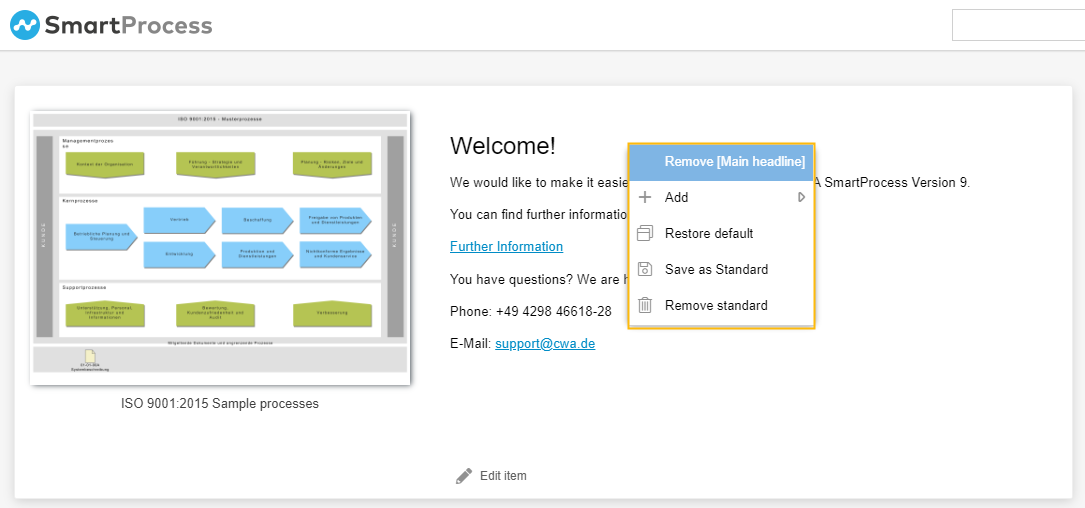
Remove [name of element] | The element you pointed at when you right-clicked with the mouse is removed. |
Add | A further submenu opens, in which you can place a previously hidden element on the start page. |
Restore default | The set default view for the home page is restored. If you have not yet defined an application default, the Home screen that CWA set as the application default when you installed your system will be loaded. |
Save as standard | The currently configured view of the start page is saved as default for all users. Admin function If users have already set up their personal start page, the start pages of the users will be overwritten by this action. |
Remove standard | The application standard you defined is removed. This restores the default view of the Home screen that CWA set when you installed your system. Admin function |
Simple standard (for viewers)
 , you can set a separate default view for users with a viewer license by right-clicking on the start page.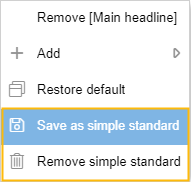
Arrangement of elements
The elements on the start page are fixed in a 2-column layout. To change the position and size of the elements, you have the following options:
Move element using Drag & Drop | 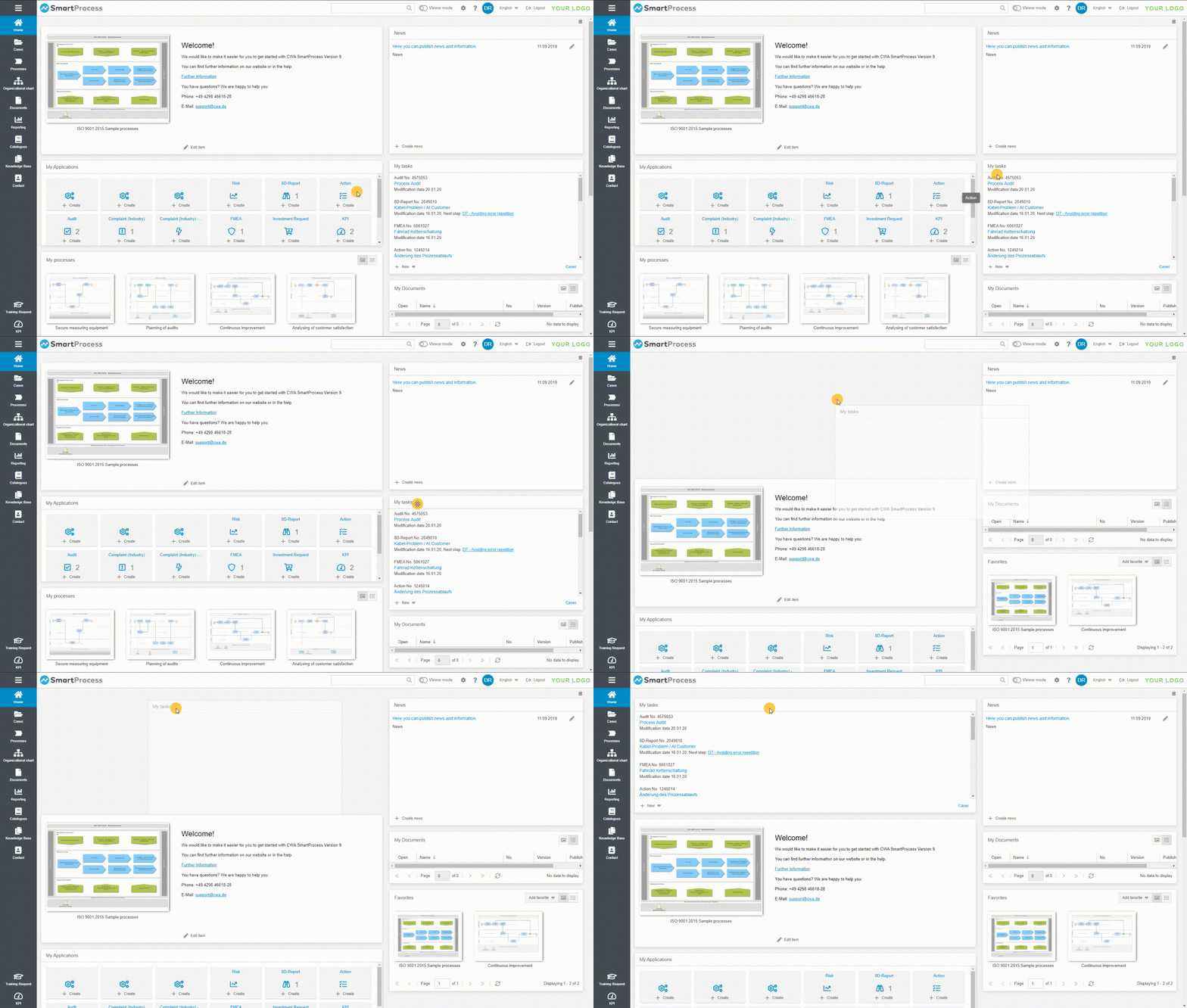 |
Adjust the width of the columns | 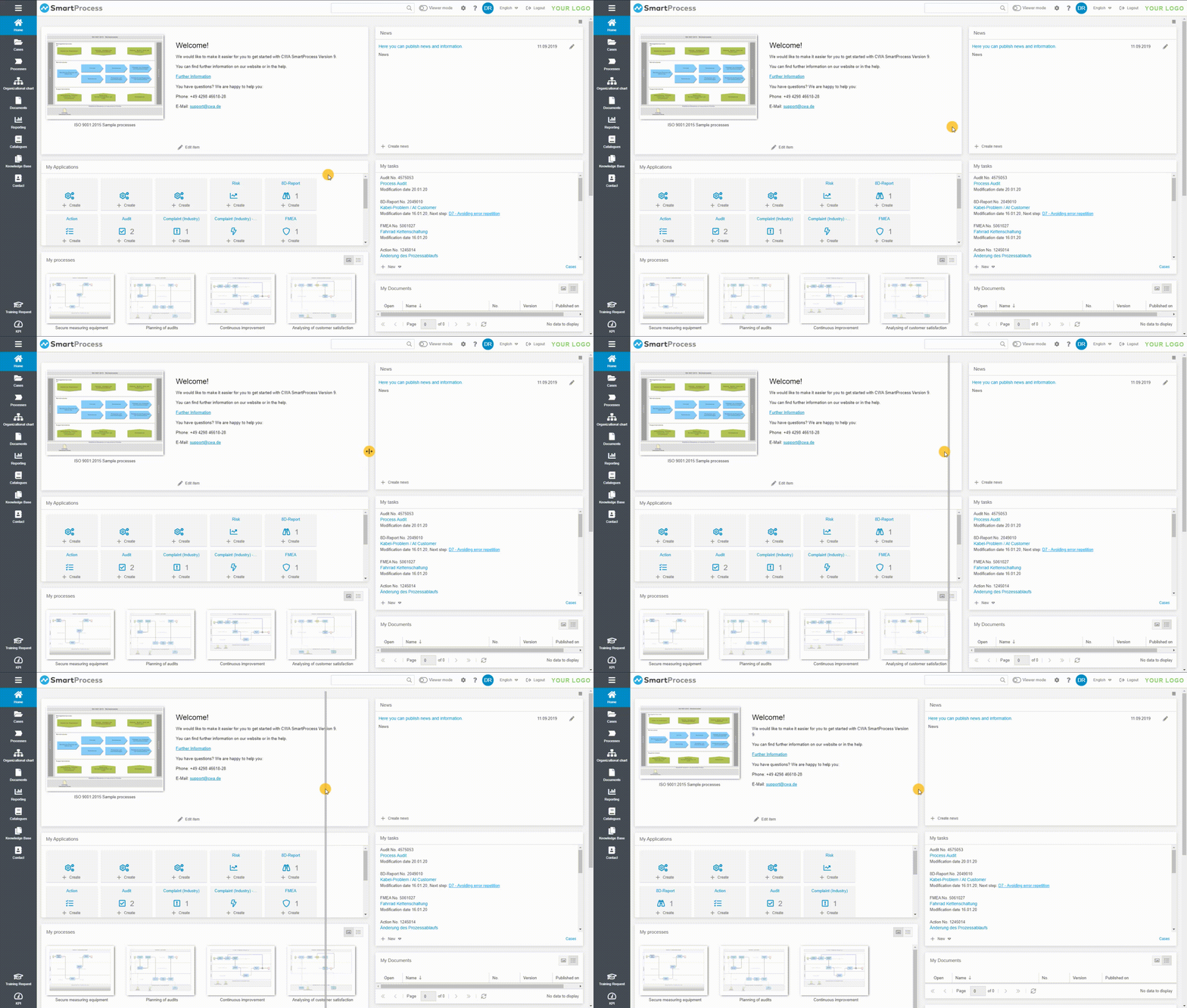 |
Adjust the height of an element | 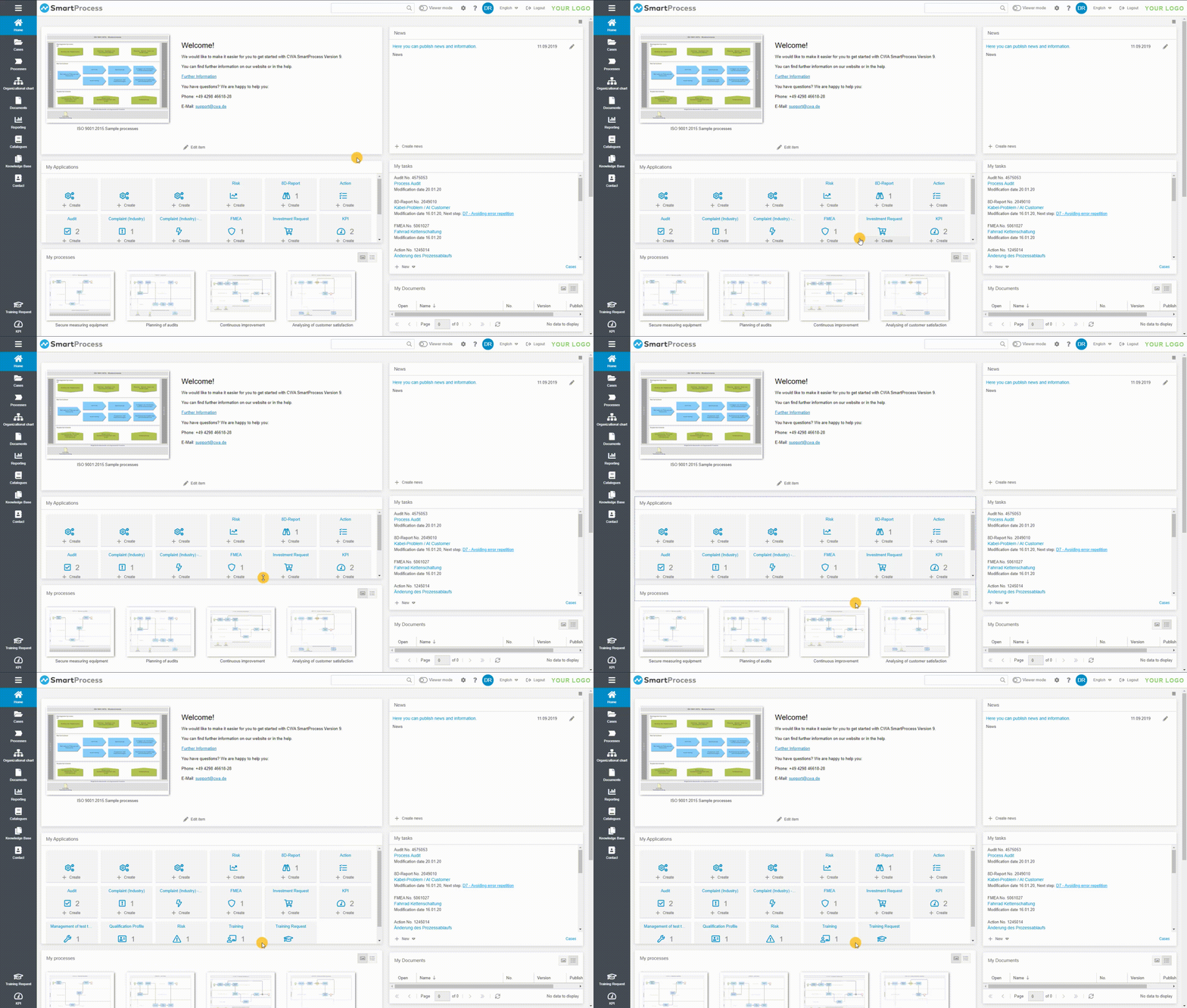 |
How did we do?
Structure of SmartProcess
Elements on the start page
