Elements on the start page
The following windows are available for customizing your start page: Main headline The main headline displays a freely selectable process, next to which you can add HTML-formatted text. Tip: Present…

The following windows are available for customizing your start page:
Main headline | The main headline displays a freely selectable process, next to which you can add HTML-formatted text. Tip: Present your users the process map of your company, for example. |
Info box | The infobox is an HTML field in which formatted text, images, videos, embedded content or links can be inserted as desired. The content entered in the infobox is identical for all users. |
News | The window displays the current news. With the appropriate authorization, you can create and edit HTML-formatted news texts and add file attachments to them after they have been created. Privileges for news entriesAfter creation, news entries are visible to all users of the system by default. Using the edit button, read and edit rights can be subsequently restricted for each entry, so that only users who are assigned to selected organizational units can view or edit the entry. 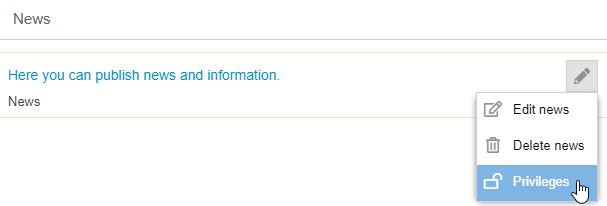 Selecting the checkbox Include descendants means that in the example, users from Org. Units that are placed beneath Production in the organizational chart are also allowed to see the entry. The selection Anyone can edit the entry means that any user with the general authorization to create and edit news entries can also edit this specific entry. A user with editing rights for an entry will automatically have read rights for it, even if his Org. unit is not explicitly entered under 'Read access'. 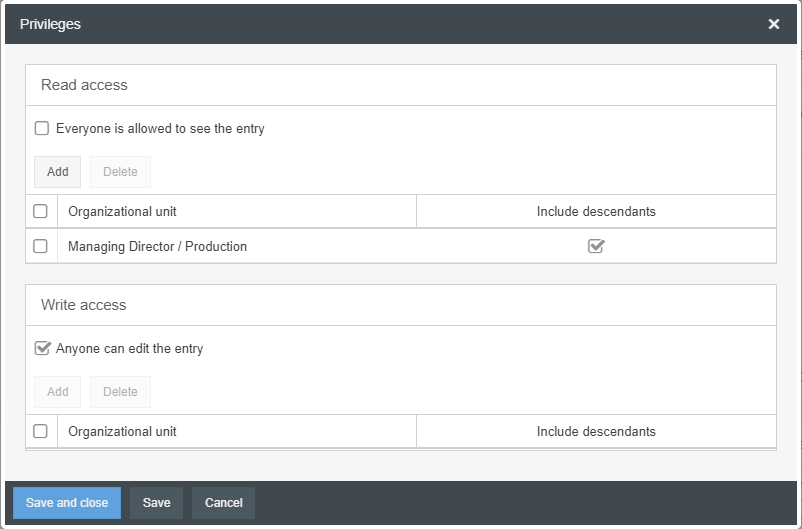 |
My tasks | This window shows you the currently open cases you need to process in a compressed version. You can use the link Cases at the bottom right to access the corresponding menu for a detailed view. You can start a new case directly by choosing + New at the bottom left-hand edge. |
My cases | This window shows you the currently open cases you need to process. Above the list, there are some possible actions available for handling the cases and a search function that browses within the displayed list. |
Participated | This window shows you which cases you have participated in and which activities you have performed in the corresponding cases. You can use the search function to browse the displayed list. |
My Applications | This window shows you the available workflow applications / modules and the number of open cases of this application type that are assigned to you. You can also use + Create to create a new case of the correspoding application type. |
My processes | This window displays the published processes in which you are listed as process owner or process participant. You can choose between two views, which you can set using the buttons in the upper right-hand corner of the window.
|
My documents | This window displays the published documents in which you are listed as the person responsible or document user. You can switch between the document preview and the list view. |
Processes and documents | In this window, lists of processes as well as documents can be displayed in different tabs. Also in this window it is possible to switch between a preview and a list view.  Each user can personalize this window for himself by clicking on the gear wheel  It is also possible to set a default for all users for the displayed tabs and their order. This is only possible for users in whose authorization profile the right "May change the layout of the start page application wide" is activated. If a default has been defined, each user has the option to reset his or her custom view to the default set by the admin. |
Company-wide processes and documents | This window displays process groups, processes, and documents that you have defined as general processes or documents in the process participant or document user area. You can switch between the preview and the list view. You can use the search function to search through the displayed list. |
Favorites | This window shows your favourites. You can define process groups, processes, and documents as favorites. You can switch between the preview and the list view. Objects declared as favorites are equal in terms of their functions in the system, to processes and documents where the users are listed as process participants or document users. With a right click on a favorite, it can be removed again. |
New published releases | This window displays the newly published process groups, processes and documents in the application. You can switch between the preview and the list view. The publications of the last 30 days are listed. |
Last modified | This window displays the last edited process groups, processes and documents. You can switch between the preview and the list view. You can use the search function to browse the displayed list. The changed objects of the last 30 days are listed. |
Reports | This window displays the reports that you have saved in the Reporting menu. From here, you can directly create a new report for cases or for processes and documents by clicking on the respective link below the list. |
Graphical reports | This window displays graphical reports that you have saved in the Reporting menu. You can use the link Reporting cases at the bottom right of the window to go directly to Reporting to create a new report. You can display user-specific or application-wide reports in the window by choosing Configure Graphical Reports. The window that opens lists the reports already displayed in the window. By clicking Add, you can add another report from the reports already created and not yet displayed. For more descriptions and examples, see the Saved reports article. |
Indicator (KPI) | This window displays the KPI cases that you have reading rights for. Click on the icon Switching to the preview gives you a graphical overview of all KPI in one window. |


 . Using drag & drop you can decide which tabs are hidden (Available lists) or shown (Selected lists). The order of the tabs can also be changed by Drag & Drop, whereby the list placed at the highest position serves as the start tab of the window.
 in a line of the list view to access the graphical evaluation of this respective KPI.
How did we do?
Customize start page
Customize main menu
