Table of Contents
Read confirmation
The descriptions for read confirmation apply equally to processes, process groups and documents. The read confirmation has been changed with version 23.10. In order for existing customers with an ini…

Table of Contents
The read confirmation has been changed with version 23.10. In order for existing customers with an initial installation before October 2023 to be able to use it, the steps from section "New" read confirmation for existing customers must be implemented.
General
The read confirmation is a workflow whose purpose is on the one hand to inform users about newly published versions of processes and documents and on the other hand to request an active confirmation from these users that they have taken note of the changes of the process / document.
Process owners and document responsibles have different possibilities to request the read confirmation from the affected users. The process participants or document users in turn have various options to respond to these requested read confirmations.
Knowledge check instead of acknowledgment
In the standard version, the read confirmation consists of the process participants or document users simply checking a box to confirm that they have taken note of the changes.
questions that must be answered by the relevant persons. These questions can include any number of answer options, be selected differently for various versions, be weighted with points and be supplemented with explanatory descriptions. In addition, a minimum point threshold can be set, above which a read confirmation with knowledge questions is considered “Passed”.
Generating knowledge questions with SmartAI
Starting with version 26.7, it is furthermore possible to automatically generate knowledge questions with AI support using the SmartAI knowledge questions assistant.
Request & check read confirmations
With the approval workflow
When starting the approval workflow, you can use the Read confirmation required field to specify whether read confirmations are to be obtained.
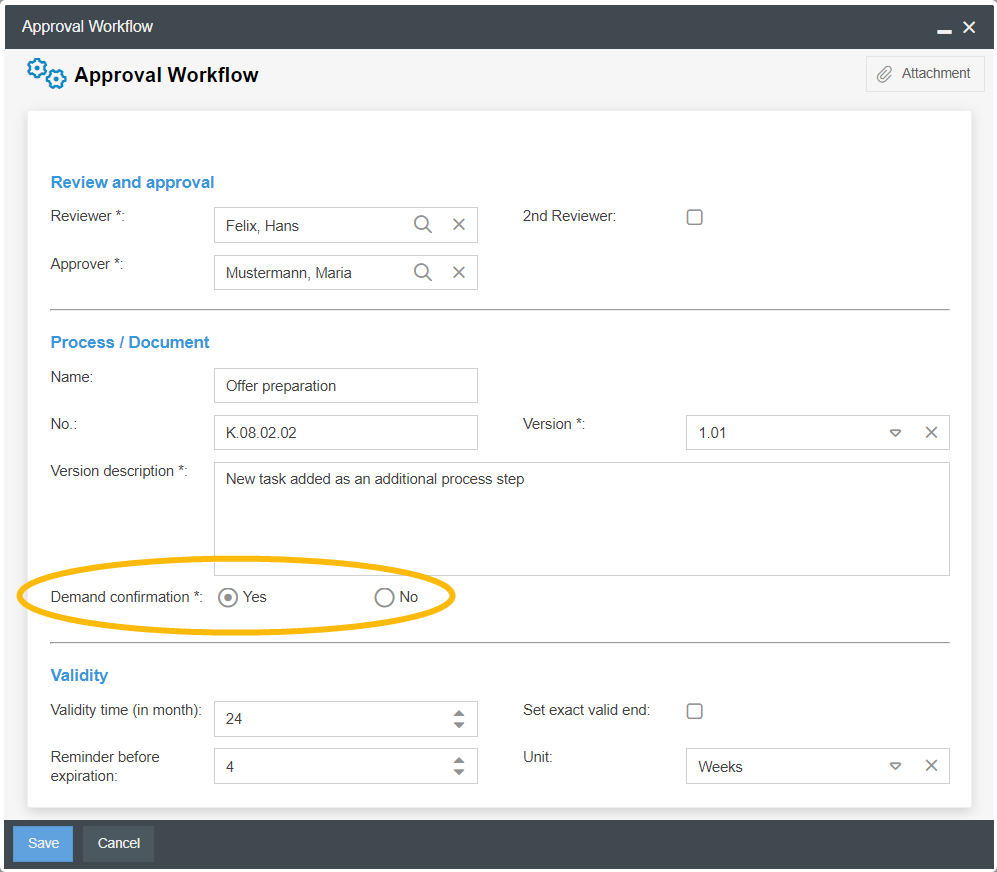
If Yes is selected, a new case of the Read confirmation workflow is generated for editing after successful publication of the process or document for each process participant resp. document user and the owner resp. the responsible. The affected users are informed about this new case via e-mail.
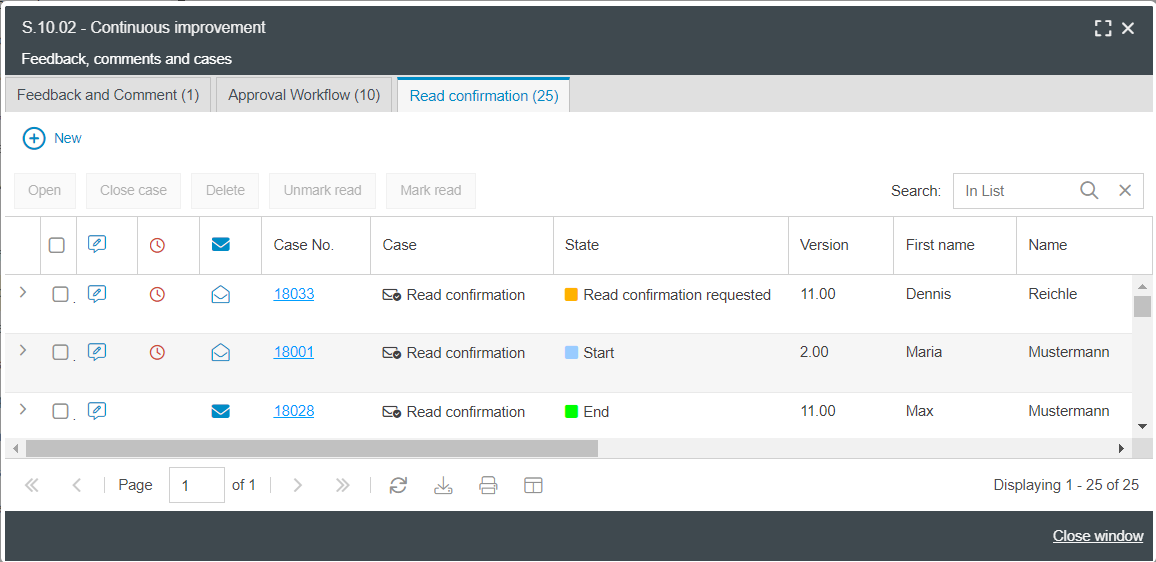
An overview of all read confirmations already submitted or still requested for a process or document is available at the process/document via More actions -> Read confirmations.
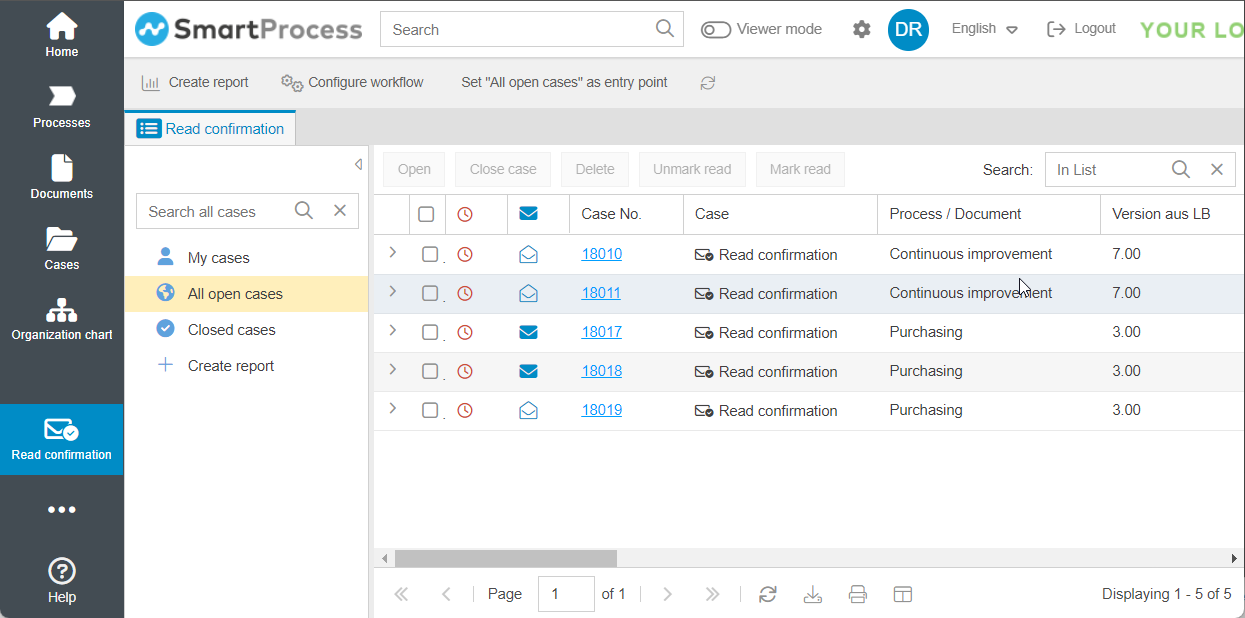
A complete overview of all read confirmations can be found in the Read confirmation application menu.
In the user administration
In the user profile you can see for each user for which processes and documents read confirmations have been submitted or are still open.
The “Read Confirmation” column in the “Processes and Documents” tab provides an overview and can display the following values:
Yes | A read confirmation has been submitted by the user for the latest published version of the process / document. |
No | No read confirmation has been submitted or requested by the user for any version of the process / document. |
Read confirmation requested | A read confirmation has been requested by the user for the process / document, but has not yet been submitted. |
Last read confirmation in version X | The user has submitted a read confirmation for a version of the process / document that was published in the past (e.g. version 1.00). In the meantime, however, a more recent version of the process / document has been published (e.g. version 2.00), for which the user has not yet submitted or been requested to submit a read confirmation. |
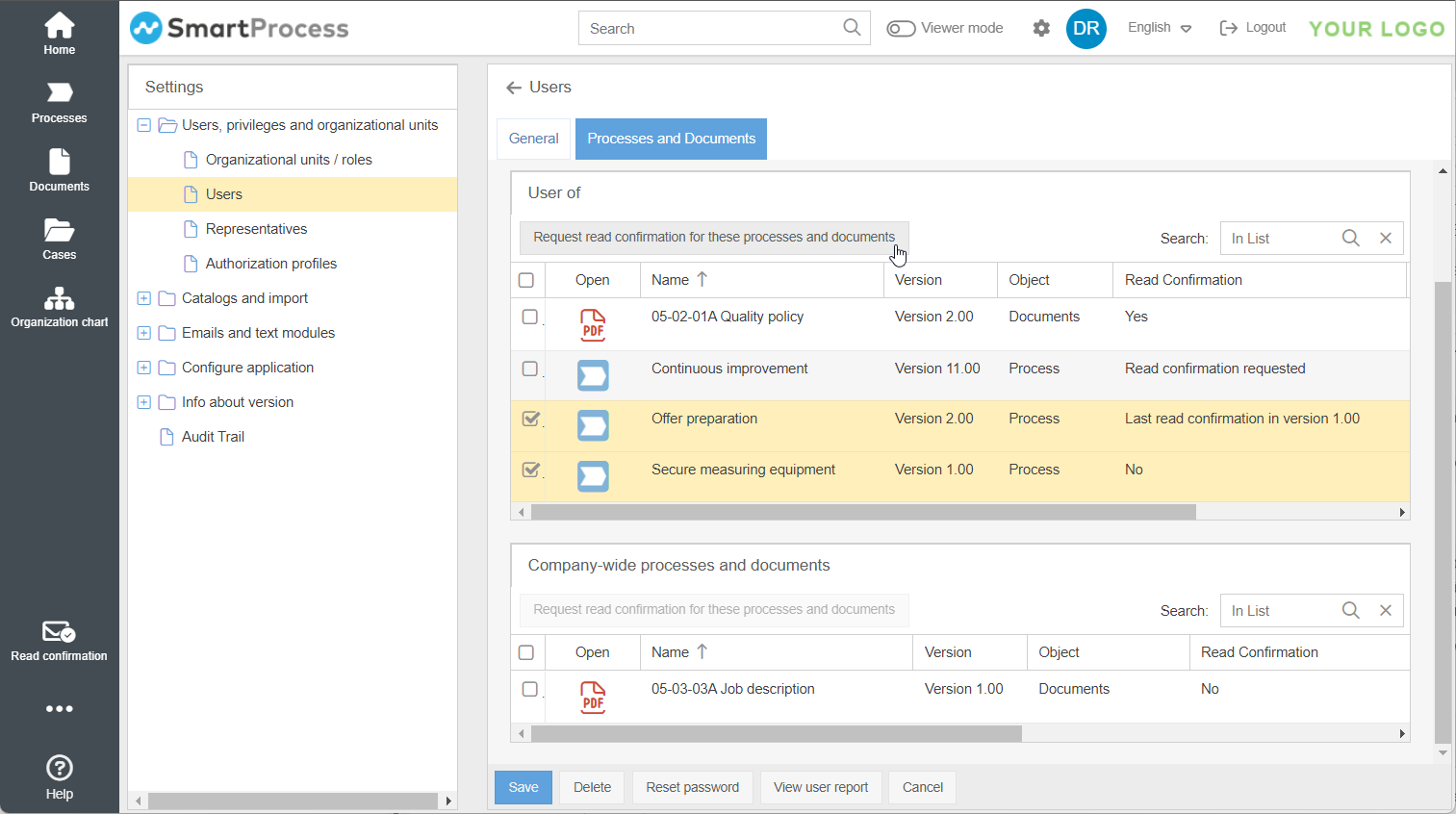
If any missing read confirmations are detected for the user, they can be marked in the list and requested using the Request read confirmation for these processes and documents button.
Submit read confirmation
If a read confirmation has been requested by a user, he will be notified about it by e-mail.
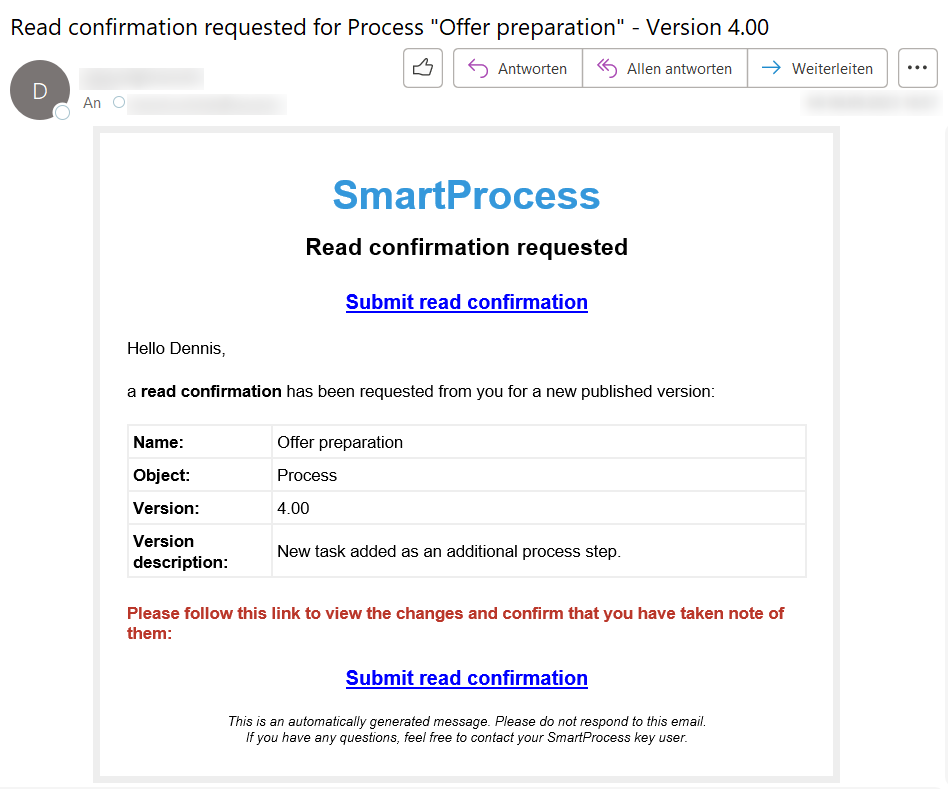
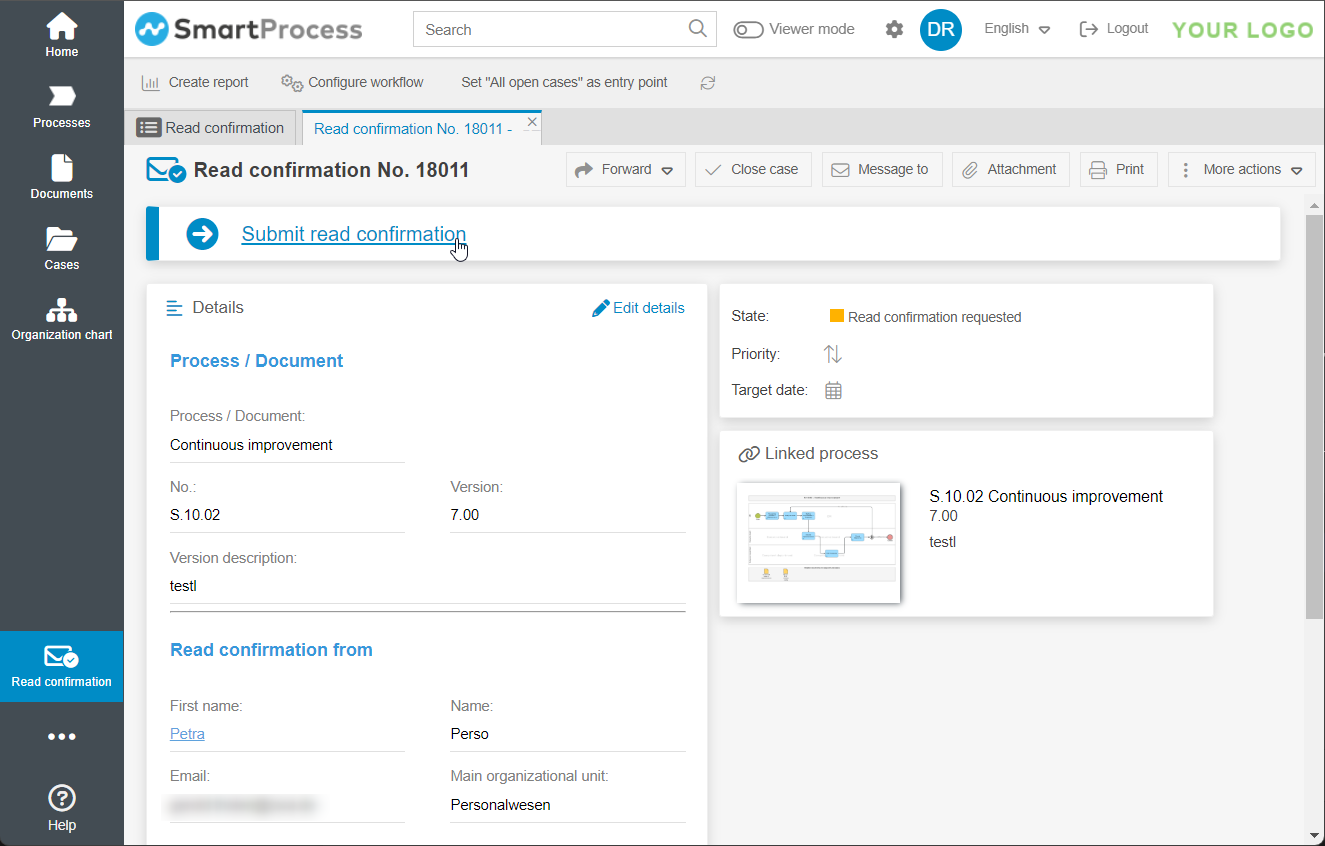
The read confirmation is a case that needs to be processed in SmartProcess. The user has several options to open the case for editing:
- Clicking on the Submit read confirmation link in the notification email will take the user directly to the case window.
- In the SmartProcess menu Cases in the My cases list, all open cases, including requested read confirmations, are listed.
- This applies analogously on the start page for the elements "My cases" and "My tasks".
- In the Read confirmation application menu in the My list, the user sees the read confirmations that need to be submitted him or her.
If the user has opened the case window, he can open the affected process or document for viewing and confirm his task via the Submit read confirmation link.
See also: Knowledge questions for read confirmation
"New" read confirmation since version 23.10
If customers with an initial installation prior to October 2023 wish to use the new read confirmation, the following steps must be completed.
- As an admin, check the Processes menu to see if there is a "Read confirmation" workflow in the Workflows folder. If Yes, the new read confirmation is already available to you. If No, you can continue.
- Import the "Read confirmation" workflow in the Processes menu: The import file will be provided by our support on request.
- In the Processes menu, open the approval workflow and there the form designer. In the form designer, edit the Demand confirmation field as follows:
- Expand the Extras area and set the "Field Tags for Approval Workflow" field property to Read confirmation required and save the field.
- Then open the field again for editing and edit the "Yes" and "No" selection list entries. The selection "Tagging for workflow" is now available here. Assign the "Yes" and "No" labels accordingly for the two options and save the field.
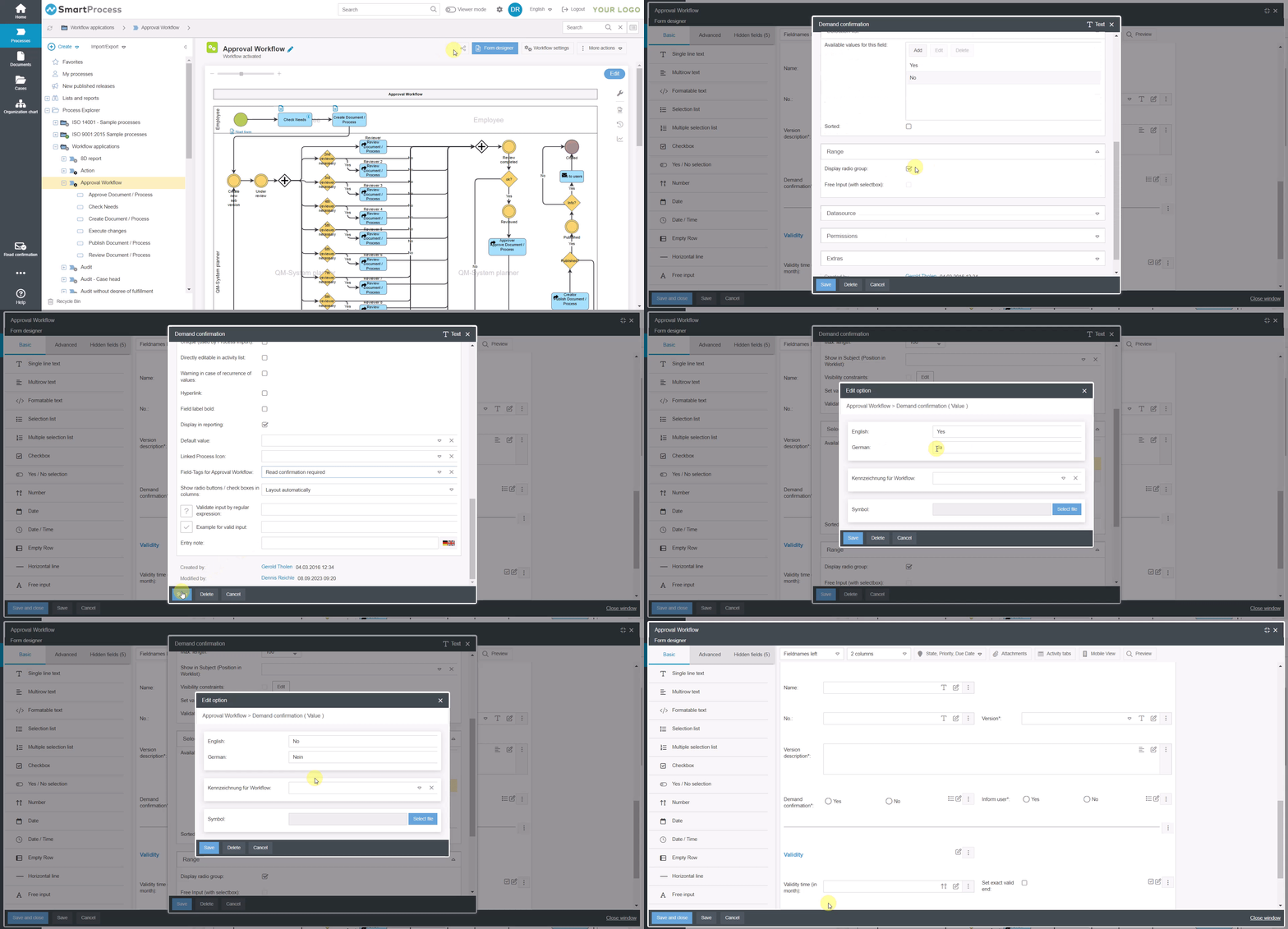
In this case, the new Yes/No field you are creating requires the "Read confirmation required (Heads only)" field tag and also the workflow tags on the "Yes" and "No" selection options.
- Set the newly imported "Read confirmation" workflow to active in the workflow settings.
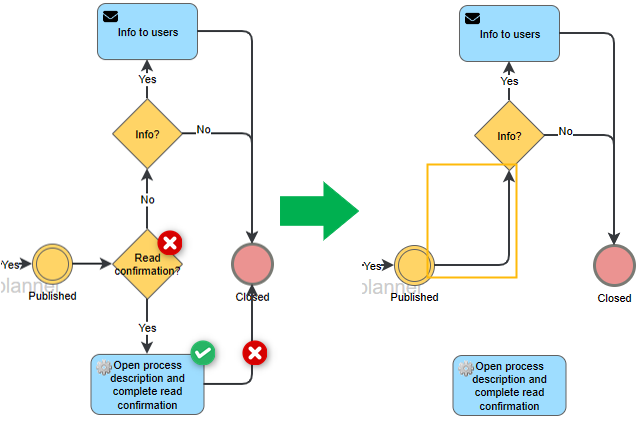
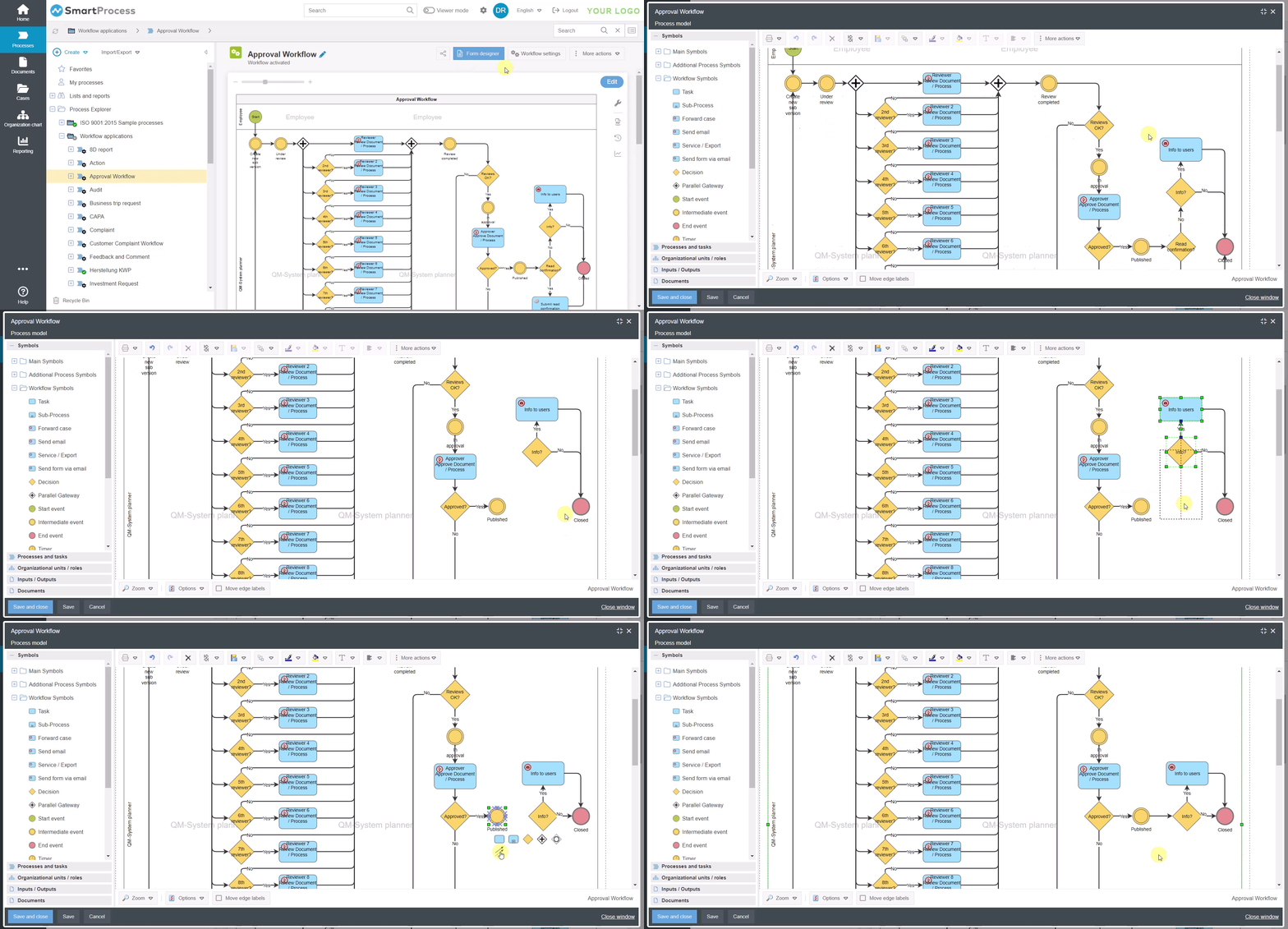
- Remove the "Submit read confirmation" sub-process from the approval workflow process model.
How did we do?
Read and edit access
Knowledge questions for read confirmation
