Table of Contents
Authorization profile - Tab Processes
For general information on managing authorization profiles, see the Introduction to authorization profiles article. In the Processes tab, you assign general access rights for process management. Read…

Table of Contents
In the Processes tab, you assign general access rights for process management.
Read access
Read access to published processes | If this option is enabled Example: - The user Mr. Müller is assigned to the organizational unit Quality. - Read access have been assigned to Quality for the process 'Quotation creation'. - No read access have been assigned to Quality for the process 'Customer complaint'. - Mr. Müller is allowed to see the 'Quotation creation' process, but not the 'Customer complaint' process. If this option is disabled, users are not allowed to see any process at all and the Processes menu is hidden for them. All other settings for read and edit access will then be grayed out. |
Read access to all published processes | If this option is enabled |
 , users are generally allowed to see published process groups and processes. Which processes they are allowed to see exactly depends on their assigned organizational units and the configured
  , users are allowed to see all published process groups and process. The settings for read access on the specific process (see the upper example in the blue box) then have no meaning for these users.
Write access
Write access to processes | If this option is enabled Beispiel: - The user Mr. Müller is assigned to the organizational unit Quality. - Editing access has been assigned to Quality for the 'Quotation creation' process. - No editing access has been assigned to Quality for the process 'Customer complaint'. - Mr. Müller is allowed to edit the 'Quotation creation' process, but not the 'Customer complaint' process. If this option is disabled, users are not allowed to edit any process at all. All other settings for edit access are then grayed out. |
Write access to all processes | If this option is enabled |
Creation of process groups and processes on the first level | If this option is enabled, users are allowed to create new process groups and processes on the first level of the Process Explorer.  |
Create and edit workflow processes | If this option is enabled, the users are allowed to create new processes with the workflow functions directly activated and to configure these workflows. 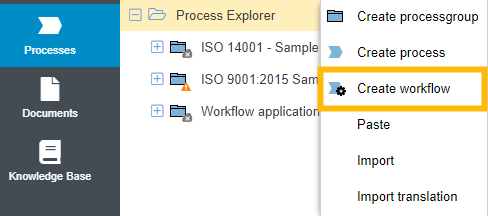 In addition, for existing workflows (e. g. approval workflow, action), this setting allows users to edit the input masks in the form designer, the workflow settings, and the workflow engine in the process model. Workflows should only be edited by persons who have previously received sufficient training on workflow modeling. |
Activate workflow processes for users | If this option is enabled, users can activate self-created or imported workflows so that other people can use them. 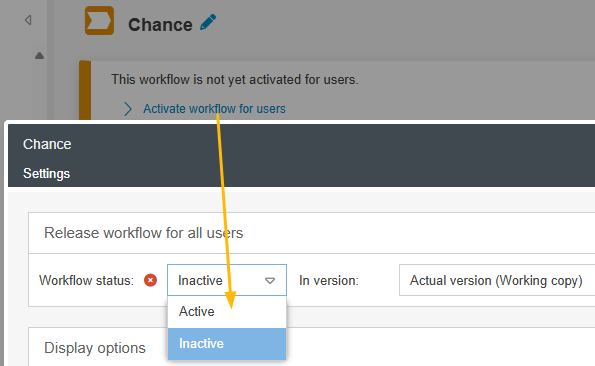 |
Direct publishing of processes without the approval workflow | If this option is enabled, users are allowed to publish process groups and processes without this having to be confirmed by further persons as reviewers or releasers as part of the approval workflow. 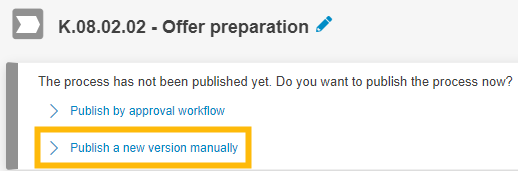 If the option is disabled, the users are allowed to publish process groups and processes exclusively with the approval workflow. |
Manually edit the validity of processes | If this option is enabled, users can manually extend the validity of published process groups and processes, regardless of whether the object is still valid or the validity has already expired. 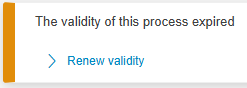 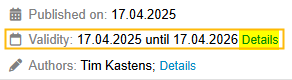 |
Export and import of processes | If this option is enabled, users are allowed to export process groups and processes from SmartProcess. 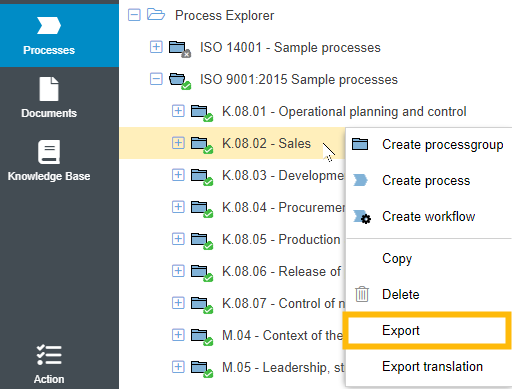 Also, users are allowed to re-import these exports in the same or other installations of SmartProcess using the Process Explorer. 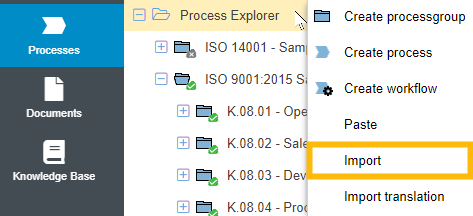 |
Withdraw and delete withdrawn processes | If this option is enabled, users can withdraw published processes, i.e. undo a publication: 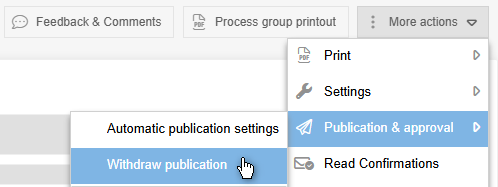 The deletion of withdrawn processes is also permitted. |
Editing the validity of processes as the person responsible
Manually edit validity of processes as process owner or process manager | If this option is active, the users who are defined as process owners or process managers in the process details can manually extend the validity of this process, regardless of whether the object is still valid or the validity has already expired. 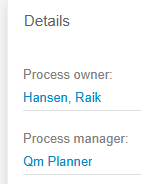 |
Configuration
Basic settings for process modeling and user-defined fields | If this option is enabled, the users may:
|
Set the standard format of process model symbols | If this option is enabled, the users are allowed to change the default format of modeling objects in the Process designer for the entire application and also to reset the standard format back to the system default. 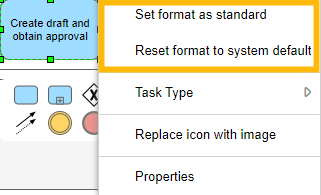 |
Add and delete custom images for all users under the icon palette in the process designer | If this option is enabled, users are allowed to add and remove image files at the bottom of the 'Symbols' tab in the Process designer. These image files can then be used by all users in process modeling. 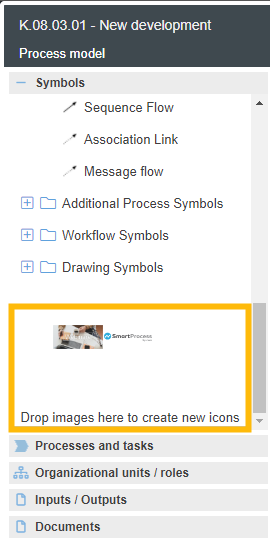 |
How did we do?
Authorization profile - Tab Workflows / Cases
Authorization profile - Tab Documents
