Table of Contents
Settings for process management
All settings affect all users of the entire system globally. Process model. Display of the symbol menu. Here you set whether the symbol area is displayed to the left or right of the process model in…

Table of Contents
Process model
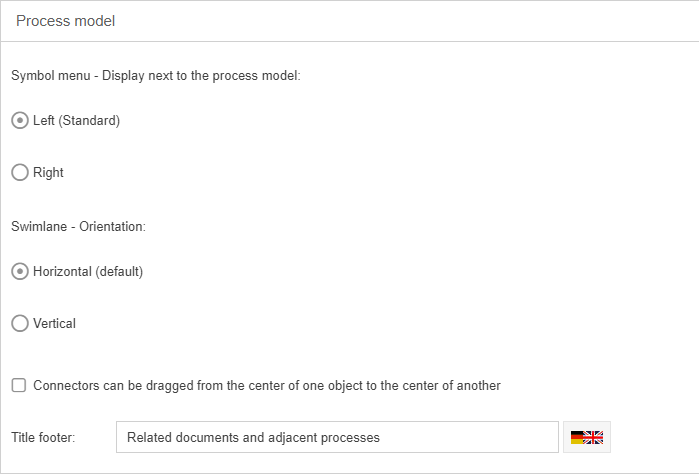
Display of the symbol menu
Here you set whether the symbol area is displayed to the left or right of the process model in the Process designer.
Swimlane - Orientation
Here you define whether you want to model horizontally or vertically. When a new process is created, a suitable layout is automatically displayed.
Connectors from center to center
If this option is activated, you can also create new connectors during modeling in the Process Designer by dragging and dropping the mouse from the center of one object to the center of the object to be connected.
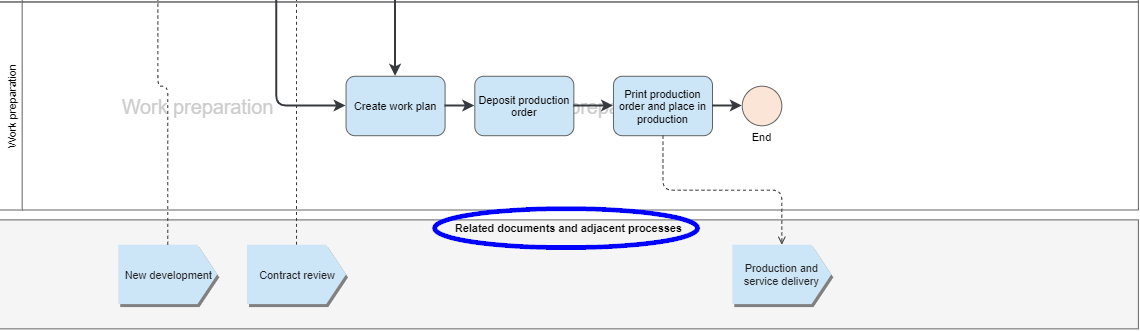
Title footer
In this field you can see with which heading the footer element is currently displayed in all process models. By adjusting the title you can change this heading in all process models.
Approval process
Automatically publish unpublished related documents
If the checkbox is activated, when a process is published, the related documents are automatically published as well.
Related documents with the state "Unpublished changes" are not automatically published by this setting.
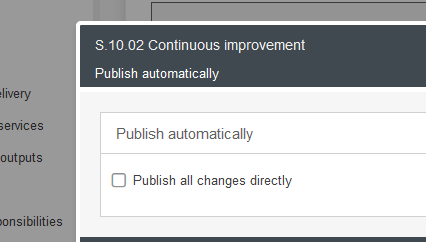
Publish all changes directly for newly created process groups
With this setting, new process groups are created directly in the state "working copy published". In this state, every saved change to the process group is directly visible to all users with read rights.
Validity for new publications
In this section you can set a default value for how many months a process should be valid after publication.
This value is automatically entered in the validity period field when starting a publication for a process with or without the approval workflow. To prevent the user from replacing this default value with a longer validity, activate the checkbox <Users are not allowed to enter a validity exceeding the default >.
In addition, a default value can be set for how many days/weeks/months before the expiration date the system's reminder mail should be sent to the process owner and process manager. This value is also preset when publishing processes and can be changed for every individual case.
If you have specified values for validity and reminder, you can activate the checkbox <Apply validity settings only to processes and not to process groups> to ensure that these default settings do not apply when publishing process groups. If the checkbox is deactivated, the default settings also apply when publishing process groups with the approval workflow.
The <Show validity for viewers> setting can be used to restrict whether people without write access can see information about the validity of a process or process group in the system. This refers to the display in the details and various lists, and restricts information on status, valid from and valid to.
Simulation Currency
Here you can select the currency for the cost calculation in the process simulation. The use of process simulation is described in the article Simulation of processing times and process costs.
Process no.
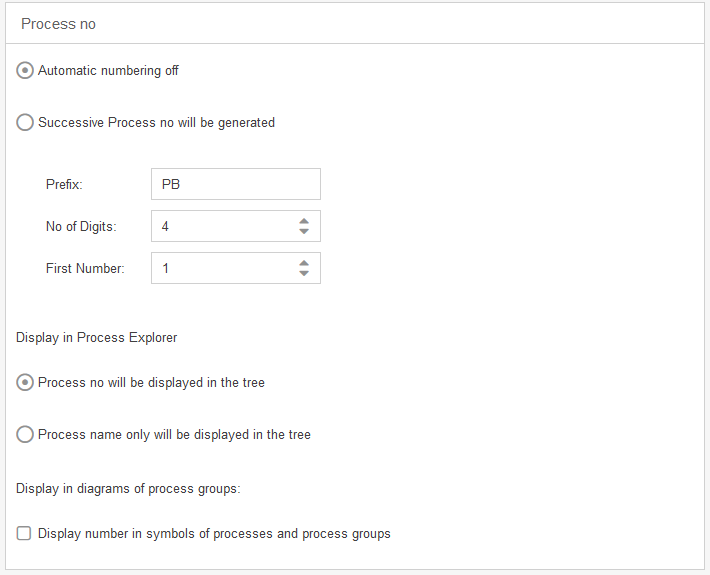
Automatic numbering of processes
If this option is activated, a consecutive number is automatically assigned to each newly created process according to the specified pattern. In the pattern, you can specify a prefix of letters, each followed by a sequential number with the specified number of digits. The numbering then starts counting from the specified start number.
Using the example in the screenshot, the first process created would therefore be given the number "PB-0001".
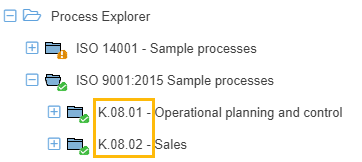
Display the number in the process explorer
If the option is activated, the number of process groups and processes are displayed in the process explorer. If the option is deactivated, only the process name is displayed at this position.
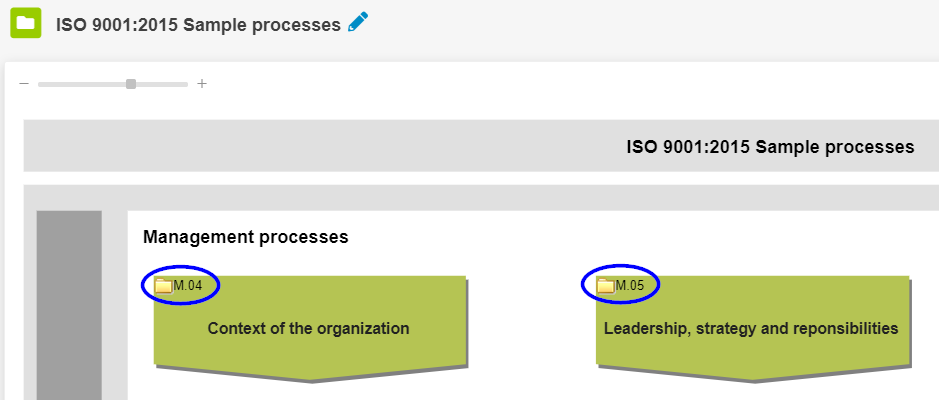
Display the number in the modeling object
If the option is activated, the number of process groups and processes are also displayed in the corresponding modeling objects in the process model.
Process Explorer
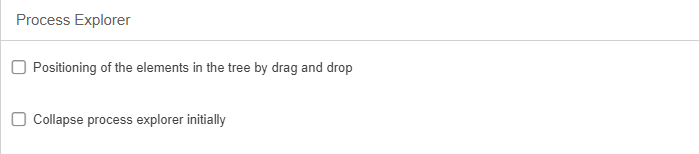
Positioning in the tree by drag & drop
Here you can specify whether the order of process groups and processes that are located on the same tree level can be changed in the Process Explorer by drag & drop.
If the option is disabled, process groups and processes on the same tree level are automatically sorted alphanumerically.
Collapse process explorer initially
If this option is activated, the tree structure of the Process Explorer is hidden for each user when the 'Processes' menu is opened. This option can be used, for example, if the user's focus should be directed to the visualization and navigation of the process map instead of the hierarchical folder structure.
The process explorer can be manually expanded by any user again if required.
Comments
If the option Comment function exclusively via feedback / comment workflow is deactivated, an additional "free" comment feature is available for processgroups and processes that operates independently of the feedback workflow. If this feature is used, it can additionally be defined whether users should be able to add comments to published processes or not.
Process description
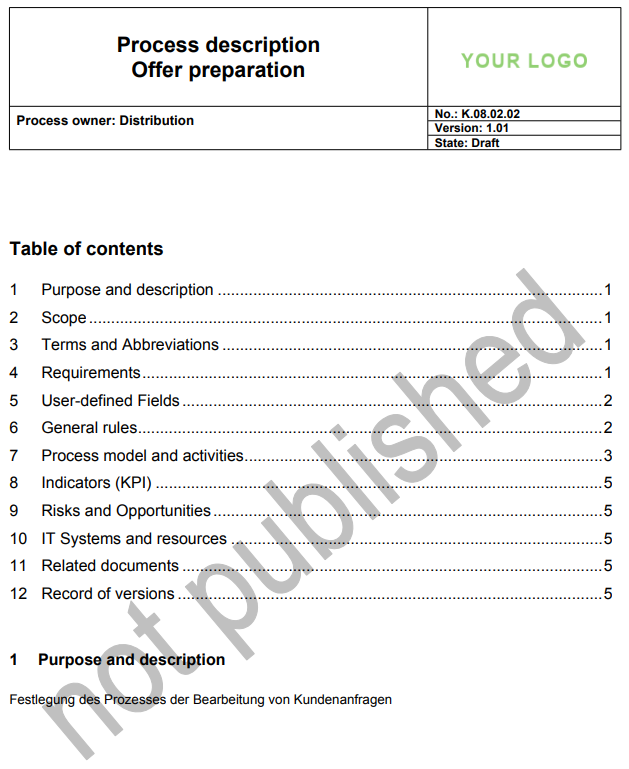
If this option is activated, a watermark with the text "not published" is displayed on the first page of the process description for unpublished process groups and processes.
Process details
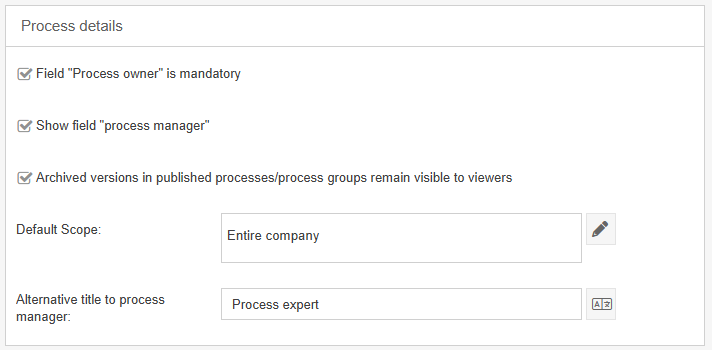
Here you can set whether it is mandatory to enter a process owner in the process details and whether the "Process manager" field is displayed there in addition to the process owner.
Furthermore, it can be specified whether archived versions of published processes/process groups remain visible to viewers. These can be viewed and compared in the version menu.
A default value can be specified here for the "Scope" field.
If the “Process manager” field is also displayed, the title of this field can be customized if this additional function is to be named differently in the application.
How did we do?
Login options and views
Modeling rules
