Table of Contents
Share reports
When a report is saved by a user, it is initially only visible to that user. If this saved report should also be made available to other organizational units, roles and users, it can be shared. Only…

Table of Contents
When a report is saved by a user, it is initially only visible to that user. If this saved report should also be made available to other organizational units, roles and users, it can be shared.
Share report
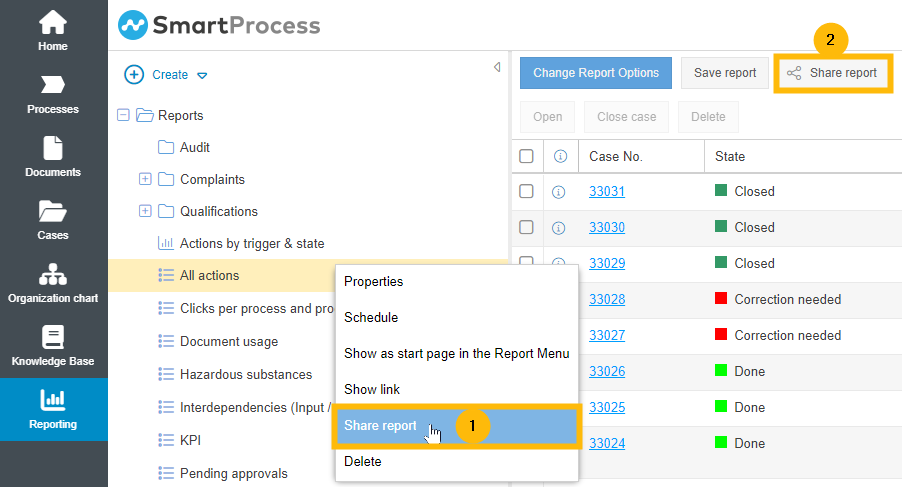
The Share Report button can be accessed for saved reports in 2 ways:
- In the navigation area of the reporting menu by right-clicking on the saved report.
- After the execution of a report, the button is displayed above the report result.
Different options are available in the window that opens:
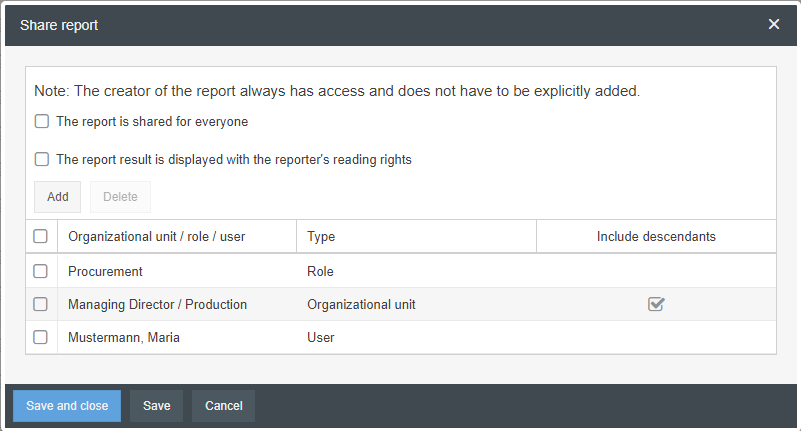
The report is shared for everyone | If the checkbox is enabled, the report will be shown to all users who have the general permission to view shared reports. In this case, the entries in the lower table have no meaning and the button for adding more elements to the table is grayed out. If the checkbox is disabled, the report will be displayed only to the organizational units, roles and users entered in the table, provided that they have the general permission to view shared reports. If the checkbox is disabled and no entry is selected in the table, the saved report will be visible only to the creator. |
The report result is displayed with the reporter's reading rights | This checkbox is only available for reports for cases and only controls the displayed results. It does not affect who gets to see the saved report in the list. If the checkbox is disabled, the results displayed will depend on the user executing the saved report. The rights of the user who clicks on the report are taken into account during execution. Example: An admin often has read rights for all cases of the system. A "normal" user is usually only allowed to see the cases that he created or participated in. So, if there are 50 action cases in the tool, the admin will see 50 actions when running the report. If the normal user has only worked on 10 of these actions, only these 10 actions will be displayed when running the saved report. If the checkbox is enabled, the results displayed depend on the user who created and saved the report. Regardless of which user subsequently runs the report, the results will always be displayed with the reading rights of the report creator.  So, in the example above, if the admin saved the report, the "normal" user would also be able to see all 50 actions in the results list when running the saved report, because he has been given the admin's read permissions for running this one report. Unlike other reports, however, the view in this situation is limited to the results list and no individual case can be opened to view its details. |
Add | If the "The report is shared for everyone" checkbox is disabled, the Add button can be used to select any number of organizational units, roles or users for which the saved report will be displayed in the list. In order for a user to be able to see the shared report, it must always be ensured as an additional prerequisite that the user has the permission to view shared reports. 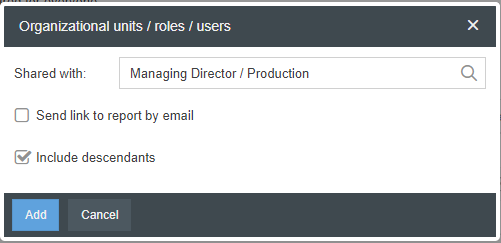
This action can be performed only when adding new organizational units, roles or users. The wording of the sent e-mails can be changed if necessary in the Text modules - System e-mails settings item. The text modules used at this point are: -> Report shared - Processes/documents - Email -> Report shared - Cases - Email
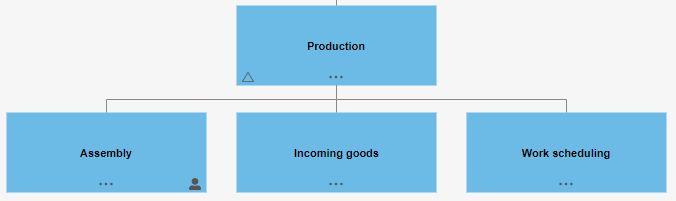 |
Delete | The Delete button can be used to remove selected organizational units, roles or users from the table. |
Display of shared reports
Depending on whether and with whom a report was shared, this is indicated in the list of saved reports with an icon and mouse-over text.
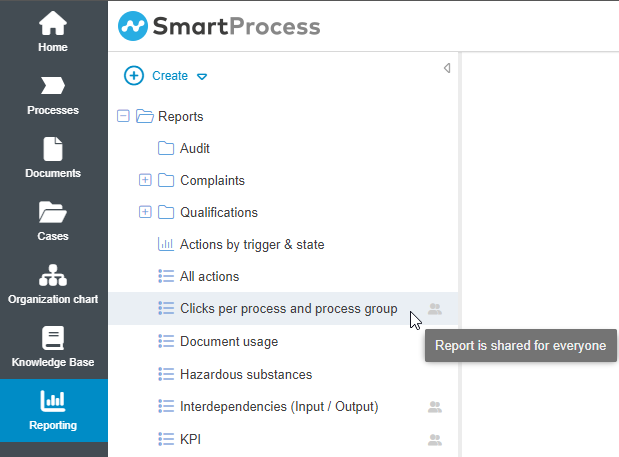
Display | Meaning |
No symbol + text "Report is not shared" | Only the creator of the report can see it |
Symbol + text "Report is shared" | In the "Share report" window, organizational units, roles and users have been selected that can see the report in addition to the creator |
Symbol + text "Report is shared for everyone" | In the "Share Report" window, the checkbox "The report is shared for everyone" has been activated, which allows all users with access rights to shared reports to see this report as well |
How did we do?
Saved reports
Excel Report Designer (Additional module)
