Table of Contents
Authorization profile - Tab Workflows / Cases
For general information on managing authorization profiles, see the Introduction to authorization profiles article. In the tab Workflows / Cases you assign general access rights for cases. Unless con…

Table of Contents
In the tab Workflows / Cases you assign general access rights for cases. Unless configured otherwise (see blue info box), these permissions apply to all workflow types, such as approval workflow, action, and all other workflows that you use in your company.
As a result, the general access rights from the authorization profile are ignored for the affected workflow and only the rules defined directly in the rights of the workflow participants apply.
A possible scenario:
- In an authorization profile 'Editor' you have activated that these users are generally allowed to create cases.
- In the Rights workflow participants of the workflow Audit, you have assigned special permissions, but have not assigned any rights to the authorization profile 'Editor'.
- Users with the authorization profile 'Editor' are then allowed to create new cases for all workflows except Audit.
Create case
Create case | If this option is enabled This option also ensures that the application menus of the activated workflows are displayed to the users in the 'My applications' window on the start page and in the main menu. |
 , users with this authorization profile may
 Read access
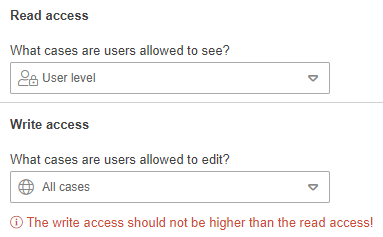
The rights can be assigned in ascending order from 'User level' to 'All cases'.
User level | Users are only allowed to view the cases that have been directly assigned to their user. The personally assigned cases are automatically displayed to the users in the 'My cases' list. |
Own cases | In addition to user level cases, users are allowed to view cases that have been directly allocated to their assigned organizational units and roles. Example: If a user is assigned to the organizational unit Quality, they can view all cases assigned to the organizational unit Quality. Cases allocated to other users within the assigned organizational unit cannot be viewed with this setting. This requires the 'Team cases' selection. Example: Mr. Müller from Quality is not allowed to see a case if it has been personally assigned to Ms. Schmidt from Quality. Own cases can be displayed to the users in the list 'My cases', if the following option is additionally activated in the list settings: In "My cases”, cases of the organizational units and roles are displayed without the cases of the other members. |
Team cases | In addition to own cases, users may view cases allocated to other users within the assigned organizational units and roles. Example: The user Mr. Müller from Quality is allowed to view the case that was personally assigned to Ms. Schmidt from Quality. Team cases can be displayed to users in the 'My cases' list if the following option is additionally activated in the list settings: In"My cases”, cases of the organizational units and roles including cases of other members are displayed. |
Organizational level | In addition to team cases, users may view cases assigned to other organizational units - provided that the other organizational units are subordinate to own assigned organizational units. Example: The user Mr. Müller is assigned to the organizational unit 'Finance, HR & IT'. By selecting 'Organizational level', he is also allowed to view the cases of Accounting, Human Resources and IT, although Mr. Müller is not assigned to these organizational units. 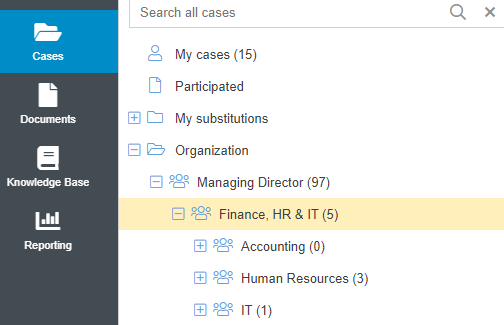 |
All cases | Users are allowed to view all cases in the system - regardless of who they are assigned to. |
So as soon as a user or an organizational unit / role was responsible for a case at some point, the users of this organizational unit / role can always view the data of this case if they want to (e.g. via the full text search or reporting).
Write access
There are exactly 4 exception workflows where users with a viewer license are also allowed to edit cases:
- Training
- Feedback / Comment
- KPI
- Approval workflow
- Read confirmation
- Extend validity
Write access | If this option is enabled  Which cases the users are allowed to edit is determined by the selection list 'What cases are users allowed to edit?' Which actions the users are allowed to perform in addition to the next editing step in the case window is determined by the checkboxes in the 'Advanced edit rights' area. If this option is disabled, users are not allowed to edit any cases. The other selection options for editing rights are then automatically deactivated and grayed out. |
 , users are allowed to edit cases. Initially, this only means that the next editing step configured in the workflow can be executed.
Which cases may be edited?
User level | Users are allowed to edit only the cases that have been directly assigned to their user. |
Own cases | In addition to user level cases, users are allowed to edit cases that have been directly allocated to their assigned organizational units and roles. Example: If a user is assigned to the organizational unit Quality, they can edit all cases assigned to Quality. Cases allocated to other users within the assigned organizational unit cannot be edited with this setting. This requires the 'Team cases' selection. Example: Mr. Müller from Quality is not allowed to edit a case if it has been personally assigned to Ms. Schmidt from Quality. |
Team cases | In addition to own cases, users are allowed to edit cases that are assigned to other users within the assigned organizational units and roles. Example: The user Mr. Müller from Quality is allowed to edit the case that was personally assigned to Ms. Schmidt from Quality. |
Organizational level | In addition to team cases, users are allowed to edit cases that are assigned to other organizational units - provided that the other organizational units are subordinate to own assigned organizational units. Example: The user Mr. Müller is assigned to the organizational unit 'Finance, HR & IT'. By selecting 'Organizational level', he is also allowed to edit the cases of Accounting, Human Resources and IT, although Mr. Müller is not assigned to these organizational units. 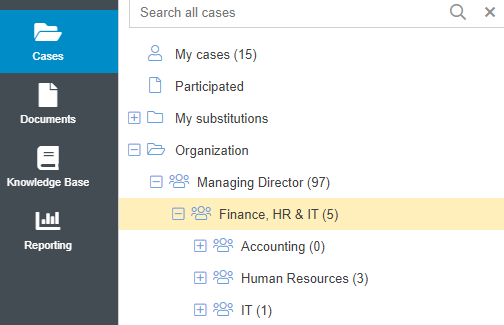 |
All cases | Users are allowed to edit all cases in the system - regardless of who they are assigned to. |
What may be edited?
Users are then allowed to perform these actions on all cases to which they have editing rights.
Close case | If this option is enabled, the <Close case> button is displayed to the users in the case list and in the case window. Damit kann der Vorgang manuell abgeschlossen werden, auch wenn der modellierte Workflow eigentlich noch weitere Aufgabenschritte vorsehen würde. |
Delete case | If this option is enabled, the <Delete> button will be displayed to users in the case list and in the case window under <More Actions>. |
Create activity ad hoc | If this option is enabled, users will see the <+ New> button in the activity list in the case window. This allows users to manually create any workflow activity, regardless of what the next intended task step is. |
Edit contents of fields of not self created cases and activities | If this option is enabled, users are allowed to modify the details of the case or the activity via the <Edit Details> button - even if they are not the creator of the case or the activity themselves. If the option is disabled, users are only allowed to change the details of cases and activities they have created themselves. |
Add and delete attachments | If the option is active, users can add new attachments to a case and remove existing attachments. |
Edit priority | If this option is enabled, users are allowed to edit the Priority field in the case window. |
Edit target dates | If this option is enabled, users are allowed to edit the Target date field in the case window. Deadlines automatically calculated by the workflow are also recorded in the target date field. With this permission, users can edit this deadlines manually, so the permission should be given only to users with sufficient experience in case editing. |
Edit state | If this option is enabled, users are allowed to edit the State field in the case window. Changing the state will move the case to a different position, which may cause skipping of mandatory tasks in the workflow. Therefore, this permission should be given only to users with sufficient experience in case editing. |
Send emails from a case | If this option is enabled, the <Message to> button will be displayed to users in the case window. This allows an email to be sent from the case at any time, even if this is not scheduled as the next task step in the modeled workflow. |
Link and copy cases | If this option is enabled, both the <Link / Create New> and <Copy> buttons are displayed to the users in the case window under <More Actions>. This allows users to link two existing cases or create a new case with a link to an existing one. These cases are then displayed in the 'Linked cases' area of the case window. On the other hand, an existing case can be copied along with all the activities it contains (e.g., an audit created as a template with predefined questions). |
Send back case | If this option is enabled, the <Send back to> button will be displayed to the users in the case window. This allows users to send the case back to the previous owner (organizational unit, role or user). If one of the following two options is activated, this right is automatically granted. |
Forward and send back case ad hoc | If this option is enabled, the <Forward to> button will be displayed to the users in the case window. This allows users to forward the case to any other organizational unit, role or user. The privilege is also needed to be able to make a selection in a data source field of the type “Organizational unit, role and user”. When this option is enabled, the permission Forward and send back case ad hoc within own organizational units and roles is included. The multiple selection list next to the privilege can be used to restrict forwarding to users with certain authorization profiles only. In the example, forwarding is only permitted to users with the Administrator or Editor authorization profile. 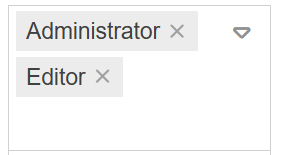 |
Forward and send back case ad hoc within own organizational units and roles | If this option is enabled, the <Forward to> button will be displayed to the users in the case window. This allows users to forward the case to other users only within their assigned organizational units and roles. This option only has an effect if the previous permission Forward and send back case ad hoc is deactivated at the same time. The multiple selection list next to the privilege can be used to restrict forwarding to users with certain authorization profiles only. In the example, forwarding is only permitted to users with the Administrator or Editor authorization profile. |
Request activities | If this option is enabled, the <Request activities / statements> button will be displayed to the users in the case window under <More actions>. This allows users to request processing of any workflow activity from other users. |
List settings
In “My cases”, cases of the organizational units and roles are displayed without the cases of the other members. | If this option is enabled, users will see cases of assigned organizational units and roles in the 'My cases' list in addition to personal cases. Example: In addition to his personal cases, Mr. Müller from Quality is also shown the cases that have been assigned to the organizational unit Quality. This option can only be selected if at least read access to "Own cases" has been selected in the authorization profile. |
In “My cases”, cases of the organizational units and roles including cases of other members are displayed. | If this option is enabled, users will see cases of other users from the assigned organizational units and roles in the 'My cases' list in addition to personal cases. Example: In addition to his personal cases, Mr. Müller from Quality is also shown the cases assigned to Ms. Schmidt from the organizational unit Quality. This option can only be selected if at least read access to "Team cases" have been selected in the authorization profile. |
In “Participated” also cases of other users of the own organizational units and roles are displayed. | If this option is enabled, users will see cases edited by other users from the assigned organizational units and roles in the "Participated" list - in addition to the cases edited personally. Example: In addition to his personally processed cases, Mr. Müller from Quality is also shown the cases that Ms. Schmidt from Quality has processed. |
Define columns in the cases lists (e.g. for "My cases") | If this option is enabled, users are allowed to show and hide columns in the task lists and to change the column width and order via drag & drop. These changes are saved only personally for the user and do not affect the task lists of other users. |
How did we do?
Introduction authorization profiles
Authorization profile - Tab Processes
