Table of Contents
Excel Report Designer (Additional module)
With the Excel Report Designer (separate module) you can create Excel files from the system which are used as data sources for diagrams, pivot tables, etc. The Excel files are uploaded back to the Sm…
Table of Contents
With the Excel Report Designer (separate module) you can create Excel files from the system which are used as data sources for diagrams, pivot tables, etc. The Excel files are uploaded back to the SmartProcess and displayed there.
To start the Excel Report Designer, click on the <Excel Report Designer> button. The report must already have been created as a saved report.

A window will open that allows you to download an empty template for your reports and add your finished Excel reports to a saved report.
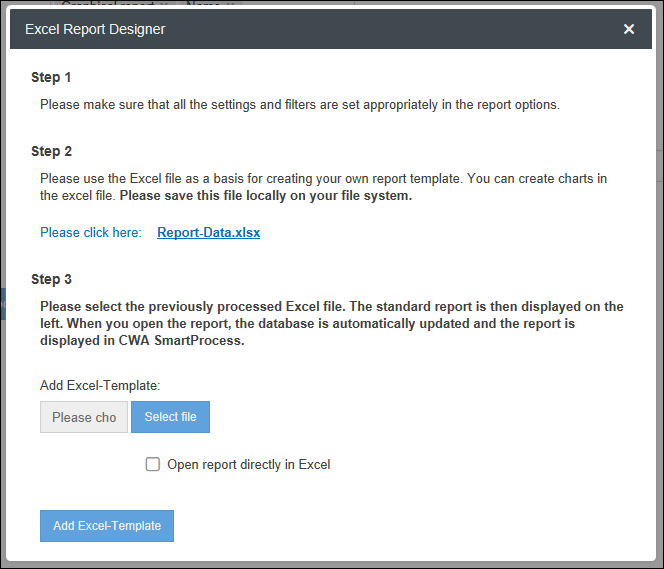
Click on the <Report-Data.xls> link to download your template.
Open the Excel file. The template contains two worksheets. A worksheet with the name of the saved report. It contains the table with the data from SmartProcess that was evaluated. This table serves as a data source for your personal reports in the form of diagrams and so on, and is referenced by your name.
The second worksheet is empty and can be used by you to create reports.
Example:
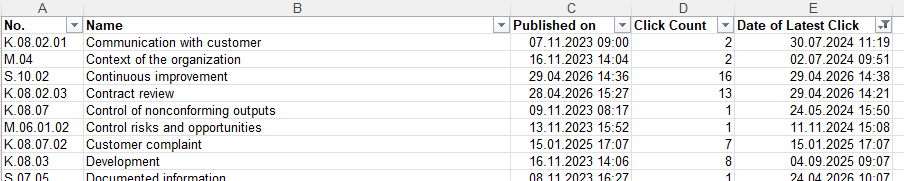
As an example we consider the saved report "Clicks per process and process group", which lists how often a published process or a published process group has been viewed. The object type evaluated is "Process Group and Process". The columns for the report are No., Name, Published on, Click Count and Date of Latest Click.
In the downloaded template there is a spreadsheet "Clicks per process and process group" containing the table "Clicks_per_process_and_process_group" and an empty spreadsheet.
We now want to display the number of views of the published processes as a bar chart. Because the number of records in a report is dynamic, the area to be evaluated in the Excel spreadsheet must also be captured dynamically. This is possible with the MOVE RANGE function, which returns a reference that is offset from the specified reference. The specified reference is the size of the table that we determine using the NUMBER2 function. In order to be able to use this function for the data area of the diagram, we create an entry in the Name Manager that can be referenced in the diagram. To do this, click on <Name Manager> in the "Formulas" tab.
In the name manager we click on <New>. In the field "Name" we enter "Names". This will later give us access to the names of the processes and process groups. The following formula must be entered in the "Refers to" field:
=MOVE.AREA('Clicks per process and process group'!$B$2;;;NUMBER2('Clicks per process and process group'!$B:$B)-1)In this example, the names are in column B of the worksheet, so the reference to this column is made with $B.
Now we create another name for the number of clicks in the same way. In the Name field we enter "Number". Into the field "Refers to" the following formula:
=MOVE.AREA('Clicks per process and process group'!$D$2;;;NUMBER2('Clicks per process and process group'!$D:$D)-1)The number of clicks is shown in column D, therefore the reference is made using $D.
Now we create an empty diagram in the "Report" worksheet. The data source is then added to this diagram. To do this, select <Select data> in the "Draft" tab of the diagram tools.
Next, we add the number of clicks to the diagram. Click on <Add> under "Legend entries".
Enter "Number of clicks" in the Series name field and the following in the Series values field:
='Clicks per process and process group'!number
Then we click on <edit> under "Horizontal axis labels" and enter the following in the field "Axis label area":
='Clicks per process and process group'!names
The diagram is now completely configured.
After creating the diagram, the Excel file can be saved under any name. In our example we save the file as "Click Diagram.xlsx".
In the Excel Report Designer window, click on <Browse> and select the file. Then confirm by clicking on <Add Excel template>. After a successful upload, you will see which file is stored for the report.
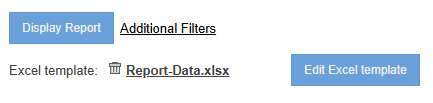
When a report is evaluated in the CWA SmartProcess, all data in the Excel file is automatically updated.
Several saved reports in one file
It is possible to evaluate several saved reports in several spreadsheets in one Excel file. This means that several tables are available as data sources. For example, you can also display a report on workflow and processes and a report for process management together.
As an example, we also want to evaluate the report "Standards and requirements" together with the report "Standards and external requirements". To do this, we create a new spreadsheet in the Excel file and name it like the additional report.
The file can then be saved and uploaded to your report.
How did we do?
Share reports
