Table of Contents
Document details
If a document is selected in the list, the details are displayed in the document preview. If you have collapsed the document preview, the details open in a new window instead, which then overlays the…

Table of Contents
If a document is selected in the list, the details are displayed in the document preview.
Header of document details
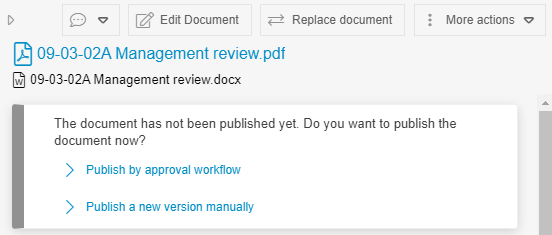
The name of the file attachment is displayed in the header area. The variant that is published for the viewer is always displayed in blue font (here a .pdf file). In black font below it, you see the format of the source document that was uploaded in SmartProcess and can be adjusted by the editor (here a .docx file).
If the document has not yet been published or contains unpublished changes, you are offered to publish it.
Button: Cases
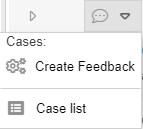
The feedback workflow can be started by clicking on the Cases drop-down button to submit feedback on the document. The steps in this workflow are described in the article Comments & cases.
If you select Case list, all open and completed cases related to this document are displayed, including Feedback and Approval workflows.
Button: Edit Document
Use this button to check out the file attachment for editing and open it directly in the corresponding program.
Button: Replace Document
Instead of using check-in and check-out to edit the existing file, you can replace the file attachment in SmartProcess entirely with a modified file attachment from your drive.
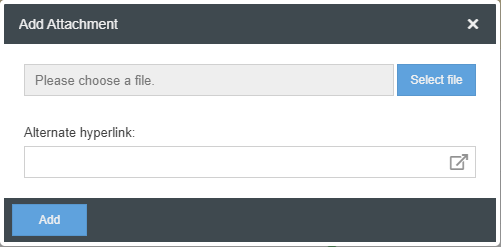
In the window that opens, you can decide whether you want to use <Select file> to select a file from your drive or use a hyperlink to point to the file attachment in an existing document management system.
Button: More actions
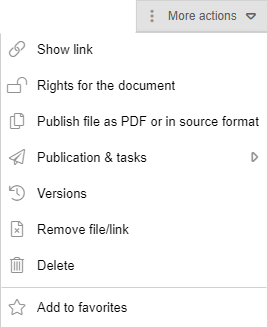
In the further actions you can:
- Show links to the document (see below)
- Manage the reading and editing rights for the document (see below)
- Set the display format for Word files (see below)
- Make various settings for publication
- Access the Versions menu
- Remove the file attachment or the hyperlink of the document
- Delete the entire document and move it to the recycle bin
- Add the document to your own list of favorites
Link
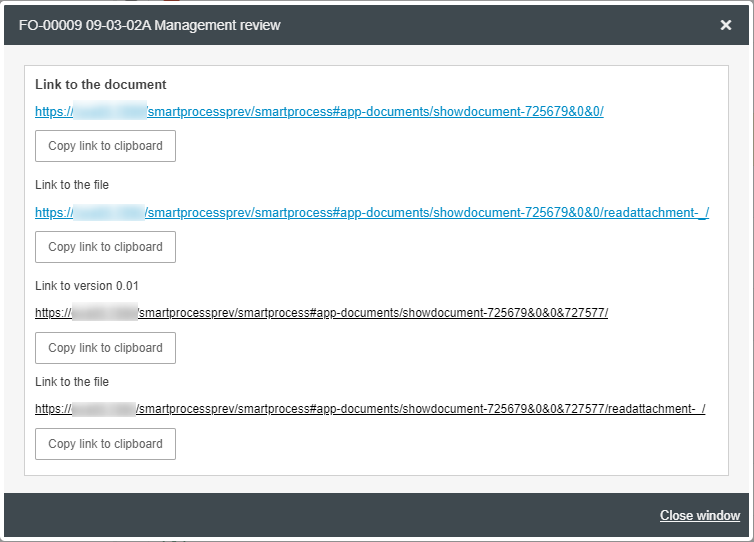
In the settings, you can call up and copy the external link that can be used to access the document or file attachment directly.
The following distinction is made here:
- Link to the document -> This is a dynamic link. It always takes the user to the most current version of the document that the user is allowed to view according to his or her authorizations.
- Link to the file -> Similar to the previous point, this link directly opens the most current version of the file attachment of the document in the browser preview or starts the download of the file if no preview is available.
- Link to version <<Version number>> -> This is a static link that always leads to the document in the displayed version number, even if newer versions of the document are created later.
- Link to the file -> Similar to the previous point, this link opens the file attachment of the document in the displayed version number.
Rights for the document
Opens the window for managing the reading and editing rights for the document.
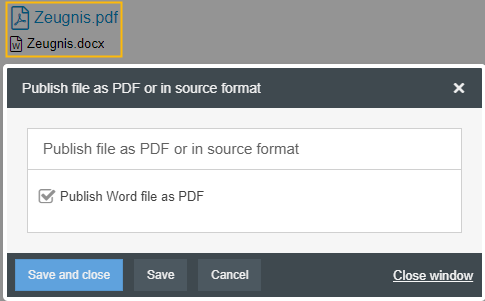
Publish file as PDF or in source format
When you add a Word file as an attachment to a document, a PDF file is automatically generated from it with the default settings. This PDF file is made available for download to viewers when published, while users with editing rights in SmartProcess can make changes to the original Word file.
You can then determine for each document individually whether a Word attachment is made available to the viewer in the source Word format or as a read-only PDF file by choosing <Publish document as PDF or as source file>.
If you are planning to use placeholder fields in source format files: Note
Master data
The view of the document details corresponds to the view for processes. To the left or above the master data, the file attached to the document is displayed as a preview, provided it is a Word, PDF, or image file.
All other file formats are downloaded directly from SmartProcess in this case.
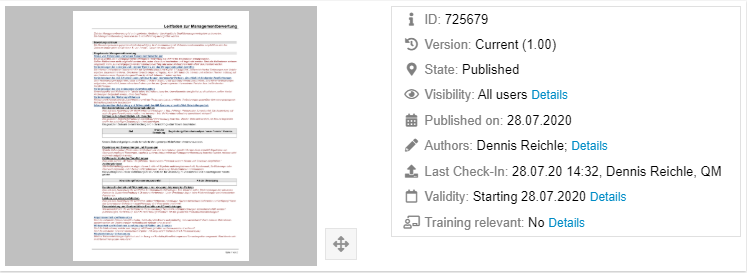
Some master data is generated automatically and cannot be changed. This includes the ID, state and version, and the time at which the file attachment of the document was last checked in.
However, some information can be edited.
Visibility: Read and edit rights
Clicking on the link <Details> next to the item "Visibility" opens the view for assigning read and edit rights for the document.
Read and edit rights are assigned in the same way as for processes (see article Read and edit access).
Authors
Via the link <Details> you can enter the users who are editing the document manually. The creator of the document and the creator of the last version are automatically listed. The option <Show all authors in document> is used to specify whether the creator of the document and other authors are also displayed in the related placeholder (if used in the dokument) in addition to the creator of the current version. The creator of the version is the last editor.
Validity
Via the link <Details> the history of validity is opened. With editing rights the validity of the document can be extended at this point. You will find a detailed description in the article Publication and validity.
Training relevant
The item Training Relevant is only relevant if the standard application Qualification Management is used in SmartProcess. Training relevant documents are transferred to the qualification profile of document users, so that proof of qualification is required. With a click on <Details> the marking of the training relevance can be changed.
Document list: Details
The Details list displays all information that was entered when the document was created.
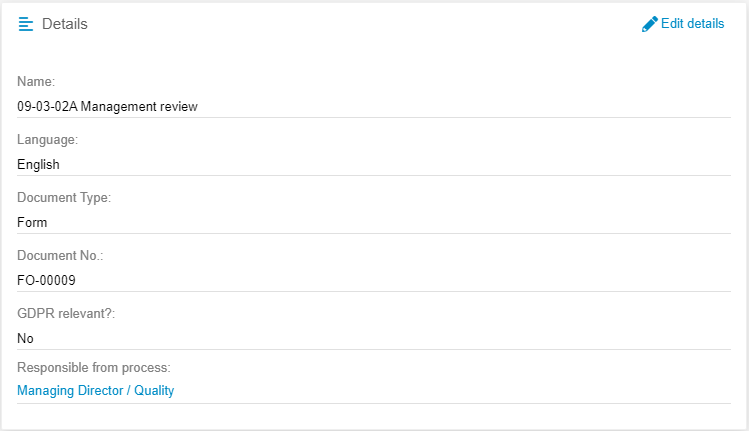
Using the link <Edit details> this information can be edited subsequently.
A manual change would only be possible by deactivating the automatic numbering in the meantime.
Document-Users
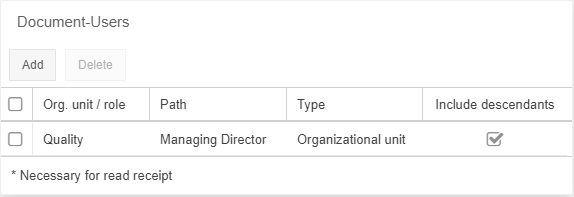
In the list of document users, any number of organizational units and roles from the organizational chart can be entered via <Add>. The system uses this assignment to determine which users the document is displayed to in the "My Documents" list and which users are notified by e-mail when a new version of the document is published.
The use and meaning of the Document Users list corresponds to the process participants in the processes. Further details are described in the linked article.
Requirements
The linking and meaning of standards and requirements is identical to the procedure in the process details (see article Lists: Terms and abbreviations / Requirements).
Linked documents and multilingualism
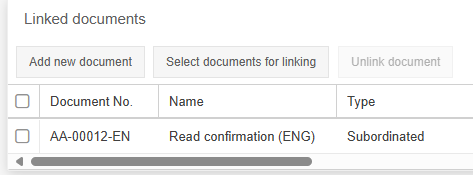
In this list, you can display the relationship between different documents in the system. Linked documents are displayed in the list and can be opened in a new window by clicking on the corresponding line.
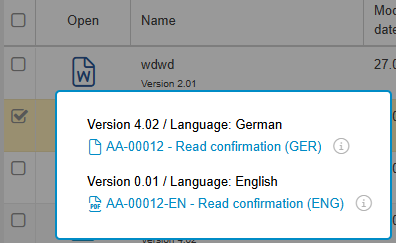
The files of two linked documents are displayed grouped by clicking on the document icon in the "Open" column (see image below).
Select documents for linking
Here you select the document to be linked to your document from a list of existing documents.
When you link a document, it is displayed as "Subordinated" to the existing document. Since there is a mutual relationship between the documents, the type of the linked document is displayed as "Superordinated".
Add new document

Via <Add new document> a new document with direct link to the existing document is created. First the type of link has to be defined:
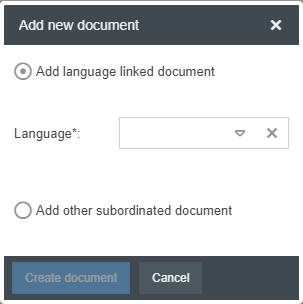
Add document in an additional language
If you want to add your document in an additional language, select the language of the new document to be created. In this case, the new document will not have a consecutive document number, but will be created with the same number of the existing document plus the attached language code for the selected language.
This is the only way to create several documents with the same document number that only differ in the language code at the end when automatic numbering is activated.
The further creation of the new document is done as described in the article Create document.
Read confirmation for language variants
If several language variants have been created for a document in the "Linked Documents" list, document users are only asked to confirm that they have read the language stored in their user profile.
If there is no suitable version of a document for a user's language, the user will still be asked to confirm reading for all language versions.
Other subordinate document
If you add any other subordinate document, the creation and numbering is done as usual and described in the article Create document.
How did we do?
Create documents
Edit files directly in Office
