Table of Contents
Customize main menu
Use the main menu on the left side of the screen to navigate through the various menus of SmartProcess. Items in the main menu. Some menu items may be hidden and need to be displayed separately (see…

Table of Contents
Use the main menu on the left side of the screen to navigate through the various menus of SmartProcess.
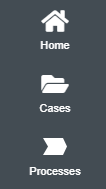
Items in the main menu
Depending on your permissions, some menu items may not be available.
The following menu items are available in SmartProcess:
- Home
- Cases
- Processes
- Organization chart
- Documents
- Catalogs
- Reporting
- Wiki
- Contact
- Help (link to SmartProcess online help -> this item cannot be removed from the main menu)
- A separate application menu for each active workflow you have in use
Control & customize main menu
Each user can decide for themselves which menu items should be displayed for them and in what order. If the user makes a change to the main menu, this adjustment is saved directly for him. The following options are available.
Show hidden elements | With small screen resolutions or a large number of items in the main menu, it can happen that not all menu items are visible at first glance. The hidden menu items can then be displayed and opened by clicking on the three dots. In the example, there is no more room in the main menu for the Wiki and Catalog items, which is why they are only displayed via the extended menu when you click on the three dots. 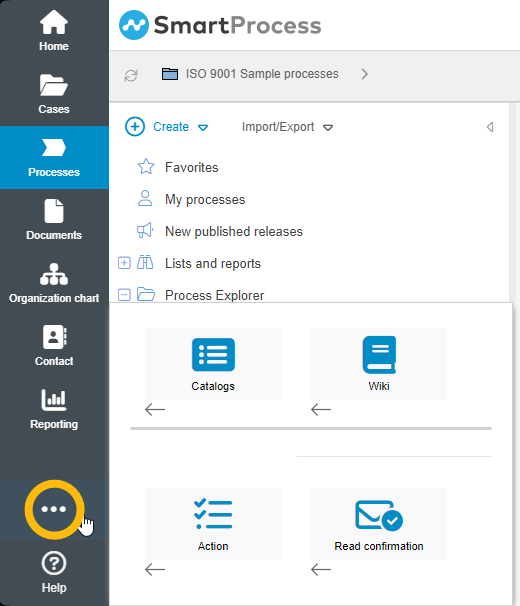 |
Add new items | To add more items to the main menu, click the three dots and then the small arrow below the item you want to add to the menu. 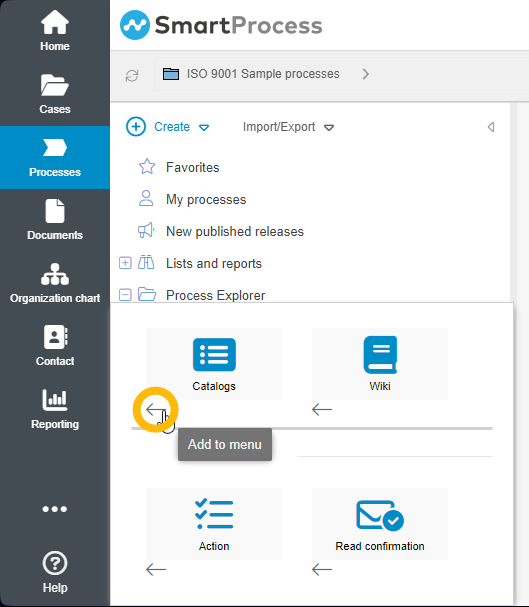 If there are already too many items in the main menu, the new item may be moved directly to the extended menu (see the description of Show hidden items). To have the item permanently visible, you may need to remove other items from the menu. |
Remove an item from the menu | Right-click on a menu item and then click <Remove from menu> to hide that menu item. 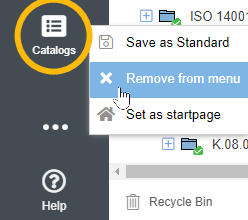 The item 'Help' as well as the three dots for the extended main menu cannot be removed. |
Change arrangement of items | Drag and drop the menu item to the desired position. Items can be anchored either at the top or bottom of the main menu. |
Set arrangement as application standard | Right-click anywhere in the main menu area and then click <Save as Standard> to save the displayed menu items and their order as the default view for all users. This option is only available to users who have been assigned the appropriate permission to do so. 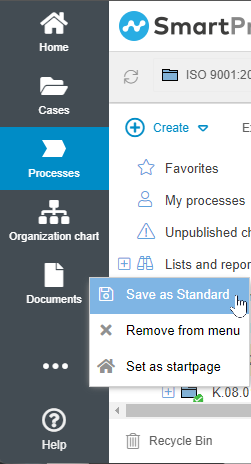 If users have already set up their personal view of the main menu, this action will overwrite the users' main menus. |
Set a menu item as start page | By right-clicking anywhere in the main menu area and then clicking <Set as startpage>, each user can define for themselves which menu should be displayed to them when they log into SmartProcess. 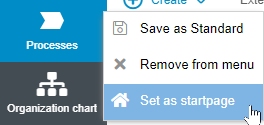 With the additional permission to save the view of the main menu as application standard for all users, you can also specify a standard start page for all users. To do this, first set a menu as the start page and then save the view as the application standard. |
How did we do?
Elements on the start page
Full text search
