Table of Contents
Properties and Placeholders in Word files
You can insert placeholders in Word files to display information from SmartProcess, such as the name or current version number of a document. If you then change the name of the document in SmartProce…

Table of Contents
You can insert placeholders in Word files to display information from SmartProcess, such as the name or current version number of a document. If you then change the name of the document in SmartProcess, it is automatically changed in the attached Word file as well. The Word file always shows the current value from the SmartProcess meta data.
Placeholders for documents
The following properties of documents can be inserted at any position in the Word file:
Content | Field name |
Document name | cwaDocumentName |
Description | cwaDocumentDescription |
Document number | cwaDocumentNumber |
ID of the document | cwaDocumentID |
Responsible | cwaDocumentResponsibleName |
Language | cwaDocumentLanguage |
Document type | cwaDocumentType |
Code of the document type | cwaDocumentTypeCode |
Version number | cwaDocumentVersion |
State | cwaDocumentStatus |
Publication date | cwaDocumentPublicationDate |
Version description | cwaDocumentVersionDescription |
Valid from | cwaDocumentValidFrom |
Valid till | cwaDocumentValidTill |
File name | cwaDocumentFileName |
File name of the PDF | cwaDocumentPdfFileName |
User-defined-field | Name of the field in SmartProcess |
For user-defined fields that allow multilingual entry, the language of the field contents can also be specified by a prefix with the language code.
For example, a MergeField named "DE_FieldName" will always display the value of the field in German. If you omit this addition, the value of the MergeField depends on the language of the document, which was entered in the document details.
Note on publishing Word files in source format
If a Word file is published with placeholders in source format and not as a PDF, the placeholders in the published document will still be resolved and filled with content. When the published file is downloaded, it will only contain converted text and no longer contain placeholders.
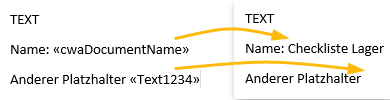
Mergefields for properties in table form
Some document properties are not entered in individual fields, but are instead available in the form of lists, such as the list of linked requirements & standards.
Requirements & standards
Create a table in Word and enter the headings for the columns in the first line. In the second line you can add the available mergefields as usual. However, two additional special mergefields are required so that the contents of the list can be displayed correctly:
- "TableStart:cwaDocumentRequirements" -> This mergefield is inserted at the beginning of the first column of the table
- "TableEnd:cwaDocumentRequirements" -> This mergefield is inserted at the end of the last column of the table

These two Mergefields do not provide data themselves. However, they ensure that the data can be read from the "Requirements & Standards" list and that an additional line is automatically generated in the Word table for each entry in the list. Thus, if there are 3 entries in the "Requirements & Standards" list, the table in the Word file contains 3 lines of data.
Available contents and field names for Requirements & Standards:
Content | Field name |
Type of requirement | Type of requirement |
Requirement | Requirement |
Paragraph | Paragraph |
Description requirement | Description requirement |
If you change the name of the "Paragraph" field to "Chapter" in the Requirements & standards catalogue configuration, the mergefield must also be named "Chapter".
Data of the last publication
You can also have the data of the last publication output as a table. This table contains all authors, reviewers and the approver.
To do this, create a table in Word and enter the headings for the columns in the first line. In the second line you can add the available mergefields. However, to ensure that the contents of the list are displayed correctly, two additional special mergefields are required:
- TableStart:cwaDocumentEditors -> This mergefield is inserted at the beginning of the first column of the table
- TableEnd:cwaDocumentEditors -> This mergefield is inserted at the end of the last column of the table

These two Mergefields do not provide data themselves. However, they ensure that the data of the last release can be read out and that an additional row is automatically generated in the Word table for each author, reviewer and approver.
Available contents and field names for approval data:
Content | Field name |
Role of the persons involved in the publication (Created, Reviewed, Approved) | cwaDocumentEditType |
Function / department | cwaDocumentEditorFunction |
Name | cwaDocumentEditorName |
Date of the entry | cwaDocumentEditDate |
Result | cwaDocumentEditState |
Version history
You can also output a table listing all previous versions of the document, including the version description.
During configuration it depends on whether the table should list all main versions of the document or additionally all minor versions ever created:
Only the main versions | All minor versions |
If only the main versions are to be output, the table is called up with the following mergefields:
 The result is a table with one row for each main version. | If you also want to output all minor versions, the table is called up with the following mergefields:
 The result is a table with one row for each version. |
Regardless of whether only the main versions or also all minor versions are displayed in the table, the following mergefields are available for the version history:
Content | Field name |
Version | cwaDocumentListVersion |
Creation date of the version | cwaDocumentListCreationDate |
Edit date of the version | cwaDocumentListEditDate |
Valid from | cwaDocumentListValidFrom |
Valid till | cwaDocumentListValidTo |
Version description | cwaDocumentListEdits |
Mergefields in document templates
This section only describes how Mergefields can be used in Word templates.
Document templates can be used to ensure a consistent format and design for newly created documents. For Word templates there is the possibility to insert Mergefields into these templates. When a new document is created on the base of this template, various information from SmartProcess is already contained in the Word file after creation.
In the following example, a standard Word file is created and a header with a company logo and some mergefields that should output the document name and version number are inserted.
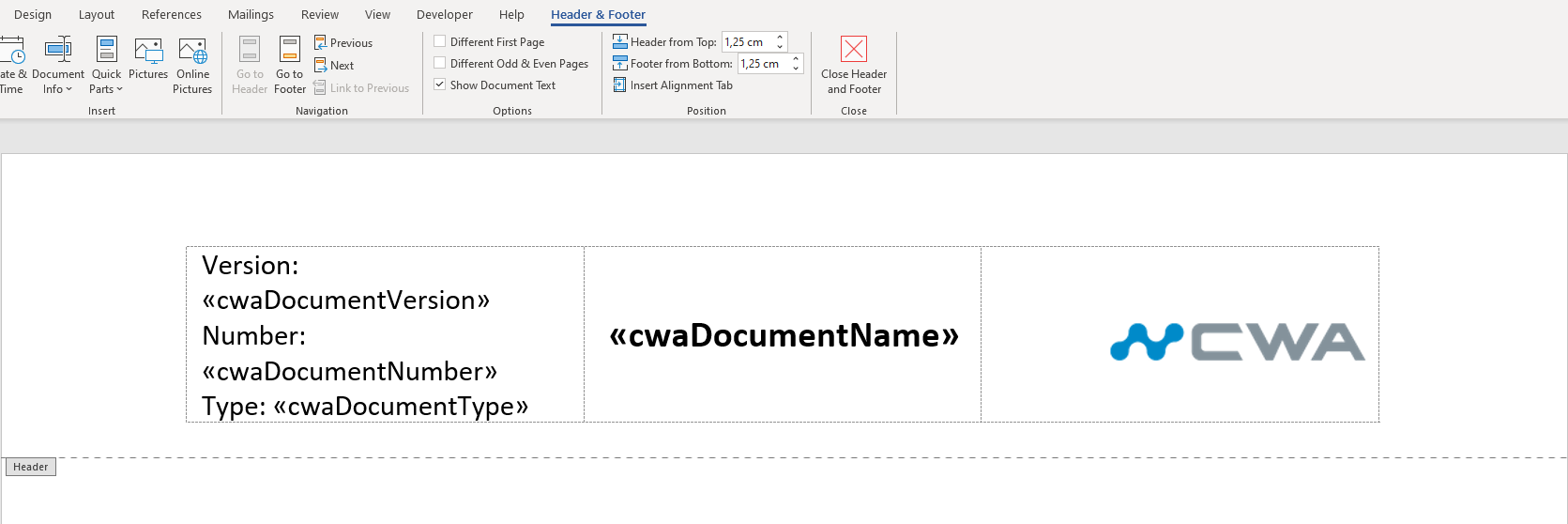
This file is now uploaded in the setting item Document templates. Then a new document is created based on this template and the document details are filled in. The result is a document with a Word file as an attachment, whose header line looks like this for the user:

In this way, Word documents can be created with consistent headers and footers so that the focus during editing can be fully on content maintenance.
How did we do?
Edit files directly in Office
Documents - State, version, publication and validity
