Table of Contents
Configuring Catalogs
In the catalog configuration, new catalogs can be created, existing catalogs can be configured and permissions for the catalogs can be assigned. At this point, the catalog is being configured. The cr…

Table of Contents
In the catalog configuration, new catalogs can be created, existing catalogs can be configured and permissions for the catalogs can be assigned.
Create catalog
Navigate to the Settings and click on the submenu Catalogs. A list with all existing catalogs opens.
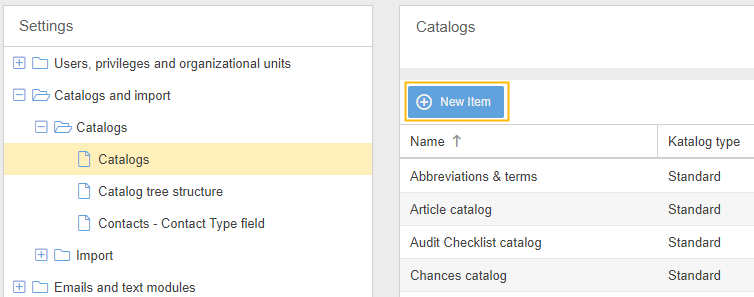
If you click on one of the existing catalogs, you can configure it (see below).
If you click on the <New Item> button instead, the editing view opens to create a new catalog. In the editing view, you can specify the name of the catalog in all activated system languages. Then you can start the configuration (next section) or save the catalog and continue later.
Configure catalogs
You can access the catalog's editing view at any time by selecting an existing catalog and then clicking the <Configure catalog> button.

The view offers further configuration options, which are described below.
Special settings for catalogs
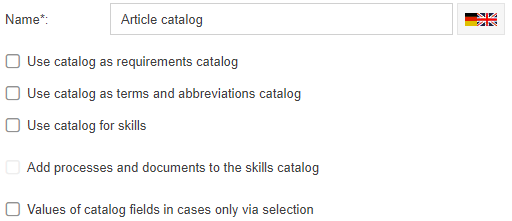
- Use catalog as requirements catalog -> If the checkbox is activated, this catalog is called up if standards & requirements are to be entered when editing process or document details.
- Use catalog as terms and abbreviations catalog -> If the checkbox is activated, this catalog is called up if terms and abbreviations are to be entered when editing process details
- Use catalog for skills -> If the checkbox is activated, this catalog is always called up when qualifications are selected. For example, in the properties of a role, for items in the qualifications profile of a user, or when the qualifications to be trained are selected in the training workflow
- Add processes / documents to the skills catalog -> If the checkbox is activated, all published processes and documents are also added to the catalog as qualifications. Thus, processes and documents can also be used for required qualifications in a role or be trained in training workflows.
The separate module Skills Management is required to work with qualification profiles and trainings.
- Values of catalog fields in cases only via selection -> If the checkbox is activated, the values of the fields in workflow forms can only be inserted via selection from the catalog. A manual entry is not possible.
Tree structure
A tree structure can also be created for each catalog in the configuration.
To do this, first create an item for the top category of the tree in the setting item <Catalog tree structure>. In the example of the article catalog, the name "article category" is appropriate, since the articles are to be sorted into different groups.
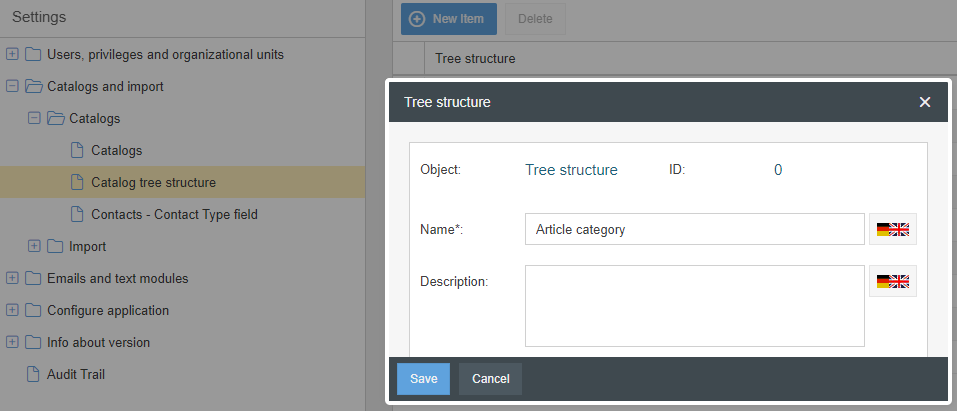
As soon as this element is created, you will return to the configuration of the catalog. In the "Tree structure" drop-down list, the newly created element "Article category" is now available. Select it and save the catalog to complete the creation of the tree structure.

Catalog type
At this point, predefined data sources can be selected for the catalog.
- For a normal catalog, Standard is selected.
- If Users is selected, the catalog always contains a current list of all users from the user administration.
- To display the contents of the user administration the fields must be mapped correctly
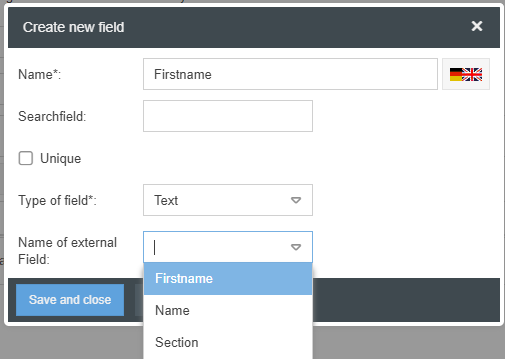
- To do so create a normal text field with the name "First name" and save it first
- To ensure that the first name of the user always appears in this field, open the First Name field again. There you will find the dropdown list Name of external field, in which you can now select that the first name from the user administration should be displayed in the field
- When selecting SAP, an optional interface is required.
Create / edit fields
The fields of a catalog define the information that can be recorded when entering data for an item. The fields that have already been created are displayed at the bottom of the editing view. In the example, for each newly created article in the catalog, an article number, an article description and the date since when the article has been in the assortment can be entered.
The fields are displayed in the specified order when a new item is entered.
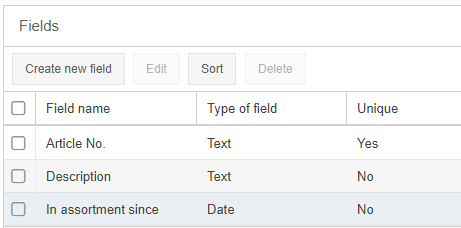
Clicking <Create new field> will take you to the view where the properties of the field are set.
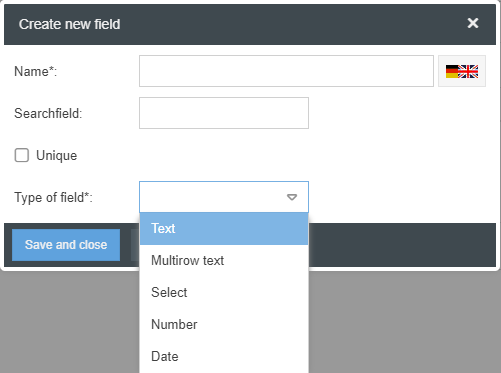
When you create a field, you specify what information should be recorded in it. You can choose from the following:
- Text (Single row)
- Multirow text
- Select -> Define various possible values for the field, which the user can choose from as a dropdown list during data maintenance (procedure identical to creating selection fields as user-defined fields)
- Number -> No letters are allowed in the field. You can determine from which decimal place the entered number should be rounded
- Date -> When entering data, a calendar is available for selection
In addition to the name of the field, you can optionally specify two further properties:
- Unique -> By marking the field as unique, two items with the same value in this field are recognized as duplicates during data import, thus avoiding unwanted duplicate values in the catalog. If several fields of the catalog are marked as unique, two items may not have the identical values in all these fields.
- Search field -> If catalog fields are used in a workflow form, the name of a form field can be entered here. When selecting a catalog entry in the workflow form, the system then checks whether there is a field in the form that has the specified name. If so, the content of the field is automatically used as a filter for the corresponding catalog field.
Example for the search field
- The items in the article catalog are divided into groups by a "Category" field.
- In the form of a complaint workflow the complained article should be selected from the catalog.
- In the form there is a dropdown field called "Pre-filtering" with categories, such as hardware, software etc.
- If the catalog is called up in the form, only the hardware or software articles should be displayed, depending on the selection in the "Pre-filtering" field
- To achieve this, you have to enter "Pre-filtering" in the search field line of the field "Category" in the configuration of the article catalog.
Delete catalogs
In the catalog configuration menu, in addition to individual fields, you can also delete the selected catalog itself. In this way, you remove not only the contents, but the entire "folder" including defined fields and settings. This may be necessary, for example, if a duplication has occurred during an import.
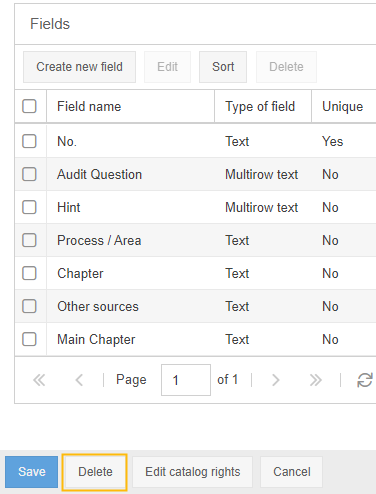
Edit catalog rights
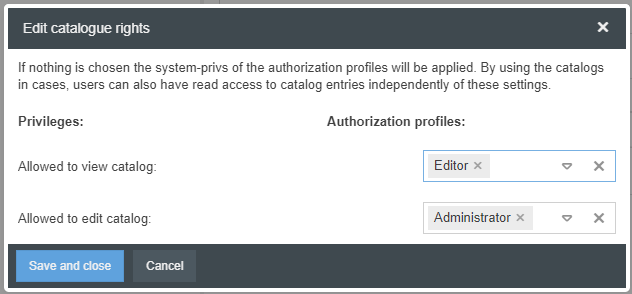
The authorization profile determines whether a user is generally allowed to view or edit data from catalogs in the system. This right initially applies to all catalogs in the system without further restriction.
In the catalog configuration, you can then specify for each catalog which authorization profiles are allowed to see or edit its data. To do this, select the button <Edit catalog rights> in the catalog configuration.

In the window that opens, you can now select the authorization profiles that are allowed to view and edit the data of the catalog.
How did we do?
Contacts - Contact type field
