Table of Contents
Reporting for processes and documents
In the reporting for processes and documents various objects can be evaluated. These include among others: Process groups and processes. Sub-processes and tasks. All artifacts from the process modell…

Table of Contents
In the reporting for processes and documents various objects can be evaluated. These include among others:
- Process groups and processes
- Sub-processes and tasks
- All artifacts from the process modelling
- Swimlanes
- Documents
- The objects Org. unit and Role from the organizational chart
- Users created in SmartProcess
Configure list report
Various options can be selected when configuring the report:
Object | Select the object that is to be filtered and sorted by various criteria (for example, process, document) |
Columns | Use the dropdown menu to specify which information should be displayed when the report is executed for the selected object. In the tabular view of the executed report, there will then appear a separate column for each piece of information. |
Name | Enter a search term. If the term appears in the name field of the object, the object is displayed in the report. Example term "Risk" - Only processes that have the word "Risk" in their name will be listed. |
Keyword | Enter a search term. If the term appears in any text field of the object, the object will be displayed in the report. Example term "Risk" - All processes where the word Risk appears in the name field, another text field in the process details, or even a user-defined field will be displayed. For documents, text-based file attachments are also scanned for the term and listed in the report. |
Deleted elements (only for process and document) | If the checkbox is activated, only processes or documents that are in the recycle bin or that have been removed from the recycle bin are included in the report. In this way, even processes and documents that have been removed from the recycle bin can be found and restored if necessary. |
Object published | If the checkbox is activated, only processes or documents that currently have the state "Published" are included in the report. |
Additional filters | By clicking on the link <Additional filters>, further options for filtering the selected object are displayed. The available additional filters depend on the selected object. For processes, these include for example, filtering by validity period expiration, the process owner, the standards & requirements linked to the process, and also user-defined fields. |
Working with the result list
If the report has been configured as desired, the result of the evaluation is displayed by clicking on <Display report>.
By clicking on the line of an entry, you can open the corresponding object and edit it if necessary. You also have further options in the window:
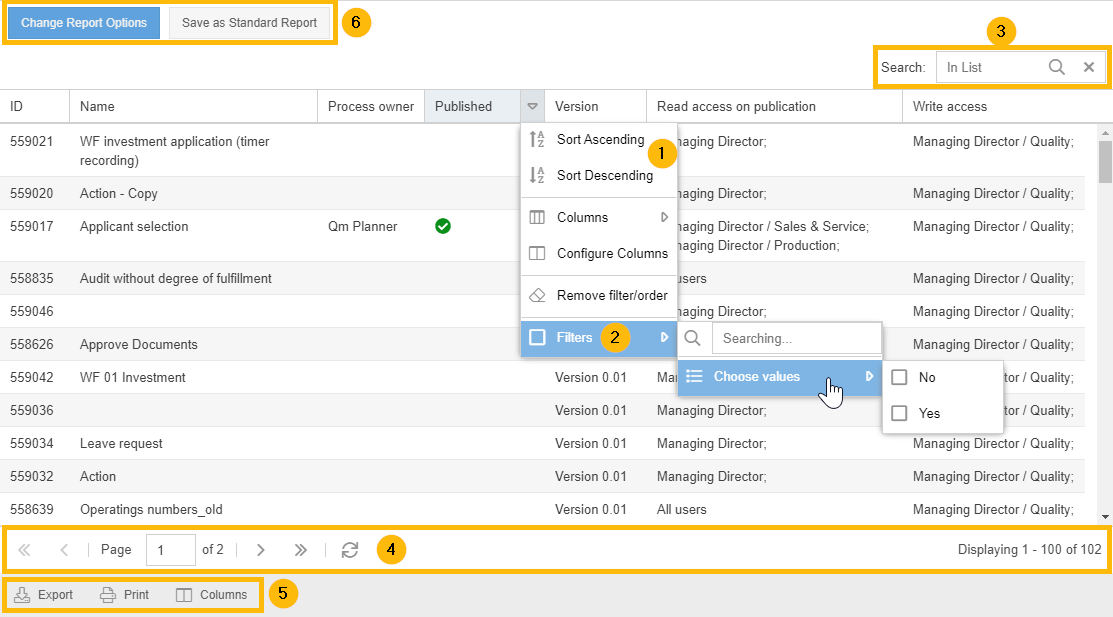
| If you point the mouse at any column header, a drop-down arrow appears at its edge. If you click it, you can sort the results of the report in ascending or descending order by the selected column. Sorting can also be achieved by clicking on the name of the column (in the example: "Published"). You can also use drag & drop to change the order of the columns. |
| In the drop-down menu, the results can also be filtered subsequently according to the values in the corresponding column. The filtering can be done either by a keyword in this column or by the available field values (in the example, only the published processes could be filtered afterwards). |
| Using the search bar, all displayed columns can be filtered for a keyword after executing the report. |
| Below the list of results you will find information on how many results were found in total and can browse through the different result pages if required. A maximum of 100 results are displayed per page of the report. |
|
|
|
Any filtering and sorting that you perform after the report has been executed, for example, using the table columns, does not affect the saved report. |
Configure diagram report
The graphical reporting for processes and documents allows you to create various diagrams for your QM documentation. The operation for setting up the desired parameters is analogous to the operation for the graphical case reports.
Just as with the list reports, information from all fields can be accessed, for example, to create diagrams on the following topics:
- What is the maturity level of how many processes (if you have created this or other custom fields).
- In which months how many processes lose their validity
- How are users distributed among the existing organizational units
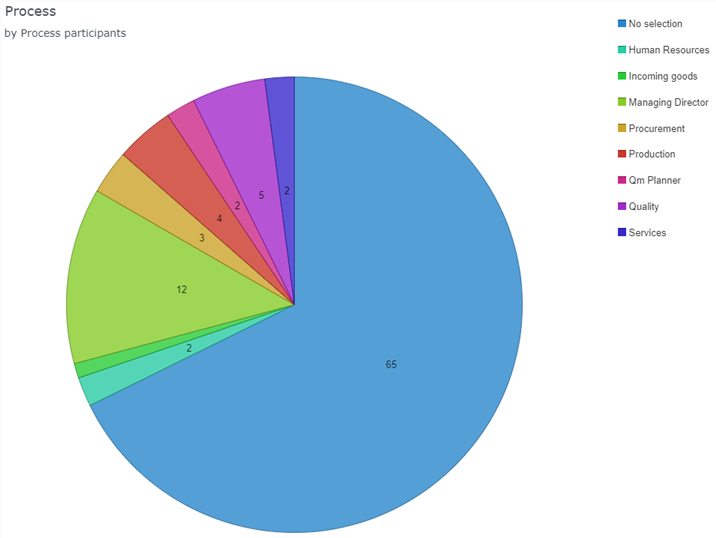
- Which organizational units/roles are involved in processes and how often (see picture below)
How did we do?
Reporting menu
Reporting for cases
