Table of Contents
Creating a new case
A new case can be created in several ways. Via the start page. Via the "Cases" menu. Via the corresponding application menu. Via an import. Via an e-mail. Creating a new case via the start page. Wind…

Table of Contents
A new case can be created in several ways.
- Via the start page.
- Via the "Cases" menu.
- Via the corresponding application menu.
- Via an import.
- Via an e-mail.
Creating a new case via the start page
Window "My Applications"
The "My Applications" window can be displayed on the start page.

This window lists all active workflows to which the user has access as an application.
The user can create a new task for this task type using the button <+ Create>.
Window "My Tasks"
The "My Tasks" window can also be displayed on the start page.
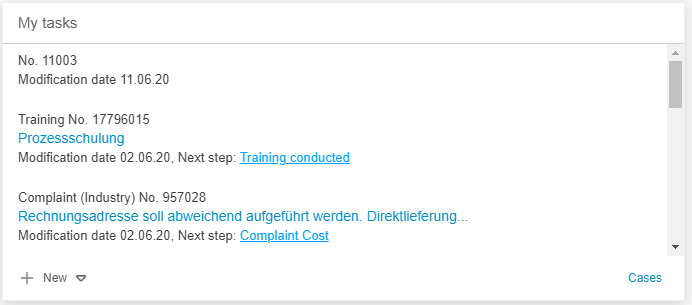
This window lists all cases and requested activities that are currently under the responsibility of the user.
The button <+ New> can be used to create a new activity for all activated workflow types to which the user has access
Creating a new operation via the "Cases" menu
In the Cases menu, the button <Create> can be used to create a new case for all activated workflow types to which the user has access.
Creating a new case via the corresponding application menu
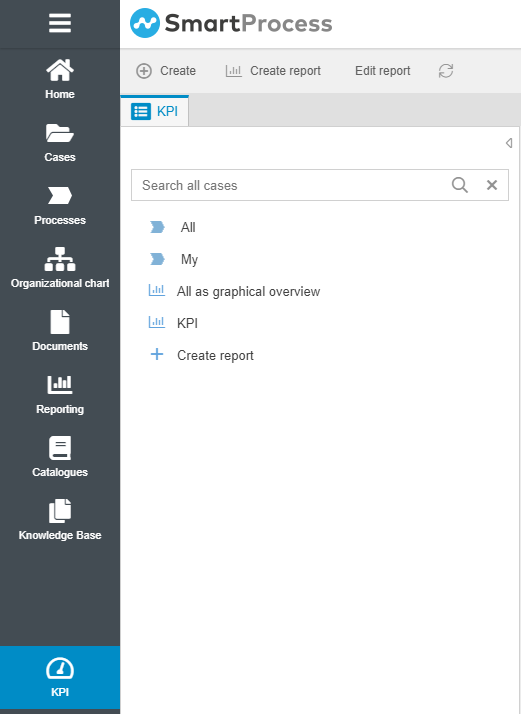
In the menu of an application (e.g. KPI), the button <+ Create> can be used to create a new case for all activated transaction types to which the user has access.
Creating a new process via an import
The general procedure of importing data is described in the article Import of data.
The specifics and points of attention when importing cases are described in the article Case import.
Creating a new process via an e-mail
To create a new case by reading an e-mail, the incoming e-mail service must be activated in the e-mail settings.
The content of the e-mail must then have the following format so that the case can be created with content
Field name=Field content
How did we do?
Menu Cases
The case window
