Table of Contents
List: Details
In addition to the information provided by the process model of a process, additional information can be added to the process details. The process details are listed in various windows below the proc…

Table of Contents
In addition to the information provided by the process model of a process, additional information can be added to the process details. The process details are listed in various windows below the process model.
These include the 'Details' window, which is divided into two larger areas. The master data of the process, which is mainly entered automatically, is on the right-hand side and the editable details of the process are on the left-hand side.
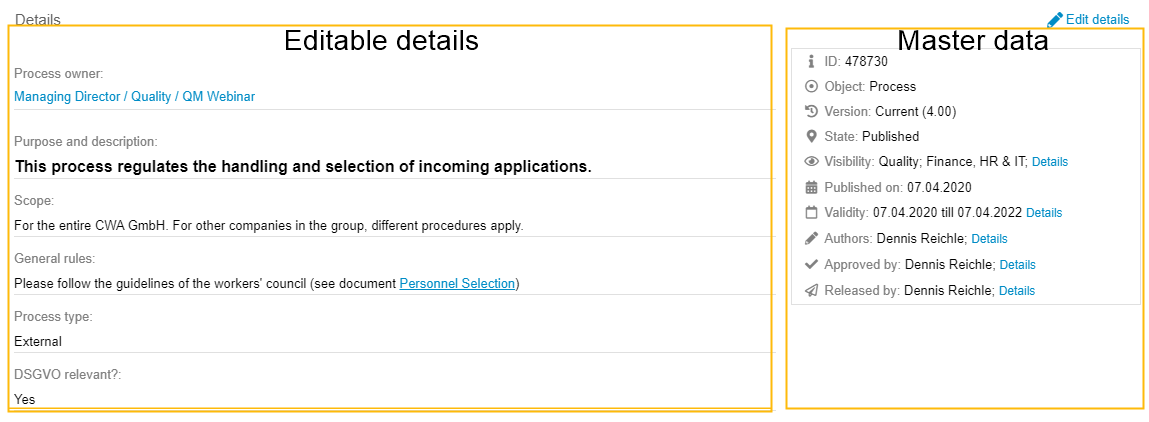
Master data
Most of the master data is generated automatically by the system:
- ID - A unique number automatically created by the system for the object
- Object - Shows whether the object is a process group or a process
- Version - Displays the current version number of the process, which is automatically generated continuously (see State and version)
- State - Indicates whether the currently visible version is published and therefore visible for viewers or not (see State and version)
- The item Visibility shows which organizational units from the organizational chart are currently allowed read access to the process. With a click on <Details> these read and edit rights can be adjusted.
- Published on - If the process version is published, the publication date is displayed. Otherwise, the field does not appear.
- Validity - If a validity period was set when the process was published, it is displayed here. The validity of a process can be subsequently extended via <Details>.
- Authors - The name of the creator of the process and the name of the version creator are automatically entered. Additional authors can be entered via <Details>. The option <Show all authors in the process description> is used to specify whether the creator of the process and other authors are also displayed in the process description in addition to the creator of the current version. The creator of the version is the last editor.
- Approved by / Released by - If one or more reviewers and approvers were specified when the process was published, they will be listed here. In case of a publication without the approval workflow, additional reviewers and approvers can be entered subsequently via <Details>.
- Last changed - If the process is not in the 'Published' status, the user who edited the process last and at what time is displayed.
The item Training Relevant is only visible if the standard application Qualification Management is used in SmartProcess and the settings described in the linked article are active.
Editable Details
Using the link <Edit Details> in the 'Details' window, additional information about the process can be entered and edited. This includes:
Name | The name of the process can be changed in the Name field or entered in additional languages using the symbol The fields Name and Process no. can also be edited using the stylus symbol above the process model.  |
Process no. | The process number can be used to code and sort the process groups and processes. A combination of letters and numbers can be used in the field. In the settings for process management, you can also set automatic numbering of processes. If this is activated, the field can no longer be filled in the process details. The process number is automatically displayed in front of the process name. The process groups and processes in the Process Explorer are sorted by the process number in the standard configuration. In the settings for process management, you can determine, among other things, whether the process number is displayed in the Process Explorer and/or on the modeling objects in the process model. |
Process owner | The unit responsible for the process can be entered in the Process owner field. With a click on the magnifying glass the organizational chart opens, from which an organizational unit, role or user can be selected. 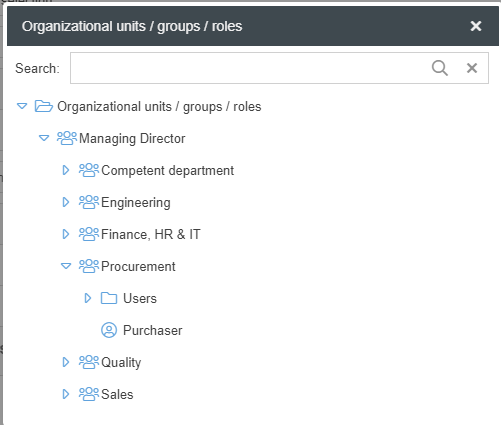 Selecting an organizational unit or role as the process owner is recommended. If a user is selected, the details of each process for which the user was entered as process owner must be edited when the responsibility changes. The process owner has some special functions (If an organizational unit or role is set as process owner, this applies to all users of this organizational unit/role).
In the settings for process management you can set whether it is mandatory to enter a process owner or not. |
Process manager | In the settings for process management, you can define whether the Process manager field should generally be shown or hidden for processes. In addition to the process owner, another unit responsible for the process can be entered in this field. Clicking on the magnifying glass opens the organization chart from which an organizational unit, role or user can be selected. We recommend selecting an organizational unit or role from the organization chart as the process manager. When a user is selected, if there is a change in responsibility, the details of any process where the user was entered as the process manager will need to be edited. Some of the functions that apply to the process owner also apply to the process manager. These include:
|
Purpose and description / Scope / General Rules | General information about the process can be entered in these fields. These are formatable text fields into which images and hyperlinks can also be inserted. |
User-defined fields | If you want to capture more information about the processes in SmartProcess and no field is available for this purpose, you can create user-defined fields. Once created, a value can be entered in this field for each process. For example, whether a process has only internal or also external participants, or whether a process is DSGVO-relevant or not. The contents of user-defined fields can also be used for filtering and sorting processes in the reporting. |
 .
.How did we do?
User-defined fields
