Table of Contents
Field: Function-Fied
You can use a function field to create a field that calculates input from multiple number fields in the case, displays the contents of fields from tasks, or uses JavaScript to output a result in a fo…

Table of Contents
You can use a function field to create a field that calculates input from multiple number fields in the case, displays the contents of fields from tasks, or uses JavaScript to output a result in a formula field.
Function fields "Sum" and "Multiply"
Function field | Description |
Sum | A sum field calculates the sum of several number fields, which must be assigned in the field properties. 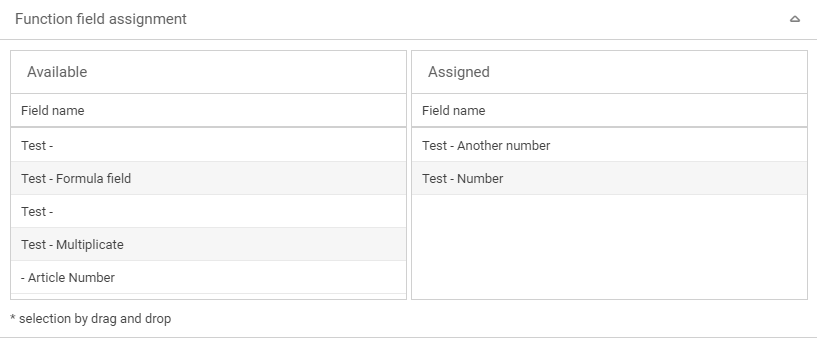 Only fields of the type "Number" are available for the assignment.  |
Multiply | A multiplication field calculates the product of several number fields, which must be assigned in the field properties. 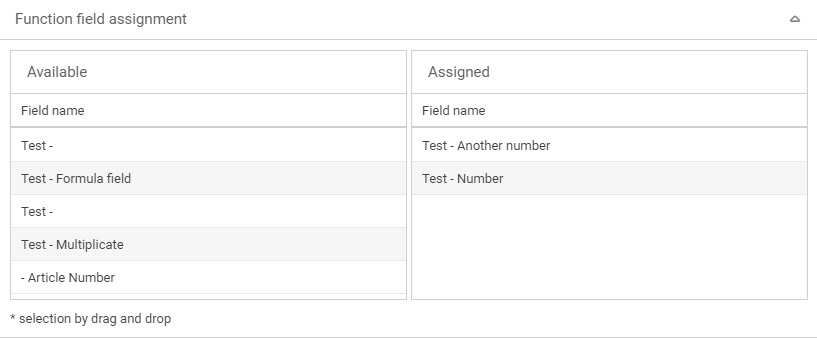 Only fields of the type "Number" are available for the assignment.  |
Function field "Show field from activity"
This field can be used to display the field contents of a field from a task in the main form. To do this, the corresponding field from the task must be assigned to the function field in the field properties.
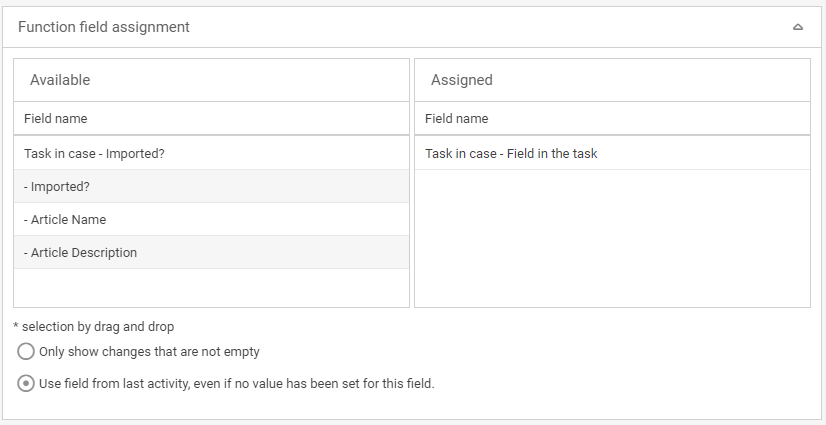
There are two options from which you can choose which field value is read.
Option | Beschreibung |
Only show changes that are not empty | Displays a value in the field only if the field in the task is not empty. |
Use field from last activity, even if no value has been set for this field | Always displays the value of the field from the task, even if this field was not filled in the task. |
Function field "Show field from parent case"
This field is only available in tasks. This field can be used to transfer fields from the main form to the task forms. To do this, the field from the main form must be assigned accordingly in the properties.
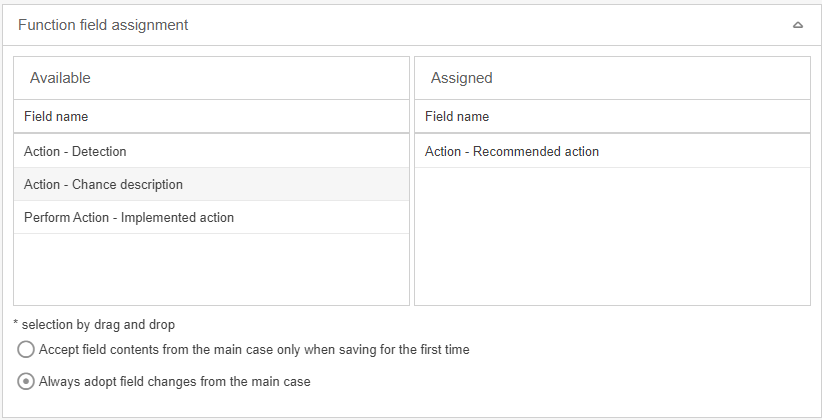
You can choose from two options for the assignment.
Option | Beschreibung |
Accept field content from the main case only when saving for the first time | The value of the field from the main form of the parent case is only taken over when the task is created. If the value in the main form is changed afterwards, the value in the task does not change. |
Always adopt field changes from the main case | The value of the field from the main form of the parent case is taken over when the form is created. If the value in the main form is changed, it will be automatically adjusted in the task as well. |
Function field "Formula"
Statements are entered as formulas in JavaScript. These statements are evaluated and the result of the formula is then displayed in the formula field in the main form.
There are several types of calculation fields.
Formula field | Description |
Number | The output of the calculation field must be a number. Text is not output. A calculation field of type Number can be used to calculate totals or products. |
Text | The output of the calculation field must be text. Even if a number is output, it is treated as text. |
Date | Output must be a date. |
Multirow text | The output is displayed in a multiline text field. |
Multirow formatable text | The output is displayed in a multi-line formatable text field. Text formats that were taken into account in the formula are displayed accordingly in the operation. |
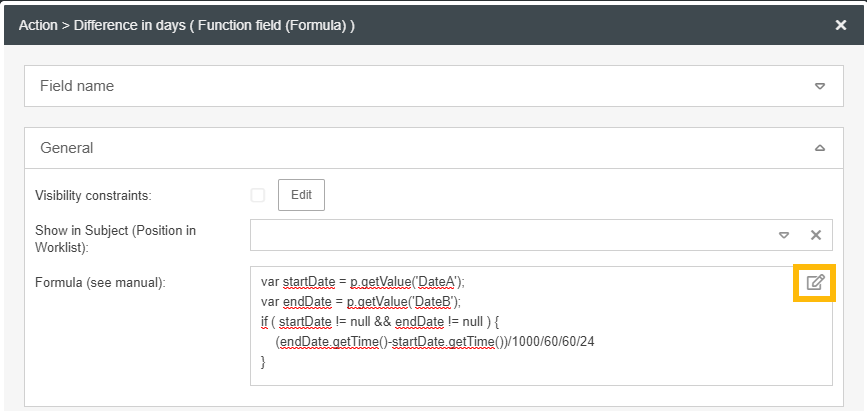
In the field properties of the formula field, you can open an editor by clicking the  button in the field "Formula".
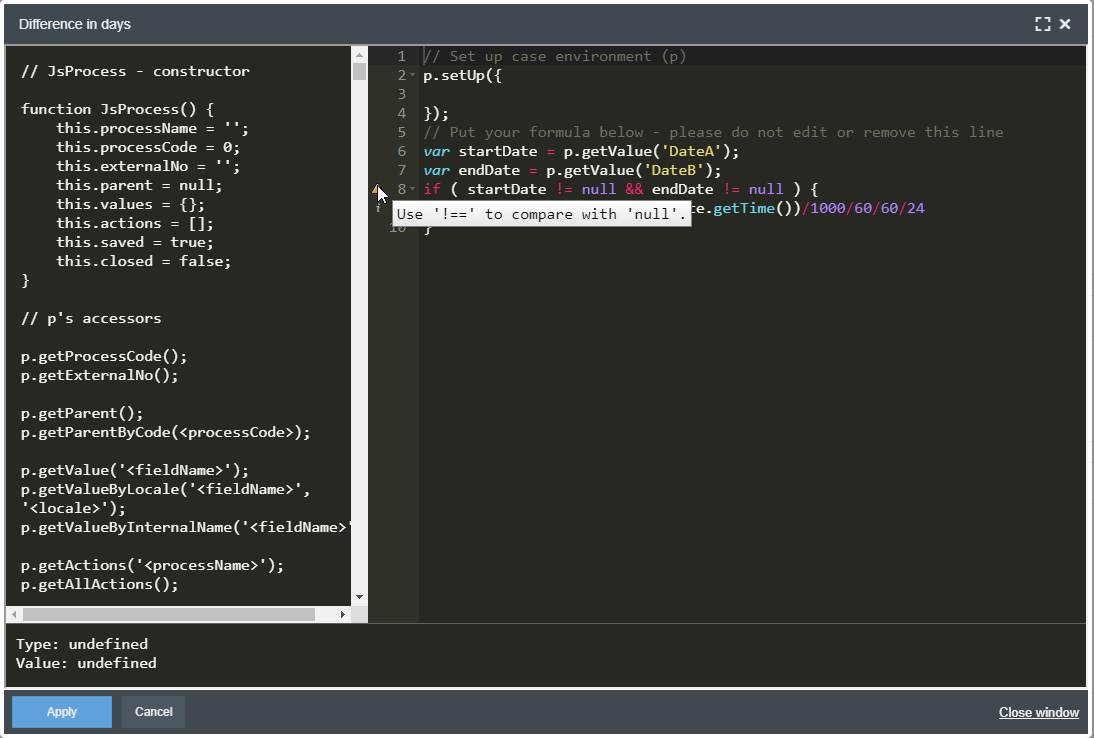
The editor lists the fields and methods that you can use to create the programming code on the left side. For the JavaScript code that you can insert in the middle of the window, the editor will mark syntax errors and other notes for improvement.
Examples of use of formula fields
The object p represents the operation form in which the calculation field is located.
It provides the following methods:
Method | Description |
getValue('Fieldname')Return value: String, Number or Date | Returns the contents of a form field. The type of the return value depends on the form field. For date and number fields, zero is returned if no value is entered. |
isSaved() Return value: Boolean | Indicates whether the operation has already been saved. This method is useful if you want the calculation field to evaluate only once when you create the task. |
getExternalNo() Return value: String | Returns the transaction number. |
getParent() Return value: Object | Returns the form of the parent task. If there is no parent operation, zero is returned. |
getActions('Activity name')Return value: Array | Returns the forms of the specified activity. If the activity has no activities with the specified name, an empty array is returned. The order of the activities corresponds to the order of their creation. |
getCreator() Return value: String | Returns the name of the creator in the format <last name, first name>. |
getEditor() Return value: String | Returns the name of the last editor in the format <last name, first name>. |
getResponsible('en')Return value: String | Returns the current responsibility for the case (entire path). |
getDueDate() Return value: Date | Returns the date currently set / monitored by the system. |
Example 1: The total of two form fields is calculated
p.getValue('FieldA')+p.getValue('FieldB');Example 2: Calculating the sum of activity fields
var r = 0;
var actions = p.getActions(ActivityName>');
for ( var i = 0 ; i < actions.length ; i++ ) {
	r = r + actions[i].getValue('FieldNameFromActivity');
}
r;
Example 3: Determine difference of two date fields in days
var startDate = p.getValue('DateA');
var endDate = p.getValue('DateB');
if ( startDate != null && endDate != null ) {
    (endDate.getTime()-startDate.getTime())/1000/60/60/24
}
Example 4: Read out field groups and collect them in one field
var result = "";
var actions = p.getActions('NameOfFieldgroup');
for ( var i = 0 ; i < actions.length ; i++ ) {
  var s = actions[i].getValue('FieldName');
  if ( s != null ) {
    if ( result == "" ) {
      result += s;
    } else {
      result += ", "+s;
    }
  }
}
result;
Example 5: Reading out, saving and not subsequently changing values
if (!p.isSaved()) {
   p.getValue('FieldName');
}General field properties
How did we do?
Field: Date / Time
Field: Contact selection
